
No, Google Photos and Google Drive aren’t the same app, and for most people the pick is easy. Use Google Photos for your phone’s camera roll and family memories, and go with Google Drive for photos that are really work files you need to file, rename, and hand off to other people.
In this tutorial, I’ll compare Google Drive vs Google Photos feature by feature: what each app is built for, how they split one storage pool, what backup quality really means, how sharing differs, and which one I’d choose for your pictures.
I tested everything here in my demo Google account on November 3, 2026, so the screenshots show what you’ll actually see on the web.
Google Drive vs Google Photos at a glance
Before the details, here’s the short version. Google Drive is a file cabinet that happens to hold photos. Google Photos is a photo library that happens to live in the cloud.
It’s the same split I described in my Google Drive vs Google Docs comparison: one app stores, the other one does a specific job.
| Feature | Google Drive | Google Photos |
|---|---|---|
| Main job | Store, organize, and share any kind of file | Back up, browse, and relive photos and videos |
| File types | Any file: PDFs, Office files, zips, audio, photos | Photos and videos (JPG, HEIC, PNG, WebP, GIF, most RAW) |
| How you organize | Folders and subfolders you name yourself | Albums plus automatic People, Places, and Videos groups |
| Finding a picture | Search by file name, type, owner, or date | Collections for People, Places, Screenshots, Favorites, and more |
| Editing | Preview only, with an “Edit with Google Pics” button | Built-in photo editor |
| Quality choices | Files stay exactly as you uploaded them | Original quality or Storage saver (resized to 16 MP / 1080p) |
| Sharing | Viewer, Commenter, or Editor roles on files and folders | Share photos and albums with people |
| Storage | Uses your Google account storage | Uses the same Google account storage |
| Best for | Client photos, scans, project files, anything you file | Phone camera roll, family photos, personal memories |
The last row is the one that matters most. The rest of this post explains why I land there.
Both apps pull from the same storage pool
This trips up a lot of people. Drive and Photos don’t each get their own space. Every Google Account gets up to 15 GB free, and that 15 GB is shared across Gmail, Google Drive, and Google Photos.
Here’s the Google One storage page in my demo account. It says it right on the page: “Your storage is shared across Google Photos, Google Drive, and Gmail.”
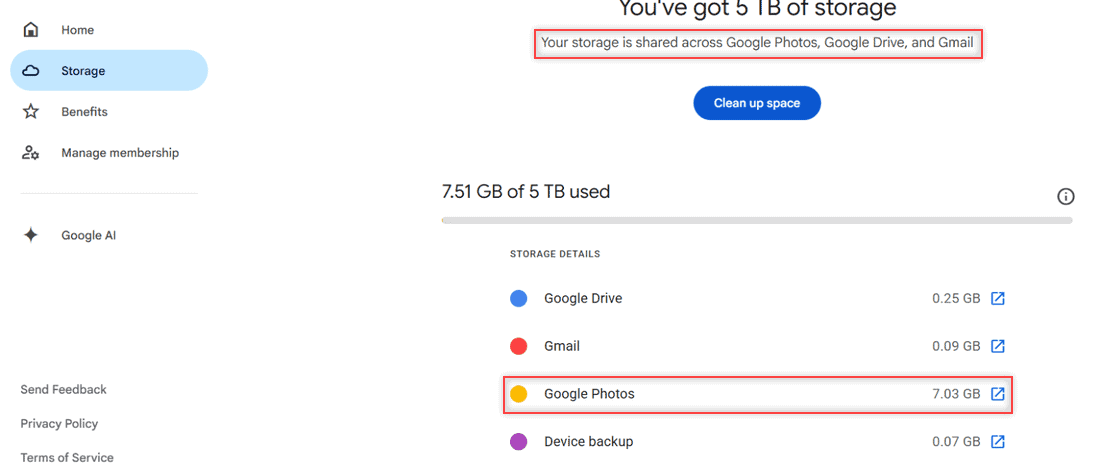
My demo account is on a paid 5 TB Google One plan, which is why it reads “You’ve got 5 TB of storage.” A free account gets the 15 GB instead, but the page looks the same.
Look at the breakdown under Storage details: Google Photos 7.03 GB, Google Drive 0.25 GB, Gmail 0.09 GB, and Device backup 0.07 GB, for 7.51 GB in total. Photos is the biggest user by far, and that’s typical. Phone photos and videos add up fast.
So the answer to “does Google Photos count toward Drive storage?” is yes. Original-quality photos and videos in Photos count, Drive files count, and so does Gmail, including Spam and Trash.
If your storage bar looks full but Drive seems nearly empty, Photos is usually the reason. I walk through that exact puzzle in why Google Drive storage is full with no files.
Where Google Photos wins
If the pictures came from your phone and you mostly want to look at them again, Photos is the better home. Here’s what it does that Drive doesn’t.
It organizes pictures for you
Drive only knows the folders you make. Photos sorts your library on its own. The left menu in my demo account lists Updates, Collections, Albums, Documents, Screenshots & recordings, Favorites, People, Places, Videos, and Recently added.
That means you can find photos of one person, or from one trip, without ever making a folder. Screenshots get pulled into their own group too, so they don’t bury your real photos.
It gives you backup quality choices
Photos lets you decide how much space your backups take. Drive never touches your file; what you upload is what’s stored. I cover both settings in the backup quality section below, because the choice matters more than most people think.
It has a real photo editor
Photos is built for touching up a picture: crops, lighting, and Google’s editing tools live right in the app. In Drive, a photo opens in a preview window, and editing means handing it off to another app.
It is built for the camera roll
Google designed Photos to back up the pictures on your phone. Drive is a general file app, so pictures you put there are plain files, one upload at a time or by the folder.
Pro tip: If your phone photos aren’t showing up where you expect, check which app you set up for backup. For Drive upload problems specifically, my fixes for Google Drive not uploading from your phone cover the usual causes.
Where Google Drive wins
Drive is the better choice when a photo is part of a job, a project, or a record you need to keep in order. In my demo account I keep landscaping job photos for a made-up company called Bluebird Landscaping, and Drive handles them better than Photos would.
Folders that match how you work
Here’s my folder My Drive > Bluebird Landscaping > Hillcrest job photos 2026 in grid view. It holds five JPG files with names like “Hillcrest job 2026 – front bed before” and “Hillcrest job 2026 – front bed after.”
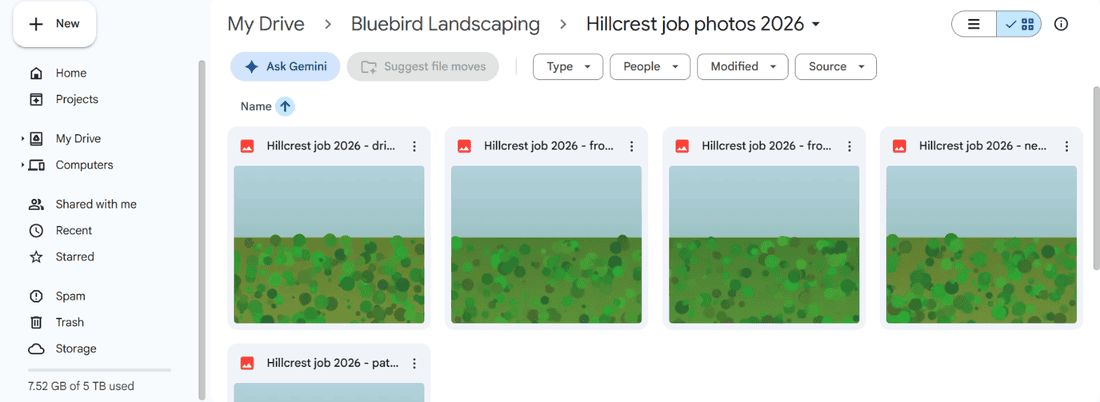
These are plain files in a folder. I chose the names, the order, and where the folder sits. If you want the same setup, here’s how to create subfolders in Google Drive, and the filter chips at the top (Type, People, Modified, Source) narrow things down fast.
Naming matters more in Drive because there’s no face or place grouping. When a client sends 40 photos called IMG_4471, I rename multiple files on Google Drive before I file them.
Photos sit next to every other file
A job folder in Drive can hold the photos, the signed PDF quote, a spreadsheet of plant costs, and a design file, all together. Photos can’t do that, because it only stores pictures and videos.
Drive also lets you turn a picture into a document when a client wants one. I use this way to convert an image to PDF when I attach before-and-after shots to an invoice.
Sharing with real permissions
Here’s the preview of “Hillcrest job 2026 – front bed after.jpg” in Drive. The top bar has File, View, Insert, Tools, and Help menus, a Share button, plus download, print, zoom, and Comment.
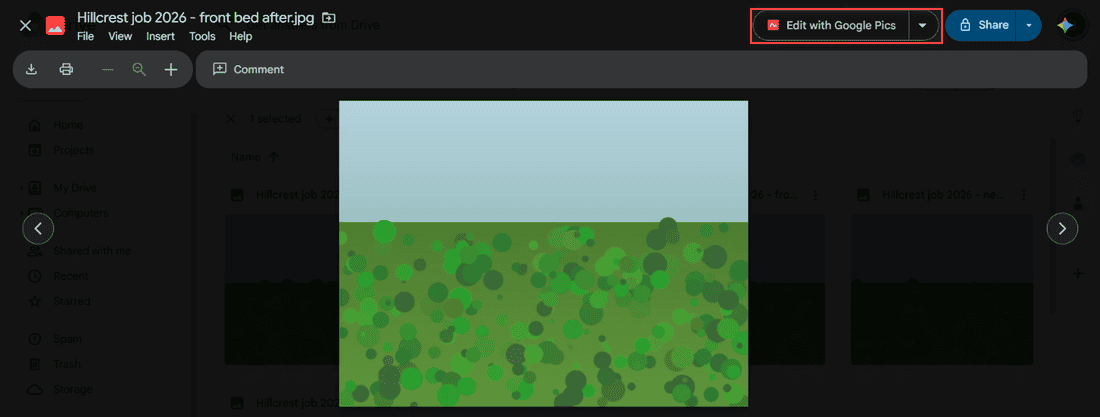
When I share from Drive, I pick a role for each person: Viewer, Commenter, or Editor. For a client, I’d give Commenter so they can leave notes on a photo without changing anything. To send a whole folder to someone outside your account, turn on link sharing in Google Drive for that folder.
You’ll also notice an Edit with Google Pics button in the preview. That’s how Drive points you to editing, but the preview itself only shows the photo.
No changes to your files
Drive stores the exact file you uploaded: same size, same format, same details. There’s no quality setting to get wrong. For big video files or RAW photo dumps, my notes on how to upload large files to Google Drive help.
Backup quality in Google Photos: Original vs Storage saver
This is the setting that decides how much space your photo library takes. In Google Photos on the web, go to Settings, and the first section is Backup quality for photos & videos.
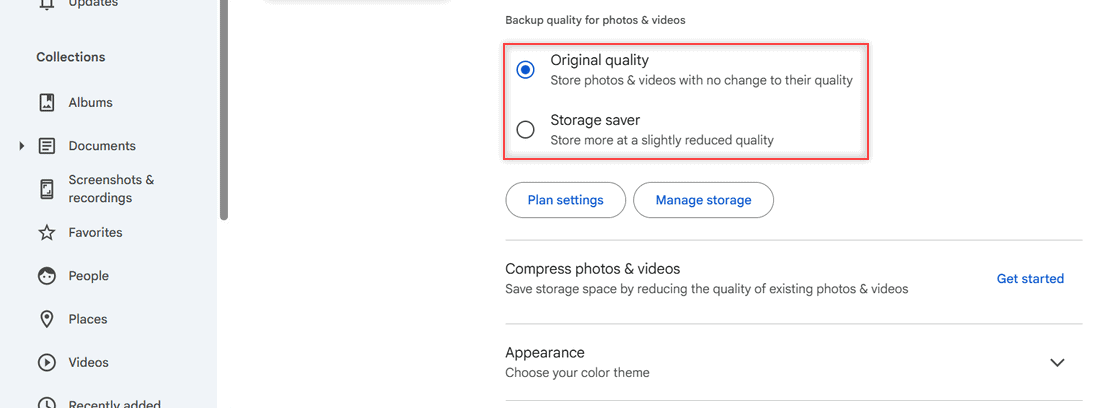
There are two choices in my account:
- Original quality: “Store photos & videos with no change to their quality.” Google recommends it for photos over 16 MP and videos over 1080p.
- Storage saver: “Store more at a slightly reduced quality.” It used to be called High quality. Photos over 16 MP shrink to 16 MP and videos over 1080p drop to 1080p.
Google’s help page adds a few details. Storage saver may convert some files to a different format, and some captions may be lost. In some countries there’s a third option, Express, which goes down to 3 MP photos and 480p video.
Here’s what surprises people: all of these options count toward your storage now. Storage saver just makes each photo smaller, so the same 15 GB holds more of them. Only Storage saver or Express photos backed up before June 1, 2021 are free.
Below the quality setting there’s a Compress photos & videos option with a Get started button. It shrinks photos you already backed up. Google says you can convert existing items to Storage saver once a day, and it can’t be undone, so I’d keep originals of anything important first.
I leave my demo account on Original quality. If space is tight, Storage saver is fine for everyday phone pictures, but I’d never use it for photos I might print large. To see which Drive folders eat the most space instead, check folder sizes in Google Drive.
Drive and Photos don’t sync anymore: they make copies
Here’s the part almost nobody explains clearly. You can bring Drive photos into Google Photos, but you get a separate copy, not a link between the two apps.
On photos.google.com, Google’s steps are: select Add > Google Drive, pick the photos, then select Upload. A photo has to be larger than 256 pixels, and the supported formats are .jpg, .heic, .png, .webp, .gif, and most RAW files.
After that, the two copies live separate lives. Google says edits or deletes in Drive only change the Drive copy, and edits or deletes in Photos only change the Photos copy.
And because they’re two copies, the photo now uses space twice. Google’s page says the copy in Photos also counts against your storage. I’d only copy over the few pictures you really want in your albums, not a whole Drive folder of job photos.
One more catch: work or school accounts can’t add Drive photos to Photos this way. Google says to download them from Drive and upload them to Photos instead. Workspace accounts have other differences too, which I cover in Google Drive personal vs business.
Who should use Google Photos, and who should pick Drive
I don’t think this is a close call for most people. Pick based on what the photo is for, not on which app you opened first.
Choose Google Photos if
- Most of your pictures come from your phone and you want them backed up.
- You like finding photos by person, place, or date without making folders.
- You want to edit and browse your pictures in one app.
- You’re fine picking Storage saver to stretch a free 15 GB account.
Pick Google Drive if
- Photos are part of a job, a client project, a listing, or a record you keep.
- You need exact file names, folders, and the original file untouched.
- You share pictures with clients or coworkers and want Viewer, Commenter, or Editor control.
- Your photos belong next to PDFs, spreadsheets, and other files.
Plenty of people use both, and that’s what I do. My personal camera roll goes to Photos. Anything a client will see goes into a named Drive folder. If you need to get those Drive photos onto a phone later, here’s how to save multiple photos from Google Drive to iPhone.
And if you’re really comparing cloud storage services rather than two Google apps, my Google Drive vs OneDrive breakdown is the better read. For the full list of Google Drive tutorials, start at the hub.
If you’re still sizing up where your files should live, these help:
- Google Drive vs Dropbox
- advantages and disadvantages of Google Drive
- whether shared folders use your space
- how to unshare a folder in Google Drive
Still deciding?
Is Google Photos the same as Google Drive?
No. They’re two separate Google apps that share one storage pool. Drive stores any file in folders you make, while Photos backs up and organizes pictures and videos.
Should I store photos in Google Drive or Google Photos?
Put phone pictures and personal memories in Google Photos, where they’re grouped and easy to browse. Keep work, client, or project photos in Google Drive folders with clear names.
Does Google Photos count toward Google Drive storage?
Yes. Original quality and Storage saver photos both count toward the same storage your Drive files and Gmail use. Only Storage saver or Express items backed up before June 1, 2021 are free.
Will Storage saver ruin my photos?
For most phone pictures you won’t notice. Photos over 16 MP shrink to 16 MP and videos over 1080p drop to 1080p. Google explains each option in Google Photos Help: choose the upload size.
Do photos I delete in Google Drive disappear from Google Photos?
No. A photo you add from Drive to Photos is a separate copy, so deleting or editing one doesn’t change the other.

I am Carissa Gudinoa, a technology buff, and Office online and Apple expert with over 9 years of experience. I am passionate about helping others get the most out of their Apple devices. I have written extensively about Apple products and technologies. I am committed to providing my clients with the best possible service and am always up-to-date on the latest Apple products and features. I also write extensively on other software available for use at minimal cost or free. This includes Word Online, Outlook Online, Excel Online, and other Office online programs… Check out more.