
To turn on the keyboard backlight on a MacBook Pro, open Control Center in the menu bar, click Keyboard Brightness and drag the slider to the right. The 14-inch and 16-inch models from 2021 on have no backlight keys, so this is the main way; Touch Bar models also have a Control Strip button, and older models use F5 and F6.
In short
- Any model on macOS 13 Ventura or later: System Settings > Keyboard, then drag the Keyboard brightness slider right.
- 14-inch and 16-inch (2021 and later): use Control Center or System Settings. There’s no backlight key.
- Touch Bar models: tap the Expand arrow on the Touch Bar, then tap the keyboard brightness button.
- Older models without a Touch Bar: press F6 to brighten and F5 to dim.
Steps match macOS 27 Golden Gate and macOS 26 Tahoe, the last release for Intel-based Macs. Below that: the automatic settings and why the light won’t come on.
Turn It On With Control Center
- Click the Control Center icon in the menu bar.
- Click the Keyboard Brightness button.
- Drag the slider to the right until the keys light up.
Don’t see the button? Choose Edit Controls at the bottom of Control Center, drag Keyboard Brightness in and click Done. Control-click it and choose Add to Menu Bar to keep it one click away.
Turn It On With the Touch Bar
Touch Bar models (most 13-inch models from 2016 to 2022, the 15-inch from 2016 to 2019 and the 16-inch 2019) keep keyboard brightness in the expanded Control Strip.
- Tap the Expand arrow on the left side of the Control Strip, at the right end of the Touch Bar.
- Tap the keyboard brightness up button, which comes after the display brightness, Mission Control and Applications buttons. Tap it again to go brighter, or tap the down button to dim.
Tip: to skip the Expand step, open System Settings > Keyboard > Touch Bar Settings, click Customize Control Strip and drag the keyboard brightness buttons onto the Touch Bar.
Turn It On With the F5 and F6 Keys
Models without a Touch Bar from 2015 and earlier, plus the 2016 and 2017 13-inch models with two Thunderbolt 3 ports, have printed backlight keys. Press F6 to brighten and F5 to dim; hold F5 to switch the light off. If the keys do something else, hold Fn while you press them.
On the 14-inch and 16-inch models, F5 starts Dictation and F6 turns Do Not Disturb on and off. Neither one touches the backlight.
Set the Brightness in System Settings
This slider works on any backlit MacBook Pro running macOS 13 Ventura or later. On macOS 12 Monterey or earlier, it’s in System Preferences > Keyboard.
- Choose Apple menu > System Settings.
- Click Keyboard in the sidebar. You may need to scroll down.
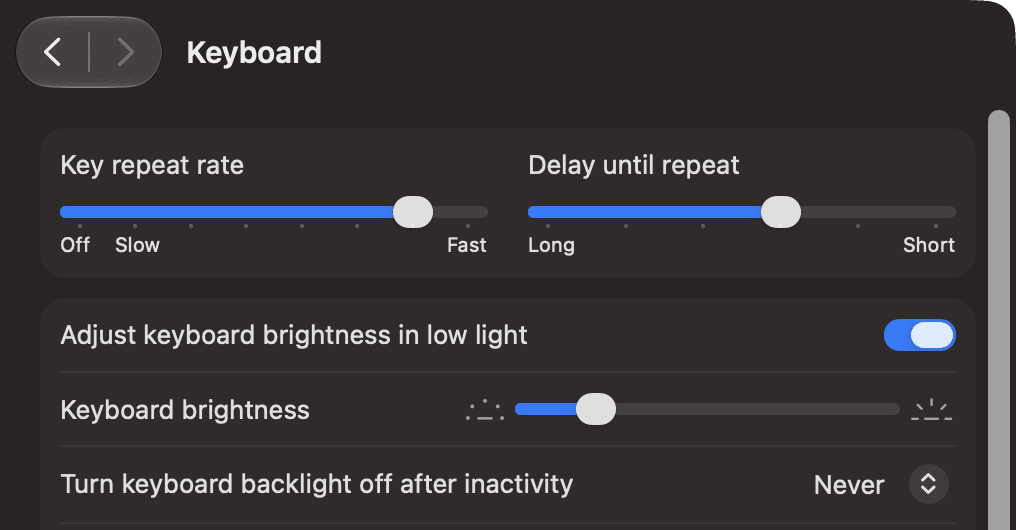
- Drag the Keyboard brightness slider to the right. All the way left turns the backlight off.
Make It Adjust Automatically or Turn Off by Itself
Two more options sit in the same System Settings > Keyboard pane:
- Adjust keyboard brightness in low light: the Mac uses the ambient light sensor near the camera to brighten the keys in a dark room and dim them in a bright one.
- Turn keyboard backlight off after inactivity: choose a time from the pop-up menu, and the light goes out when you stop typing.
A short timer saves a little power. For bigger drains, see our guide to a Mac battery draining fast.
Why the Keyboard Backlight Won’t Turn On
Most of the time it’s a setting, not a broken light.
- The room is too bright. With Adjust keyboard brightness in low light on, the Mac may keep the backlight dim in daylight or under strong lamps. Turn the setting off and set the slider by hand.
- The inactivity timer ran out. Press a key or touch the trackpad, then check the pop-up menu next to Turn keyboard backlight off after inactivity.
- The light sensor is covered. It sits near the camera, so a webcam cover or sticker can confuse it.
- The slider is at zero. Check System Settings > Keyboard.
To test the sensor the way Apple’s technicians do, cover it with your finger in a dim room. The backlight should brighten, and the display should dim if Automatically adjust brightness is on in System Settings > Displays. If only the manual slider works, the light itself is fine.
Next, reset the controller that runs the light sensor and backlight:
- Apple silicon: restart the Mac while it’s plugged in. Apple says the SMC (System Management Controller) resets automatically.
- Intel-based Mac: shut down and follow Apple’s SMC reset steps, which differ for Macs with and without the T2 chip.
If the keys never light at any slider setting, contact Apple Support or book a Genius Bar appointment. That points to hardware.
Keyboard Backlight Controls by Model
Apple’s keyboard backlighting guide has the software steps.
| MacBook Pro model | Backlight keys | Touch Bar button | Where else to adjust |
|---|---|---|---|
| 14-inch and 16-inch, 2021 and later | None | No Touch Bar | Control Center, System Settings > Keyboard |
| 13-inch with Apple silicon (M1 2020, M2 2022) | None | Expanded Control Strip | Control Center, System Settings > Keyboard |
| Intel models with a Touch Bar (2016 to 2020) | None | Expanded Control Strip | System Settings > Keyboard on Ventura or later |
| Models without a Touch Bar (2015 and earlier, 13-inch two-port 2016 and 2017) | F5 dims, F6 brightens | No Touch Bar | System Settings > Keyboard on Macs that run Ventura |
Other questions people ask
Which key turns on the keyboard light on a new MacBook Pro?
None. The 14-inch and 16-inch models have no backlight keys, so use Keyboard Brightness in Control Center. Adding it to the menu bar is the closest thing to a dedicated key.
Why does my MacBook Pro keyboard light turn off by itself?
Usually the inactivity timer set in Turn keyboard backlight off after inactivity. The light sensor can also dim the keys when it decides the room is bright enough.
Can I change the color of the MacBook Pro keyboard backlight?
No. MacBook Pro backlighting is white, and macOS only changes its brightness. For colored lighting you need an external keyboard that supports it.
Why is my MacBook Pro keyboard backlight uneven or only partly lit?
That’s a hardware fault, not a setting. Apple’s repair guidance for partial backlighting points to the top case, which holds the keyboard. AppleCare+ or the one-year warranty may cover the repair.

I am Carissa Gudinoa, a technology buff, and Office online and Apple expert with over 9 years of experience. I am passionate about helping others get the most out of their Apple devices. I have written extensively about Apple products and technologies. I am committed to providing my clients with the best possible service and am always up-to-date on the latest Apple products and features. I also write extensively on other software available for use at minimal cost or free. This includes Word Online, Outlook Online, Excel Online, and other Office online programs… Check out more.