
Here’s my verdict up front. If your small business already runs on Gmail and your files are mostly documents, spreadsheets, PDFs, and photos, Google Drive is a good fit and the free tier will carry you a long way.
If your team works offline for days or keeps huge video libraries, I’d pick something else or budget for more storage.
To test that honestly, I set up Drive the way a small crew business would. I made up a company called Bluebird Landscaping Co. in Austin, Texas, and loaded it with a crew schedule, a price list, an HOA proposal, a handbook, invoices, and job photos.
In this tutorial, I’ll walk you through the advantages and disadvantages of Google Drive I actually ran into with that setup, backed by Google’s own help pages. You’ll also get a side-by-side table and a plain answer on who should use it.
What Google Drive gives you in 2026
Every personal Google account comes with 15 GB of free storage. That space isn’t just for Drive, though. Google shares it between Drive, Gmail, and Google Photos, so your inbox and phone backups eat into the same pool.
When you need more, Google sells paid Google One plans that add storage across all three apps.
Businesses can go with Google Workspace instead, where Business Starter includes 30 GB per user and Business Standard includes 2 TB per user. I compare the two setups in my post on Google Drive personal vs business accounts.
For Bluebird, I stuck with a free personal account, because that’s where most tiny businesses start. Everything below is what I saw there, plus the official limits that apply to it.
Advantages of Google Drive I would actually count on
The storage meter is easy to watch
The storage meter sits right in Drive’s left menu, so you never have to dig for it. After uploading Bluebird’s files and photos, I could see at a glance how much space was used.
My demo account is on a paid 5 TB Google One plan, so the meter reads 5 TB; on the free tier it shows 15 GB.
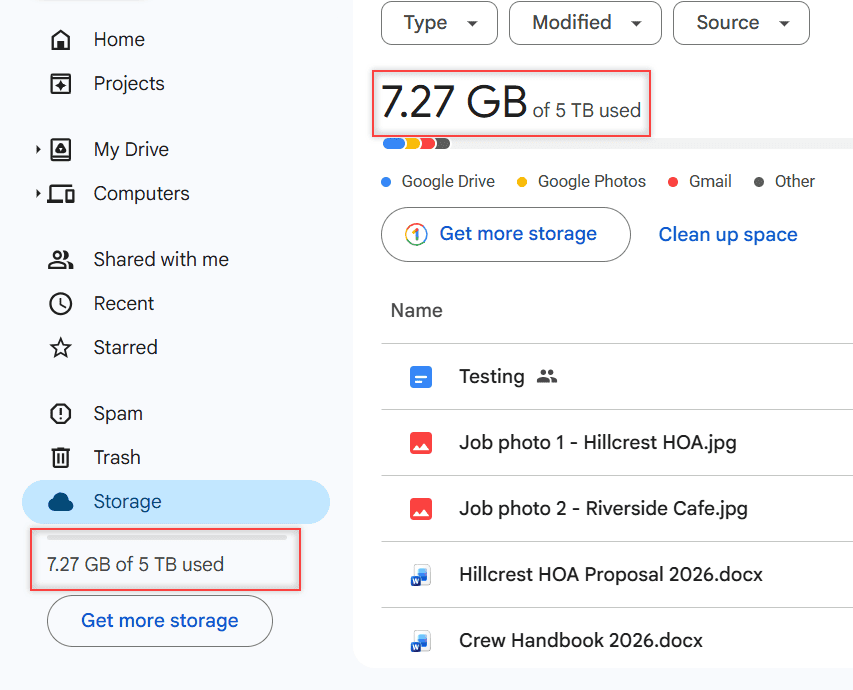
Click it and Drive lists your files from biggest to smallest, which makes cleanup quick. If you’re curious which folders are the heavy ones, here’s how to see folder size in Google Drive.
Search finds files by type, person, and date
This is the advantage I’d miss most. Above the file list in My Drive, there are filter chips for Type, People, and Modified. I clicked Type, picked PDFs, and the price list was the only thing left on screen.
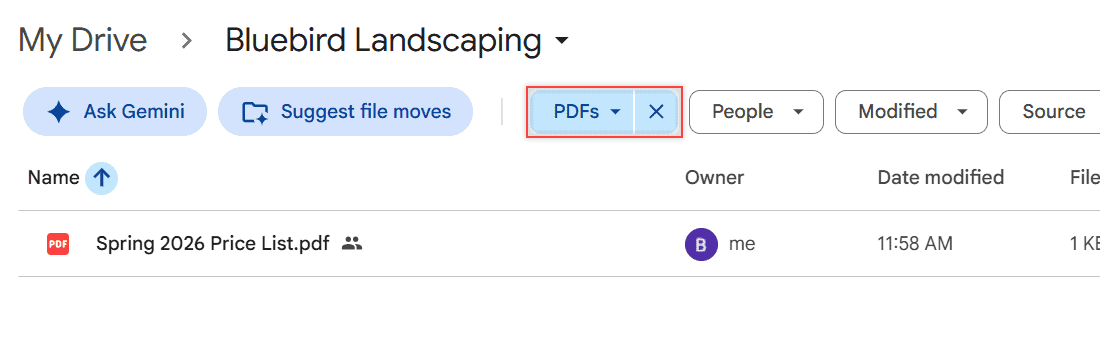
For a business with years of proposals and invoices, that beats scrolling through folders. If you’d rather keep a tidy structure too, my guide on how to find folders in Google Drive pairs well with the filters.
Sharing roles are clear and easy to change
Drive gives you three roles: Viewer, Commenter, and Editor. A Viewer can only look, a Commenter can add comments, and an Editor can change the file. You can share a single file with up to 600 email addresses.
That’s exactly the kind of control a small business needs when a client should review a quote but not rewrite it: share it as a Commenter and they can only leave notes.
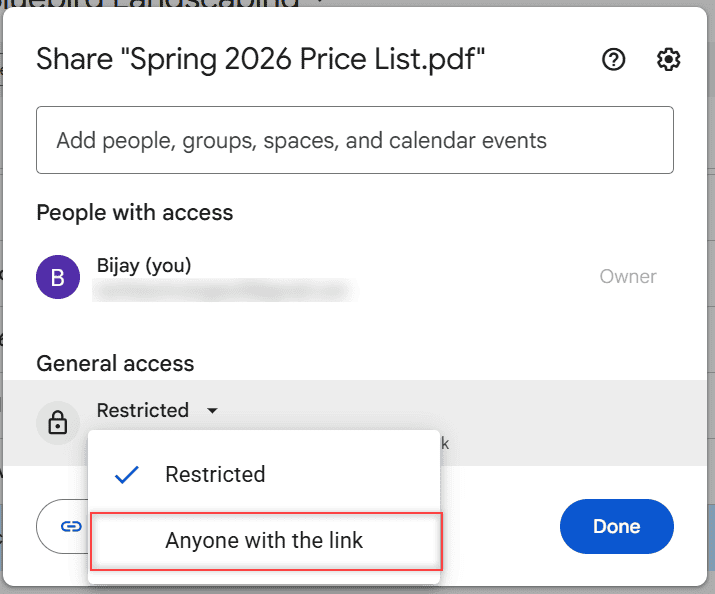
Under General access, you choose Restricted, which means only people you added, or Anyone with the link. Here it is on the Spring 2026 Price List, still set to Restricted. I walk through those options in my post on how to turn on link sharing in Google Drive.
You can preview files without the right app
I opened Spring 2026 Price List.pdf on a laptop with no PDF reader installed, and Drive showed it right in the browser. The same goes for the job photos and the Word handbook, which open in a preview window.
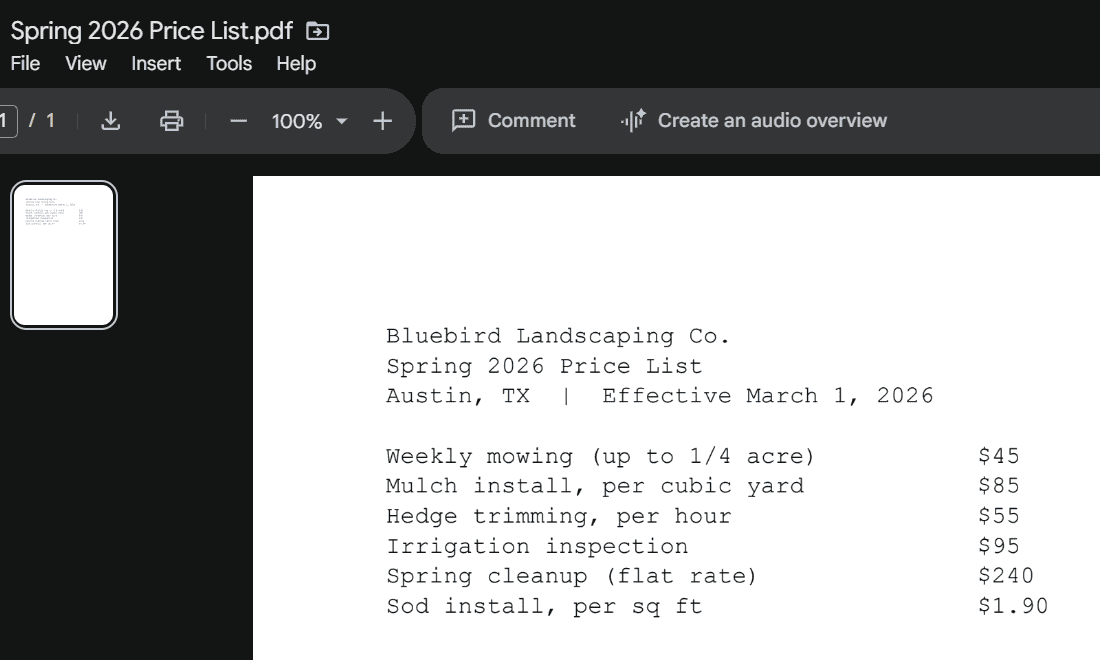
For a crew lead checking prices from a borrowed computer, that’s a real time saver. A few file types still won’t preview, and I cover those in my post on how to open unsupported files on Google Drive.
Docs, Sheets, and Slides are built in
Drive isn’t only storage. You can create and edit Google Docs, Sheets, and Slides right inside it, and several people can work on the same file at once. Comments let a client or co-worker ask a question right on the line they mean.
That’s the part the old “just a cloud folder” view misses. For the difference between the storage and the editor, read Google Drive vs Google Docs.
Mistakes are fixable for 30 days
When you delete a file, it goes to Trash and stays there for 30 days before Google removes it for good. That gave me a comfortable window when I deleted the wrong invoice file during testing.
Uploaded files like PDFs and spreadsheets also keep older versions when you upload a new copy with the same name. You can roll back to an earlier one, which I show in my Google Drive version history guide.
It works on almost any device
I opened the same Bluebird files in a browser on Windows, on a Mac, and in the Drive app on a phone. Nothing needed to be installed on the computers.
If you want Drive to show up like a regular drive in File Explorer or Finder, Drive for desktop does that on Windows and macOS. You can stream files, which uses almost no disk space, or mirror them for a full local copy. Here’s how to install Google Drive on your computer.
Security basics are on by default
Google says Drive data is encrypted in transit and at rest. It also processes your content for spam filtering, virus detection, and malware protection.
The extra step I’d add is 2-Step Verification on the Google account, which protects your files if your password is ever stolen. For extra peace of mind on shared files, you can also scan Google Drive for viruses.
Disadvantages of Google Drive you should plan around
Gmail and Photos share your 15 GB
This is the one that catches most people out. Gmail messages and attachments count, including Spam and Trash, and so do Photos backups and Android backups. A busy inbox can fill your Drive without you uploading a thing.
When the 15 GB runs out, you can’t upload or create files in Drive, Gmail stops sending and receiving email, and Photos stops backing up. If you stay over your limit for 2 years, Google says it might delete your content.
Trash counts too, until it’s permanently deleted. If your meter says full and you can’t see why, my post on Google Drive storage full but no files shows where the space hides.
Offline access takes setup
Drive assumes you’re online. To work offline in a browser, you need Chrome or Edge, the Google Docs Offline extension, and the Offline checkbox turned on in Drive’s settings. Private browsing windows don’t work.
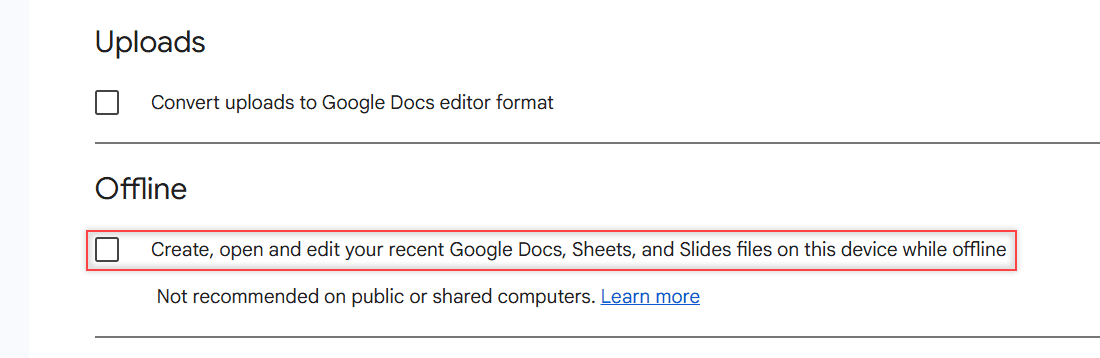
Even then, only Google Docs, Sheets, and Slides open offline in the browser. My PDF price list and the job photos needed Drive for desktop. If your connection is flaky, see why Google Drive keeps going offline.
Link sharing is easy to get wrong
Anyone with the link means exactly that. Anyone who gets the link can open the file without signing in, even if it was forwarded far past the person you sent it to.
For a price list, that’s fine. For a crew handbook with phone numbers, it isn’t. On the other side, a link someone sends you can be a trap too, so learn when a Google Drive link can be dangerous.
Viewer access also isn’t the same as “can’t save a copy.” If that matters, read whether viewers on Google Drive can download files and what the owner can turn off.
Old versions of uploaded files expire
Version history for uploaded files isn’t a backup. Google may permanently delete a version after 30 days, or once there are 100 newer versions, unless you mark it Keep forever.
So if you overwrite Invoices Q2 2026.csv every week, the old copies won’t stay around forever. The 30-day Trash window works the same way, which I explain in how long Google Drive keeps deleted files.
Conversion limits are much smaller than upload limits
You can upload a single file up to 5 TB, which is plenty. The catch comes when Drive converts a file to a Google format: text documents up to 50 MB, spreadsheets up to 100 MB or 20 million cells, and presentations up to 100 MB.
A huge exported spreadsheet can stay as a file you preview but can’t open in Sheets. For big video and photo folders, my tips on how to upload large files to Google Drive help.
Ownership lives with one Google account
A file counts against the storage of whoever owns it, even inside a shared folder. On personal accounts, that means a crew lead’s own Google account might own half your business files.
If that person leaves, untangling who owns what is a chore. That’s the main reason I’d move a growing team to Workspace, where accounts belong to the business rather than to each person.
No Drive for desktop on Linux
Google only offers Drive for desktop for Windows and macOS. Linux users can use Drive in the browser, or try one of the best Google Drive clients for Linux.
Google Drive pros and cons side by side
Here’s the quick version of everything I found, by area. Each row is something I saw in the demo account or read on Google’s help pages.
| Area | Advantage | Disadvantage |
|---|---|---|
| Storage | 15 GB free on every personal account | Shared with Gmail and Photos; full means no new uploads |
| Search | Type, People, and Modified filters | Works best if files have clear names |
| Sharing | Viewer, Commenter, Editor roles; up to 600 people | Anyone with the link opens without signing in |
| Offline | Docs, Sheets, Slides work offline in Chrome or Edge | Needs an extension and a setting; other files need Drive for desktop |
| Recovery | Trash keeps files for 30 days | After 30 days they are gone for good |
| Versions | Roll back uploaded files | Old versions may go after 30 days or 100 newer versions |
| File size | Single uploads up to 5 TB | Conversion to Docs limited to 50 MB, Sheets and Slides to 100 MB |
| Devices | Browser on any computer, plus phone apps | Drive for desktop only on Windows and macOS |
| Security | Encrypted in transit and at rest; virus checks | One weak password exposes everything without 2-Step Verification |
Who should use Google Drive (and who should pick something else)
Pick Google Drive if your business already uses Gmail, your files are mostly documents, spreadsheets, PDFs, and photos, and your team needs to share and comment on them. For Bluebird, it covered schedules, quotes, invoices, and job photos without any extra software.
It’s also the easy choice for solo owners and tiny teams who want to start free. Bluebird’s whole folder of schedules, quotes, invoices, and job photos takes up well under 1 MB, so 15 GB goes a long way for documents.
Pick something else, or plan to pay, if your team works offline for long stretches, stores large video libraries, or lives in desktop Office apps all day. In that last case, my comparison of Google Drive vs OneDrive is worth a read first.
And if more than a few people handle business files, don’t run the company on personal accounts. Move to Workspace so the business owns the files.
What I would set up on day one
Whichever way you go, a few minutes of setup avoids most of the disadvantages above. These are the things I turned on for Bluebird before sharing a single file.
- Turn on 2-Step Verification for every account that touches business files.
- Keep General access on Restricted by default and switch to a link only for files meant for the public, like a price list.
- Make one folder per client or job, so the People and Type filters have less to sort through.
- Turn on the Offline setting on the laptop your crew lead takes to job sites.
- Check the storage meter once a month and clear big Gmail attachments before they crowd out your files.
Weighing Drive against other options? These comparisons should help:
Still deciding?
Is Google Drive safe for business files?
Google says Drive data is encrypted in transit and at rest and scanned for malware. The bigger risks are weak passwords and loose link sharing, so turn on 2-Step Verification and keep sensitive files Restricted.
Is Google Drive free?
Yes. Every personal Google account gets 15 GB free, shared with Gmail and Google Photos. More space comes from paid Google One plans, and businesses can use Google Workspace.
What happens when Google Drive storage is full?
You can’t upload or create new files in Drive, Gmail can’t send or receive email, and Photos stops backing up. Free up space or add storage, as Google Drive Help explains.
Can Google Drive work offline?
Yes, with setup. Google Docs, Sheets, and Slides work offline in Chrome or Edge once you turn on the Offline setting, and other files work offline through Drive for desktop.
Google Drive vs OneDrive: which is better?
It depends on your apps. If you live in Gmail and Google Docs, Drive is simpler; if your team works in desktop Word and Excel all day, compare OneDrive before you commit.

I am Carissa Gudinoa, a technology buff, and Office online and Apple expert with over 9 years of experience. I am passionate about helping others get the most out of their Apple devices. I have written extensively about Apple products and technologies. I am committed to providing my clients with the best possible service and am always up-to-date on the latest Apple products and features. I also write extensively on other software available for use at minimal cost or free. This includes Word Online, Outlook Online, Excel Online, and other Office online programs… Check out more.