
The Task Manager for macOS is Activity Monitor: press Command + Space, type Activity Monitor, and press Return. If you only need to close a frozen app, the faster tool is the Force Quit window, which opens with Command + Option + Esc.
This guide shows three ways to open Activity Monitor, how to quit an app or process from it, what each of its five tabs tells you, and where the Windows Task Manager features you’re used to live on a Mac.
In short
- Activity Monitor is the Mac version of Task Manager. It lives in Applications > Utilities.
- Select a process, click the Stop button, then choose Quit or Force Quit.
- Command + Option + Esc opens the Force Quit window, the quick fix for a frozen app.
- Startup apps are in System Settings > General > Login Items, not in Activity Monitor.
Everything below works the same on macOS 27 Golden Gate, the current release for Apple silicon Macs, and on macOS 26 Tahoe, the last version for Intel-based Macs.
Open Activity Monitor With Spotlight
Spotlight is the quickest route.
- Press Command + Space to open Spotlight.
- Type Activity Monitor.
- Press Return when it’s the top result.
Activity Monitor opens with a list of every running app and background process.
Open Activity Monitor From Finder
Use this if Spotlight isn’t responding.
- Click the Finder icon in the Dock.
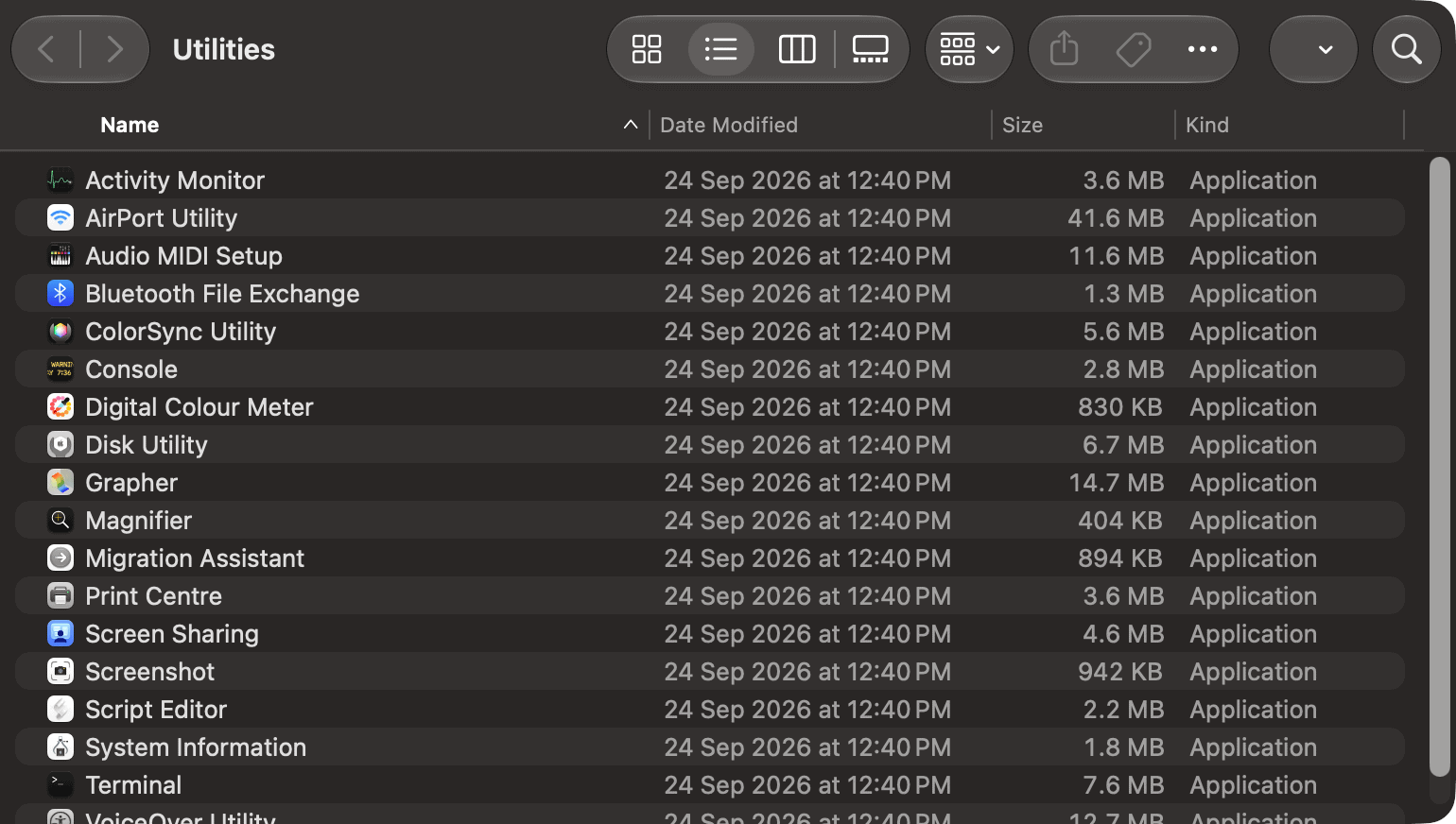
- Choose Go > Utilities from the menu bar, or press Command + Shift + U.
- Double-click Activity Monitor.
Keep Activity Monitor in the Dock
If you check Activity Monitor often, pin it so it’s one click away.
- Open Activity Monitor with either method above.
- Control-click its icon in the Dock.
- Choose Options > Keep in Dock.
You can also turn the Dock icon into a live graph. With Activity Monitor open, choose View > Dock Icon and pick Show CPU Usage, Show Memory Pressure, Show Network Usage or Show Disk Activity.
Force Quit an App or Process in Activity Monitor
Activity Monitor can stop anything running, including background processes with no window.
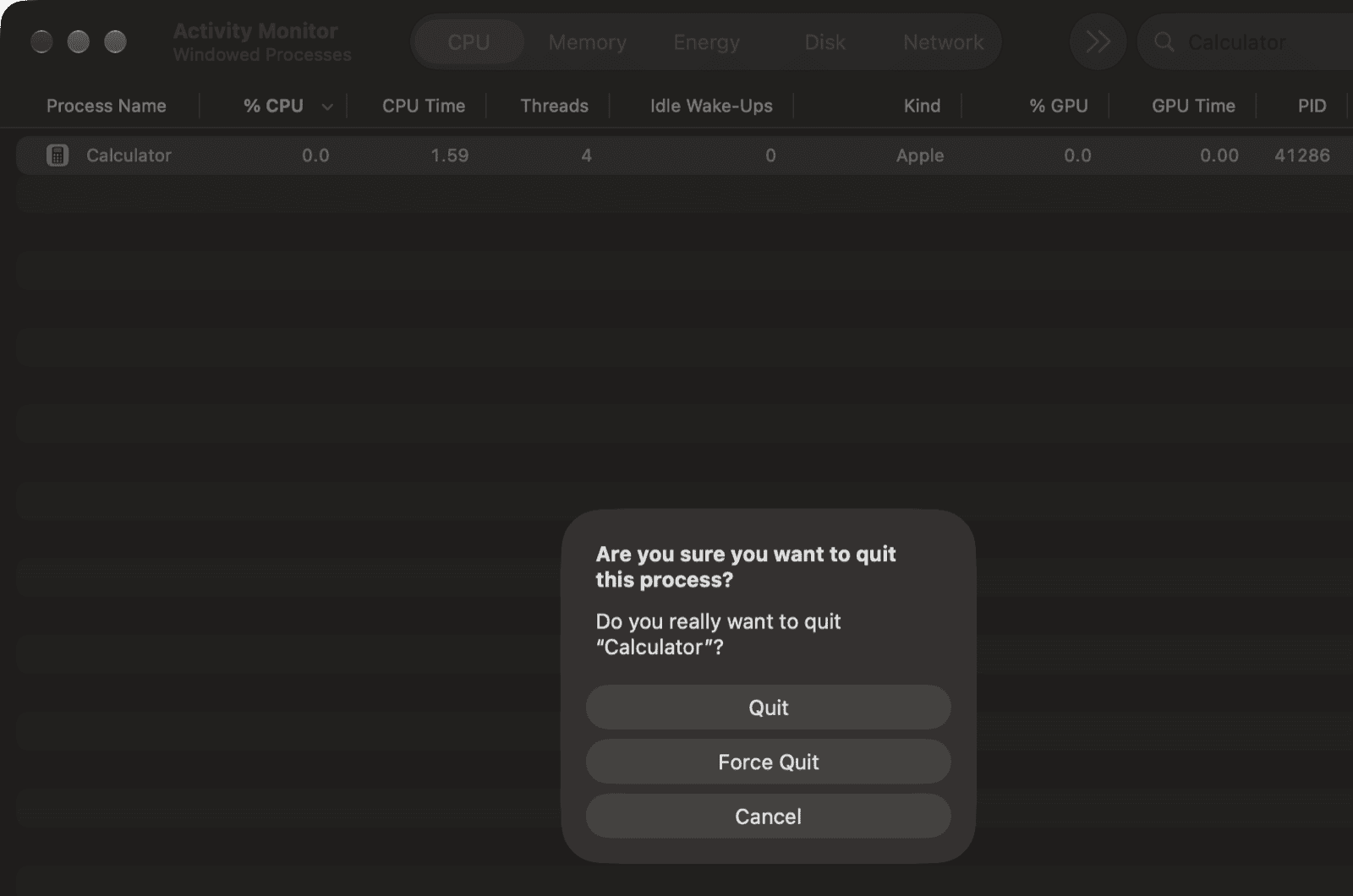
- In the Process Name list, click the app or process. Apple marks a frozen one in red with (Not Responding) after its name.
- Click the Stop button in the toolbar, near the upper-left corner of the window.
- Choose Quit to close it safely, or Force Quit to end it right away.
Apple says Quit works like choosing File > Quit inside the app, so it won’t close the app if that could lose data. Force Quit ends it immediately, and any unsaved work in that app is gone.
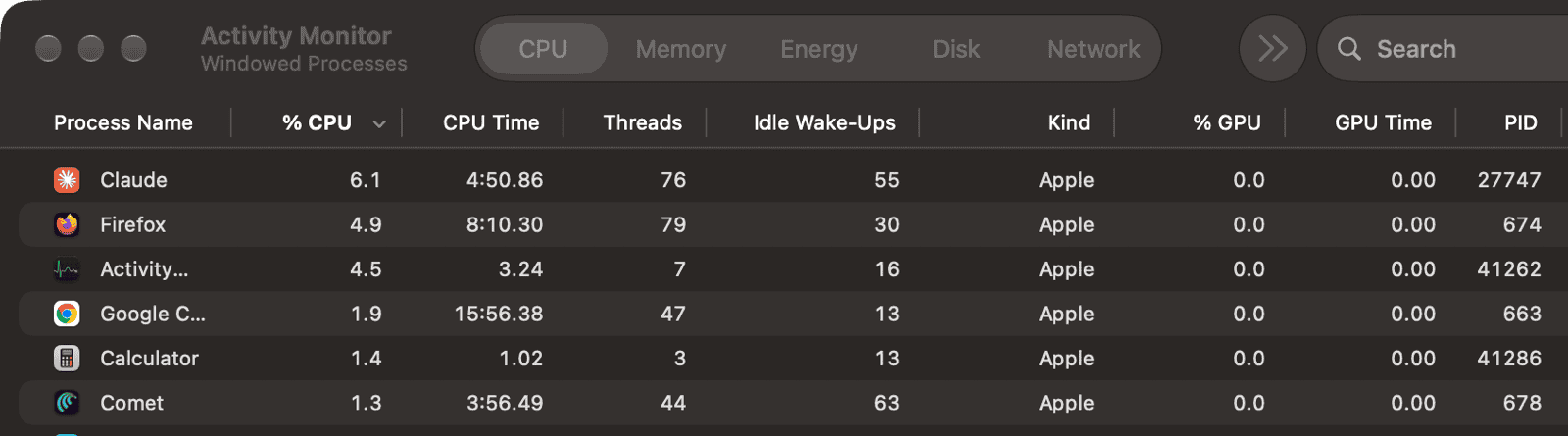
Tip: Click the % CPU column heading on the CPU tab to sort the heaviest processes to the top. Click it again to reverse the order.
Use the Force Quit Window (Command + Option + Esc)
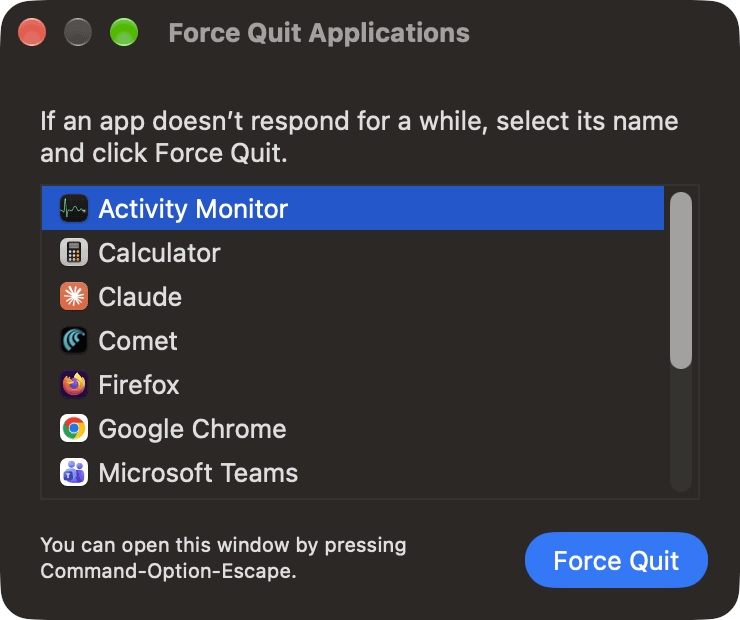
For a single frozen app, the Force Quit window is faster than Activity Monitor.
- Press Command + Option + Esc. On a MacBook with a Touch Bar, Esc is on the left side of the Touch Bar.
- Select the app that isn’t responding.
- Click Force Quit.
You can open the same window from Apple menu > Force Quit. One more option: Control-click the app’s Dock icon, hold Option, and Quit changes to Force Quit.
The Force Quit window lists apps only. Background processes, helpers and menu bar utilities without a window don’t appear here, so use Activity Monitor for those.
What the Five Activity Monitor Tabs Show
The tabs across the top of the window each sort the same process list by a different resource.
| Tab | What it shows | Check it when |
|---|---|---|
| CPU | % CPU for each process, plus System, User and Idle totals at the bottom | The Mac is slow or the fans are loud |
| Memory | Memory per app, plus the Memory Pressure graph | Apps stall or you see beach balls when switching |
| Energy | Energy Impact and, on laptops, 12 hr Power | The battery drains faster than expected |
| Disk | How much data each process reads and writes | The Mac is slow while files copy or sync |
| Network | Data sent and received by each process | Something is using bandwidth in the background |
Memory: The Memory Pressure graph matters more than the Memory Used number. Apple says green means your Mac is using its RAM efficiently, yellow means it might eventually need more, and red means it needs more RAM now.
Energy: Sort by 12 hr Power to see which apps used the most energy across the day. Our guide to a Mac battery draining fast walks through what to do with what you find there.
There’s no GPU tab. Choose Window > GPU History for a graph of graphics use, or View > GPU Processes to filter the list. A Cache tab appears only if content caching is turned on.
Exceptions: Finder, Browsers and Apps That Won’t Quit
Finder. Finder is always running, so the Force Quit window shows Relaunch instead of Force Quit when you select it.
Safari and Chrome. Browsers split tabs and extensions into separate processes. In Activity Monitor, Safari’s web content processes often carry the website’s name, so you can stop one heavy tab without quitting the browser. Chrome also has its own task manager under Window > Task Manager inside Chrome.
An app that won’t force quit. Choose Apple menu > Restart. If the Mac won’t restart, press and hold the power button (Touch ID on many laptops) for up to 10 seconds until it turns off, then press it again to start up. Apple lists this as the last resort.
Processes you don’t recognize. Leave system processes alone unless you know what they do. Apple says kernel_task can show high CPU because it limits CPU use when the Mac gets too warm, so quitting the app causing the heat is the real fix. Right after a macOS update, indexing processes near the top of the CPU tab are normal for a while, as our guide to a Mac update taking forever explains.
Coming From Windows?
| Windows Task Manager | Mac equivalent |
|---|---|
| Ctrl + Shift + Esc or Ctrl + Alt + Delete | Command + Option + Esc (Force Quit window) or Activity Monitor |
| Processes tab | Activity Monitor’s CPU and Memory tabs |
| End task | Stop button, then Force Quit |
| Performance tab | Window > CPU History and Window > GPU History |
| Startup apps tab | System Settings > General > Login Items |
| App history | View > Applications in last 12 hours |
The biggest difference is that Command + Option + Esc only lists apps. Activity Monitor is the closer match when you want the full process list.
Mac Task Shortcuts and Paths
| Task | Shortcut or path |
|---|---|
| Open Spotlight | Command + Space |
| Open the Utilities folder in Finder | Command + Shift + U |
| Open the Force Quit window | Command + Option + Esc |
| Show all processes, grouped by parent | View > All Processes, Hierarchically |
| See details about a process | Double-click it in Activity Monitor |
| Change how often the list refreshes | View > Update Frequency |
Quick answers
What is Ctrl + Alt + Delete on a Mac?
The closest match is Command + Option + Esc, which opens the Force Quit window. It doesn’t open a security screen like Windows does. To lock your Mac instead, press Command + Control + Q.
Is it safe to force quit processes in Activity Monitor?
Force quitting your own apps is safe apart from losing unsaved work. Be careful with system processes: Apple warns that other apps depending on a process can run into problems. Choose View > All Processes, Hierarchically first to see what depends on it.
Why can’t I find Task Manager in my Applications folder?
macOS has no app with that name. Look for Activity Monitor in Applications > Utilities instead. It comes installed on every Mac, so there’s nothing to download.
How do I stop apps from opening at startup on a Mac?
Open System Settings > General > Login Items. Select an app under Open at Login and click the Remove button. Under Background App Activity, you can turn off apps you don’t need running in the background.
Can I see how much a single app has slowed my Mac today?
On a Mac laptop, the Energy tab’s 12 hr Power column shows each app’s average energy impact over the last 12 hours. On any Mac, View > Applications in last 12 hours lists the apps that ran in that window.

I am Carissa Gudinoa, a technology buff, and Office online and Apple expert with over 9 years of experience. I am passionate about helping others get the most out of their Apple devices. I have written extensively about Apple products and technologies. I am committed to providing my clients with the best possible service and am always up-to-date on the latest Apple products and features. I also write extensively on other software available for use at minimal cost or free. This includes Word Online, Outlook Online, Excel Online, and other Office online programs… Check out more.