
By the end of this, a Bluebird Landscaping crew member can point a phone at a code printed on a job sheet and open the job folder as a Viewer. No sign-in, no emailed link to dig up, and no way to change or delete what’s inside.
In this tutorial, I’ll show you how to make a qr code for a google drive link, from the sharing setting to the finished image. You’ll learn which access level to pick, two ways to create the code, how static and dynamic codes differ, and what to test before anything goes to the printer.
What you need before you make the code
A QR code doesn’t store your file. It stores the address of your file, and a phone camera opens that address. So the code only works as well as the link behind it, and most of this job happens in Drive’s Share dialog.
Drive won’t give you that link in a usable state by default, because new files start out private. If you’ve never changed that setting, here’s how to turn on link sharing in Google Drive. The steps below cover the same dialog with a printed code in mind.
- The file or folder itself, already in your Drive and named so that a stranger could tell what it is.
- Permission to share it. You need to own it or have sharing rights.
- A way to create the code: Chrome on a computer, or a QR generator website.
- A phone that isn’t signed in to your account, or a coworker’s phone, for the test at the end.
One decision is worth making first: file or folder? A code for a single file always opens that one file. A code for a folder opens whatever’s in it, and Google says files and subfolders inside a shared folder inherit its sharing. That’s why I’d use a folder for job sheets.
Heads-up: My screenshots show the Share dialog on a sample PDF called Spring 2026 Price List.pdf, and the dialog is the same one you’ll use for a folder. I didn’t generate or scan a QR code for this article, so the code steps below come from Google’s Chrome help and general QR behavior.
Set up the link and create the code
Work through these in order. Skipping straight to a generator with a private link is the classic mistake: the code scans fine, and then everyone sees a request-access page instead of your file.
Open Share for the file or folder
In Google Drive on a computer, right-click the item, point to Share, and pick Share in the submenu. The keyboard shortcut is Ctrl+Alt+A on Windows once the item is selected.
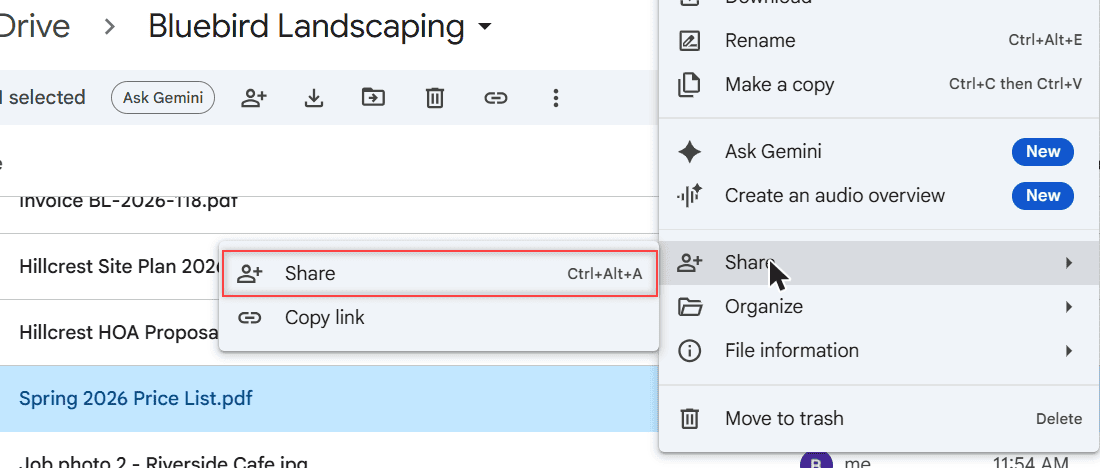
That same submenu has a Copy link option. Don’t use it yet. It copies whatever the current access happens to be, and the file is still private at this point.
Change General access to Anyone with the link
In the dialog, find General access near the bottom. It says Restricted on a private file. Open that dropdown and choose Anyone with the link.
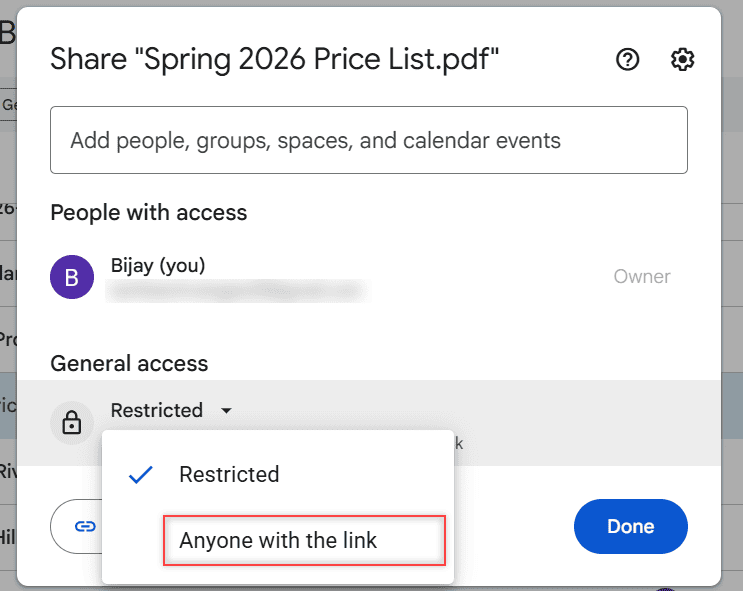
Google’s wording is blunt here: anyone on the internet who has the link can open the item, without signing in to a Google account. A QR code makes that link very easy to pass around, which I’ll come back to.
On a work or school account, you may see Your Organization as well. That choice keeps the code useful only to people signed in to your company account, which is great for an office wall and useless for customers. Your admin may also limit external link sharing, in which case you’d need to ask them.
Leave the role on Viewer
Next to the access setting is the role menu. Keep it on Viewer. On a printed code, there’s almost no good reason for anything else.
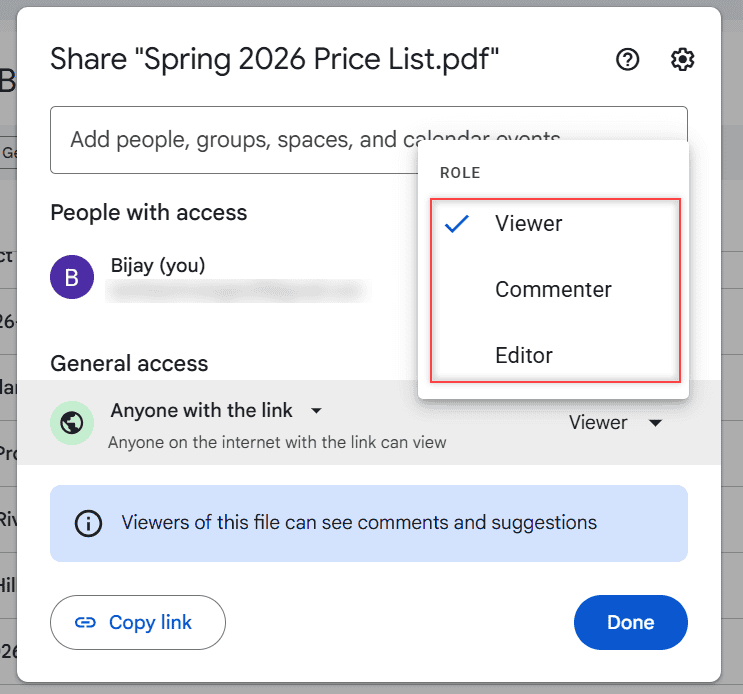
| Role | What someone with the code can do | Use on a printed code? |
|---|---|---|
| Viewer | Open and read the file, or open files in the folder | Yes, this is the default choice |
| Commenter | Add comments and suggestions | Rarely, and only on a small audience |
| Editor | Edit, delete, move and add files; by default also change permissions and share | No |
The Editor row is the one that should scare you. On a code taped to a truck, it means a passerby could change the file. If you want crew members to edit, share with their accounts by name instead. Our guide on how to share a Google Drive folder walks through that.
Viewers can usually download a copy too. If that matters, open the gear icon in the Share dialog and uncheck the option for viewers. Here’s more on how viewer download permissions work.
Copy the link
Now select Copy link, then Done. Check the line under the access setting first. It should read “Anyone on the internet with the link can view.”
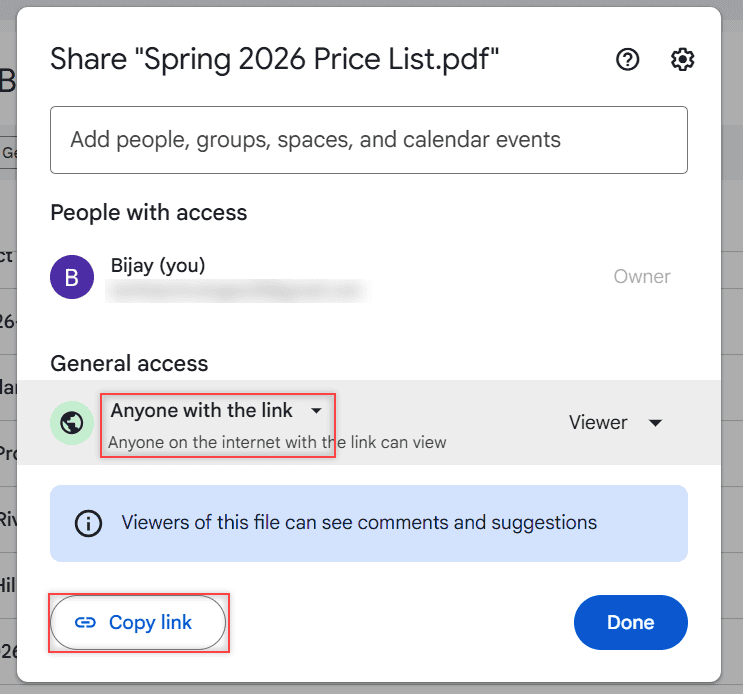
Paste the link somewhere safe, like a note, in case you need it later. If you tend to lose track of these, here’s how to save a link to Google Drive so it stays with your other job files.
On an Android phone, the path is a little different. Tap More next to the item, then Manage access, then Change under General access, and choose Anyone with the link.
Create the code in Chrome
Chrome can make the code without a separate website. Paste your copied link into the address bar and press Enter so the file or folder is open in the tab. Then select the More icon (three dots), Cast, save, and share, and Create QR code.
From there, Google’s help says you can copy the link, select Download to save the image, or scan it with another device’s camera. Menus shift between Chrome versions, so if yours looks different, update Chrome and look near the Share options.
One catch matters here. Chrome makes the code for the page you’re on, not for whatever’s on your clipboard. Compare the address in the tab with the link you copied.
If you’re signed in to several Google accounts, the tab address can pick up extra account details. If it looks different, use a generator with the copied link.
Or paste the link into a QR generator
Plenty of websites make QR codes, and most work the same way: choose a URL code, paste the link, and download the image. I’m not recommending a particular one, since their terms change. Before you commit to one, read what it says about accounts, trials, and what happens to your code later.
Download a PNG for documents or a vector format like SVG if the printer asks for one and the site offers it. A vector stays sharp at any size, which helps on a banner or a truck door.
Static or dynamic: which kind of code you want
Generators often offer two types. These are general QR behaviors rather than anything specific to Google, and individual services differ, so check the details on the one you pick.
| Static code | Dynamic code | |
|---|---|---|
| What the code holds | Your Drive link itself | A short link run by the vendor, which forwards to Drive |
| Can you change the destination later? | No, you need a new code | Usually yes, from the vendor account |
| Scan tracking | No | Often yes |
| If the vendor account ends | Keeps working | May stop working |
For a job sheet that gets reprinted every season, static is what I’d choose. It depends only on your Drive link, with no outside account to keep alive.
Dynamic makes sense when the code is expensive to replace, like signage, and someone will look after the account. Just remember that every scan now passes through a company you’ve chosen to trust, and it can see where people are headed. A static code avoids that middle step entirely.
Check it worked before you print anything
Reprinting 200 job sheets is an annoying way to find a typo. I run these checks on any code before it leaves my desk, and the test only counts if the phone isn’t signed in to the account that owns the file.
- Scan the code from your screen with a phone camera and tap the link that appears.
- Confirm that the right file or folder opens, and that you aren’t asked to request access.
- Open a file inside, if it’s a folder, and make sure the Viewer limits apply: no edit options.
- Print one copy at the real size and scan it on paper, in the kind of light where it’ll be used.
- Have one other person try it on a different phone, ideally over cellular data.
If you land on a request-access screen, the link is still restricted. That’s the page explained in our guide to Google Drive request access, and the fix is going back to General access.
Print the code large enough to scan comfortably, leave a clear white margin around it, and add a line of text like “Scan for the Hillcrest job folder.” People are right to be wary of an unlabeled code.
What a printed code means for your privacy
Here’s what I’d want every small business owner to understand. A code for an Anyone with the link item is effectively public. Anyone holding the paper can open it, anyone who photographs the paper can too, and nothing records who they gave it to.
- Keep sensitive files out. No customer lists, invoices, or anything with personal details.
- Check the folder now and then. Anything you add to a shared folder picks up its sharing.
- Decide who holds the paper. A code in a sealed crew binder is different from one on a yard sign.
Your scanners have a stake in this too. A code hides its destination until it’s scanned, and I’ve covered the warning signs in whether a Google Drive link can be dangerous.
Turn the code off when the job is done
You can’t recall paper, but you can close the door behind it. Open Share on the item again and change General access back to Restricted.
Scans will then hit a request-access page unless the person already has access. If you’d like to clear everyone out, here’s how to unshare a folder in Google Drive.
Change it for your own files
Bluebird’s setup is a folder per job, but the same steps stretch to plenty of other uses. A few changes depending on what you’re sharing:
- A restaurant menu or price list: use a single PDF and keep it on Viewer.
- A photo gallery for an event: use a folder, and turn it back to Restricted when the event wraps.
- Classroom handouts: a school account’s Your Organization option keeps the code inside the school.
- Crew documents that need editing: share with named accounts, and use the code just to find the folder.
Updating a PDF behind a printed code takes some care. A newly uploaded copy with a new name is a different file with a different link. In Drive’s More menu, go to File information, Manage versions, and Upload new version to replace the contents of the existing file.
Google’s page doesn’t spell out what that does to links, so rescan your code after any replacement. Old versions aren’t kept forever either: Drive may remove them after 30 days or 100 newer versions unless you pick Keep forever. A folder code avoids the question, since you only swap what’s inside.
Sharing a job folder some other way? These may be closer to what you need
- share a single file on Google Drive
- send Google Drive links on WhatsApp
- embed a Drive PDF on a web page
- save Drive files to your phone
Questions about this setup
Does Google Drive have a built-in QR code generator?
Not in the Share dialog I used. On a computer, Chrome itself can make one for the page you’ve got open, through the More menu’s Create QR code option.
Do people need a Google account to open a Drive QR code?
Not if the item is set to Anyone with the link. If it’s Restricted, they’ll need to sign in with an account you’ve given access to. Google Drive Help: Share files lists each option.
Do QR codes for Google Drive links expire?
A static code has no expiry of its own and keeps pointing at your link. It stops being useful if the file is deleted or set to Restricted. A dynamic code can also stop if the vendor account ends.
Can I make a QR code for a whole Google Drive folder?
Yes. Set the folder to Anyone with the link, copy its link, and create the code the same way. Scanning opens the folder and the files in it.

I am Carissa Gudinoa, a technology buff, and Office online and Apple expert with over 9 years of experience. I am passionate about helping others get the most out of their Apple devices. I have written extensively about Apple products and technologies. I am committed to providing my clients with the best possible service and am always up-to-date on the latest Apple products and features. I also write extensively on other software available for use at minimal cost or free. This includes Word Online, Outlook Online, Excel Online, and other Office online programs… Check out more.