
By the end of this, Marcus can open the 2026 crew schedule for Bluebird Landscaping, but he can’t change a single cell. He gets an email with a short note from me, and the file stays private to everyone else.
In this tutorial, I’ll show you how to share a file on Google Drive with one person, pick the right access level, share with a link instead, and check or stop the sharing later.
What you need before you share
You need three things: the file in your Drive, the other person’s email address, and a decision about what they should be able to do. Google gives you three roles to pick from:
- Viewer can open the file but can’t edit, comment on or share it.
- Commenter can leave comments and suggestions, but can’t change the file itself.
- Editor can edit, delete, move and add files, and by default can change permissions and share it with others.
For Marcus, Viewer is the right call. He only needs to check his dates. I tested every step below on November 3, 2026, in a personal Gmail account, so if you use a work or school account, a few extra options can show up. My comparison of personal and business Google Drive explains why.
Share the crew schedule with Marcus as a viewer
Open the Share dialog
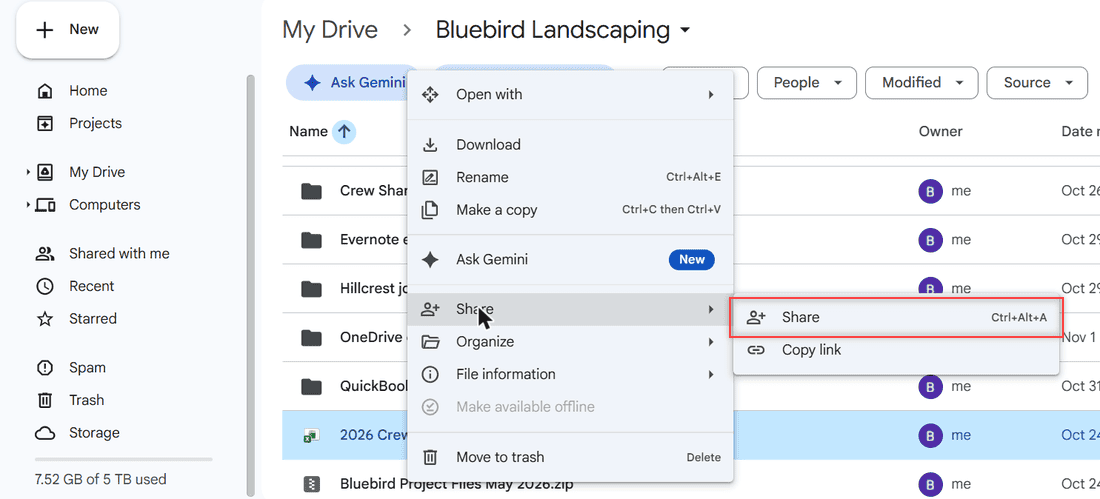
In My Drive, I opened the Bluebird Landscaping folder and right-clicked 2026 Crew Schedule.xlsx. Then I pointed to Share and picked Share again from the submenu.
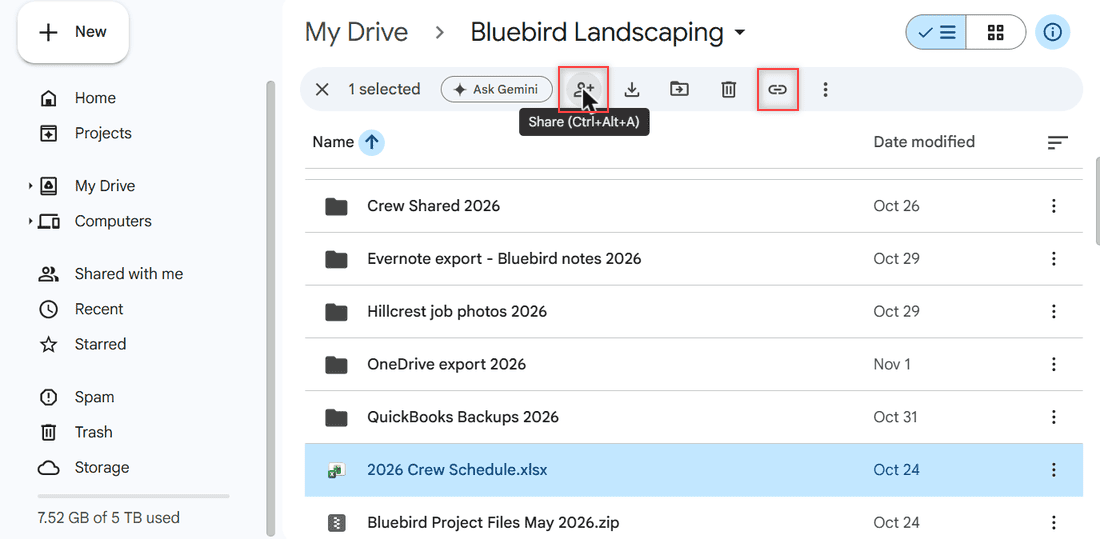
You can also click the file once and use the Share icon in the toolbar that appears at the top, or press Ctrl+Alt+A. To share several files at once, hold Shift while you click them first. My notes on how to select multiple files on Google Drive cover the other tricks.
Add Marcus by email
The dialog opens with the title Share “2026 Crew Schedule.xlsx”. Click the field that says Add people, groups, spaces, and calendar events and type the email address. You can enter a Google Group here too.
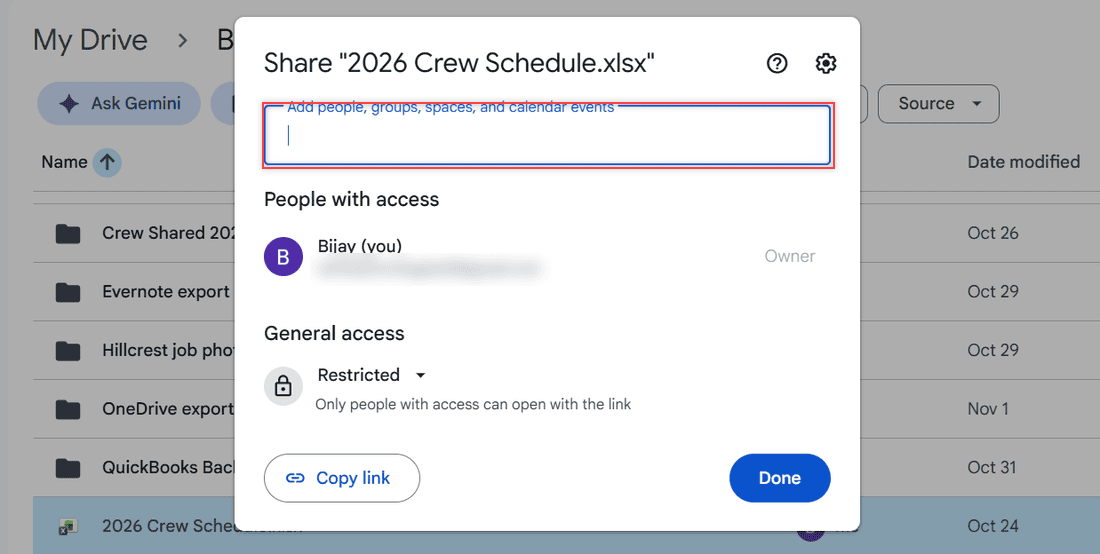
Below the field you’ll see who already has access (just me, as Owner) and the General access setting, which starts at Restricted. That means only the people you add can open the file.
Pick Viewer, not Editor
As soon as I typed marcus.lee@example.com, a role menu appeared next to it. Here’s the part that surprised me: it defaulted to Editor. If I’d clicked Send right away, Marcus could have rewritten the whole schedule.
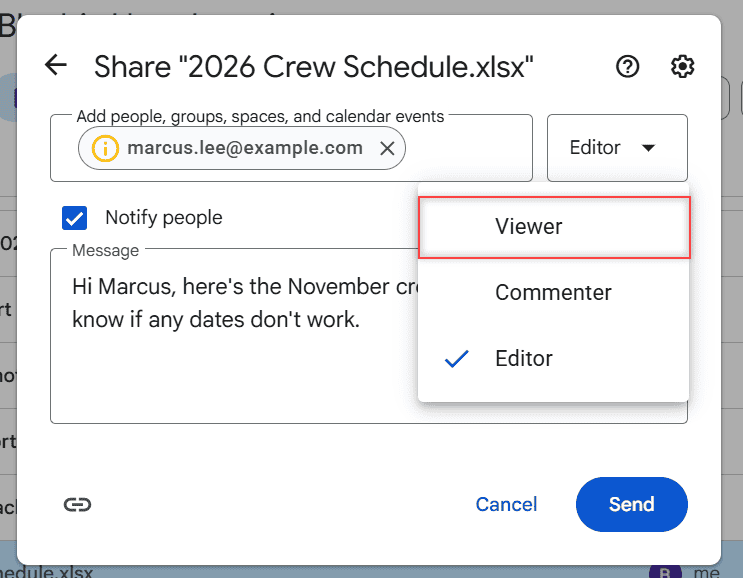
I opened that menu and picked Viewer. Always check this menu before you send, every single time.
Write a note and send
Leave Notify people checked if you want Google to email the person a link. I wrote: “Hi Marcus, here’s the November crew schedule. Let me know if any dates don’t work.” Uncheck the box if you’d rather send the link yourself.
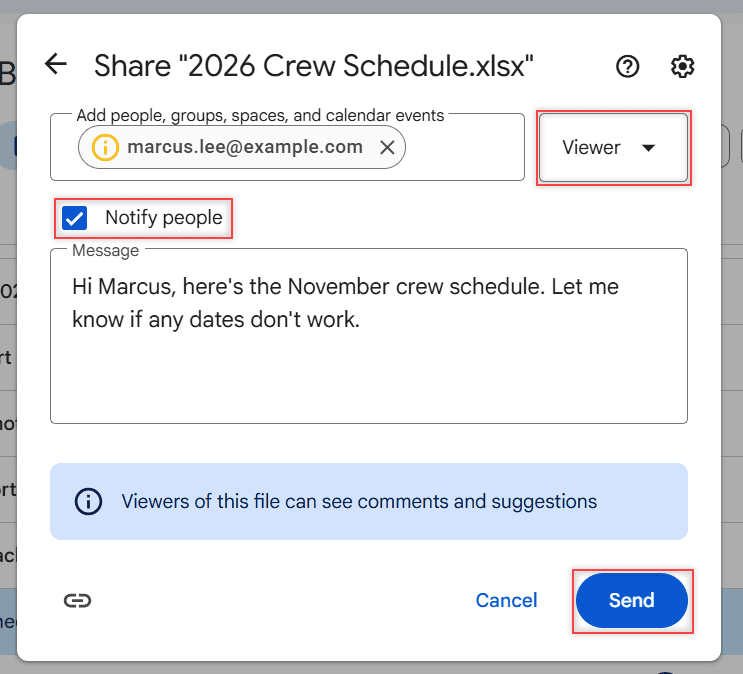
Drive also shows a small note: “Viewers of this file can see comments and suggestions.” Clean up any private comments before you share. Then click Send. In my test I used a made-up address, so I clicked Cancel instead and nothing went out.
Share with a link instead of an email
Sometimes you don’t know the person’s Google account, or they don’t have one. That’s where the link comes in. In the Share dialog, open the General access menu and switch Restricted to Anyone with the link.
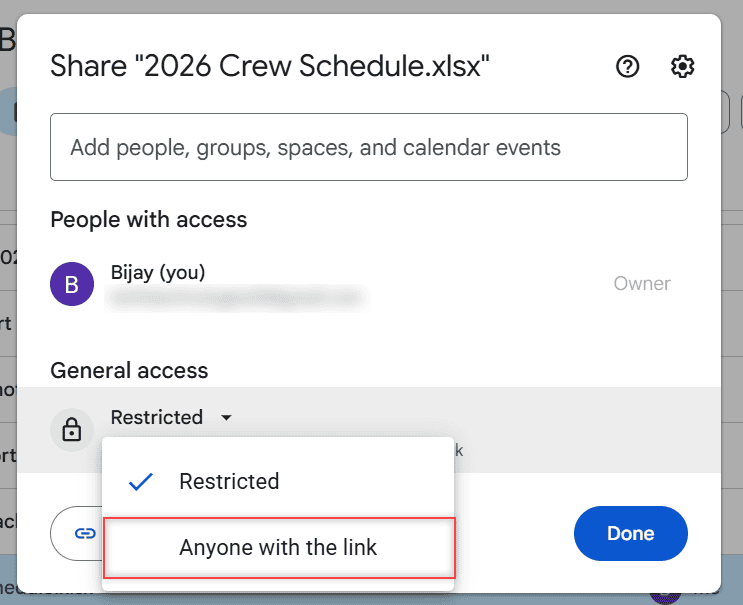
Now anyone who has the link can open the file without signing in, and they show up as anonymous animals. Click Copy link and paste it into a text or chat.
I walk through every option in my guide to turning on link sharing in Google Drive, and you can also send Drive links on WhatsApp.
Work and school accounts get a third choice that limits the link to people in your organization. My personal account didn’t have it.
Lock down downloads and resharing
Click the gear icon at the top right of the Share dialog. Under People who can download, copy, print, and access via Gemini, uncheck Commenters and viewers so Marcus can only look at the schedule in his browser.
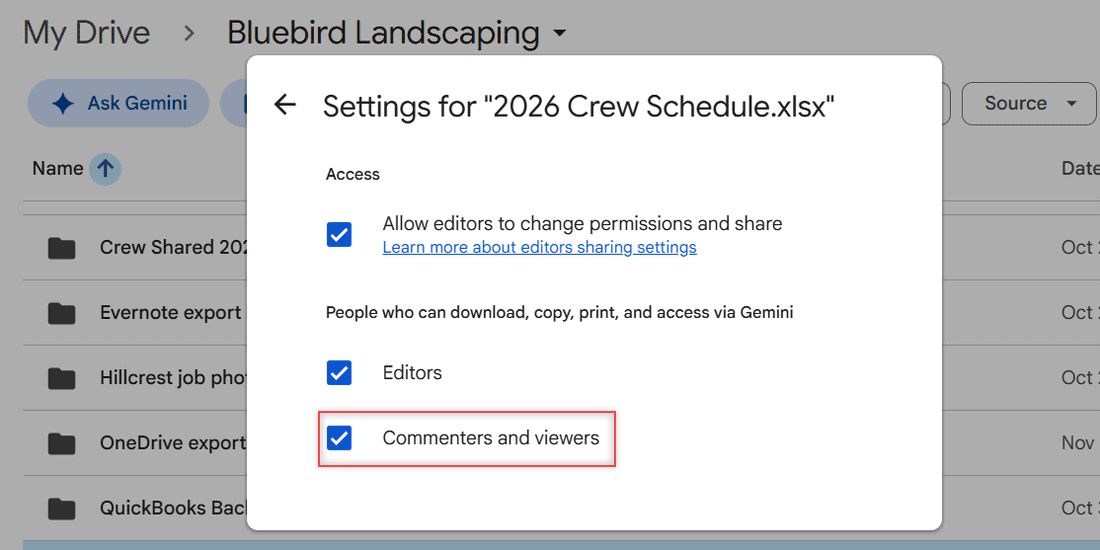
If you do share with editors, uncheck Allow editors to change permissions and share to keep them from inviting anyone else. I left both boxes as they were in my test. If you’re curious what viewers can still grab, read whether viewers can download Drive files.
Check it worked in the Details panel
To see who can open a file, select it and click the i (View details) icon. Under Who has access, my untouched test file still said Private to you, which is how I knew nothing was shared. Once you add Marcus, his name shows up there.
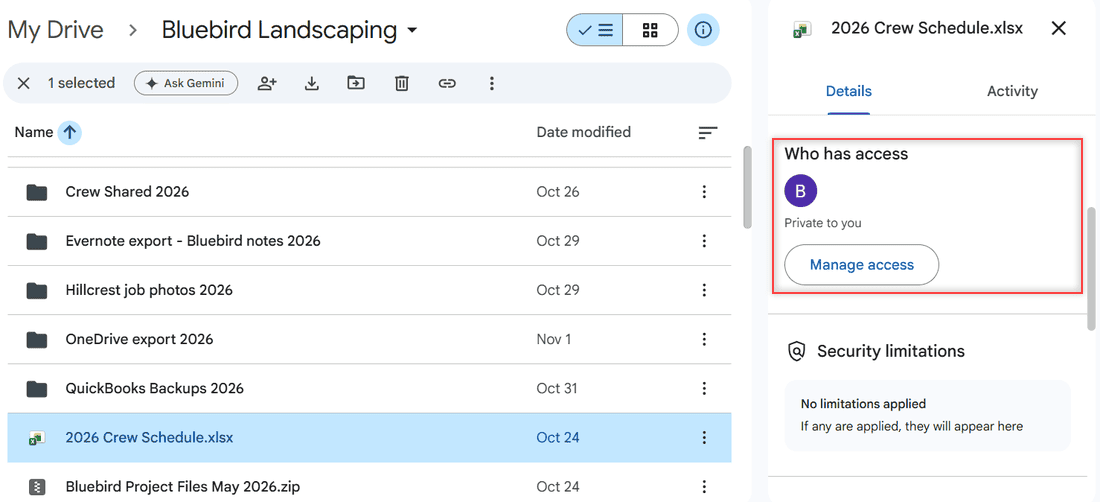
The Manage access button opens the same Share dialog. Drive doesn’t show a full list of who opened a file in a personal account, but recent activity in Google Drive shows edits and shares.
Change or stop sharing on your own files
Open the Share dialog again and click the down arrow next to the person’s name. Pick a new role, or choose Remove access, then click Save. From the same menu you can also transfer ownership to someone else.
One catch: you can’t give someone less access to a file than they already have to the folder it sits in. Fix the folder first, using my steps to unshare a folder in Google Drive.
And if people share files with you that you don’t want, you can remove shared files from your Drive.
On your phone, the Google Drive app works the same way. Tap the three dots next to the file, tap Share, add the email, pick a role and send.
Before you send that next link, these are worth a look:
- whether a Google Drive link can be dangerous
- how shared folders use storage space
- all my Google Drive tutorials
Questions about this setup

I am Carissa Gudinoa, a technology buff, and Office online and Apple expert with over 9 years of experience. I am passionate about helping others get the most out of their Apple devices. I have written extensively about Apple products and technologies. I am committed to providing my clients with the best possible service and am always up-to-date on the latest Apple products and features. I also write extensively on other software available for use at minimal cost or free. This includes Word Online, Outlook Online, Excel Online, and other Office online programs… Check out more.