
Open drive.google.com, go to the folder you want, click New and choose File upload. Pick your photos and click Open. You can also drag pictures straight from File Explorer or Finder into the Drive window.
In this tutorial, I’ll show you how to add photos to google drive from a computer: one picture, a whole folder or a drag-and-drop pile, plus how to check they landed.
Make a folder for the photos first
I take a lot of job-site pictures for Bluebird Landscaping Co., a landscaping crew here in Austin. For the Riverside Cafe project, I wanted the before-and-after shots in their own spot instead of loose in My Drive.
So before uploading anything, I made a folder inside the client folder.
- Open the folder that should hold the photos. Mine was Bluebird Landscaping.
- Click New, then New folder.
- Type a name, like Riverside Cafe photos 2026.
- Click Create.
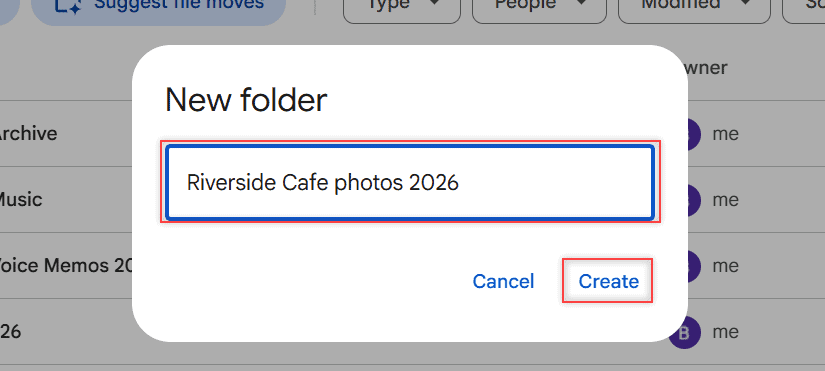
Double-click the new folder to open it. If you sort photos by job, season or client, my guide to creating subfolders in Google Drive shows how to build a neat tree before the uploads start.
An empty folder shows a friendly hint in the middle of the page. That’s your drop zone.
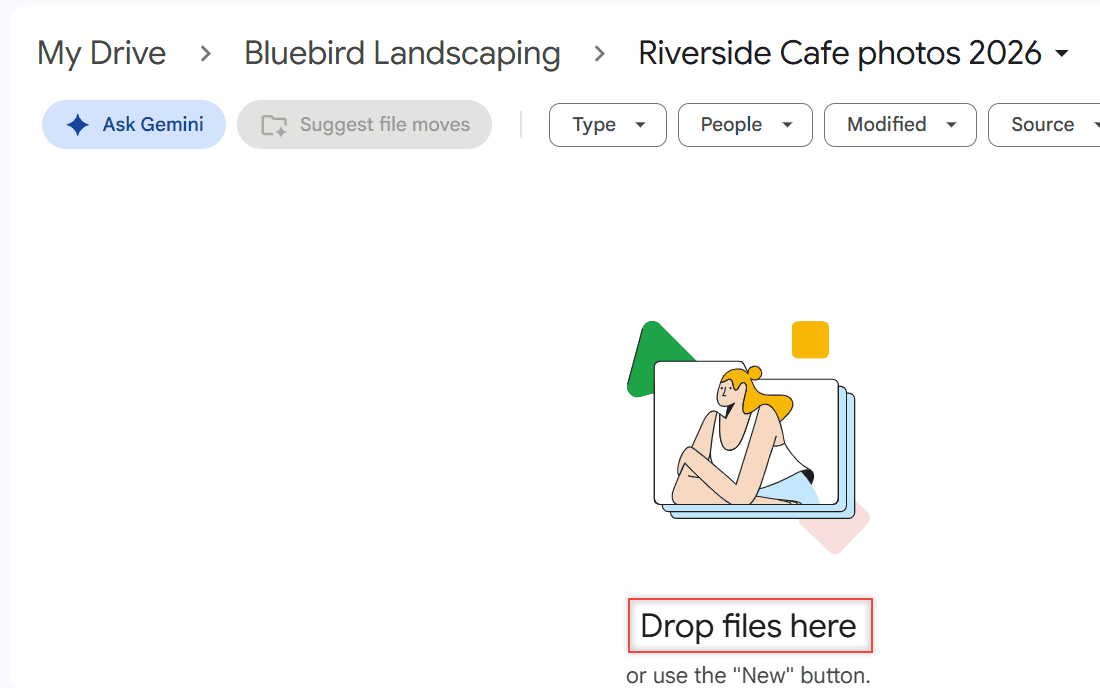
Check the breadcrumb at the top before you upload. Mine read My Drive, then Bluebird Landscaping, then Riverside Cafe photos 2026, so I knew the pictures would land in the right place.
Upload photos on a computer with the New button
This is the method I use most. It works the same in Chrome, Edge, Firefox and Safari on Windows or a Mac.
- Inside the photo folder, click New in the top-left corner.
- Click File upload.
- In the window that opens, go to your Pictures folder (or wherever the photos live).
- Select the photos. Hold Ctrl (Command on a Mac) to pick several, or press Ctrl+A to grab them all.
- Click Open.
I picked four photos: the front lawn, the patio border, the planting beds and the side lawn. A small panel popped up in the bottom-right corner to track them.
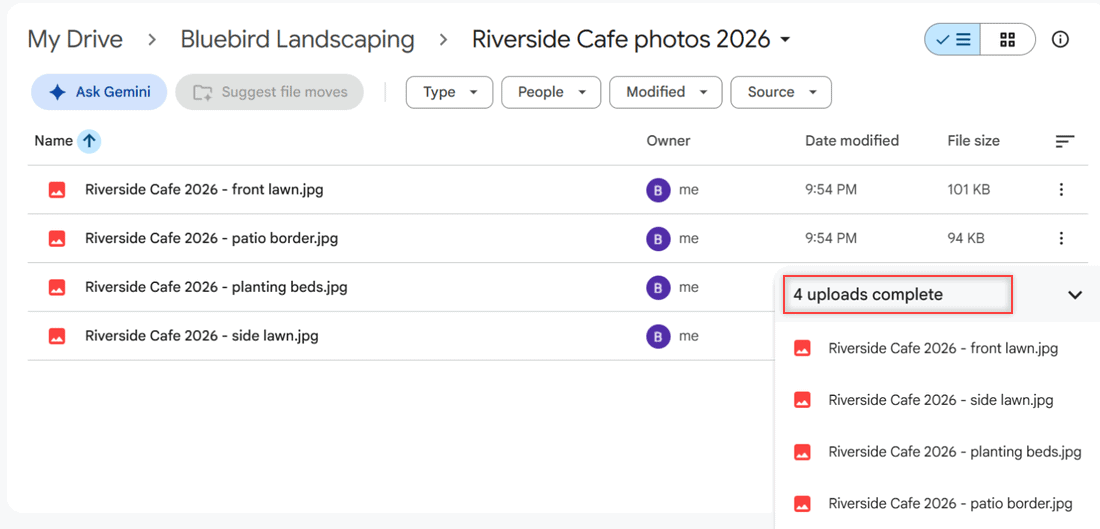
When it says 4 uploads complete, you’re done. Each file shows its size, and mine were around 94 to 101 KB because I’d already shrunk them for email.
Full-size phone and camera photos are much bigger, so a big batch can take a while. If you need to make pictures smaller first, see my tips to reduce file size in Google Drive.
Finding your photos on Windows vs Mac
On Windows, most pictures sit in This PC > Pictures, or in a dated folder if you imported them from a phone or camera. Click the first photo, hold Shift and click the last one to select a whole run in one go.
On a Mac, pictures you copied from a camera card usually sit in Downloads or Pictures. Photos that live only inside the Mac Photos app don’t show up as normal files in the picker.
So I export them first: select them in Photos, click File > Export, and save them to a folder on the desktop.
Then upload that folder or those files to Drive like any others. When the upload finishes, you can delete the exported copies from your desktop.
Upload a whole folder of photos
Got a folder of pictures from a camera card? Click New, choose Folder upload, pick the folder and confirm. Drive copies the folder and everything inside it, keeping the folder name.
Your browser may ask you to confirm that you want to upload every file in the folder. That’s normal.
Cancel an upload you started by mistake
Picked the wrong folder or grabbed 300 photos instead of 30? You don’t have to wait for the whole batch. My guide on how to stop a Google Drive upload has the details.
Drag and drop photos into Drive
If you already have File Explorer or Finder open, dragging is faster than clicking through menus.
- Open the Drive folder in your browser.
- Open the folder with your photos on your computer, side by side with the browser.
- Select the photos (or a whole folder) and drag them onto the Drive page.
- Let go when the folder is highlighted. The upload panel appears just like before.
Google’s help says you can drag files or whole folders this way. I like it for quick additions, like one extra photo the crew sent at the end of the day.
Dragging a folder only puts the right files in Drive if the folder on your PC is tidy, so rename anything odd first. My steps to rename multiple files on Google Drive help if you forget.
Check your photos with grid view and preview
Drive opens folders in list view, which shows file names but no pictures. For photos, switch to grid view.
Click the Grid layout button near the top right. Each photo turns into a thumbnail so you can spot blurry or duplicate shots right away. Click the same button again to go back to the list.
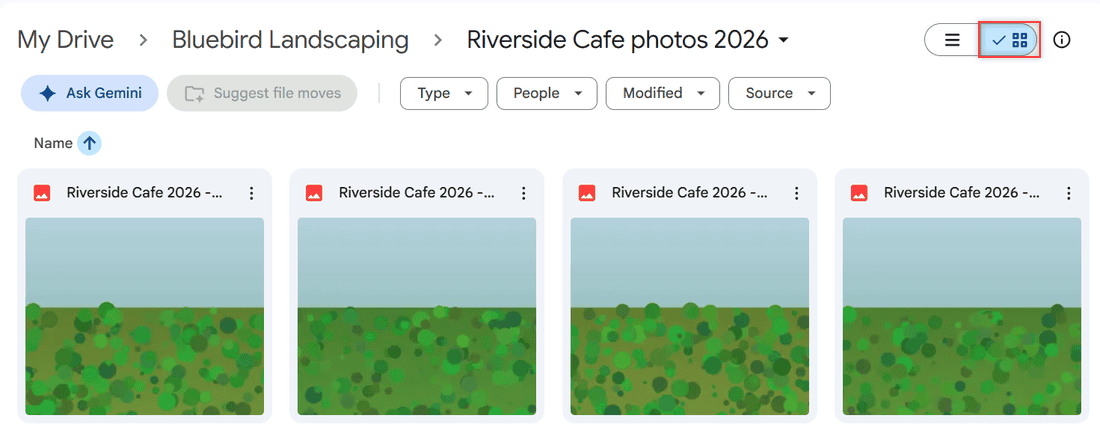
Thumbnails are easier to scan when the photos are in order. I name job photos with the project and the area, so sorting files in Google Drive by name keeps the front lawn next to the side lawn.
Double-click any thumbnail to open the photo. The preview shows the file name at the top, plus Share, Download, Print, zoom and Comment.
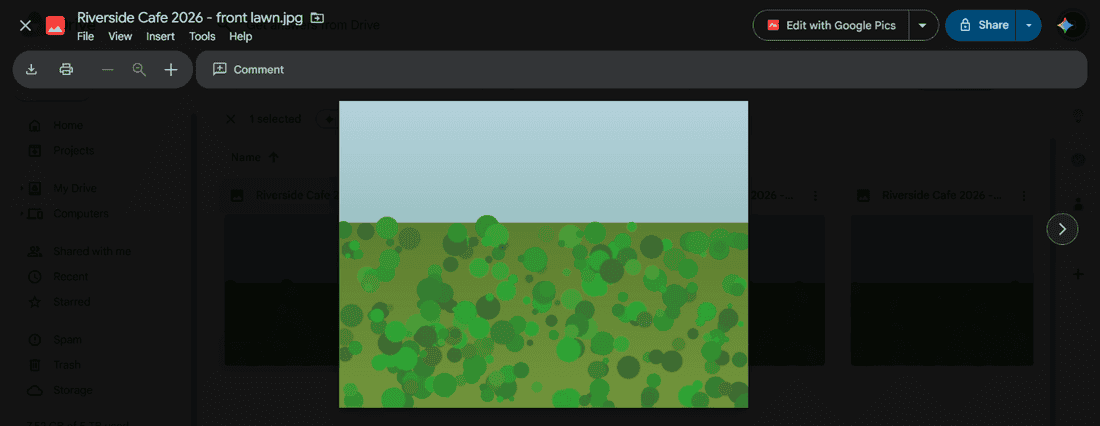
In my demo account there was also an Edit with Google Pics button at the top. You don’t need it to upload or share; it’s just there if you want to touch up the picture.
From here, you can send the folder to a client or coworker. I walk through that in how to share a file on Google Drive.
Photos in Drive vs Google Photos
This trips up a lot of people. Photos you upload to Google Drive don’t show up in Google Photos. Google keeps the two apps separate, so a photo only lands in Photos if you upload it there too.
If you do copy Drive pictures into Google Photos (it has an Upload from Drive option), Original quality copies count toward your storage in both places.
So which one should you use? I keep client and job photos in Drive because they sit next to invoices and plans. Family pictures go to Photos. My Google Drive vs Google Photos comparison covers the differences in more detail.
What about Drive for desktop?
With Drive for desktop installed, you can drag photos into the Google Drive folder in File Explorer or Finder, and they upload to Drive on their own.
Drive for desktop used to back up computer folders to Google Photos too. Google ended that support in August 2026. Photos already backed up stay in Google Photos, but new photo backups now go through Google Photos itself.
Variations: shared folders, file types and storage
Uploading into someone else’s folder
If a client shares a folder with you as an editor, you can upload photos into it the same way. Just know the pictures still take up space in your Drive, even though the folder belongs to them.
Same file name twice
Upload a photo with the same name as one already in the folder, and Drive saves it as a new version of the old file. To keep both, click Keep both files in the upload panel.
HEIC, RAW and other formats
Drive stores any file type. Google’s list of image types it previews names JPEG, PNG, GIF, BMP, TIFF and SVG. iPhone HEIC files and camera RAW files still upload fine, but the help page doesn’t promise a preview for them.
Work or school accounts
On a Google Workspace account, the steps are the same, but your admin controls what you can upload and share. If uploads are blocked, the fix is on their side; see Drive disabled by your admin for what to ask them.
Dates on uploaded photos
Drive treats the upload time as the file’s created date. The modified date comes from your computer, so it can be older than the created date. That’s expected.
When photos won’t upload
Most of the time, a stuck upload is a slow connection or a huge batch. Keep the browser tab open until the panel says complete. If it sits on a waiting message, my fix for Google Drive waiting to upload goes step by step.
Uploads also stop when your storage is full, because every photo counts against your quota. Check the meter at the bottom of the left menu, and see storage full but no files if the numbers don’t add up.
Uploading a long video along with the photos? Large files take their own approach, and my guide to uploading large files to Google Drive covers what helps.
Adding photos from your phone instead
The steps above are for a computer. On Android or iPhone, open the Drive app, tap the plus button, tap Upload and pick your photos. Going the other way, here’s how to save multiple photos from Google Drive to an iPhone.
A few more Google Drive guides for your photo folders:
- how to see folder size in Google Drive
- how to convert an image to PDF in Google Drive
- stop Google Drive from duplicating files
- all my Google Drive tutorials
Quick answers
Can I upload a whole folder of photos to Google Drive at once?
Yes. On a computer, click New, then Folder upload, and pick the folder. You can also drag the folder from File Explorer or Finder into the Drive window.
Do photos uploaded to Google Drive count against my storage?
Yes. Every photo you upload uses your Google storage, which is shared across Drive, Gmail and Google Photos.
Will photos I add to Google Drive appear in Google Photos?
No. Google Drive and Google Photos don’t sync, so you have to upload the photo to Google Photos separately if you want it there.
How do I upload photos to Google Drive without the app?
Use any web browser. Go to drive.google.com, click New, then File upload. Google explains every option in Google Drive Help: upload files and folders.

I am Carissa Gudinoa, a technology buff, and Office online and Apple expert with over 9 years of experience. I am passionate about helping others get the most out of their Apple devices. I have written extensively about Apple products and technologies. I am committed to providing my clients with the best possible service and am always up-to-date on the latest Apple products and features. I also write extensively on other software available for use at minimal cost or free. This includes Word Online, Outlook Online, Excel Online, and other Office online programs… Check out more.