
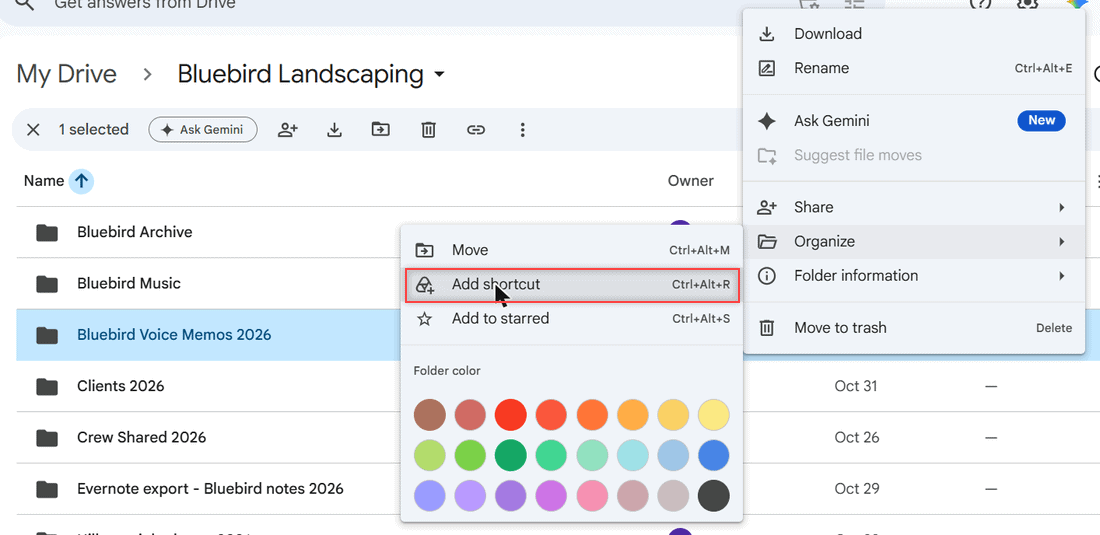
Open Shared with me, right-click the folder, then select Organize > Add shortcut. Pick a location such as My Drive and click Add. The folder now shows up there as a shortcut.
In this tutorial, I’ll show you how to add a shared folder to my drive on a computer and a phone, what that shortcut really is, and what happens if the owner takes your access away.
Add the shared folder from a computer
The folder stays in its owner’s Drive the whole time. You’re only adding a pointer to it, so it won’t use your storage space.
- Go to drive.google.com and click Shared with me on the left.
- Right-click the folder, or click its three-dot menu.
- Point to Organize and click Add shortcut.
- Choose a location in the dialog.
- Click Add.
A quick honesty note: my screenshots use a folder in my demo account’s own My Drive, because that account’s Shared with me holds real files from other people that I can’t show you.
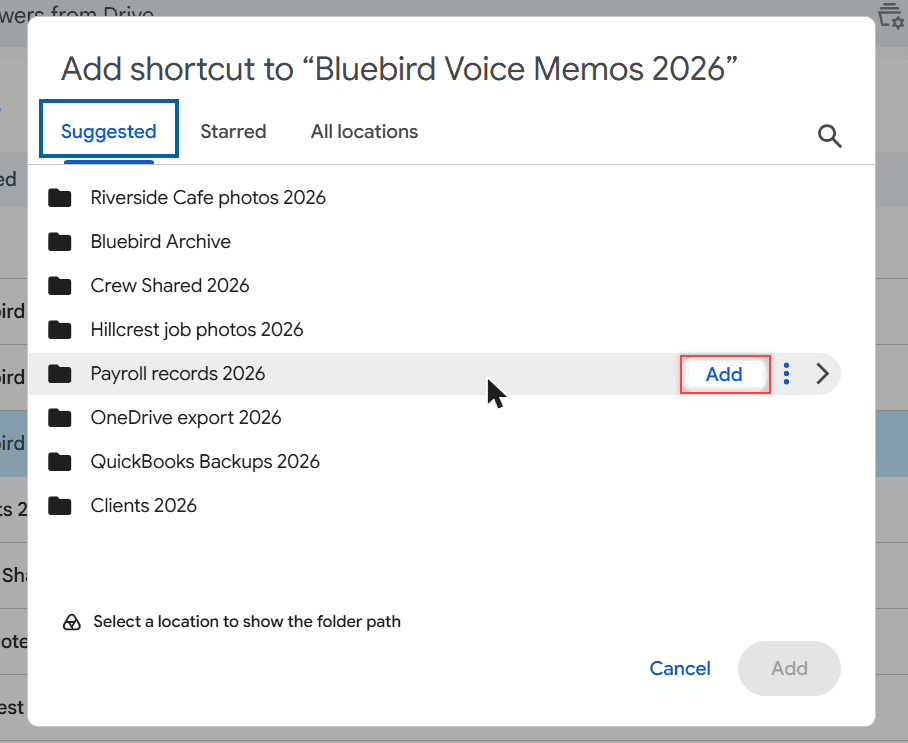
The dialog has three tabs: Suggested, Starred, and All locations. Don’t let its title throw you, because it names the folder you’re adding, not the place it’s going.
Hover over a destination and an Add button appears on that row. Or select the destination and use the Add button at the bottom.
I added mine to a folder called Clients 2026, and it appeared there. The curved arrow on the icon marks it as a shortcut.
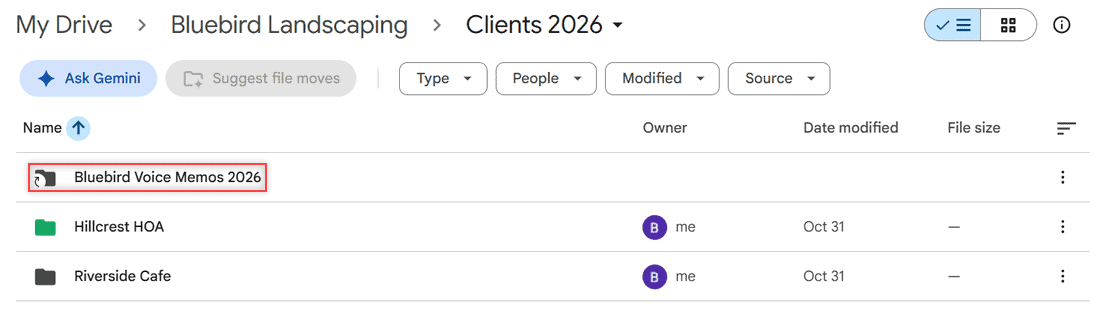
Notice the blank Owner and Date columns on that row. If you’d like a dedicated home for these, create a subfolder first and put your shortcuts inside it.
In Chrome, Google also documents a keyboard route: select the folder, press Ctrl+C, go to the destination, and press Ctrl+Shift+V. My Organize menu lists Ctrl+Alt+R next to Add shortcut.
Add it from the Drive app on Android or iPhone
These steps come from Google’s help pages. I didn’t run them on a phone for this post.
Android
- Open the Google Drive app and tap Shared at the bottom.
- Select the folder.
- Tap More, then Add shortcut.
- Choose a location such as My Drive.
- Tap Add.
iPhone or iPad
- Open the Google Drive app and find the folder.
- Tap More.
- Scroll down and tap Add shortcut to Drive.
- Choose the destination and tap Add.
Google’s pages word the Android option two ways, Add shortcut and Add shortcut to Drive, so look for those words.
What happened to Add to My Drive
Older guides tell you to click Add to My Drive. Google’s current page on files shared with you describes Add shortcut instead, and that’s the option in my Organize menu.
Google also began replacing items stored in several locations with shortcuts in 2022. Each item now keeps one real location, and everything else points back to it.
So a shortcut isn’t a copy. You always see the latest version, and the sharing permissions on the original stay the same.
| If you want to | Use |
|---|---|
| See the live folder from My Drive | Add shortcut |
| Keep your own separate version | Make a copy of the files |
| Clear it from your view later | Move the shortcut to trash |
Copies are different for storage. Google says shared files start using your space if you copy them or add your own files to the shared folder.
Shared drives and Drive for desktop are different
A shared drive isn’t a shared folder. Shared drives exist only on certain Google Workspace editions, your admin has to allow them, and they sit in their own section of Drive.
You can still put shortcuts in a shared drive. Just remember that everyone with access to a folder or drive can see a shortcut’s title there, even if they can’t open it.
Drive for desktop has its own catch. Google says mirroring shared files downloads a full copy to your computer, which fills your hard drive, though it doesn’t use your cloud storage.
I didn’t test a shortcut in Drive for desktop for this post, so check that folder yourself if you manage what syncs.
When the shortcut stops working
The owner removed your access
Google calls this a broken shortcut. It also happens when the original is in the trash or has been deleted.
The shortcut can’t get you back in by itself. You can request access through it, and the owner receives an email with your request.
The folder is gone, and you want to tidy up
Right-click the shortcut and click Move to trash. That removes only your pointer.
You can’t delete the original, because only its owner can. To clean up the entry itself, see how to remove shared files from your Drive.
You can’t find the folder in Shared with me
Search for its name, or use these tips to track down a folder. Shortcut limits can matter too: you can’t make a shortcut to a shortcut, and you can’t add items from the Computers view.
A few more guides for working with folders other people share:
Quick answers

I am Carissa Gudinoa, a technology buff, and Office online and Apple expert with over 9 years of experience. I am passionate about helping others get the most out of their Apple devices. I have written extensively about Apple products and technologies. I am committed to providing my clients with the best possible service and am always up-to-date on the latest Apple products and features. I also write extensively on other software available for use at minimal cost or free. This includes Word Online, Outlook Online, Excel Online, and other Office online programs… Check out more.