
Here’s the short answer: open drive.google.com, go to a folder, click New, and pick File upload. That’s how I got this month’s cleanup checklist and mulch delivery log for Bluebird Landscaping into Drive in under a minute.
In this tutorial, I’ll show you how to upload files to Google Drive five ways: the New menu, Folder upload, drag and drop, the Drive app on Android and iPhone, and Drive for desktop. I’ll also cover the convert setting, size limits and what to do when an upload stalls.
Method 1: Upload files with New > File upload
This is the method I use most. It works in any browser, and you choose the destination folder before you upload. If you don’t have a folder yet, it helps to create subfolders in Google Drive first.
- Go to drive.google.com and sign in.
- Open the folder where the files should go. Mine was Bluebird Landscaping.
- Click New at the top left.
- Click File upload.
- Select one or more files on your computer to start the upload.
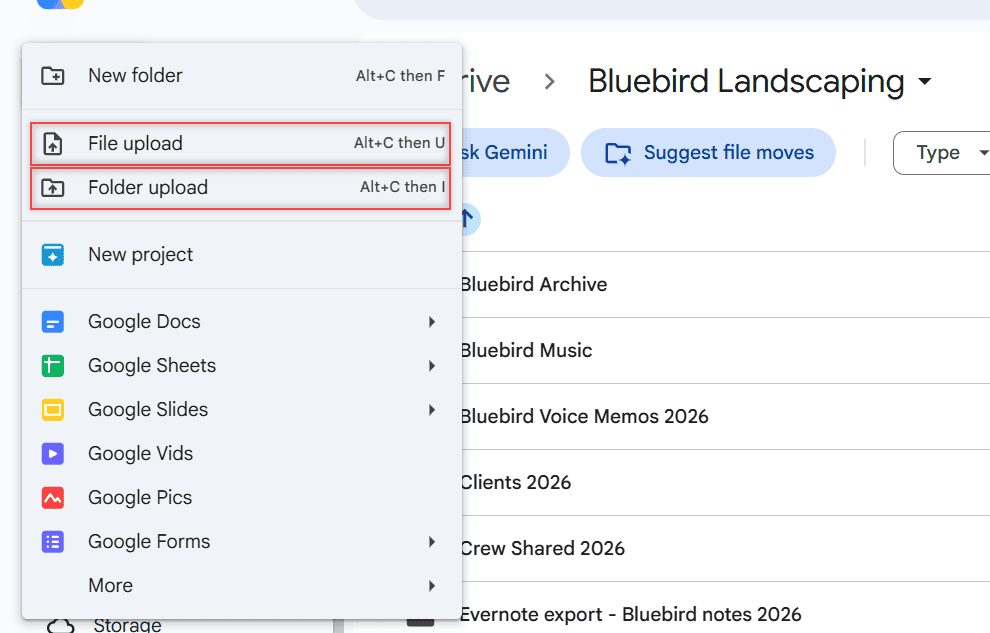
The menu shows keyboard shortcuts too. Press Alt+C and then U for File upload. You can hold Ctrl (or Cmd on a Mac) in the file picker to grab several files in one go.
I picked two files: Fall Cleanup Checklist 2026.docx and Mulch Delivery Log Nov 2026.xlsx. A panel popped up at the bottom right and, a few seconds later, said 2 uploads complete with a green check next to each file.
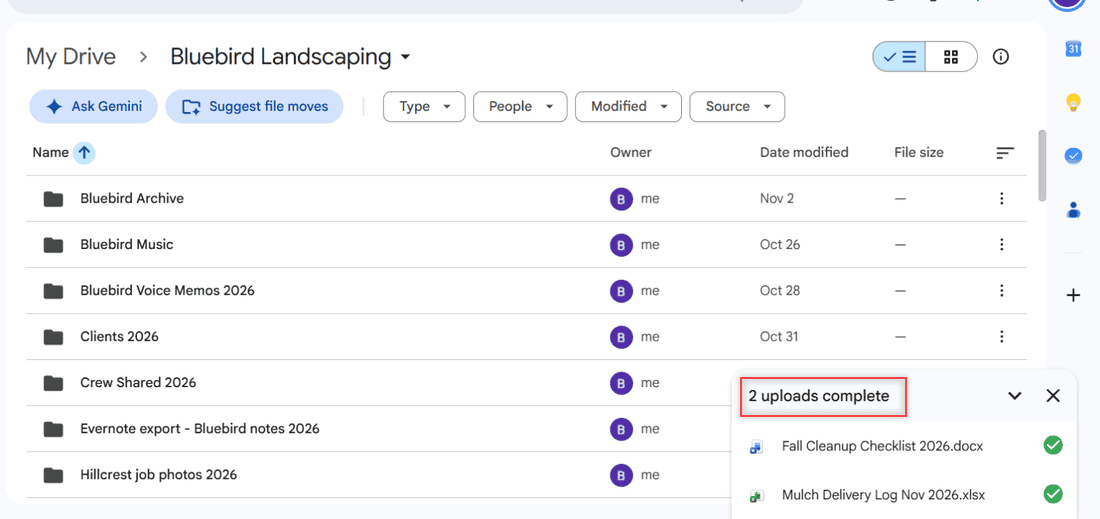
Bigger files show a progress bar in that same panel, so keep the tab open until it finishes. Picked the wrong file? Here’s how to cancel a Google Drive upload partway through.
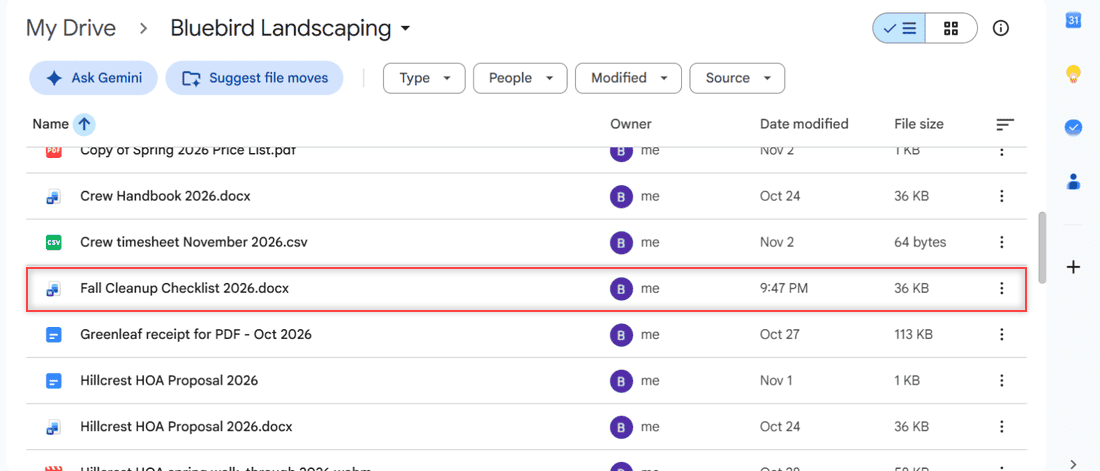
How does this work? Drive copies the files from your computer into the folder you had open. Your originals stay where they were. Each file keeps its own format, so my checklist landed as a regular Word file, owner me, 36 KB, modified 9:47 PM.
Method 2: Upload a whole folder with Folder upload
When I have a folder full of job files, I don’t pick them one by one. I upload the folder itself.
- In Drive, open the folder you want to upload into.
- Click New, then Folder upload (or press Alt+C and then I).
- Choose the folder on your computer and confirm the upload.
How does this work? Drive uploads the folder and the files inside it as one job, and the folder shows up in your current Drive location. For a folder with hundreds of files or big videos, my tips for uploading large files to Google Drive will save you time.
Method 3: Drag and drop files into a Drive folder
This one skips the menu completely. Google’s help confirms you can drag files or whole folders straight into a Drive folder in your browser.
- Open drive.google.com and go to the folder you want.
- Open File Explorer (Windows) or Finder (Mac) next to the browser window.
- Select your files or a folder, drag them onto the Drive file list, and let go.
How does this work? Dropping files does the same thing as File upload, just faster. The same upload panel tracks the progress. I like to select multiple files on Google Drive afterward to move or share the whole batch at once.
Method 4: Upload from your Android phone or iPhone
Most of my job photos and receipts start on my phone, so I upload right from the Google Drive app. The steps are a little different on each phone.
On Android
- Open the Google Drive app.
- Tap New, then tap Upload.
- Select the files you want to upload.
Your uploads land in My Drive until you move them, so I move them into the client folder right away. Google’s Android steps cover files; if you need a whole folder, see my guide to uploading a folder on Android.
On iPhone or iPad
- Open the Google Drive app.
- Tap Add, then tap File upload.
- Find and select your files.
- Tap Location to pick a folder, and File Name if you want to rename a single file.
- Tap Upload.
On iPhone you can also choose whether transfers use mobile data or only Wi-Fi. If nothing moves after you tap Upload, check my fixes for when Google Drive is not uploading from your phone.
Method 5: Sync files with Drive for desktop
Drive for desktop adds a folder named Google Drive to your computer. Anything you drag into it uploads to Drive in the background and shows up on drive.google.com. Here’s how to install Google Drive on your computer if you don’t have it yet.
How does this work? The app does the uploading instead of a browser tab, so closing Chrome won’t stop it. That makes it my pick for big batches, like a whole season of job photos or a folder of invoices.
Choose whether Word and Excel files get converted
By default my uploads stay in their original format. The .docx still has its Word icon, and the .xlsx stays an Excel file. Drive can open and preview them either way.
If you’d rather have every Office file turned into a Google Doc, Sheet or Slide when you upload it, there’s a setting for that. You can only change it from a computer.
- Go to drive.google.com/drive/settings in your browser.
- On the General tab, find Uploads.
- Check or uncheck Convert uploads to Google Docs editor format.
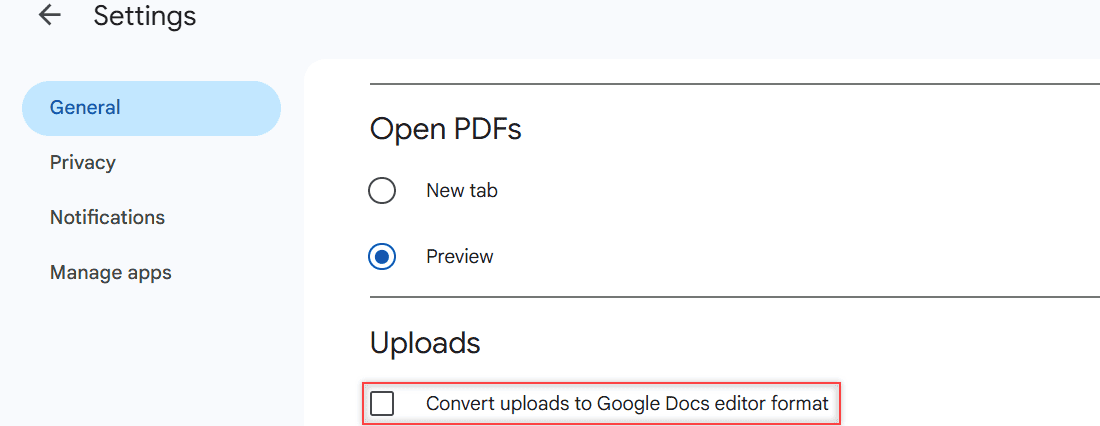
Pro tip: I leave conversion off for client files that go back and forth in Word. If you work mainly in Google Docs, turn it on. My post on saving Word docs to Google Drive goes deeper on that choice.
Things to keep in mind before you upload
- Most files can be up to 5 TB. Files you convert have smaller limits: 50 MB for a text document, 100 MB for spreadsheets and presentations.
- Every file you upload counts against your own storage, even when you drop it into a folder someone else owns.
- A free personal account gets 15 GB shared with Gmail and Google Photos, so check your free space before a big upload.
- I tested on a personal Gmail account. On a work or school account, your storage and sharing options may follow your organization’s settings.
Watch your file names, too. When I uploaded Fall Cleanup Checklist 2026.docx a second time, Drive opened an Upload options box. Replace existing file was picked by default, which saves the upload as a new version and keeps the same sharing settings.
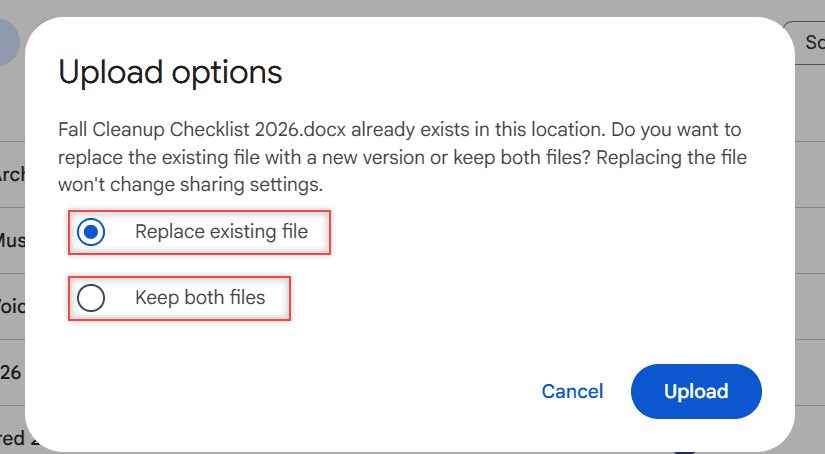
Choose Keep both files if you want two separate copies, then click Upload. I clicked Cancel, since I didn’t need a duplicate.
If Drive says you’re out of space and you can’t see why, my guide to Google Drive storage full but no files walks through where the space went.
What to do when an upload gets stuck
When an upload freezes, I check my internet connection first, then my free storage. After that, I cancel the upload and try again in a fresh tab or a different browser.
On a phone, a file that sits on the Waiting to upload message usually needs a better signal or Wi-Fi. In the browser, the Google Drive upload failure 38 error is a common one with its own fixes.
Once your files are in Drive, these come next:
- how to share a file on Google Drive
- why Google Drive is so slow
- stopping Google Drive from duplicating files
- all my Google Drive tutorials
Frequently Asked Questions
What is the maximum file size you can upload to Google Drive?
Most files can be up to 5 TB, as long as you have that much storage. Files converted to Google formats are smaller: 50 MB for documents and 100 MB for Sheets and Slides, per Google Drive Help on file size limits.
Can I upload a folder to Google Drive?
Yes. On a computer, click New and then Folder upload, or drag the folder into Drive in your browser. Drive for desktop also uploads any folder you put in its Google Drive folder.
Where do uploaded files go in Google Drive?
They go to the folder you had open when you uploaded. Files uploaded from the Android app go to My Drive until you move them.
Does uploading to a shared folder use my storage?
Yes. Files you upload count against your storage, even if the folder belongs to someone else.

I am Carissa Gudinoa, a technology buff, and Office online and Apple expert with over 9 years of experience. I am passionate about helping others get the most out of their Apple devices. I have written extensively about Apple products and technologies. I am committed to providing my clients with the best possible service and am always up-to-date on the latest Apple products and features. I also write extensively on other software available for use at minimal cost or free. This includes Word Online, Outlook Online, Excel Online, and other Office online programs… Check out more.