
By the end of this setup, the four photos from our Hillcrest job sit in a Job photos 2026 folder in OneDrive, and I can pull them up on my phone, my laptop or any browser. If my phone dies in a flower bed tomorrow, the pictures are still safe.
In this tutorial, I’ll show you how to back up photos to OneDrive three ways: uploading them on the OneDrive website, turning on camera upload on an Android phone or iPhone, and backing up the Pictures folder on a Windows PC. I’ll also cover storage and how to check the backup worked.
What you need before you start
You need a Microsoft account (the free kind you use for Outlook.com or Windows) or a work or school account. I built this example in a Microsoft 365 work account, so a few labels on a personal account look a little different. I’ll point those out as we go.
Storage is the part people forget. A free Microsoft account comes with 5 GB of cloud storage. Microsoft 365 Basic includes 100 GB, Microsoft 365 Personal includes 1 TB, and the Family plans add more space you share with your household.
Five gigabytes fills up fast with phone photos. If you’re still deciding where your pictures should live, my Google Drive vs OneDrive comparison lays out the free space and plans side by side.
Running out matters. Once you’re over your limit, OneDrive won’t upload, edit or sync new files, and that includes your camera roll. Your existing files stay put, but they become read-only.
For the website method, use Chrome or Microsoft Edge if you want to upload whole folders. Folder upload only works in those two browsers.
Upload job photos on the OneDrive website
The website is where I start when the photos are already on my computer, like the shots our crew lead sent from the Hillcrest job. Here’s the exact setup I used, one step at a time.
Open the Create or upload menu in My files
Sign in at onedrive.com and go to My files. Then select Create or upload at the top left. The menu lists Folder, Files upload and Folder upload at the top, then new Word, Excel and other files below.
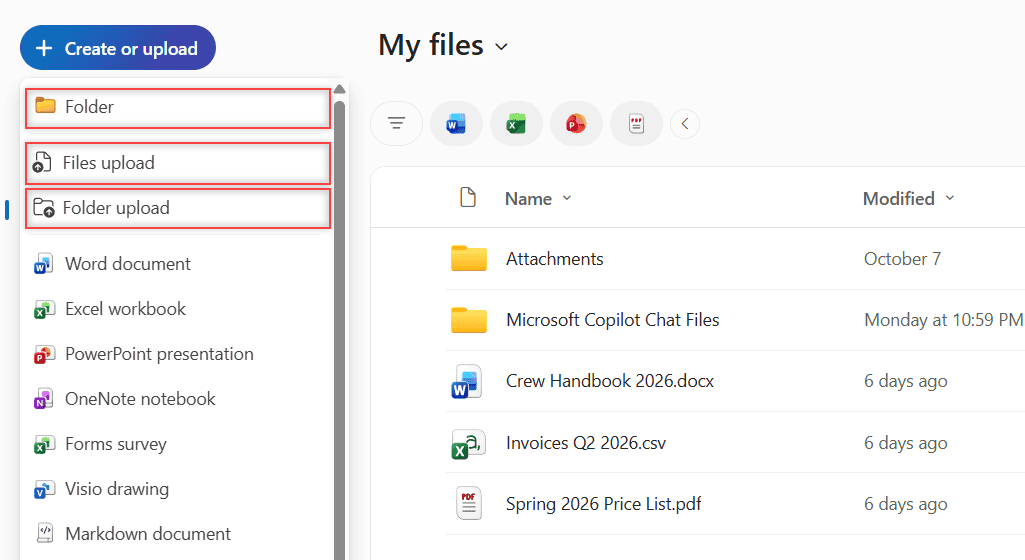
If your screen shows an Upload button instead, the idea is the same: select Upload, pick the photos and select Open.
Create a folder for the photos
I like one folder per year for job photos, so I picked Folder. The Create a folder dialog asks for a name and offers a row of folder colors. I typed Job photos 2026 and selected Create.
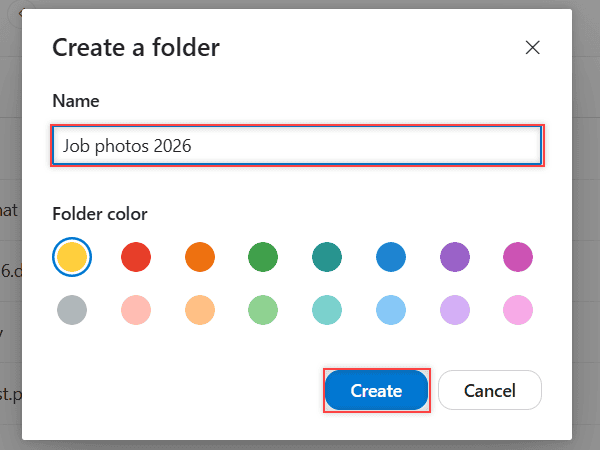
A clear folder name saves you later. Six months from now, “Job photos 2026” is much easier to find than a pile of IMG_4402.jpg files sitting loose in My files.
Open the empty folder
Click the new folder to open it. The breadcrumb at the top reads My files > Job photos 2026, and the middle of the page says This folder is empty with a hint to drag and drop files there.
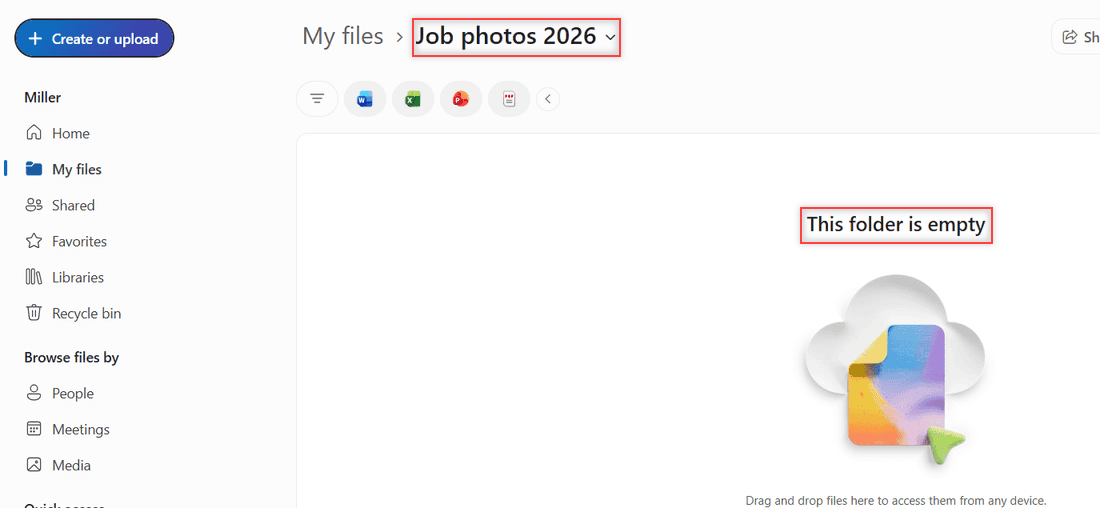
Make sure you’re inside the folder before you upload. If you upload from My files, the photos land at the top level and you’ll have to move them.
Upload the photos with Files upload
Open Create or upload again and choose Files upload. Select the photos on your computer, then Open. You can also skip the menu and drag the photos from File Explorer or Finder straight onto the folder.
My four JPGs were small, between 93 and 101 KB each, so they finished in a couple of seconds. A message popped up at the bottom: Uploaded 4 items to Job photos 2026.
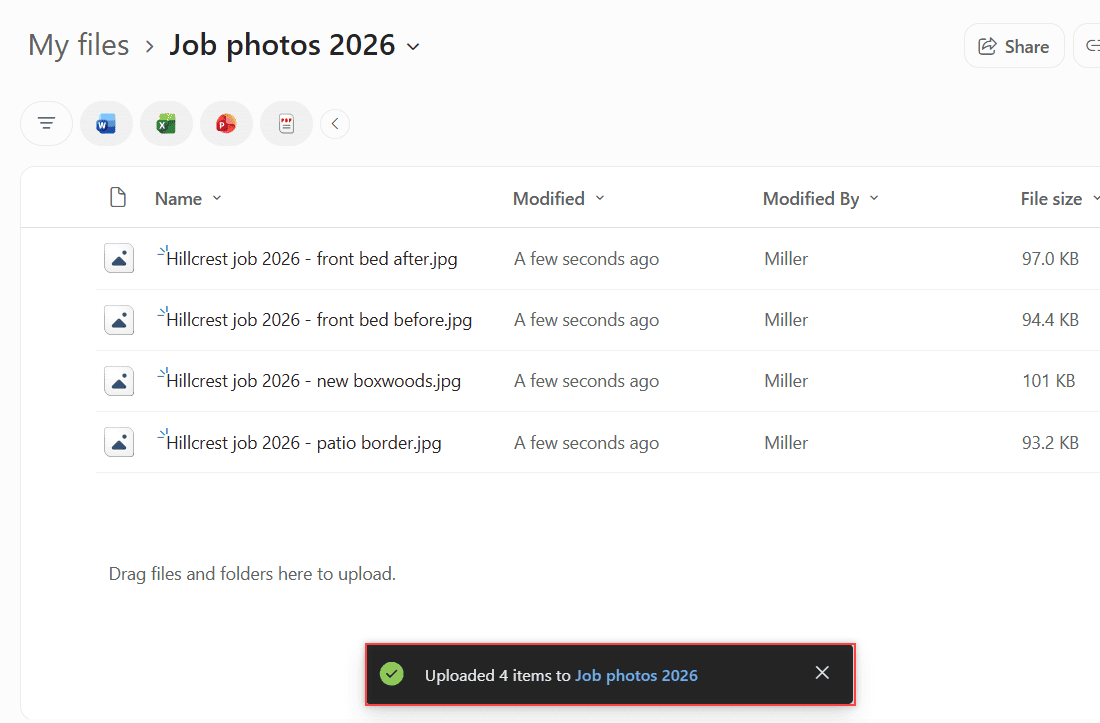
Full-size phone photos take longer, but size won’t stop you. The OneDrive website accepts files up to 250 GB each. For a whole folder of pictures, pick Folder upload instead (Chrome or Edge).
Check that the photos made it
A list of file names doesn’t prove much, so I always look at the pictures themselves. In the folder, open the view menu at the top right and choose Tiles. The other choices are List and Compact list.
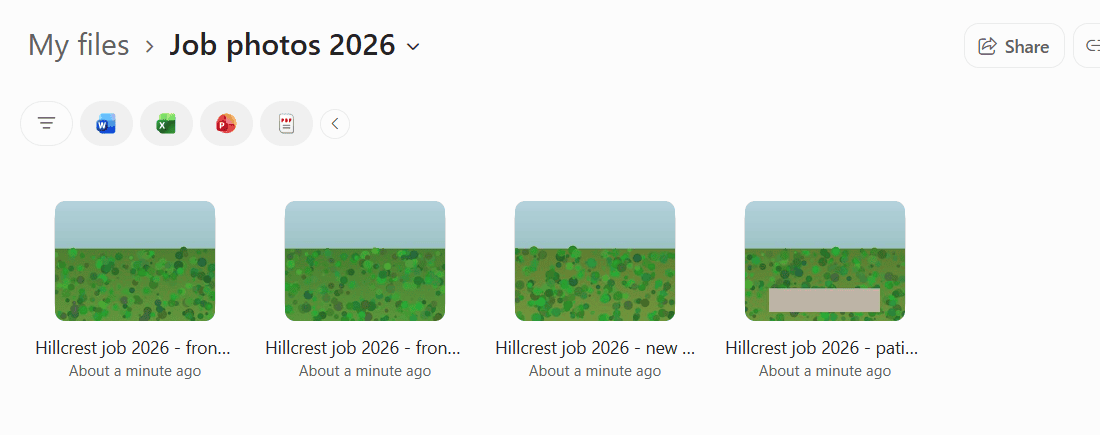
Tiles view shows a thumbnail for each photo. If a thumbnail is blank or a file is missing, that’s the one to upload again.
Next, I check that OneDrive sees them as photos. In my work account, the left pane has Browse files by > Media. Selecting it opened All Photos, grouped by date, and my four pictures showed up under Nov 6.
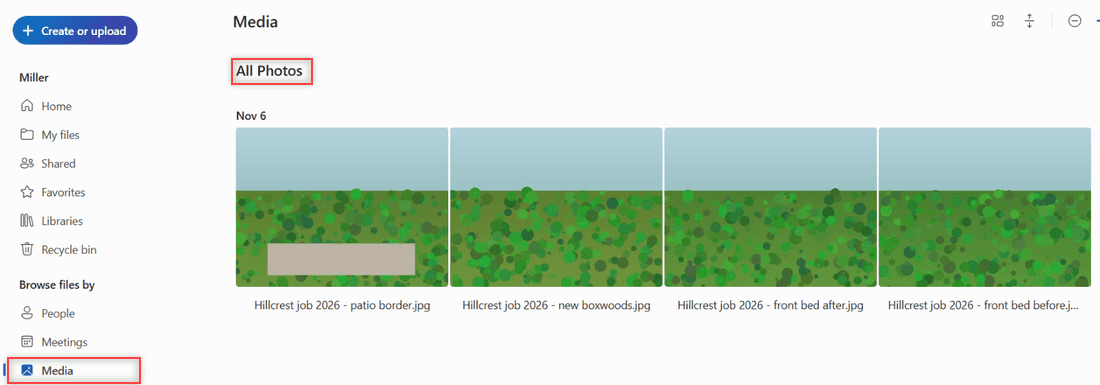
On a personal account, Microsoft’s help describes a web-only Photo view that gathers photos from different folders in your OneDrive. It’s only a view, so you can’t move photos from it. To move one, find it in your files and move it there.
One more habit: if you delete a photo by mistake while tidying up, it isn’t gone right away. Here’s how to find the OneDrive recycle bin and put it back.
Turn on camera upload on your phone
Uploading by hand works for a batch from the office. For photos I take on site, I want my phone to send them to OneDrive on its own. That’s camera upload, and it lives in the OneDrive app.
On an Android phone
- Open the OneDrive app and tap your account image at the top left.
- Under “Camera backup is off,” tap Turn on.
- Tap Confirm, then allow OneDrive to access your photos and videos when Android asks.
- To back up videos too, tap your account image, go to Settings > Camera backup and turn on Include videos.
In the same Camera backup settings, Backup only when charging saves battery, and Back up device folders adds other folders, like screenshots or a messaging app’s pictures.
On an iPhone or iPad
- Open the OneDrive app and tap your account image at the top left.
- Tap Settings, then Camera Upload.
- Turn on Camera Upload for the account you want the photos in.
- Turn on Include Videos if you want videos uploaded too.
If some photos show as Remaining, tap it, then Get Started and Turn on Bedtime Backup. Plug the phone in and connect to Wi-Fi first, then tap Turn Off Bedtime Backup once the uploads finish.
A few rules apply on both phones. Camera upload works with only one account at a time, so pick your personal or work account on purpose. Keep the app running in the background too, because closing it can stop automatic uploads.
Camera upload is one-way. Once a photo has uploaded, you can delete it from your phone to free up space, and the copy in OneDrive stays.
Back up the Pictures folder on a Windows PC
If your photos live on a Windows computer, OneDrive can back up the whole Pictures folder, along with Desktop and Documents. New photos you save there get backed up automatically after that.
- Select the OneDrive cloud icon in the notification area at the bottom right of the taskbar.
- Select the Help & Settings icon, then Settings.
- Go to the Sync and backup tab and select Manage backup.
- Turn on the toggle for Pictures (it says Not backed up) and select Save changes.
Give it time to sync the first batch. If the cloud icon is missing or you get an error about OneDrive not running, my fix for the Make sure OneDrive is running message gets the app back.
On a Mac, use the standalone OneDrive app, not the Mac App Store version, and give it Full Disk Access. Then click the cloud icon in the menu bar, open Preferences > Backup > Manage backup, and select Start backup.
Change it for your own photo library
Our setup is simple: one yearly folder on the web for job photos, plus camera upload on my phone. Swap in your own folder names, like “Family 2026” or “Kitchen remodel,” and the steps stay the same.
Pick one main method so you don’t upload the same pictures twice. If the photos start on your phone, camera upload is the easiest. If they start on a PC, folder backup is. The website is best for one-off batches.
A cloud copy is one backup, not two. For photos I can’t replace, I also keep an offline copy, and I explain that setup in backing up OneDrive to an external hard drive.
Clients often email me photos of their yards before a job. Rather than download and re-upload them, I save Outlook attachments to OneDrive straight into the right folder.
And if you ever switch services, you’re not locked in. You can move OneDrive files to Google Drive later without losing them.
More OneDrive and photo guides worth a look:
Questions about this setup
How do I back up all my photos to OneDrive automatically?
Turn on camera upload in the OneDrive app on your phone, and turn on Pictures folder backup in the OneDrive app on your PC. New photos in either place then upload on their own.
How much free storage does OneDrive give you for photos?
A free Microsoft account includes 5 GB of cloud storage. Microsoft 365 Basic includes 100 GB and Microsoft 365 Personal includes 1 TB.
Can I delete photos from my phone after they back up to OneDrive?
Yes. Camera upload is one-way, so deleting a photo from your phone after it uploads doesn’t remove the OneDrive copy, as Microsoft Support explains for camera upload.
Why did OneDrive stop backing up my photos?
The usual causes are a full OneDrive, the app being closed on your phone, or camera upload set to a different account. Over your storage limit, OneDrive stops uploading new files, including your camera roll.

I am Carissa Gudinoa, a technology buff, and Office online and Apple expert with over 9 years of experience. I am passionate about helping others get the most out of their Apple devices. I have written extensively about Apple products and technologies. I am committed to providing my clients with the best possible service and am always up-to-date on the latest Apple products and features. I also write extensively on other software available for use at minimal cost or free. This includes Word Online, Outlook Online, Excel Online, and other Office online programs… Check out more.