
Press and hold Fn (labeled Globe on some models) and the Touch Bar swaps its buttons for F1 through F12; tap the key you need while you keep holding. This only applies to MacBook Pro models with a Touch Bar, sold from 2016 to 2023, since the 14-inch and 16-inch models from 2021 on have a physical row of function keys.
The shortcut
- Hold Fn or Globe, then tap a function key on the Touch Bar.
- To keep them on screen: System Settings > Keyboard > Touch Bar Settings, then set Touch Bar shows to F1, F2, etc. Keys.
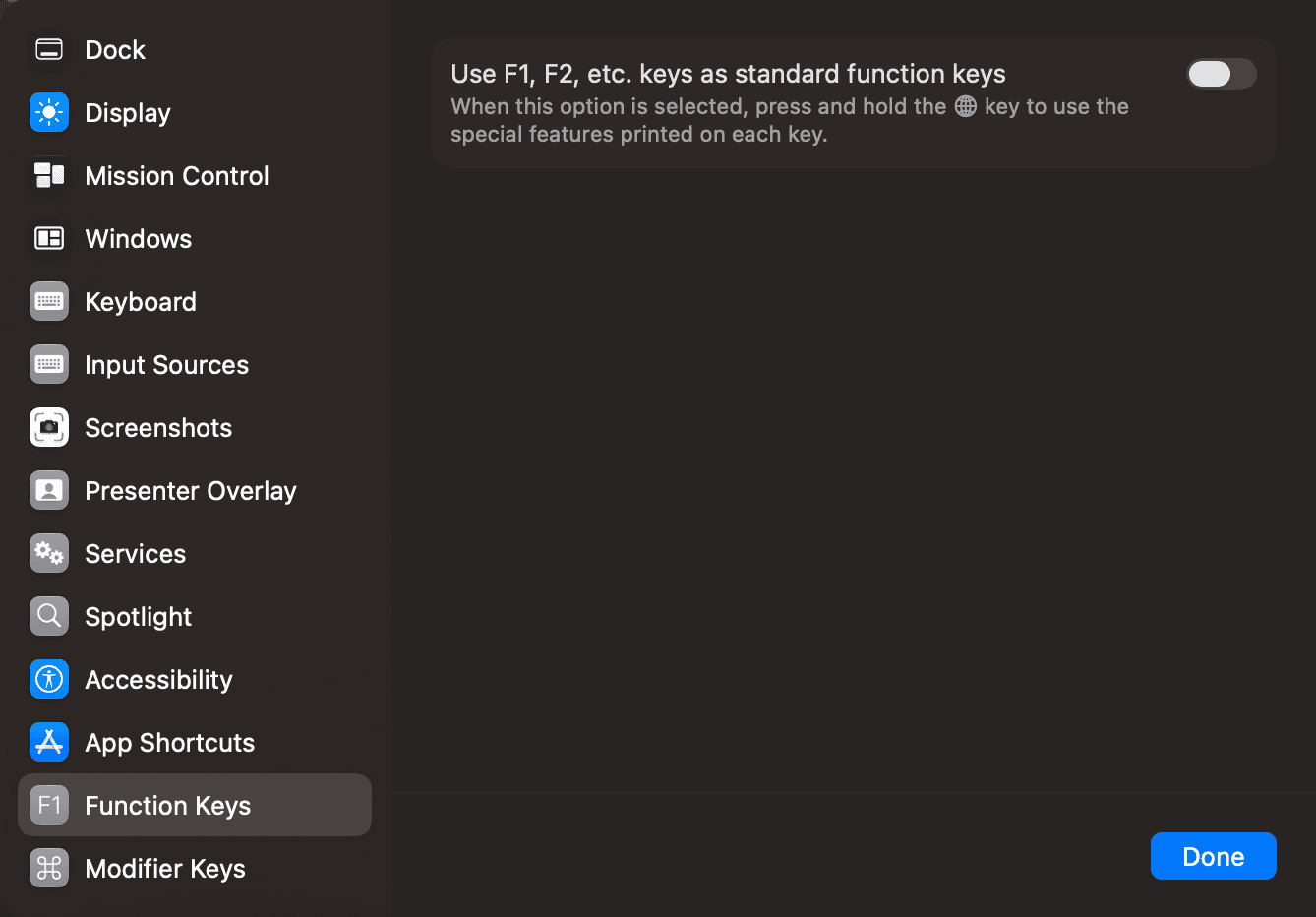
- To show them only in certain apps: System Settings > Keyboard > Keyboard Shortcuts > Function Keys, then add the app.
- With a modifier, hold Fn too. For example, Fn + Control + F3 moves focus to the Dock.
Steps are for macOS 27 Golden Gate and macOS 26 Tahoe, and they match any version from macOS 13 Ventura on. Golden Gate needs Apple silicon, so only the 13-inch M1 and M2 Touch Bar models run it.
Show Function Keys by Holding Fn
- Press and hold Fn (or Globe) in the bottom-left corner of the keyboard.
- Tap the function key you want on the Touch Bar, then let go.
If holding the key brings up the Control Strip or Quick Actions instead, open System Settings > Keyboard > Touch Bar Settings and set Press and hold fn key to (or Press and hold Globe key to) to the option that shows the F1, F2, etc. keys.
Keep Function Keys On the Touch Bar All the Time
- Choose Apple menu > System Settings.
- Click Keyboard in the sidebar. You may need to scroll down.
- Click Touch Bar Settings.
- Open the Touch Bar shows pop-up menu and choose F1, F2, etc. Keys.
F1 through F12 now show in every app. For brightness and volume, set Press and hold fn key to to bring up the Control Strip.
On macOS 12 Monterey or earlier, the Touch Bar shows menu is in System Preferences > Keyboard.
Show Function Keys Only in Certain Apps
This keeps the normal Touch Bar everywhere except apps that lean on F-keys, such as spreadsheets or code editors.
- Choose Apple menu > System Settings > Keyboard.
- Click Keyboard Shortcuts.
- Click Function Keys in the sidebar.
- Click the Add button (+) and choose the app.
The function keys now appear whenever that app is in front.
Use Function Keys From the Onscreen Keyboard
If the Touch Bar isn’t responding, use Keyboard Viewer. In System Settings > Keyboard, click Edit next to Input Sources and turn on Show Input menu in menu bar. Then choose Show Keyboard Viewer from the Input menu and click Fn to see the function keys.
MacBook Pro Models With Physical Function Keys
The 14-inch and 16-inch models from 2021 on have a full row of keys that control brightness, media and volume by default, so hold Fn or Globe for F1 through F12. To flip that, turn on Use F1, F2, etc. keys as standard function keys in System Settings > Keyboard > Keyboard Shortcuts > Function Keys. Fn handles other jobs too, like letting you page down on a Mac.
Coming from Windows? That setting works like Fn Lock on many Windows laptops.
Touch Bar Function Key Cheat Sheet
Apple’s guide to function keys on MacBook Pro with Touch Bar covers the same options.
| What you want | How to do it |
|---|---|
| Use one function key | Hold Fn or Globe, tap the key |
| Function key with a modifier | Hold Fn plus the modifier, tap the key |
| Move focus to the Dock | Fn + Control + F3 |
| Show the desktop | Fn + F11 |
| F-keys on all the time | Touch Bar Settings > Touch Bar shows > F1, F2, etc. Keys |
| F-keys in chosen apps | Keyboard Shortcuts > Function Keys > Add (+) |
| Touch Bar not responding | Show Keyboard Viewer, then click Fn |
Still stuck?
Which MacBook Pro models have a Touch Bar?
Most 13-inch models from 2016 to 2022 (not the 2016 and 2017 two-port models), the 15-inch from 2016 to 2019 and the 16-inch 2019. The last was the 13-inch with M2.
Can my Touch Bar MacBook Pro run macOS 27 Golden Gate?
Only the 13-inch models with M1 or M2. The Intel 16-inch 2019 and 13-inch 2020 with four Thunderbolt 3 ports stop at macOS 26 Tahoe, and older ones earlier.
Do the function keys work in Windows on a Touch Bar Mac?
Yes, on Intel models with Boot Camp. Hold Fn, or select Use all F1, F2, etc. keys as standard function keys in the Keyboard tab of Boot Camp Control Panel. Apple silicon Macs don’t support Boot Camp.
What do F5 and F6 do on a MacBook Pro without a Touch Bar?
On the 14-inch and 16-inch models, F5 starts Dictation and F6 turns Do Not Disturb on and off. Hold Fn to send a plain F5 or F6.

I am Carissa Gudinoa, a technology buff, and Office online and Apple expert with over 9 years of experience. I am passionate about helping others get the most out of their Apple devices. I have written extensively about Apple products and technologies. I am committed to providing my clients with the best possible service and am always up-to-date on the latest Apple products and features. I also write extensively on other software available for use at minimal cost or free. This includes Word Online, Outlook Online, Excel Online, and other Office online programs… Check out more.