
Right-click the file in Google Drive, select Organize > Move, pick the destination folder, and click the blue Move button. That’s the whole job on a computer.
In this tutorial, I’ll show you how to move files in google drive from a computer and a phone, what the other methods do, how a move differs from a shortcut, and what to check when a file refuses to go where you sent it.
Move a file from the Organize menu on a computer
I use this method most because it works from anywhere a file shows up, and you can see exactly where the file is headed before you commit.
My demo Drive belongs to a made-up business called Bluebird Landscaping. If your destination doesn’t exist yet, you can create the subfolder first, or make a new one inside the Move dialog.
- Go to drive.google.com and find the file.
- Right-click it, or click its three-dot menu.
- Point to Organize, then click Move.
- Pick a folder in the dialog, or create a new one.
- Click the blue Move button.
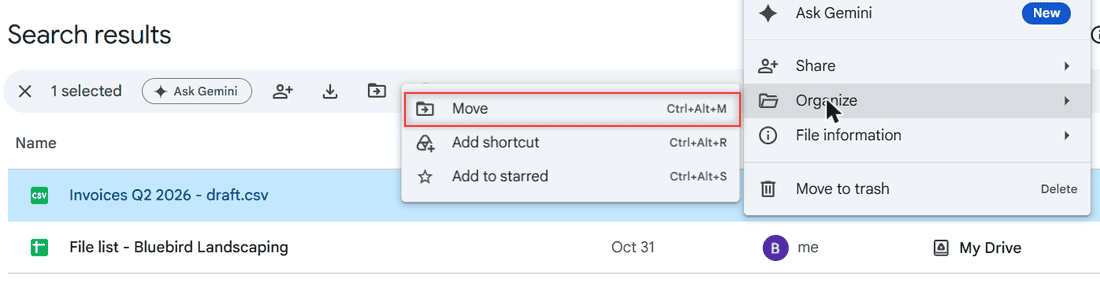
The Organize submenu has three items on my screen: Move, Add shortcut, and Add to starred. Some guides still call it Move to, but the label on my screen is just Move.
The dialog is worth a closer look. Its title names your file, and Current location tells you where the file sits right now.
Below that are three tabs: Suggested, Starred, and All locations. If the folder you want isn’t suggested, All locations is where I go next.
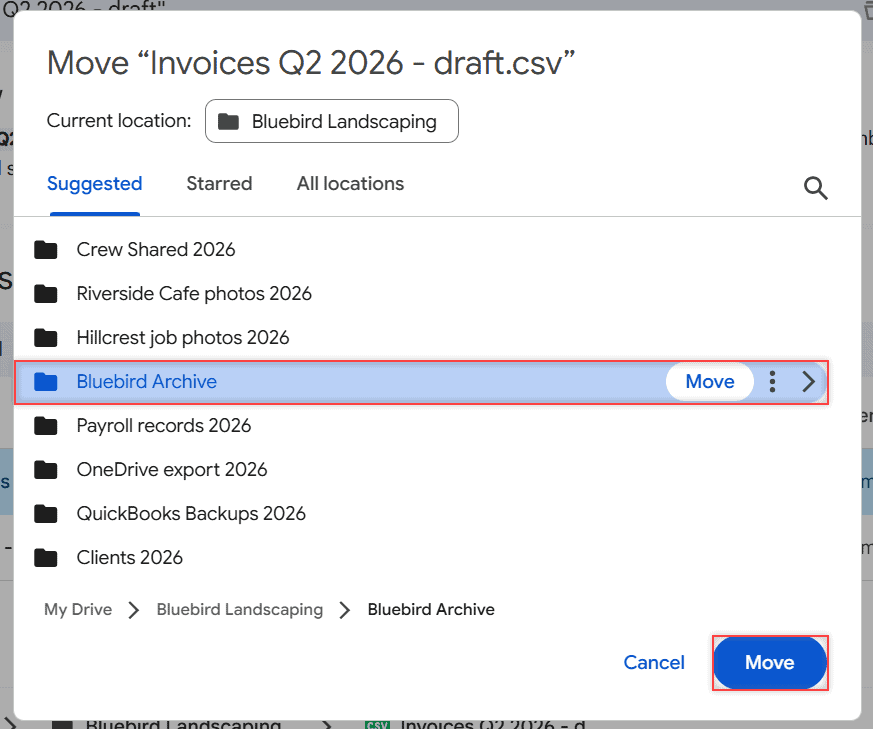
Before you click, check the path along the bottom of the dialog. Mine read My Drive > Bluebird Landscaping > Bluebird Archive. Two folders with similar names are easy to mix up, and that path settles it.
Got a batch to move? Select the files together first, and a Move button appears in the top bar.
Moving a file straight from search results
You don’t have to open the file’s folder first. Google says you can move items from the main window, the left panel, or search results, and this is the one I tried for real.
I searched for my invoice file, opened its three-dot menu, and went through Organize > Move. The file moved, and the Location column changed to Bluebird Archive right there in the results.
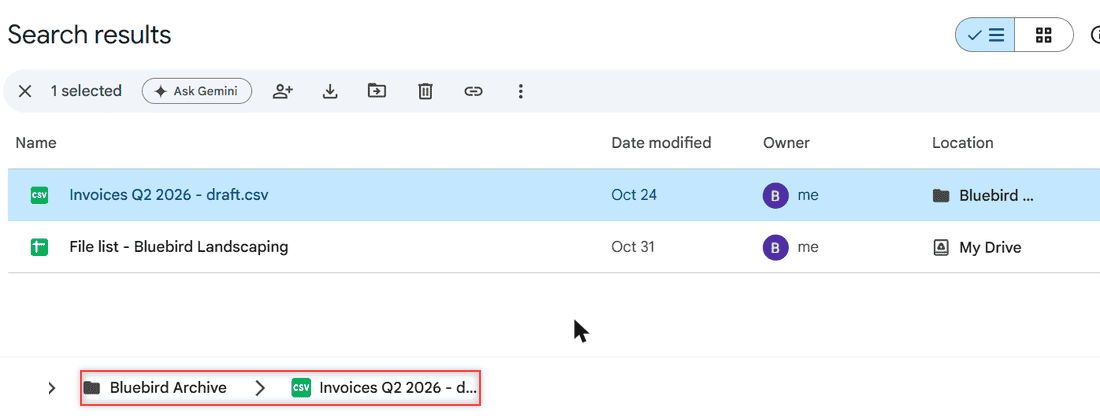
This is the fastest route when you know a file’s name but not its home. Search also helps when you need to track down a folder before you can drop anything in it.
I moved the file back afterward through the same menu, so a wrong move is easy to undo. Just move it again.
Other ways Google Drive lets you move files
Google’s help page lists a few more methods. I didn’t test these on my demo account for this post, so the details below come from Google’s own documentation.
Drag the file onto a folder
Drag the file over the destination folder and let go. Google says you can also drag into the left panel, which saves scrolling if the folder lives somewhere else.
Drag and drop is quick when both places are on screen. It’s less forgiving, because releasing over the wrong folder puts the file there. It also helps to sort the file list first so the folder you want is visible.
Cut and paste with the keyboard
This one works in Chrome only. Select the file and press Ctrl+X, go to the new location, and press Ctrl+V.
Press Ctrl+Shift+V instead, and Drive creates a shortcut there rather than moving the file. Google also says these keys work across browser windows, so you can have the source open in one and the destination in another.
The Ctrl+Alt+M shortcut
My Organize menu lists Ctrl+Alt+M next to Move. Ctrl+Alt+R sits next to Add shortcut, and Ctrl+Alt+S next to Add to starred.
| Method | Best for | Watch out for |
|---|---|---|
| Organize > Move | Precise moves, far-away folders | Slightly more clicks |
| Drag and drop | Folders already on screen | Dropping on the wrong folder |
| Ctrl+X, Ctrl+V | Moves between browser windows | Chrome only |
| Ctrl+Shift+V | Adding a shortcut, not moving | The original stays where it was |
Move or add a shortcut: which one you actually want
These two sit next to each other in the menu, and they do different jobs.
- Move changes where the file lives. It leaves the old folder and shows up in the new one.
- Add shortcut leaves the file alone and puts a link to it in another folder.
I’d use a shortcut when one file belongs in two places. A signed contract, for example, might matter to both a client folder and a legal folder.
Shortcuts are also the right choice for files you don’t own and can’t move. Deleting a shortcut doesn’t delete the original, so you can clear them out without worry. Google notes you can’t create a shortcut to another shortcut.
If you want a separate second version that you can edit on its own, neither option does that. You want a copy, and too many of those is how people end up fighting duplicate files.
On Android or iPhone
The Google Drive app uses nearly the same steps on both phones. These come from Google’s help page; I didn’t run them on a phone for this post.
- Open the Google Drive app.
- Next to the file, tap the More icon (three dots).
- Tap Move. On iPhone or iPad, you may need to scroll to see it.
- Choose the destination folder.
- Tap Move here.
Need a folder that isn’t there yet? Tap New folder before you finish.
The permission rule is the same on a phone. If you can’t move the file, Drive creates a shortcut in the destination folder. A move also isn’t the same as saving a file to your phone, which puts a copy on the device.
Moving files into a shared drive (Workspace accounts)
Shared drives exist only on Google Workspace editions that support them, and your admin has to allow them. On a personal Gmail account, your moves stay inside My Drive.
In a shared drive, your role decides what you can move. Here’s Google’s breakdown:
| What you want to do | Who can do it |
|---|---|
| Move files from My Drive to a shared drive | Manager, Content manager, Contributor |
| Move folders from My Drive to a shared drive | Manager only |
| Move files and folders within a shared drive | Manager, Content manager |
| Move files from one shared drive to another | Manager only |
The catch that surprises people: a Contributor can bring a file in, but can’t rearrange it once it’s there. Ask a Manager if you need more than your role allows.
A shared drive isn’t the same thing as a shared folder in My Drive, either. If you’re only sharing a folder with someone, this role table doesn’t apply.
When a file won’t move
A shortcut appeared instead of the file
This is the most common surprise. Google’s rule is that you need permission to move a file from the source to the destination.
Without that permission, the file isn’t moved, and a shortcut is created in the destination folder instead. So if a shortcut shows up where you expected the real file, this is usually why.
The fix isn’t a trick. Ask the file’s owner to move it, or ask them for access that allows the move.
A big folder looks empty or half-moved
Google says folders with many files or subfolders can take time to show the change. Give it a few minutes before you try again, and don’t start a second move on top of the first.
If things still seem off, check whether files have really gone missing.
Ctrl+X and Ctrl+V do nothing
Check your browser first. Google documents this method for Chrome only, so in another browser use Organize > Move instead.
You moved it and now you can’t find it
Search for the file’s name and read its Location column, the same one in my screenshot above. Then move it back or delete the file if it was a stray.
A few more Drive housekeeping guides that pair well with this one:
Moving files between two of your own Google accounts works differently, and I cover it in transferring Google Drive files to another account. For where each file should end up, my Google Drive organizing rules keep the folder list short.
Quick answers
Does moving a file in Google Drive make a copy?
No. The file changes location and doesn’t appear in the old folder afterward. If you want it in two places, add a shortcut.
Can I move a file someone shared with me?
Only if you have permission to move it from the source to the destination. Otherwise Google Drive creates a shortcut in the destination folder instead of moving the file.
Can I move a whole folder in Google Drive?
Yes. Right-click the folder and use Organize > Move, the same as a file. Google notes that folders holding many files or subfolders can take some time to show the change.
Where are the official Google Drive steps for moving files?
Google keeps them on one help page: Google Drive Help on organizing files and folders. It has separate tabs for computer, Android, and iPhone or iPad.

I am Carissa Gudinoa, a technology buff, and Office online and Apple expert with over 9 years of experience. I am passionate about helping others get the most out of their Apple devices. I have written extensively about Apple products and technologies. I am committed to providing my clients with the best possible service and am always up-to-date on the latest Apple products and features. I also write extensively on other software available for use at minimal cost or free. This includes Word Online, Outlook Online, Excel Online, and other Office online programs… Check out more.