
I shared my 2026 Crew Schedule spreadsheet with Dana, our office manager, as an Editor. Then I realized Dana only needed to read it. Fixing that took a few clicks, but one small detail nearly caught me: the change doesn’t apply until you click Save.
In this tutorial, I’ll show you how to change sharing permissions in google drive for one person, how to remove someone completely, how to change who can open a file by link, and how folders and work accounts change the picture.
My sample file lives in a folder called Bluebird Landscaping, the demo business I use for these guides. I ran these tests in Drive on the web.
Method 1: Change one person’s role
Use this when someone should keep access but needs more or less of it. If you haven’t shared the file yet, start with how to share a file on Google Drive.
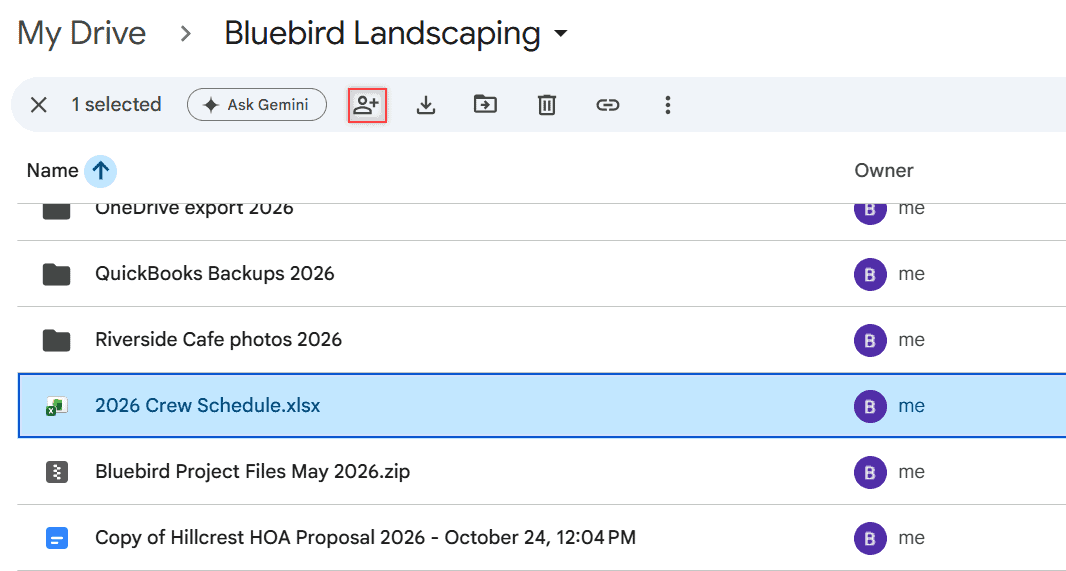
- Open Google Drive and click the file once to select it.
- Click the Share icon in the toolbar that appears above your file list. It looks like a person with a plus sign.
The Share dialog opens. Under People with access, you’ll see the owner and everyone else on the file, each with a role on the right.
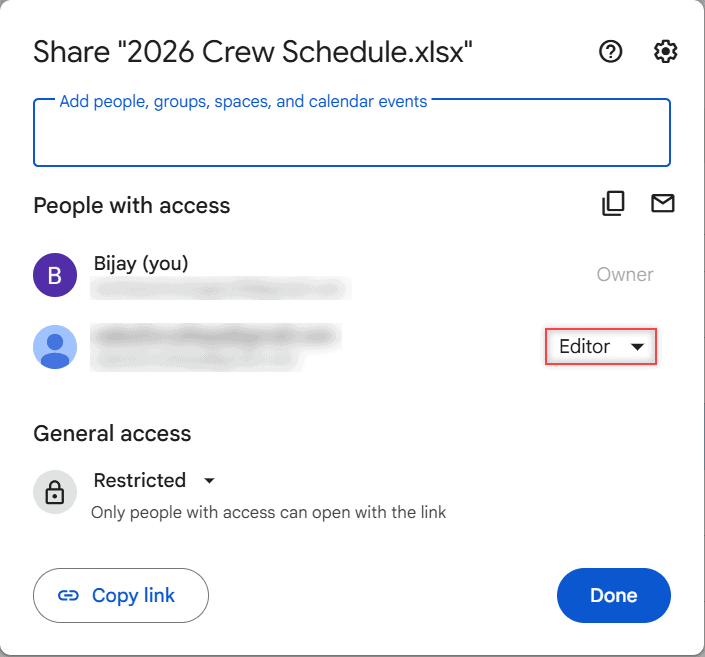
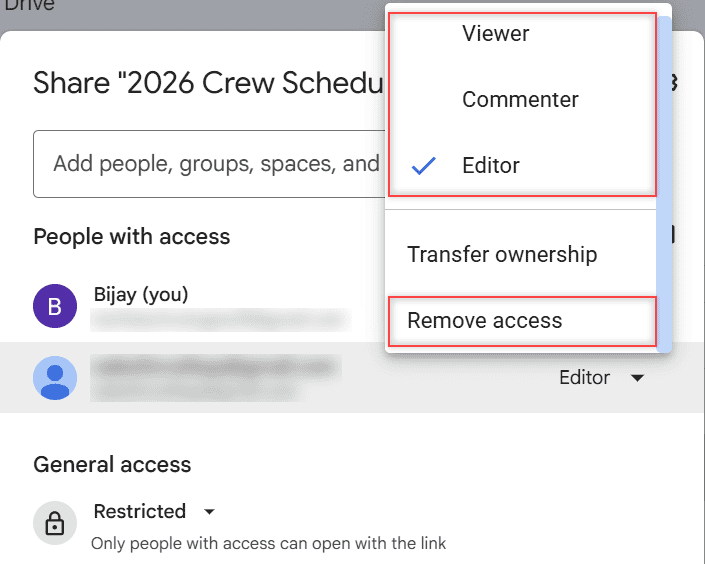
- Click the down arrow next to the person.
- Pick Viewer, Commenter or Editor.
- Click Save.
Here’s the detail I mentioned. After I picked Viewer, the footer switched to Pending changes and a blue Save button replaced Done.
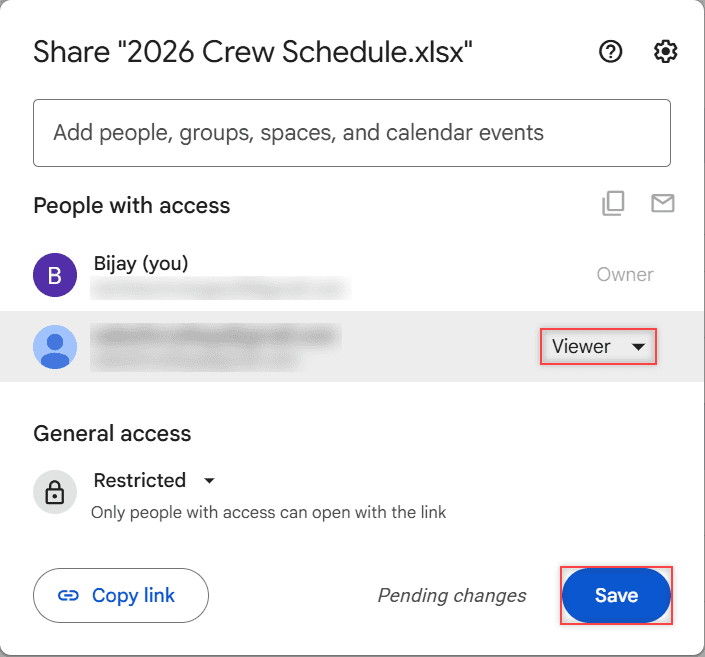
If you close the dialog at that point, don’t assume the new role took effect. Click Save first.
How does this work? Each role is a set of things a person can do. A Viewer can open the file but can’t edit, comment or share it. A Commenter can add comments and suggestions. An Editor can make changes and, by default, can also change permissions and share the file with others.
Pro tip: If you only want someone reading a file, set them as Viewer rather than Editor. Editors can share it onward unless you turn that off, which I cover in Method 4.
Method 2: Remove access for one person
When someone is done with a file, take them off the list. For a whole folder, I walk through how to unshare a folder in Google Drive separately.
- Open the Share dialog for the file.
- Click the down arrow next to the person.
- Choose Remove access.
- Click Save.
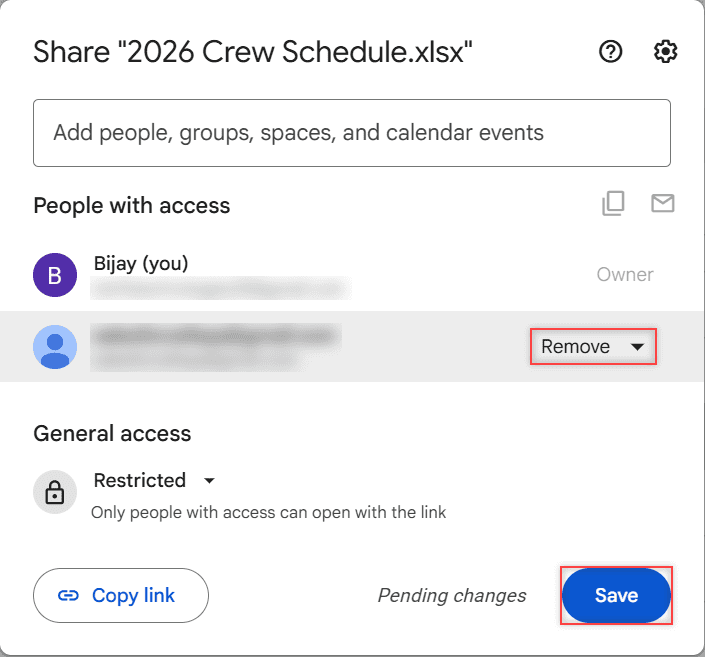
Before I saved, Dana’s name was struck through and the dropdown read Remove. The footer showed Pending changes again.
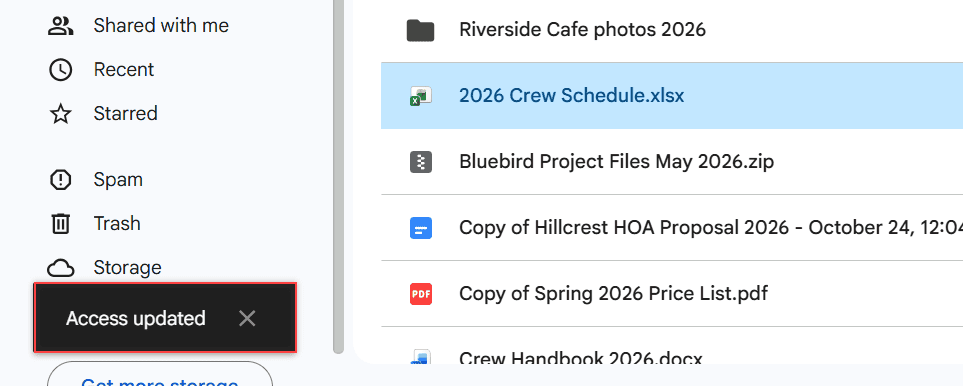
After I clicked Save, a small Access updated message popped up at the bottom left of Drive.
How does this work? The person drops off the file’s access list once you save. If they need the file again, you can add them back. And if a request comes in later, my guide to the Google Drive request access screen explains it.
Method 3: Change who can open the file with a link
Roles control named people. General access controls everyone else. It’s the section under the people list in the Share dialog.
- Open the Share dialog.
- Click the dropdown under General access.
- Choose the option you want, then finish with Save or Done depending on what the footer shows.
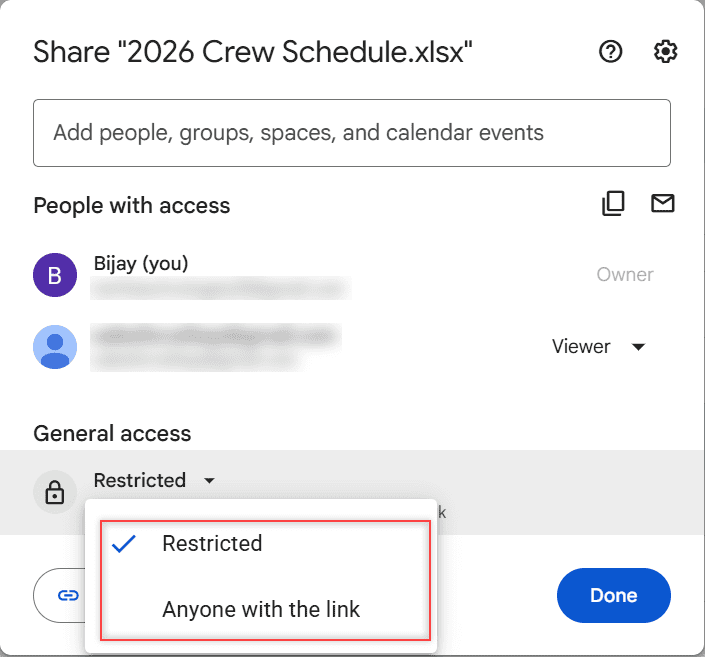
My personal account shows just two options:
- Restricted: only people you’ve given access can open the file.
- Anyone with the link: anyone who has the link can open it, without signing in.
Work and school accounts can also see an option for their organization, and the admin decides which levels are allowed. Before you open a file up, read my guide to turning on link sharing.
How does this work? General access and the people list work together. Switching to Restricted closes the link to outsiders, while the people named in the list keep their roles.
Method 4: Limit what editors and viewers can do
The gear icon at the top right of the Share dialog opens a settings page for that file. Mine is titled Settings for “2026 Crew Schedule.xlsx”.
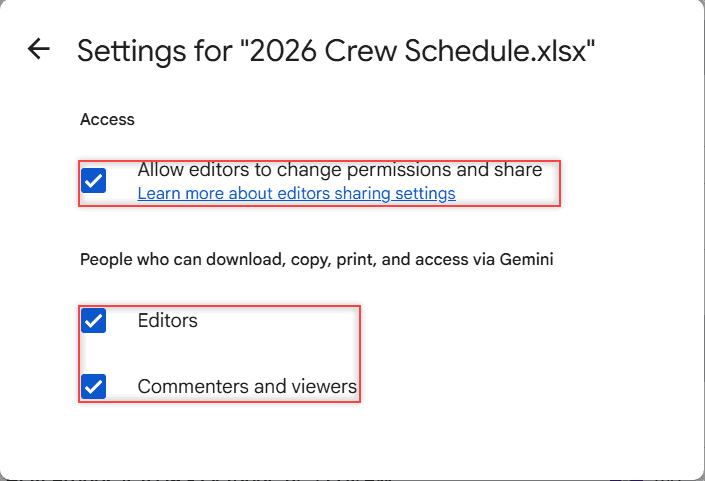
Two sets of checkboxes matter here:
- Allow editors to change permissions and share: untick it if editors shouldn’t be able to add people or change roles.
- People who can download, copy, print, and access via Gemini: untick Editors, Commenters and viewers, or both.
If you’re mainly worried about copies leaving Drive, my post on how to disable the download option in Google Drive goes deeper, and whether viewers can download files covers what the default looks like.
How does this work? These settings apply to the file as a whole, so you don’t set them per person. If the file sits in a shared folder, Google says the folder’s permissions override the editor setting.
Method 5: Change permissions on a whole folder
I tested the steps above on a single file. Google’s help says the same Share menu steps work for a folder: click the arrow next to a name, pick the change, then Save. For a first-time share, see sharing a Google Drive folder.
Folders behave differently in one big way. Files and subfolders inside a shared folder inherit its sharing permissions.
So you can’t give someone less access to one file than they have to its folder. If Dana can edit the whole Bluebird Landscaping folder, I can’t make the crew schedule inside it view-only for Dana alone.
For a file that needs tighter access, Google suggests moving it to a folder you own, or to a folder with limited access, where only people you give permission to can open it.
How does this work? Think of the folder as the floor for permissions. A file inside it can’t take away what the folder already gives.
See everyone who has access before you change anything
The Share dialog is the quickest place to look. There’s also a longer route that’s handy when you’re not sure which file you opened: right-click the file, choose More, then File information, then Details, and click Manage access.
That shows who can reach the file, which is a different question from who actually opened it. For that one, see checking who downloaded files in Google Drive.
Things to keep in mind
- The Save button is the step people miss. A pending change isn’t a finished change.
- A single file can be shared with up to 600 individual email addresses.
- Expiration dates are for work and school accounts only. You pick a date within one year, and for folders it applies to the Viewer role only.
- Work and school admins may restrict link sharing or sharing outside the organization, so an option you expect could be missing.
- Transfer ownership sits in the same role menu. I didn’t test it, so check Google’s help before you use it on a file you care about.
- I only changed one person at a time in the Share dialog. Google’s help pages I checked don’t describe a bulk permission change, so I won’t promise one.
- I tested on the web only. Google keeps separate Android and iPhone versions of its sharing help.
If you are tidying up your shared files, these should help next:
- removing shared files from Drive
- how shared folders affect your storage
- seeing who has viewed a Google Doc
- all my Google Drive tutorials
Frequently Asked Questions
Why did my Google Drive permission change not stick?
The most likely reason is that you didn’t click Save. In my test the footer read Pending changes until I saved, so the dialog was still waiting on me.
Can I make one file view-only inside a folder someone can edit?
No. Google’s folder sharing help says files inside a shared folder inherit its permissions, so move the file to a folder you own to give that person less access.
Can an Editor change who has access to my file?
Yes, by default. Untick Allow editors to change permissions and share in the Share dialog settings to stop that, though a shared folder’s permissions override this setting.
Can I set sharing to expire on a personal Google account?
No. Google lists expiration dates as a feature for work and school accounts only.

I am Carissa Gudinoa, a technology buff, and Office online and Apple expert with over 9 years of experience. I am passionate about helping others get the most out of their Apple devices. I have written extensively about Apple products and technologies. I am committed to providing my clients with the best possible service and am always up-to-date on the latest Apple products and features. I also write extensively on other software available for use at minimal cost or free. This includes Word Online, Outlook Online, Excel Online, and other Office online programs… Check out more.