
Right-click the file or folder in Google Drive, then click Share. Set General access to Anyone with the link, keep the role on Viewer, and click Copy link. Then open the WhatsApp chat, paste the link, and send it.
In this tutorial, I’ll show you how to share a Google Drive link on WhatsApp from a computer and from the Drive app, which role to pick before you paste it into a group, and how to switch the link off later.
Share a Drive link on WhatsApp from a computer
I sent our Hillcrest job photos to a client this way. A folder of photos is too big to attach one by one, but a link is just a line of text in the chat.
- Open Google Drive in your browser and find the file or folder.
- Right-click it and point at Share. You’ll see Share and Copy link.
- Click Share (or press Ctrl+Alt+A) to open the Share dialog.
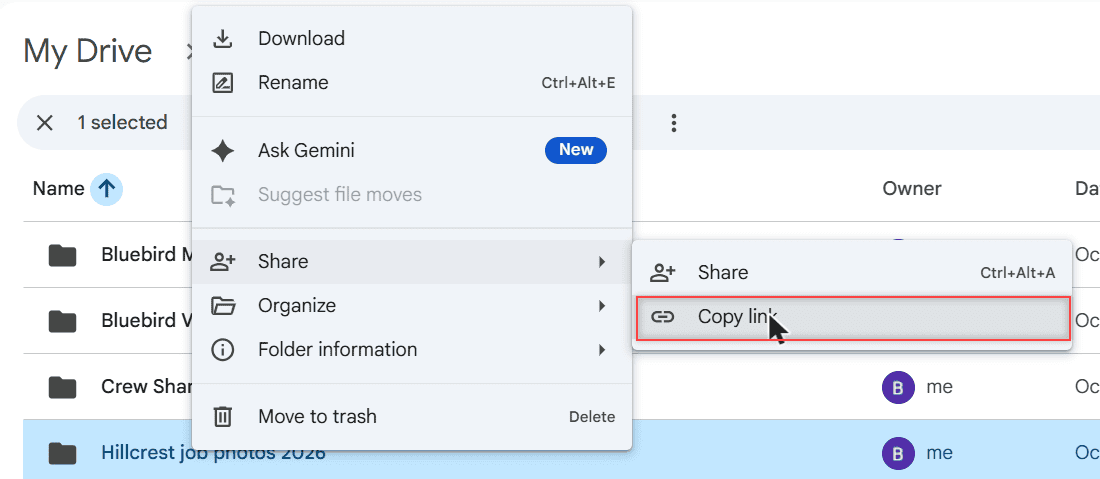
Copy link in that submenu works too, but it copies the link with the current access. If the file is still Restricted, your contact will hit a request screen.
- Under General access, click the dropdown and pick Anyone with the link.
- Leave the role on Viewer unless people need to change things.
- Click Copy link. Drive shows “Link copied.” Then click Done.
- Open the chat in WhatsApp or WhatsApp Web, paste the link, and send it.
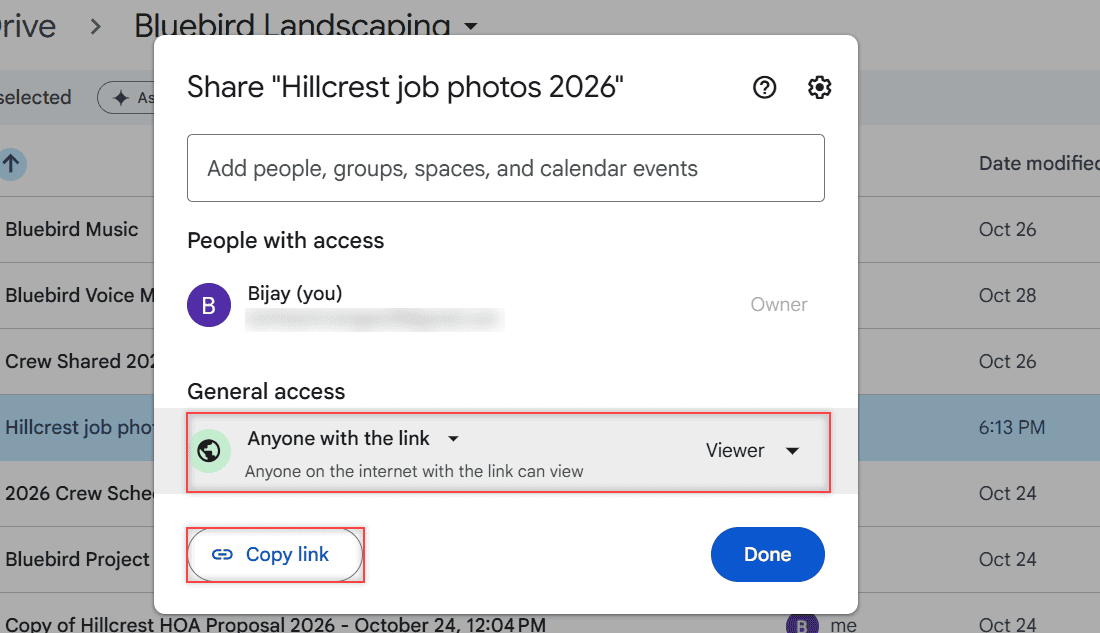
I explain the switch itself in more detail in turning on link sharing in Google Drive.
Send a Drive link from the Android or iPhone app
I didn’t shoot these steps on a phone, so they follow Google’s Drive Help. They’re nearly the same on Android and iPhone.
- Open the Google Drive app and tap More (three dots) next to the file or folder.
- Tap Share or Manage access.
- Under General access, tap Change and choose Anyone with the link.
- Pick the role, then tap Copy link and go back.
- Open WhatsApp, open the chat, long-press the message box, paste, and send.
Your phone’s share sheet can also hand the link straight to WhatsApp. Either way, set the access first, or the link won’t open for anyone you haven’t added.
Saving a copy on the phone is different. I cover it in saving Drive files to your phone.
Pick Viewer or Editor before you paste it into a group
This is the step most guides skip. In a WhatsApp group, a link gets forwarded fast. Anyone who ends up with it gets the role you picked.
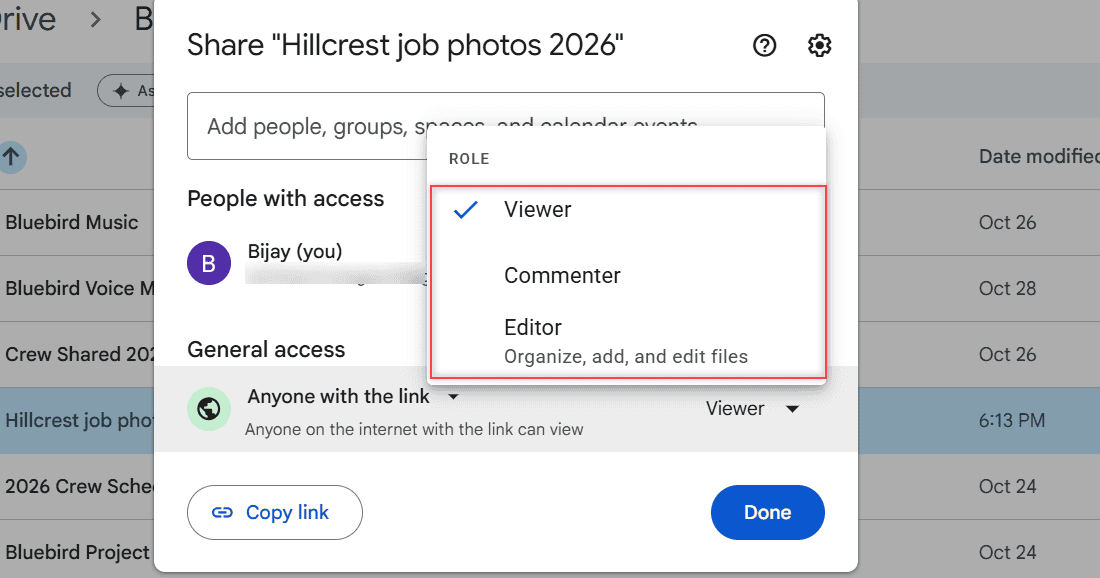
- Viewer: can open and read. This is what I use for groups.
- Commenter: can also leave comments.
- Editor: on a folder, can organize, add, and edit files. I only give this to one or two people, by email.
Viewers can usually still download. If that worries you, read whether viewers can download your files.
Send a whole folder or a Google Doc the same way
A folder link shares every file inside it, which is handy for a batch of photos. New files you add to that folder show up for the same people.
For a Google Doc, open the doc and click Share at the top right. The dialog is the same one, so set Anyone with the link, copy it, and paste it into WhatsApp.
For really big videos, upload them first. My tips for uploading large files to Drive help there.
When the link doesn’t open on WhatsApp
If your contact sees a request access page, General access is still Restricted. Open Share again and check it. That page is the Google Drive request access screen.
On a personal account, I only had Restricted and Anyone with the link. A work or school account may block outside sharing, and only your admin can change that.
Turn the link back to Restricted afterwards
When the client had the photos, I opened Share, set General access back to Restricted, and clicked Done. The old WhatsApp link stopped working for anyone I hadn’t added by name.
To remove a folder’s sharing completely, follow how to unshare a folder in Google Drive.
A few more Drive sharing guides you might like:
- is a Google Drive link safe to open
- remove shared files from your Drive
- turn off downloads for viewers
- see who viewed a Google Doc
Quick answers

I am Carissa Gudinoa, a technology buff, and Office online and Apple expert with over 9 years of experience. I am passionate about helping others get the most out of their Apple devices. I have written extensively about Apple products and technologies. I am committed to providing my clients with the best possible service and am always up-to-date on the latest Apple products and features. I also write extensively on other software available for use at minimal cost or free. This includes Word Online, Outlook Online, Excel Online, and other Office online programs… Check out more.