
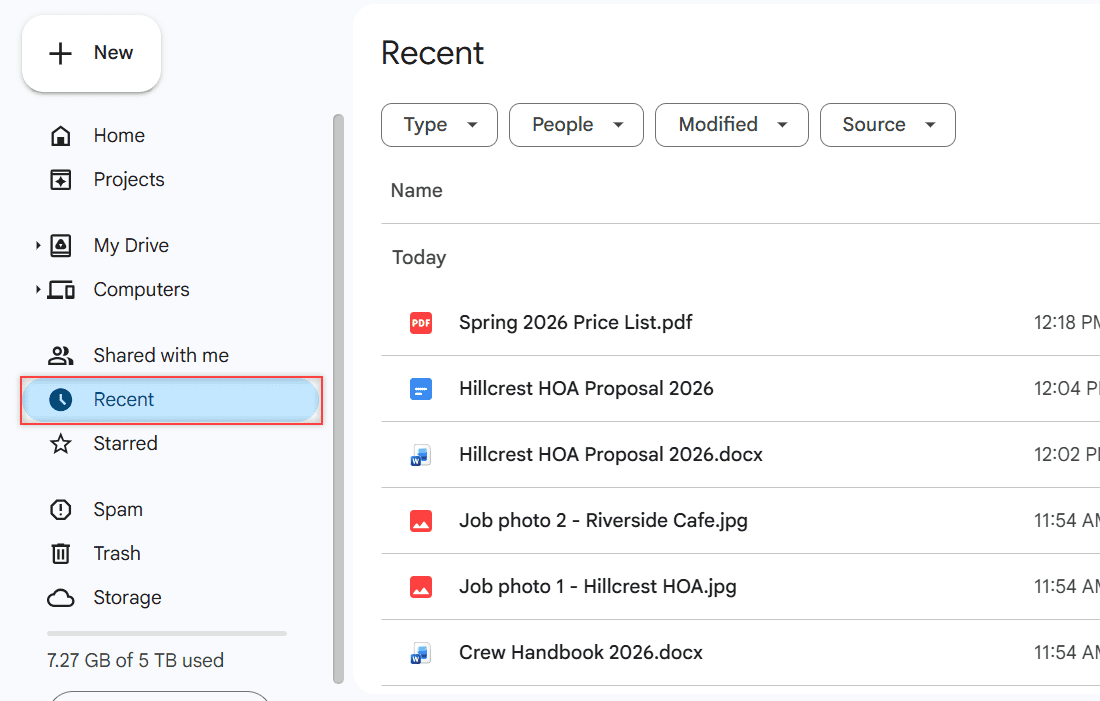
Google Drive has no button to clear Recent or the Activity log. To get a file off Recent, right-click it, then click Move to trash. To clear what you searched, open Settings, then Privacy, then Manage search history.
In this tutorial, I’ll show you what it really takes to delete recent activity on Google Drive today: removing files, clearing search history, hiding your view history, and what other people can see.
Why there is no clear Recent option
I checked this in my demo Drive for a made-up business, Bluebird Landscaping Co. The Recent page lists files by date, starting with Today. You can’t even sort it.
Then I right-clicked a photo on that page. The menu offers Open with, Download, Rename, Make a copy, Ask Gemini, Share, Organize, File information, and Move to trash. There’s no Remove from Recent.
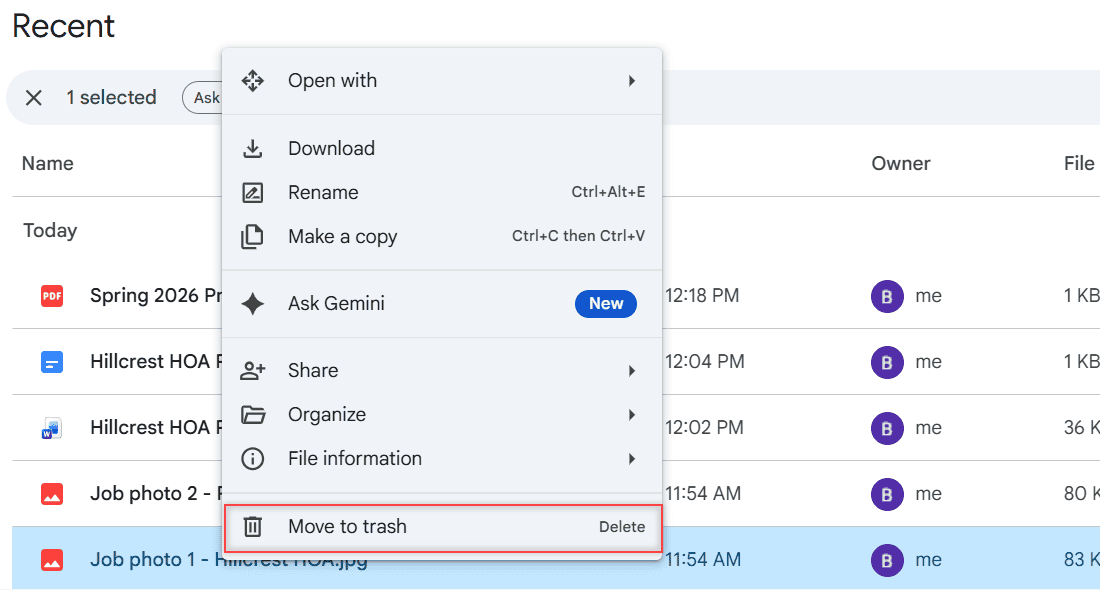
So the only way to drop a file from Recent is to trash it. If you need it later, you can find it again in your folders before it’s gone for good.
Remove a file from Recent on a computer
- Go to drive.google.com and click Recent on the left.
- Right-click the file.
- Click Move to trash.
I tested this on Job photo 2 – Riverside Cafe.jpg in my demo Drive. Once it was in Trash, it was gone from Recent. When I restored it, it showed up in Recent again right away.
Trashed files are deleted forever after 30 days. You can restore them before then. To remove one right away, empty the Trash in Google Drive or pick Delete forever on that file.
For a file someone else owns, you’ll see Remove instead. That only takes it out of your Drive. Here’s how removing shared files works in more detail.
Remove a file on Android or iPhone
The phone app doesn’t have a clear history option either. On Android, tap Files, tap More next to the file, then tap Remove. That sends it to Trash, just like on a computer.
I couldn’t confirm a separate iPhone path in Google’s help, so I won’t guess. The rule is the same: trash the file, and it stops showing up.
Clear your Google Drive search history
Drive keeps your searches separately from Recent. Click the gear icon, then Settings, then Privacy. Under Data Privacy, click Manage search history.
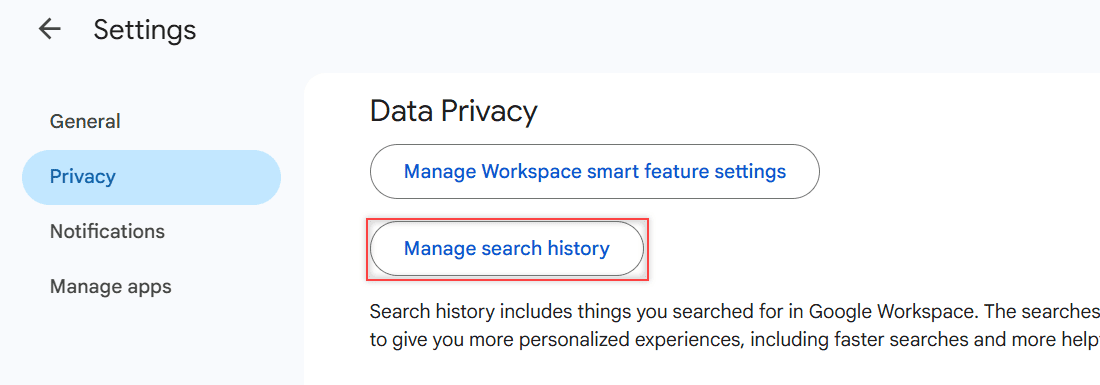
That opens your Google Workspace search history in My Activity. It covers searches in Gmail and Drive. You can delete items, or set auto-delete to 3, 18, or 36 months.
The default is 18 months, so old searches clear themselves eventually. If you want them gone sooner, pick 3 months or delete them by hand.
Turning the history off doesn’t erase past searches, so delete them first. Searches in the Gmail and Chat phone apps are stored separately and have to be cleared inside those apps.
Hide your view history in Docs, Sheets, and Slides
Open Google Docs, Sheets, or Slides. Click Menu, then Settings. Under Activity dashboard, turn off Show your view history.
This matters mostly on work or school files. If a file isn’t owned by a work or school account, no one can see its view history anyway. Here’s more on who can see that you viewed a doc.
What others can see about your activity
The Activity tab in the details panel shows actions on a file, like when I made a copy of a proposal. Click the Info button, then Activity.
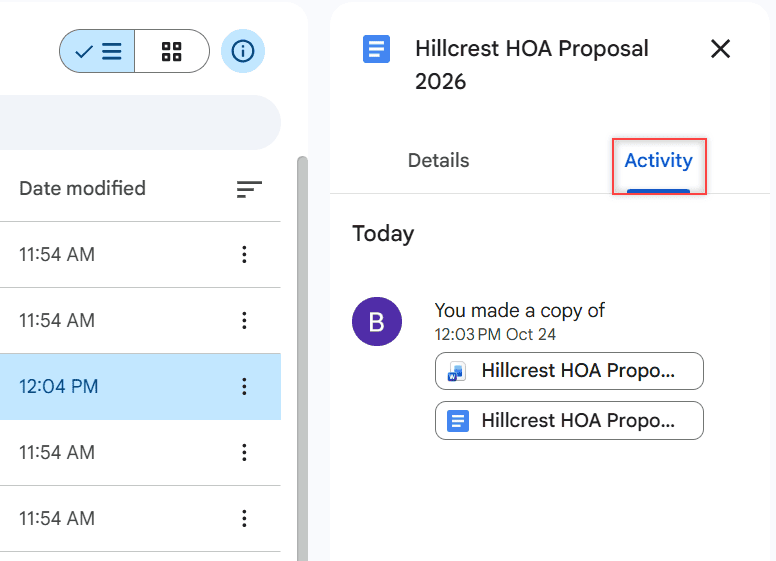
There’s no way to delete those entries. People who share a file can still check its version history in Google Drive, which shows who changed what.
When Recent still shows the file
- You used Remove on a shared file. It’s gone from your Drive, but the owner and others keep it.
- You restored the file from Trash, so it’s back in your Drive.
- You’re signed in to another Google account. Check the profile picture at the top right.
- You’re seeing alerts, not Recent. You can turn off Google Drive notifications separately.
A few more Drive guides you might want
Quick answers
Can you clear Recent on Google Drive?
No. Drive has no clear button for Recent. Moving a file to Trash is the only way to take it off the list.
Can others see my Google Drive activity?
People who share a file can see changes in its Activity tab and version history. View history in the Activity dashboard only shows for files owned by work or school accounts.
How do I hide files from Recent without deleting them?
You can’t. Drive has no hide option for Recent. Move the file to a folder you remember instead and leave Recent alone.
Does deleting a file remove its activity?
Trashing a file takes it out of your Drive views. Drive doesn’t offer a way to erase activity entries on files you keep.
How do I clear Google Drive search history?
Open Settings, then Privacy, then Manage search history, and delete the items in My Activity. Google explains it in Manage your search history in Workspace.

I am Carissa Gudinoa, a technology buff, and Office online and Apple expert with over 9 years of experience. I am passionate about helping others get the most out of their Apple devices. I have written extensively about Apple products and technologies. I am committed to providing my clients with the best possible service and am always up-to-date on the latest Apple products and features. I also write extensively on other software available for use at minimal cost or free. This includes Word Online, Outlook Online, Excel Online, and other Office online programs… Check out more.