
It depends on who owns it: if someone else owns the file, you can only hide it from your Shared with me list, and only the owner can actually take away your access or delete it. If you own it, you can stop sharing it or move it to the trash.
In this tutorial, I’ll explain how to remove shared files from Google Drive, what Remove from view really does, why Move to trash is greyed out, how an owner ends someone’s access, and how to block a person who keeps sharing files you don’t want.
A shared file lives in the owner’s Drive, not yours
Everything in Shared with me is a pointer to a file that sits in someone else’s Drive. You’re looking at their copy, with whatever role they gave you: Viewer, Commenter, or Editor.
That’s also why shared files don’t eat into your space. Google says files shared with you count against the owner’s storage, never the recipient’s. If your quota is full anyway, my guide on Google Drive storage that looks full with no files explains where the space usually goes.
To test all of this, I had a client account share a Google Doc called Bluebird – Riverside Cafe planter quote 2026 with my demo Drive as a Viewer. It showed up right away under Today in Shared with me.

Drive didn’t ask me to accept it first. Anyone who knows your address can drop a file into this list, which is exactly why people go looking for a way to clear it out.
What you can and can’t do with a shared file
Here’s the short version of who can do what. I checked each row either in my demo Drive or on Google’s help pages.
| What you want to do | If someone else owns it | If you own it |
|---|---|---|
| Hide it from Shared with me | Yes, with Remove from view | Not needed, it sits in My Drive |
| Move it to the trash | No, Move to trash is greyed out | Yes, others keep access until it’s deleted forever |
| End a person’s access | No, ask the owner | Yes, Share > Remove access > Save |
| Make someone else the owner | No | Yes, with Transfer ownership |
| Stop future shares from one person | Yes, by blocking them | Yes, by blocking them |
The first column is where most of the confusion comes from. Removing a file you don’t own is a personal clean-up, not a delete, and the owner and everyone else with access keep the file.
How Remove from view works in Shared with me
On a computer, open drive.google.com, click Shared with me in the left menu, and right-click the file. You’ll see a long menu, but notice which items are greyed out.
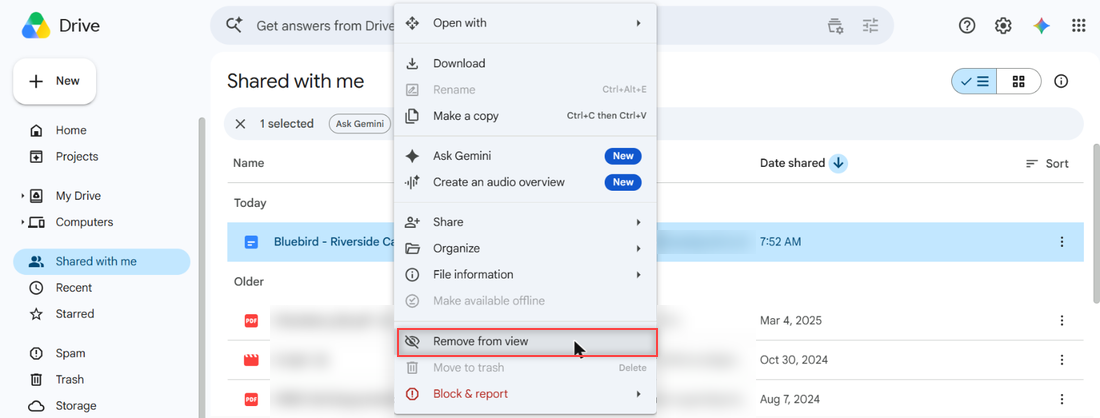
Rename, Make available offline, and Move to trash were all greyed out for me because I was only a Viewer. Click Remove from view, and Drive shows a small “File removed” message with an Undo link.
The file disappears from Shared with me right away. If you clicked the wrong row, hit Undo before the message goes away. And if a long list of files you never open clutters your home screen instead, you can also remove suggested files in Google Drive.
Why the file still shows up in search
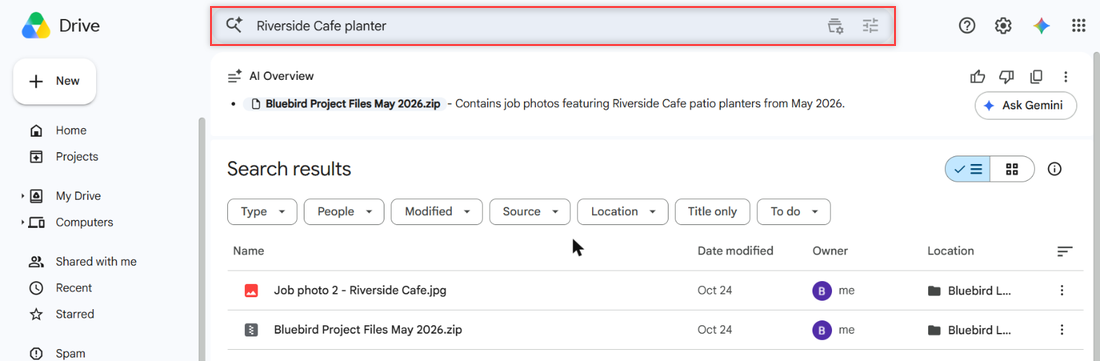
Here’s the part most guides skip. After Remove from view, I searched my Drive for “Riverside Cafe planter,” and the doc came straight back.
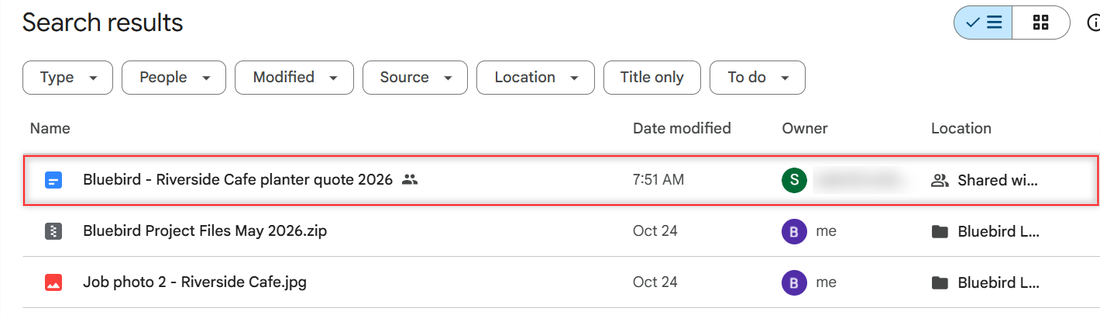
The location still said Shared with me, and the owner was still the client account. Remove from view only hid it from my list. My Viewer access never changed, so I could still open the file from search or from the link in the sharing email.
That’s handy if you removed something by accident: search for its name and it’s still there. It’s less handy if you wanted the file gone for good.
Why you can’t delete a file someone else owns
When I right-clicked the doc in the search results, Remove from view wasn’t in the menu any more. Move to trash was still greyed out, and hovering over it showed a tooltip.
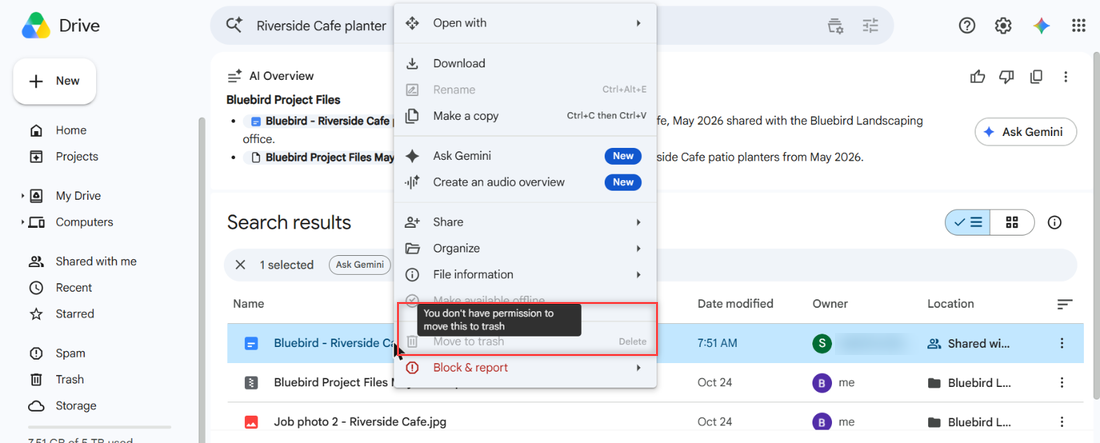
You don't have permission to move this to trashGoogle’s help page says the same thing in plain words: you can’t delete a file you don’t own, you can only remove it from your Drive, and other people keep their access. Being an Editor doesn’t change that.
There’s one more case to know about. If you remove a file you don’t own from a shared folder, Google says it goes back to the owner’s My Drive rather than to any trash. If you want the full picture of shared folders, my post on how shared folders use Drive space covers it.
How the owner removes your access
Only the owner, or an Editor the owner allows to change sharing, can end your access. So when a file truly needs to leave your Drive, the cleanest step is to ask the owner to remove you.
I did this from the client account. In the file’s Share dialog, under People with access, the owner clicks the role next to the person’s name.
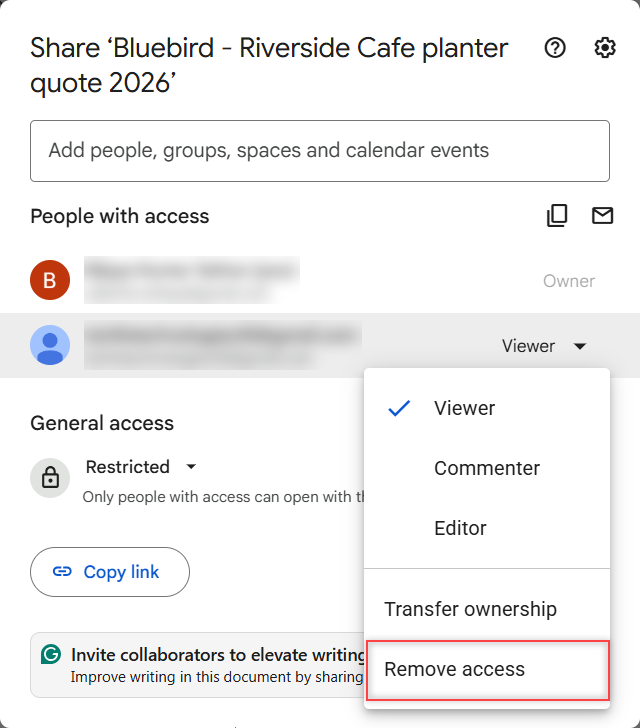
Choosing Remove access doesn’t apply it yet. The name gets struck through, the role changes to Remove, and the dialog shows Pending changes until you click Save.
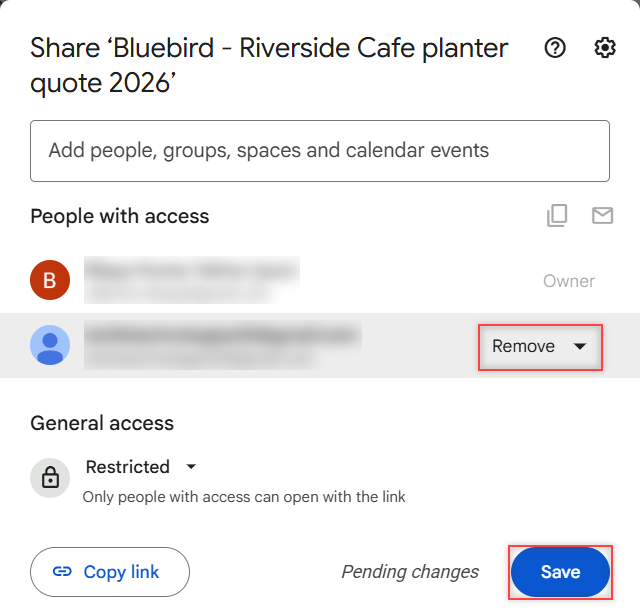
After Save, Drive said “Access updated.” Back in my demo account, the same search found only my own two files. The doc was gone completely.
If you’re the owner and want to stop sharing a whole folder, the steps are the same in the folder’s Share dialog, and I walk through them in how to unshare a folder in Google Drive.
Got a public link out there too? Switch General access back to Restricted, as I show in my link sharing guide.
On a work or school account, an owner can also give someone access for a limited time, so it ends on its own. Google lists that as a work or school option.
What happens when the owner deletes a shared file
If you own a file and move it to the trash, the people you shared it with can still view, comment on, or copy it. They only lose access when you permanently delete it.
Files in the trash are deleted forever after 30 days, or right away if you choose Empty trash. They also keep counting toward your storage until then. My guides on how long Google Drive keeps deleted files and how to empty the trash in Google Drive cover both.
Want the file to outlive your copy? Make someone else the owner first. In the Share dialog, open their role menu and pick Transfer ownership, which was right there in my test.
- Personal accounts: you can only transfer to someone you already shared the file with. They get an email, you stay the owner until they accept, and then you become an Editor.
- Work or school accounts: you can only transfer to someone in your organization, and the new owner doesn’t have to accept.
Shared drives work differently, since files there belong to the team space. Google says only Managers and Content managers can move shared drive files to the trash, and only Managers can delete them permanently.
Blocking is the only way to stop one person’s shares
Remove from view clears one file. If the same person keeps sending files you don’t want, blocking them is the only built-in way to stop it. I didn’t block my client account, so this section follows Google’s help page.
According to Google, blocking someone does four things:
- They can’t share files with you, and you can’t share files with them until you unblock them.
- Neither of you can open the other’s files, so their files leave your Shared with me list.
- You stop getting comment notifications from them in Docs, Sheets, and Slides.
- It can take a short time to kick in.
On a work or school account, you can’t block someone in your own domain or in a trusted domain.
Block someone on a computer
In drive.google.com, right-click a file the person owns and choose Report or block, then Block. In my menu the item read Block & report, so look for whichever wording your Drive shows.
You can also block from Gmail. Open the Drive sharing email, click Block the sender at the bottom, pick your account, and click Block.
Block someone in the Android app
Open the Drive app, tap the three-dot menu on a file the person shared, tap Block followed by their email, and tap Block again to confirm. You can do the same from a notification in the app’s Notifications tab.
Unblock someone
Click your profile picture and choose Manage your Google Account. Go to People & sharing, then Blocked, and click Remove next to the person.
If the files are outright spam rather than from someone you know, my steps to stop getting spam on Google Drive go further.
Removing shared files on your phone
This is where the mobile apps differ from the website. Google’s Android and iPhone help pages describe Remove for files you own, which moves them to the trash. For files you don’t own, the iPhone page says plainly that you don’t have the option to remove the file.
So on a phone, your realistic choices are to block the person (on Android, as above), ask the owner to remove you, or open drive.google.com on a computer and use Remove from view there.
A few more guides for keeping shared files under control
- Request access to a Google Drive file
- Select multiple files on Google Drive
- Fix “unable to access document” in Google Drive
- Share Google Drive links on WhatsApp
Common questions

I am Carissa Gudinoa, a technology buff, and Office online and Apple expert with over 9 years of experience. I am passionate about helping others get the most out of their Apple devices. I have written extensively about Apple products and technologies. I am committed to providing my clients with the best possible service and am always up-to-date on the latest Apple products and features. I also write extensively on other software available for use at minimal cost or free. This includes Word Online, Outlook Online, Excel Online, and other Office online programs… Check out more.