
Your Google Drive upload stalls in the bottom-right panel, or a download dies in your browser’s downloads list with a short failure note. On the download side, the version people search for most often is this one:
Failed - ForbiddenA plain server error means the transfer broke between you and Google. The fix that works most often is to check Google’s status page, then retry on a steady connection.
In this tutorial, I’ll walk you through a failed server error google drive problem on both sides, uploads and downloads, in the order I’d check things. I’ll also cover the Forbidden version and how to keep big transfers from failing again.
Server error or “Failed – Forbidden”: which one you have
These two look alike, but they point to different problems. A server error means the connection or Google’s side broke partway. Forbidden means Google’s download server refused the request, which is usually an access or browser setting problem rather than an outage.
Where you see the failure tells you a lot, too:
- Upload failed: the upload panel in Drive shows a red mark next to one or more files.
- Download failed: the file shows up in your browser’s downloads list with a failure note instead of a finished file.
- Failed – Forbidden: almost always a download, and usually the same file fails every time you try.
If your upload panel lists a whole column of failed files, my guide to the Google Drive error list and Retry all explains that panel. For everything else, start with the checks below.
Check Google’s status dashboard first
Before you touch any settings, make sure Google isn’t having a bad day. Google’s own Drive troubleshooting help points to the Google Workspace Status Dashboard for this, and it’s public, so you don’t need a work account to open it.
- Go to google.com/appsstatus in any browser.
- Look for the banner at the top. It either says there are no incidents or lists the services affected.
- Scroll down to the Google Drive row. It sits further down the list, below Admin console and Apps Script.
- Check today’s column. A colored icon for service information, disruption, or outage means the problem isn’t on your end.
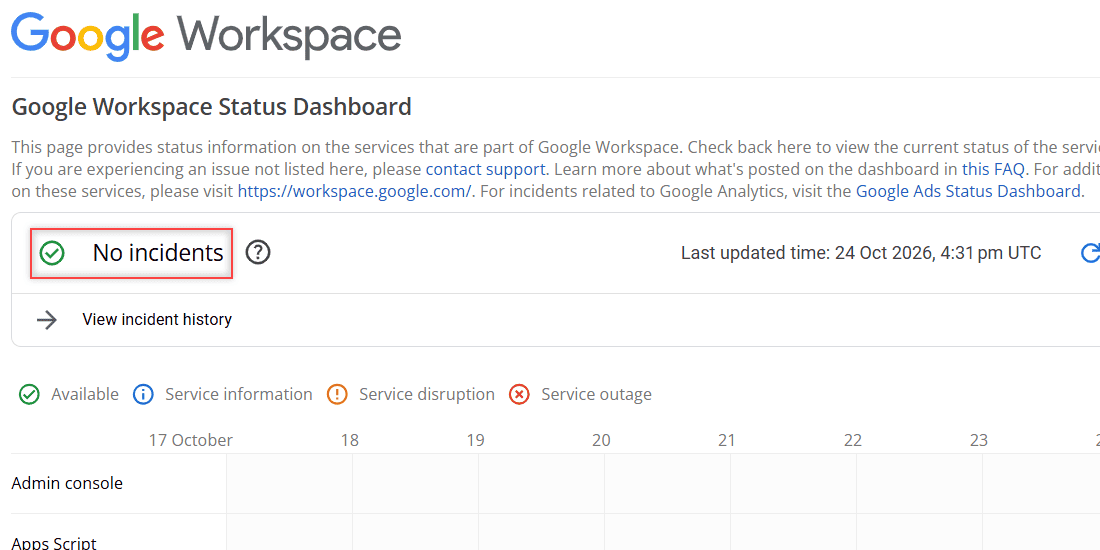
When I checked on October 24, 2026, it said No incidents. If you do see an outage, wait it out. No setting on your computer will fix a server problem at Google, and retrying every minute only adds to your frustration.
The dashboard covers Workspace and personal accounts alike. If Drive also drops in and out for you on a normal day, read why Google Drive keeps going offline.
Retry the transfer on a steady connection
When the dashboard is clear, a dropped connection is the most likely cause. Google’s help starts here too: check your internet connection, and try another network if you can.
You’ll know this is it if pages load slowly, a video call stuttered at the same time, or the upload sat at one percentage for ages before it failed.
- Turn Wi-Fi off and back on, or restart your router.
- If you’re on a VPN, a hotel network, or a phone hotspot, switch to a steadier connection.
- Upload or download only the file that failed, not the whole batch again.
- Keep the Drive tab open until the panel says the uploads are complete.
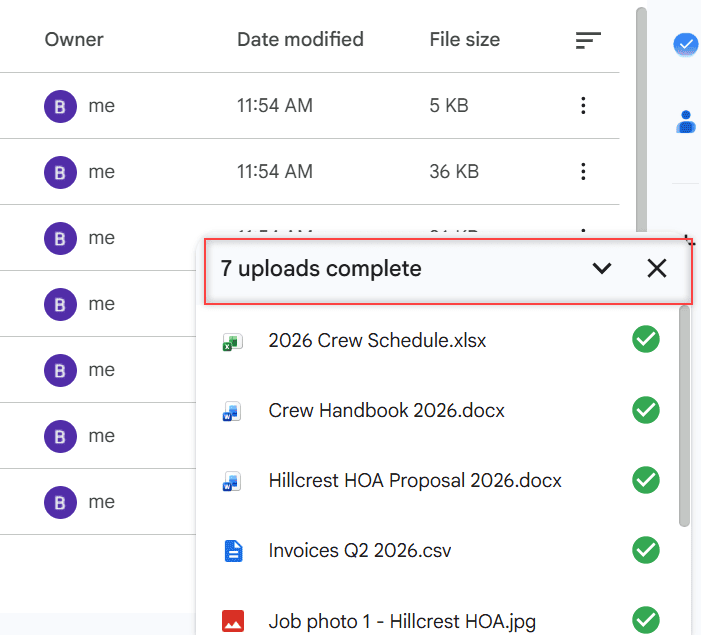
This is what a clean run looks like in my demo Drive: seven Bluebird Landscaping files, all with green checks. For a numbered upload error, my post on Google Drive upload failure 38 goes deeper into the upload side.
Make room if your storage is full
An upload can’t finish when your Google storage is full. Google says plainly that you can’t upload new files once you hit the limit, and the panel won’t always tell you that’s the reason.
A free personal account gets 15 GB, shared across Drive, Gmail, and Google Photos. A Workspace account gets whatever your organization’s plan gives you.
- Open drive.google.com and click Storage in the left menu.
- Read the used amount at the top.
- Scan the list below it. Drive sorts your files largest first, so the biggest space hogs are right on top.
- Delete or move anything big you don’t need, then upload again.
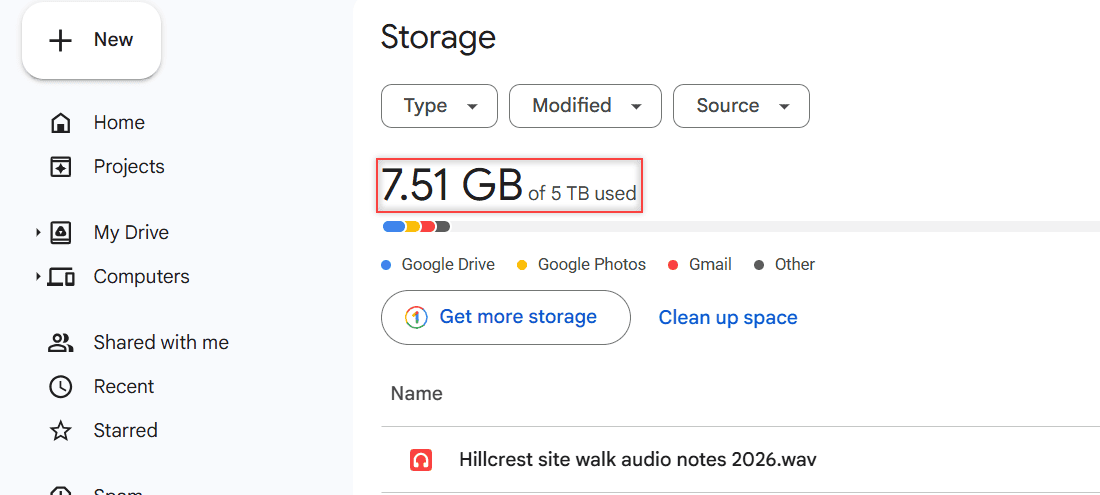
My demo account is on a 5 TB Google One plan, so it’s nowhere near full. The largest file on top is an audio recording from a 2026 site walk, which is exactly the kind of file that eats a 15 GB plan.
Files in Trash still count until they’re permanently deleted. If the meter says you’re full and you can’t see why, my guide on Drive storage full with no files shows where the space hides.
Clear Drive’s cookies and cache in Chrome
Old cookies and cached files can confuse Drive, especially after a password change or a long-running tab. Google lists clearing your cache and cookies as a standard fix, and it helps both uploads and downloads.
Try a private window first. Press Ctrl+Shift+N (Cmd+Shift+N on a Mac), sign in to Drive, and retry. If it works there, your saved browser data is the problem.
To clear it in Chrome:
- Click the three-dot More menu at the top right.
- Choose Delete browsing data.
- Pick a time range. All time is the thorough option.
- Check Cookies and other site data and Cached images and files.
- Click Delete data, then sign back in to Drive.
You’ll be signed out of most sites, and pages load a little slower at first. Your Drive files aren’t touched. My post on how to clear the cache in Google Drive covers phones too.
Turn off extensions, antivirus, and proxies one at a time
Ad blockers, download managers, and some antivirus tools sit between your browser and Google’s servers. Google’s help says antivirus and adblockers can interfere, and a custom firewall or proxy can block Drive completely.
The quick way to tell: if a private window with extensions off works, an extension is the cause.
- In Chrome, open More > Extensions > Manage Extensions.
- Switch every extension off and retry the transfer.
- If it works, turn the extensions back on one at a time, retrying after each, until the failure comes back.
- Leave that one off, or add Drive to its allow list.
For antivirus, pause web scanning for one test download, then turn it right back on. Need a replacement for an extension you dropped? I list Chrome extensions that work well with Drive.
On a work laptop, don’t change the firewall or proxy yourself. Ask your IT team whether Drive traffic is allowed through.
Try another browser, or download a copy
Drive supports the two most recent versions of the major browsers. An outdated browser, or one with JavaScript or cookies turned off, can fail transfers that work fine elsewhere.
Update your browser first. If the download still fails, open Drive in a different browser, such as Edge, Firefox, or Safari, and try the same file.
Here’s how I start a download in Drive so I know the request is clean:
- Open the folder that holds the file.
- Right-click the file.
- Click Download.
- Watch your browser’s downloads list until the file finishes.
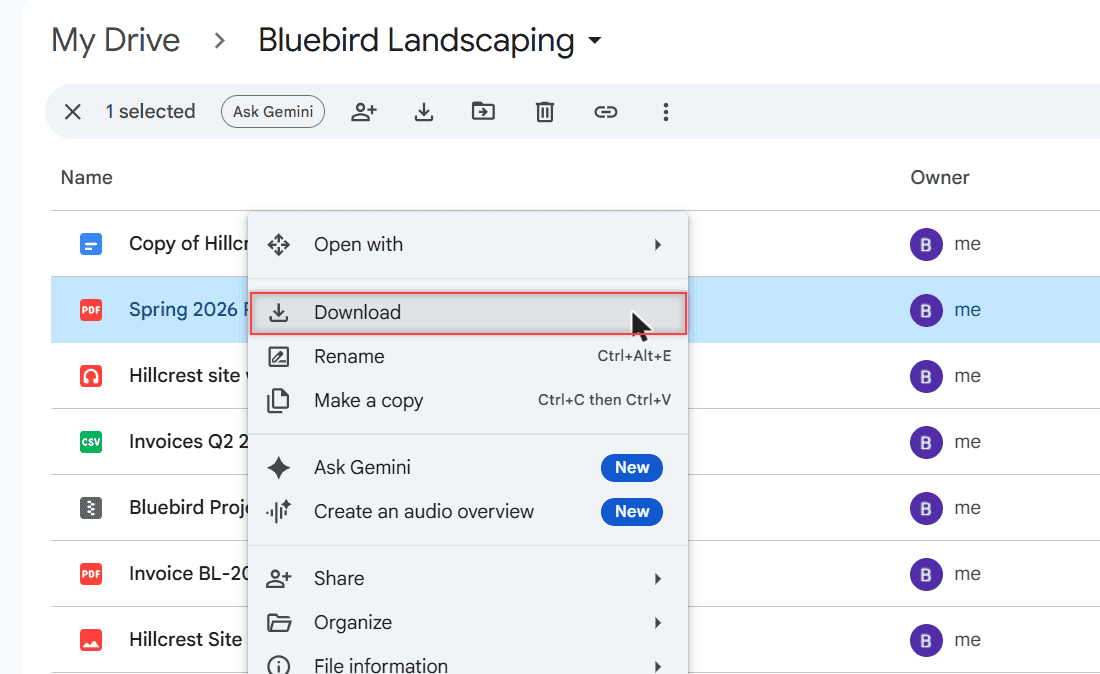
If a popular shared file fails with a quota message instead, Google’s message reads like this:
Too many users have viewed or downloaded this file recentlyGoogle’s fix is to make a copy in your own Drive and download the copy. I explain that in my guide on the download quota exceeded error.
Downloading a big folder? Drive zips it first, and large zips fail more often. Here’s how to download Drive files without zipping.
If the download says “Failed – Forbidden”
This is the one where retrying does nothing. Google’s download server is saying no, so you need to find out why it thinks you shouldn’t have the file.
Check which Google Account you’re using
If you’re signed in to more than one Google Account, the browser may send the download request from one that doesn’t have access. It happens to me when my personal and work accounts are both open.
Open a private window, sign in with only the account the file was shared with, and download again. If it works, use that account for the file from now on.
Check whether the owner allows downloads
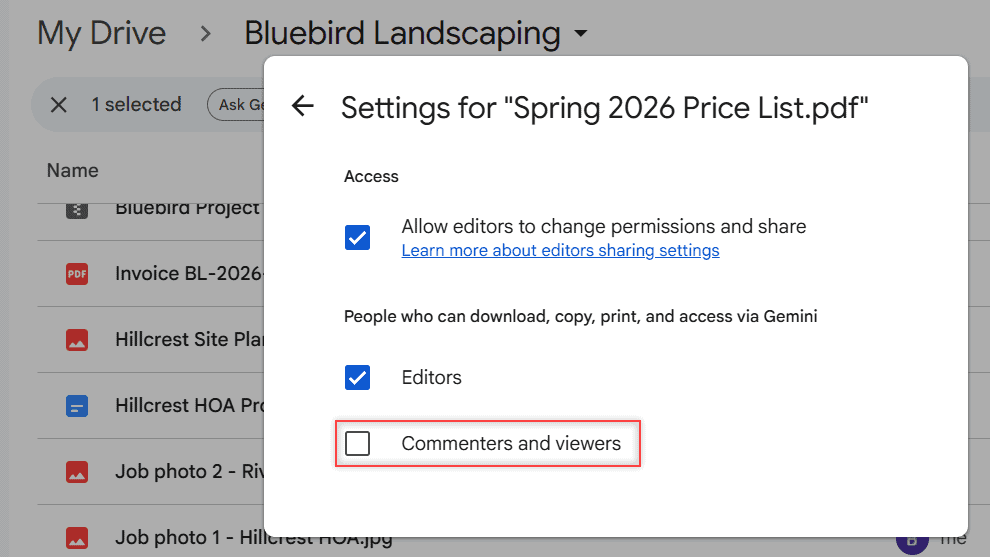
If you only have view or comment access, the owner can turn off downloading, printing, and copying for those roles. When that’s the case, ask the owner to allow downloads or to give you edit access.
Here’s what the owner sees in Share > Settings on my price list. With Commenters and viewers unchecked, viewers can’t download it.
There’s no supported way around that setting, and you shouldn’t look for one. My post on whether viewers can download Drive files explains each role.
Allow third-party cookies for Drive in Chrome
Drive uses third-party cookies to talk to Google’s secure download server. If Chrome blocks them, downloads can fail even when your access is fine. You can allow them for Drive only:
- Type chrome://settings/cookies in the address bar and press Enter.
- Next to Sites allowed to use third-party cookies, click Add.
- Enter drive.google.com, check Including third-party cookies on this site, and click Add.
- In the list of sites that can’t use cookies, remove any entries for googleusercontent.com, drive.google.com, or google.com.
- Reload Drive and download the file again.
Still failing? How to prevent it next time
Most failures I see come from huge batches on shaky connections. A few habits keep them rare.
- Upload in smaller groups. Ten files at a time is easier to retry than three hundred.
- Mind the size limits. Google accepts files up to 5 TB. On Workspace accounts, each user can upload and copy 750 GB within 24 hours, and only the first file that crosses that line finishes.
- Keep an eye on storage. Check the Storage page before a big upload, not after it fails.
- Keep your browser current and leave cookies and JavaScript on for Drive.
For video and other giant files, my guide to upload large files to Google Drive has the settings I use.
If nothing here works on a personal account, post the exact message in the Google Drive Help Community. On a work or school account, contact your admin first, since an organization policy can block uploads or downloads.
A few more Drive fixes worth bookmarking:
- cannot download files from Google Drive
- download an older version from version history
- Google Drive stuck on waiting to upload
- error creating a copy in Google Drive
More about this error
Why does my Google Drive download keep failing?
The usual causes are a weak connection, blocked third-party cookies, a browser extension, or an owner who turned off downloads for viewers. Check the status dashboard, then work through those one at a time.
Is a Google Drive server error my fault or Google’s?
It can be either. If the Google Workspace Status Dashboard shows an incident for Drive, it’s Google’s side. If it’s clear, the cause is usually your connection, browser, or storage.
Does clearing cookies delete my Google Drive files?
No. Clearing cookies and cache only removes browser data. You’ll be signed out, but your files stay in Drive.
How do I fix “Failed – Forbidden” in Chrome?
Use a private window with only the account that has access, ask the owner whether downloads are allowed, and allow third-party cookies for drive.google.com, as Google Drive Help on downloading files explains.

I am Carissa Gudinoa, a technology buff, and Office online and Apple expert with over 9 years of experience. I am passionate about helping others get the most out of their Apple devices. I have written extensively about Apple products and technologies. I am committed to providing my clients with the best possible service and am always up-to-date on the latest Apple products and features. I also write extensively on other software available for use at minimal cost or free. This includes Word Online, Outlook Online, Excel Online, and other Office online programs… Check out more.