
A client once told me she couldn’t send email anymore, and the culprit wasn’t Gmail at all. It was a folder of old drone videos in her Google Drive. That’s when I started doing a quick storage check on my own Bluebird Landscaping account every month.
In this tutorial, I’ll show you how to manage Google Drive storage the way I do it: see what’s using your space, sort files by size, use Google One’s cleanup tools, empty the trash, and understand what counts toward your limit on personal and work accounts.
Check where your space goes before you delete anything
Your Google storage isn’t just Drive. A free personal account gets 15 GB, and that space is shared across Google Drive, Gmail and Google Photos. So before you start deleting files, find out which of the three is actually eating it.
The quickest look is in Drive itself. Click the gear icon at the top right, choose Settings, and stay on the General tab. The Storage line shows how much you’ve used.
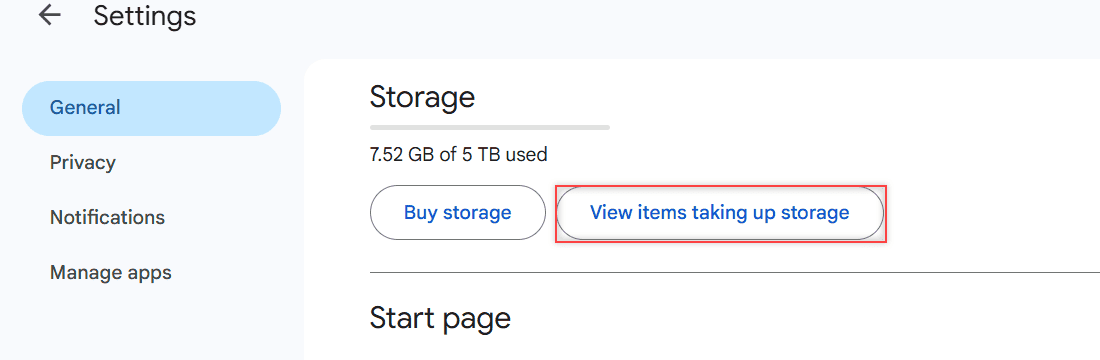
My demo account is on a paid 5 TB Google One plan with 7.52 GB used, so it’s nowhere near full. The steps are exactly the same on a free 15 GB account, where 7.52 GB would already be half your space.
For the full breakdown, open the Google One storage manager at one.google.com/storage. Under Usage details, it splits your total by service. It also reminds you that your storage is shared across Google Photos, Drive, Gmail and more.
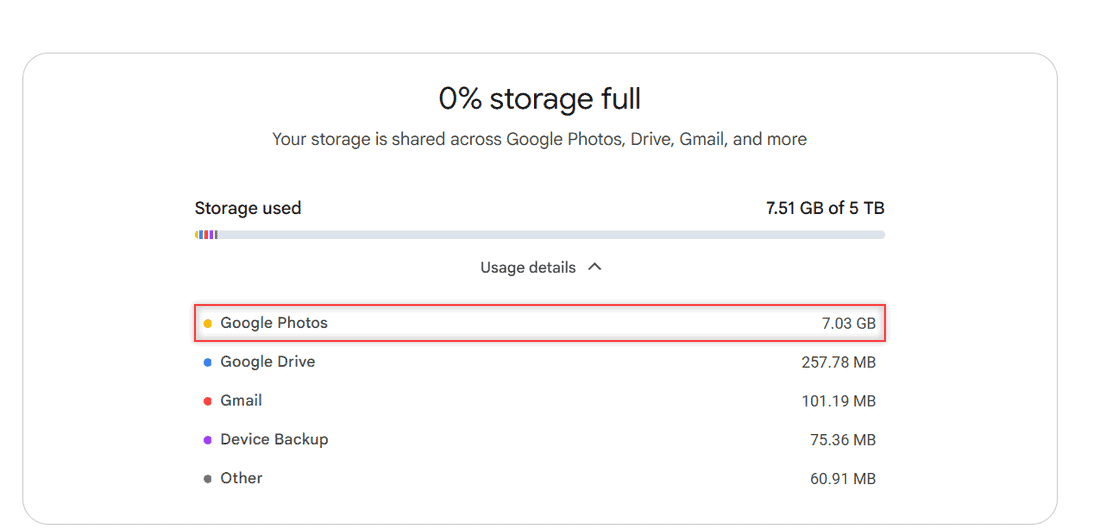
On my account, Google Photos used 7.03 GB, while Drive itself was only 257.78 MB. That’s common. If Photos is your big one, my comparison of Google Drive and Google Photos explains how the two store your pictures differently.
Don’t worry if the numbers differ slightly between pages. Google One showed 7.51 GB and Drive showed 7.52 GB on the same day, which is just rounding.
Sort the Storage page by size and start at the top
This is the single most useful screen for cleaning up Drive. Click Storage in the left menu of drive.google.com. Drive lists your files from largest to smallest, sorted by Storage used.
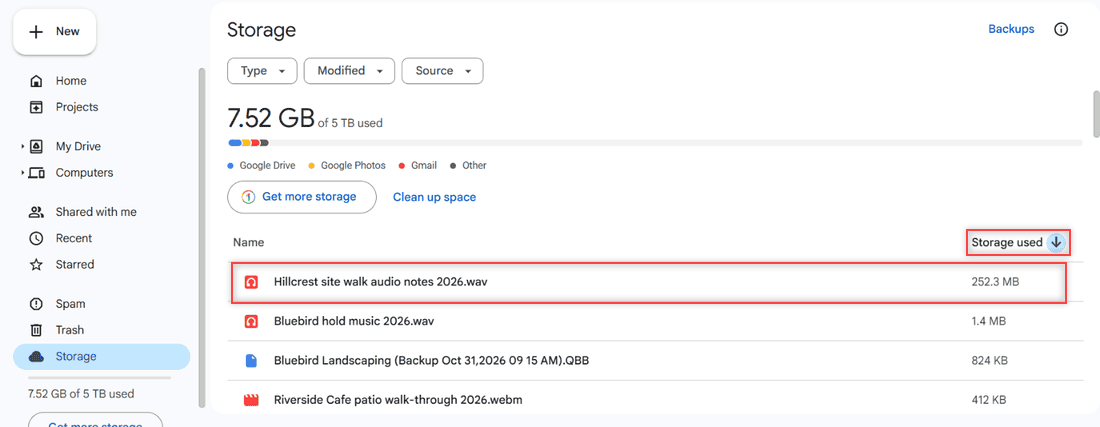
My biggest file was Hillcrest site walk audio notes 2026.wav at 252.3 MB. The next one was only 1.4 MB. One forgotten recording took up almost all of my Drive space, and that’s the pattern I see on most accounts.
The Type, Modified and Source filters at the top help you narrow the list. I filter by Modified to find big files I haven’t touched in a year.
Storage sorts files, not folders. If you want totals for a whole project folder, here’s how to see folder size in Google Drive.
Move the big file to the trash
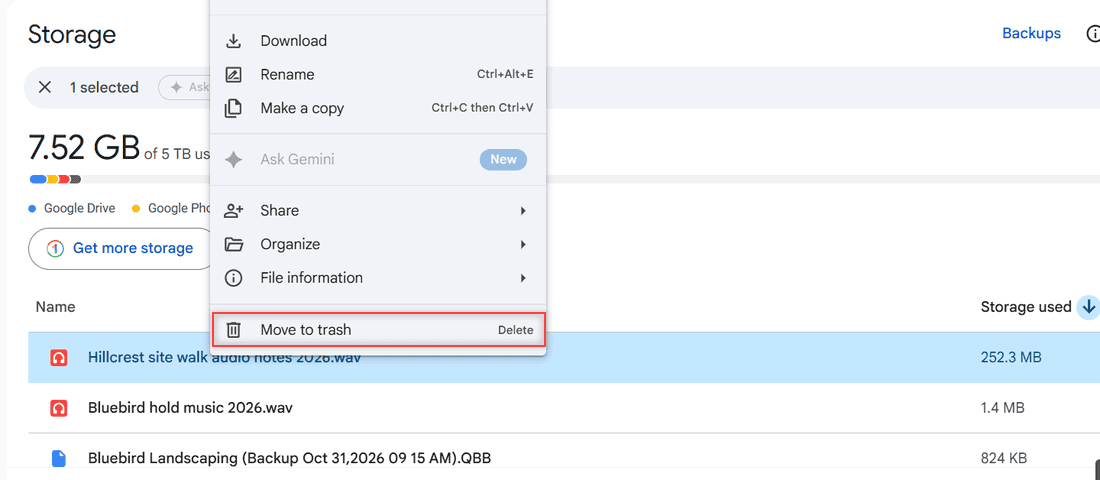
Right-click the file on the Storage page and pick Move to trash at the bottom of the menu. You can also select it and press the Delete key.
Need to keep the file but not all of its size? Download a copy for your records first, or try to reduce the file size before you upload it again. A .wav recording saved as an .mp3, for example, is a fraction of the size.
Let Google One find the cleanup candidates for you
If you don’t want to hunt file by file, scroll down in the Google One storage manager. The Clean up suggested items section groups the usual space hogs into cards.
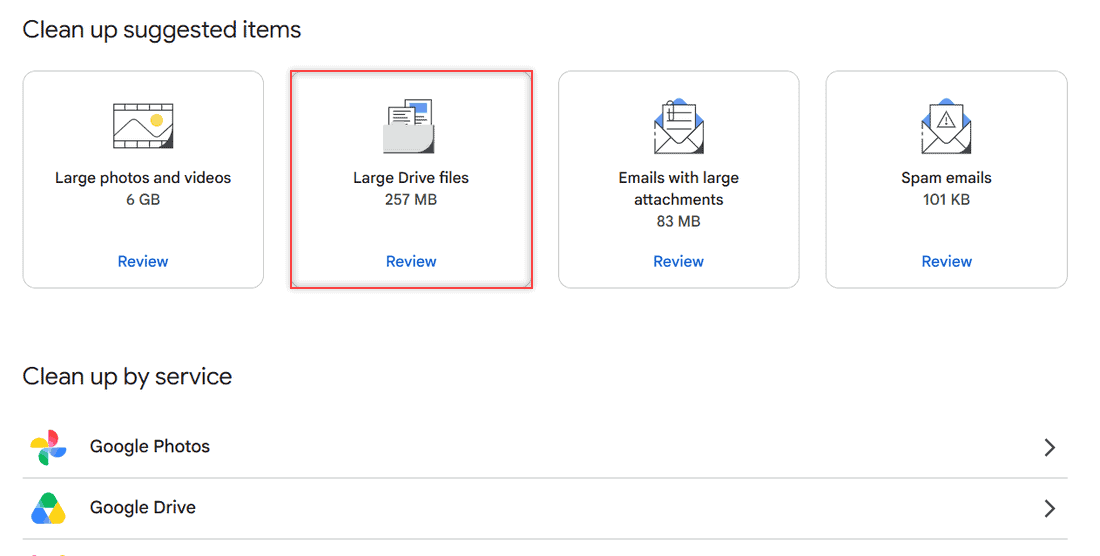
On my account, I saw Large photos and videos (6 GB), Large Drive files (257 MB), Emails with large attachments (83 MB) and Spam emails (101 KB). Each card has a Review button, so you see every item before anything is removed.
Below the cards, Clean up by service takes you straight into Google Photos, Google Drive or Gmail. I start with the largest card and work down.
For Gmail, Google suggests searches like has:attachment larger:10M or older_than:2y has:attachment. Old emails with big attachments add up fast, and deleting a handful can free more space than a hundred small files.
Clear out Google Photos too
On most accounts I check, Photos is the biggest slice by far, just like mine at 7.03 GB. Open the Large photos and videos card first, because a few long videos often weigh more than thousands of pictures.
Remember that Google Photos has its own trash. After you delete photos or videos there, open the Photos trash and empty it, or the space stays used. Save anything you want to keep to your computer or an external drive before you delete it.
Empty the trash or the space never comes back
Here’s the rule people miss: moving a file to the trash doesn’t free any storage. Files in your Drive trash still count against your limit until they’re permanently deleted, and so do emails in Gmail’s Trash and Spam folders.
Open Trash in Drive’s left menu. The banner at the top says items in trash will be deleted forever after 30 days. If you need the space now, click Empty trash.
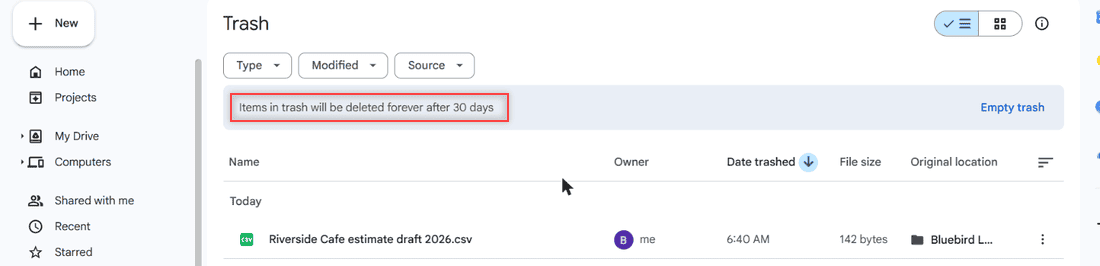
Look through the list before you empty it, because there’s no undo after that. My guide to emptying the trash in Google Drive covers deleting single files too, and here’s how long Google Drive keeps deleted files if you’re unsure.
After a big cleanup, give it time. Google says storage can take 48 to 72 hours to update when you delete a lot of files at once.
Know what counts against your storage and what does not
Once you know the rules, the storage number makes a lot more sense. These count toward your limit:
- Files in My Drive, including PDFs, images and videos, plus anything in Drive Trash.
- Google Docs, Sheets, Slides and other editor files created or edited after June 1, 2021.
- Gmail messages and attachments, including Spam and Trash.
- Photos and videos in Google Photos (older Storage saver backups from before June 1, 2021 are the exception).
- Device backups, such as Android and WhatsApp backups.
Files in Shared with me don’t use your space. They count against the owner’s storage. But a copy you make, or a file you add to someone else’s shared folder, counts against yours. I explain that in detail in my post on whether a shared folder takes up space.
Drive for desktop is its own story. The files it syncs use your computer’s disk space, so the number on your PC rarely matches your Google storage.
Hunt down duplicates and old backups
Drive has no built-in duplicate finder, so I do it by hand. Switch to list view, click Name to sort alphabetically, and look for file names with “(1)” or that start with “Copy of”.
If the same files keep showing up twice, the cause is usually syncing. My fixes to stop Google Drive from duplicating files will keep them from coming back.
Then check backups. On the Drive Storage page, click Backups at the top right. Old phone backups you’ll never restore can go. Hidden app data lives under Manage apps in Drive settings.
Don’t let your account sit over its limit
When you run out of space, things stop working. You can’t upload or create new files in Drive, Google Photos stops backing up, and Gmail may not send or receive mail. If that’s already happening and you can’t see why, start with my fixes for when Google Drive storage is full but there are no files.
Waiting it out is a bad idea. If you stay over your storage limit for two years, Google may delete your content in Gmail, Drive and Photos. Google aims to warn you at least three months before that, but I wouldn’t count on catching the email.
You have two real options: free up space or buy more storage through Google One. There’s no hidden setting that adds free space, so skip any site that promises one.
Work or school accounts follow your admin rules
Everything above is for personal Google accounts. On a Google Workspace account from work or school, your organization decides how storage works.
In Workspace, storage is usually pooled and shared across the whole organization. Admins can also set a storage limit for each user, and that limit can be lower than the pool. If you hit a limit there, ask your admin rather than buying a Google One plan. My comparison of personal vs business Google Drive covers the other differences.
My monthly storage checklist
- Open Settings in Drive and note the storage number.
- Check Usage details in Google One to see which service grew.
- Sort the Storage page by size and review the top 10 files.
- Run the Clean up suggested items cards, starting with the largest.
- Search Gmail for old emails with big attachments.
- Empty Drive Trash and Gmail Trash and Spam.
- Delete phone backups I no longer need.
A few more posts that help with Drive space:
- uploading large files to Google Drive
- removing shared files from your Drive
- the download quota exceeded error
- all my Google Drive tutorials
Questions I get about this
How much free storage does Google Drive give you?
A personal Google account comes with 15 GB of free storage. That space is shared across Google Drive, Gmail and Google Photos, not given to each one.
Why is my Google storage still full after deleting files?
Deleted files sit in the trash and keep counting until you empty it. Big cleanups can also take 48 to 72 hours to show up, as Google Drive Help explains.
Do shared files count toward my Google Drive storage?
No. Files someone else owns and shared with you count against their storage. Copies you make and files you upload into their folder count against yours.
Do Google Docs and Sheets take up storage?
Yes. Docs, Sheets, Slides and other editor files created or edited after June 1, 2021 count toward your storage limit.

I am Carissa Gudinoa, a technology buff, and Office online and Apple expert with over 9 years of experience. I am passionate about helping others get the most out of their Apple devices. I have written extensively about Apple products and technologies. I am committed to providing my clients with the best possible service and am always up-to-date on the latest Apple products and features. I also write extensively on other software available for use at minimal cost or free. This includes Word Online, Outlook Online, Excel Online, and other Office online programs… Check out more.