
Right-click the folder in OneDrive, choose Share, add the person’s name or email, pick Can edit or Can view, and click Share. Prefer a link? Click Copy link in the same box.
In this tutorial, I’ll show you how to share a folder in OneDrive by email and by link, how to choose what people can do, and how to stop sharing when the job’s done.
Method 1: Invite specific people by email
I tested this on November 7, 2026 with a Bluebird Landscaping folder called Job photos 2026. It holds four photos from this season’s jobs.
- Go to onedrive.com, sign in and open My files.
- Right-click the folder and click Share. You can also select it and use Share in the toolbar.
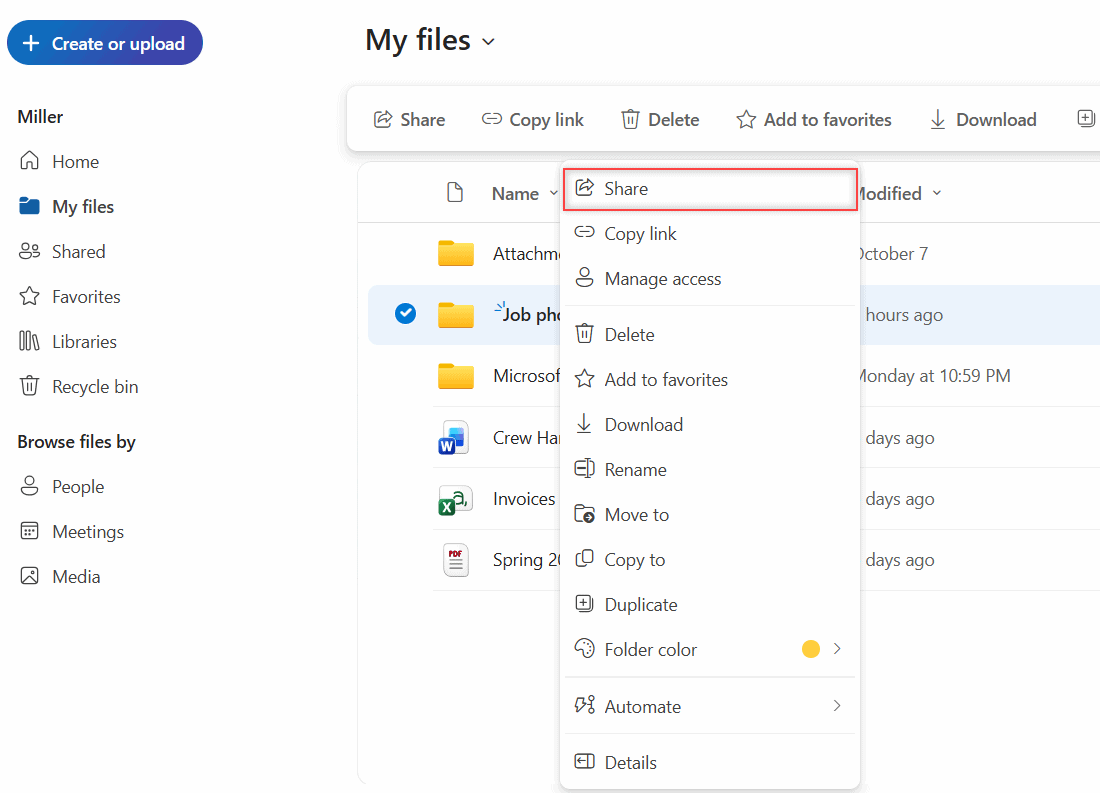
The share box opens. The first time, mine showed a short tour banner, “Sharing is now simpler and more secure,” which I closed.
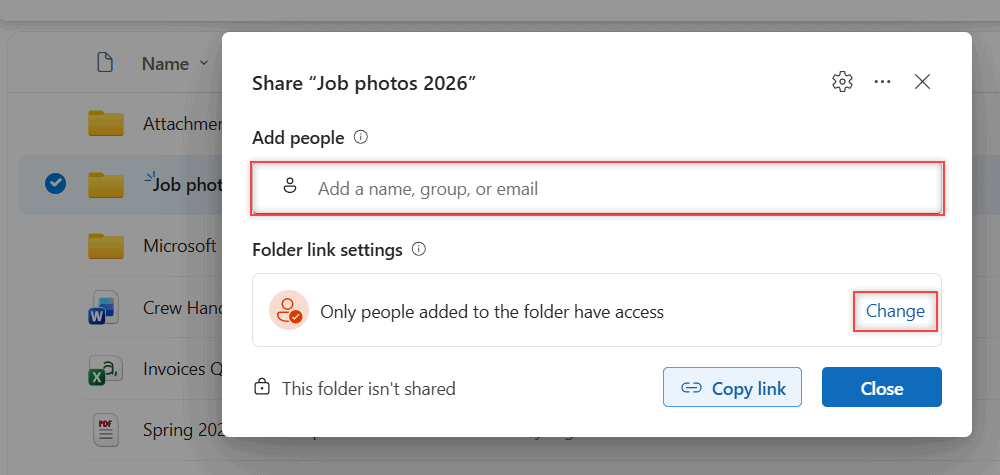
- Type a name, group or email in Add people.
- Open the permission menu and pick Can edit, Can view or Can’t download.
- Add a note in Write a message if you like, keep Send email notification checked, and click Share.
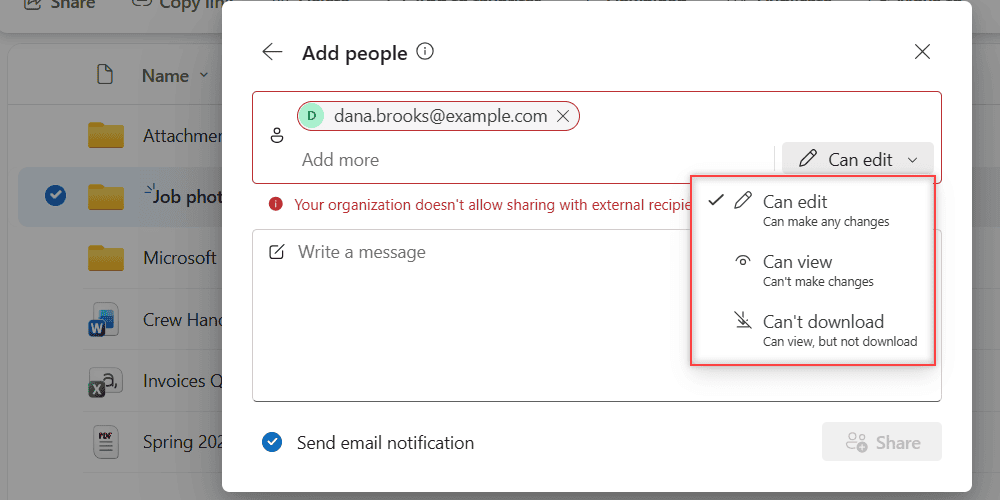
How does this work? Can edit lets the person add, change and delete files in the folder. Can view is read-only, and Can’t download lets them look without saving copies. For a client checking job photos, I’d pick Can view.
When I added an outside address, OneDrive stopped me with this red message:
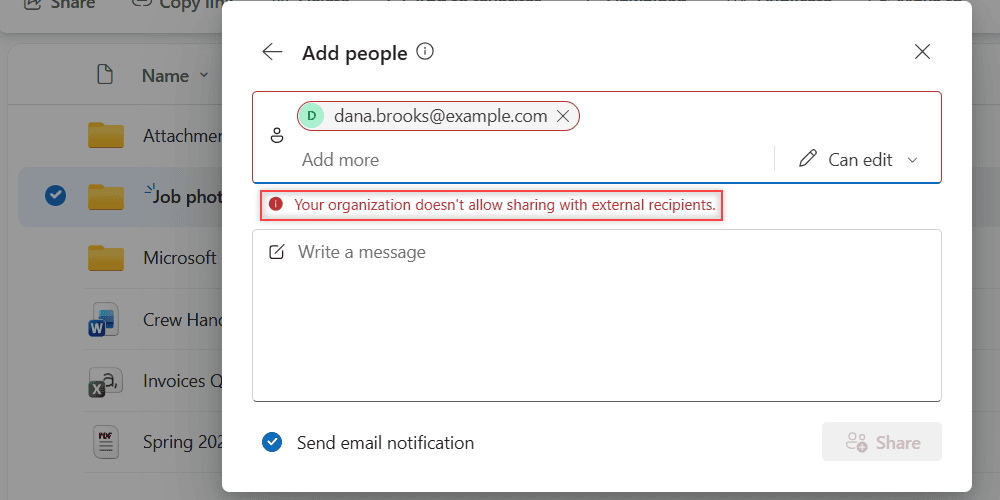
Your organization doesn't allow sharing with external recipients.That’s an admin setting on my work account, not something I could fix from the share box. If you need to hand files to someone outside the company, see how to move OneDrive files to Google Drive instead.
Method 2: Copy a link to the folder
A link is handy when you want to paste it into a chat or a text. In the share box, look at Folder link settings and click Change.
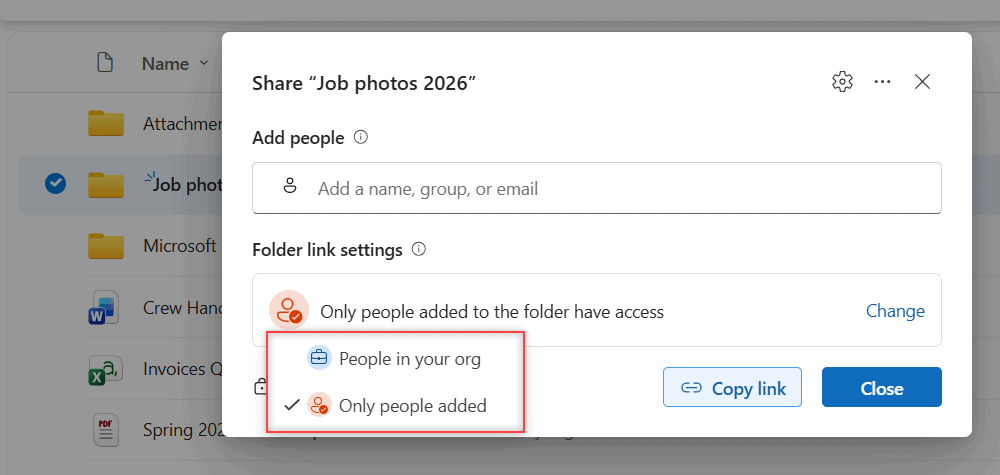
My work account offered only two choices: People in your org and Only people added. There was no option for anyone with the link, because the admin turned it off.
Pick the setting, then click Copy link and paste it wherever you need it.
How does this work? The link follows the setting you picked. A coworker who gets it forwarded can open it with People in your org, but not with Only people added. Google Drive handles this a little differently; compare it with how I share a Google Drive folder.
Pro tip: On a personal Microsoft account, you’ll usually also see an Anyone option. That link works for whoever has it, no sign-in needed, so save it for files that aren’t private.
Method 3: Share from File Explorer or your phone
On a Windows PC with OneDrive syncing, open your OneDrive folder in File Explorer, right-click the folder and choose Share. The same share box pops up.
In the OneDrive mobile app, tap the three dots next to the folder and tap Share. If the app or the sync icon isn’t responding, my fix for the OneDrive is not running error may help.
Stop sharing or change access later
Right-click the folder and choose Manage access. You’ll see everyone who has access and every link you created.
Remove a person, switch them from edit to view, or delete a link so it stops working. Once the photos are delivered, I clean this up right away.
Things to keep in mind
- What you see depends on your account. Work and school admins decide whether Anyone links and outside sharing are allowed.
- Anyone with Can edit can delete files in the folder, and they land in the recycle bin.
- Password and expiration options on links need a Microsoft 365 subscription.
- Moving a file into a shared folder shares it too.
If something does get deleted, here’s how to open the OneDrive recycle bin. Still deciding between the two services? Read my Google Drive vs OneDrive comparison.
Want to keep going with OneDrive? Try these next:
- back up OneDrive to an external hard drive
- save Outlook emails to OneDrive
- all my OneDrive tutorials
Frequently Asked Questions

I am Carissa Gudinoa, a technology buff, and Office online and Apple expert with over 9 years of experience. I am passionate about helping others get the most out of their Apple devices. I have written extensively about Apple products and technologies. I am committed to providing my clients with the best possible service and am always up-to-date on the latest Apple products and features. I also write extensively on other software available for use at minimal cost or free. This includes Word Online, Outlook Online, Excel Online, and other Office online programs… Check out more.