
No, Google Drive can’t change the text inside a PDF by itself. Its viewer only lets you add comments, so to really edit the words you open the PDF in Google Docs, make your changes, and download a fresh PDF.
In this tutorial, I’ll show you how to edit a PDF in Google Drive with Google Docs, what happens to the layout when you do, how comments work when you only need to mark something up, and what to do with a PDF you aren’t allowed to change.
What the Drive PDF viewer lets you do
I tested this with a real file from my landscaping demo business, Bluebird Landscaping Co. in Austin. The file was Spring 2026 Price List.pdf, and I needed to change a couple of prices before sending it to clients.
When you double-click a PDF in Drive, it opens in the preview. The toolbar has a menu bar, so I opened Insert hoping for a text tool. The only option there was Add a comment.
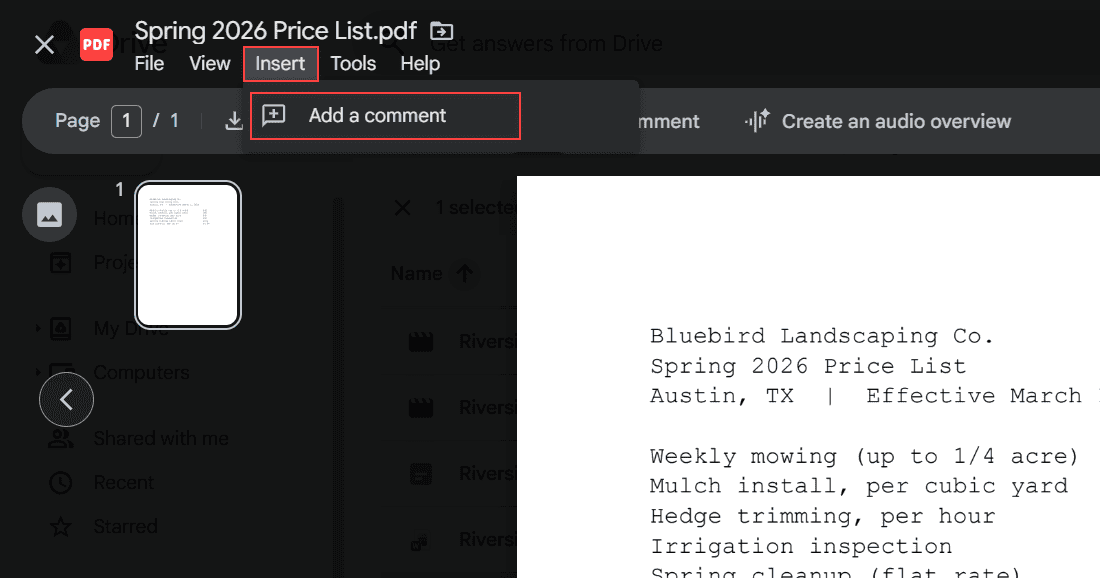
So the viewer is for reading and commenting, not editing. That’s the same split I explain in Google Drive vs Google Docs: Drive stores and previews files, and Docs is the editor.
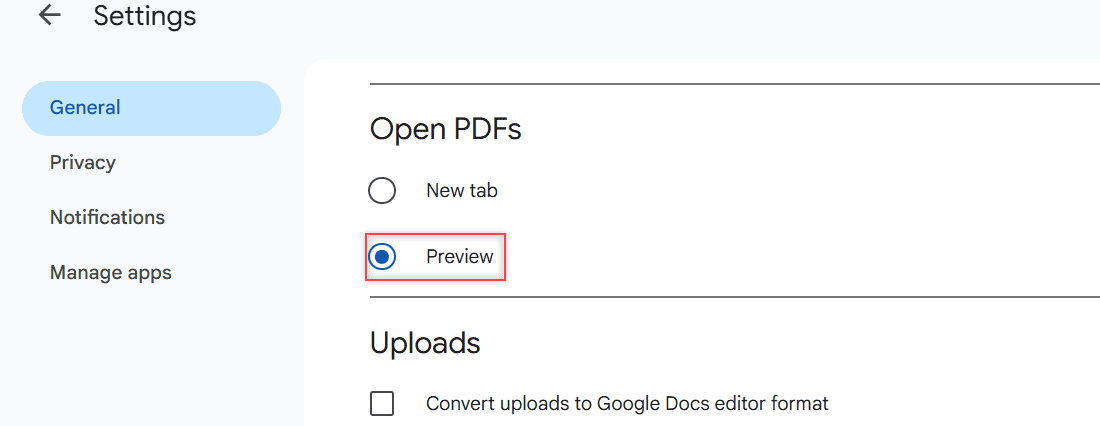
If your PDFs open in a new browser tab instead of the Drive preview, check Drive settings. Under Open PDFs you can choose New tab or Preview. I keep mine on Preview so the menus above are there.
Your options for changing a PDF from Drive
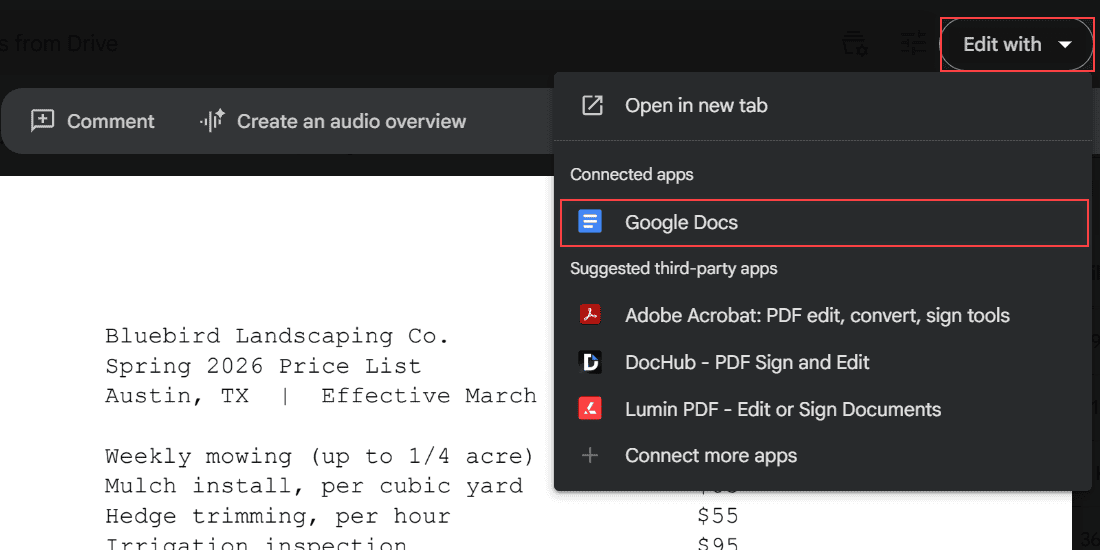
At the top of the preview there’s an Edit with button. Its dropdown is where the real choices live. On my account it listed Open in new tab, Google Docs under Connected apps, and Adobe Acrobat, DocHub and Lumin PDF under Suggested third-party apps, plus Connect more apps.
Here’s how the options compare for a typical business PDF:
| Option | What it can do | What to watch for |
|---|---|---|
| Drive PDF viewer | Read the PDF and add comments | Can’t change any text |
| Edit with > Google Docs | Turns the PDF into an editable Google Doc | Complex layouts, tables and columns often break |
| Google Docs > Download > PDF | Saves your edited Doc as a new PDF | You get a new file, not an update to the old one |
| Suggested third-party apps | Edit the PDF in another company’s app | Separate services with their own sign-in and terms |
| Comments only | Mark up what needs changing for the owner | The PDF itself stays the same |
The rest of this post focuses on Google Docs because it’s built in and free with your Google account. If you’re mostly editing Word or Docs files, my guide to editing a document in Google Drive covers that side.
Edit the PDF text with Google Docs
Here’s the route that worked for my price list, start to finish:
- In Google Drive, double-click the PDF to open the preview.
- Click Edit with at the top, then choose Google Docs. You can also right-click the file in the list and pick Open with > Google Docs.
- Wait a few seconds while Drive converts it. A new tab opens with a Google Doc.
- Change the text you need, then fix any layout problems (more on that below).
- Download the Doc as a PDF when it looks right.
One thing surprised a client of mine the first time: Drive doesn’t overwrite your PDF. It creates a new Google Doc with the same name. Mine was called Spring 2026 Price List, and the original PDF was still sitting right next to it in the folder.
That’s good news, because your original is safe if the conversion goes badly. Just remember you now have two files, so name the final one clearly.
Why the layout breaks after conversion
Google Docs reads the text out of the PDF, but it doesn’t copy the design. In my test, the three heading lines at the top merged into one long paragraph. The price table lost its columns, so every item and price ran together as plain text.
The font also switched to something that looked like Times, so the Doc didn’t look like our branded price list anymore.
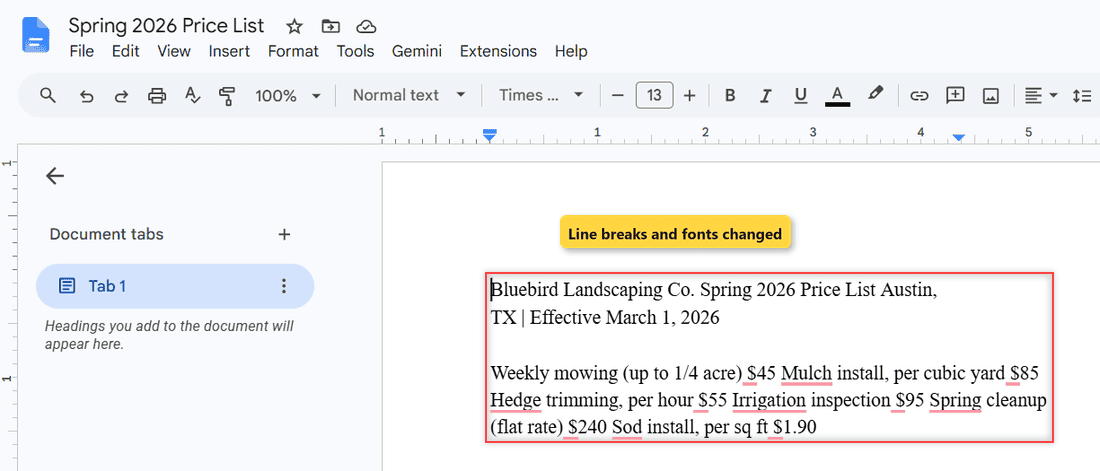
That matches Google’s own help. Bold, italics, font size, font type and line breaks are likely to be kept, while lists, tables, columns, footnotes and endnotes are not likely to be detected. A price list is mostly a table, so it took the biggest hit.
Google also says the file should be 2 MB or smaller, the text should be at least 10 pixels high, and the page should be upright. Common fonts like Arial or Times New Roman convert best.
Tip: For a short PDF like mine, it was faster to rebuild the table in the Doc with Insert > Table and paste the items back in than to fix every line by hand.
Scans and photos go through the same text recognition. If you’re starting from a picture of a page, the steps to convert an image to PDF in Google Drive are a good companion to this one.
Download the edited file as a new PDF
When the Doc looks right, go to File > Download > PDF Document (.pdf). The menu also offers Word, OpenDocument, plain text, rich text, zipped web page, EPUB and Markdown if you need another format.
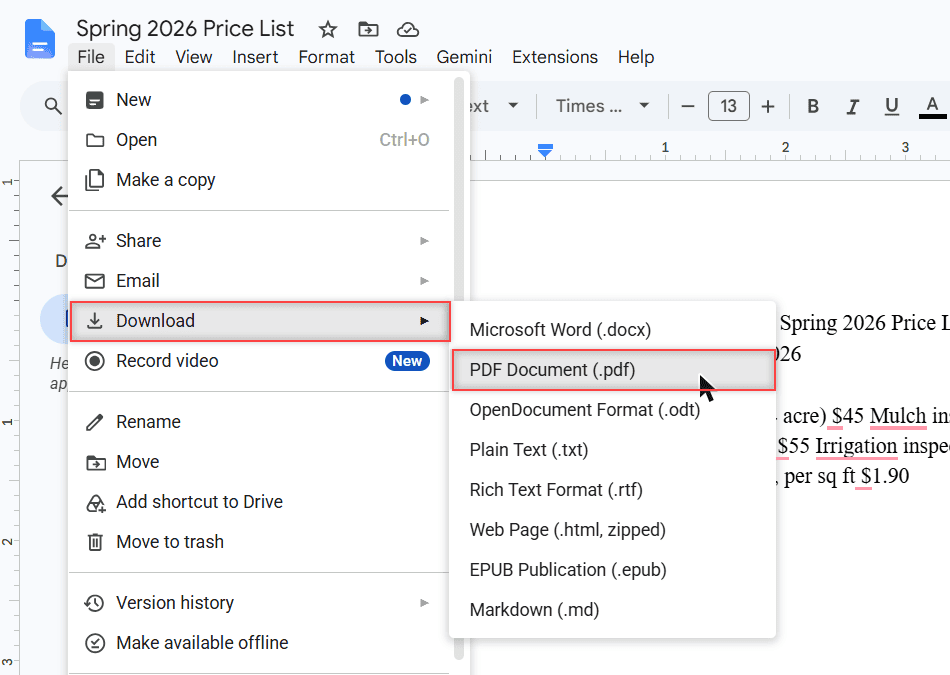
The PDF lands in your computer’s Downloads folder, not in Drive. Upload it back to the same Drive folder, and I’d rename it so nobody grabs the old version, something like Spring 2026 Price List – updated.
Need the old PDF gone from shared links? Delete or move it after you upload the new one. If your new PDF lives on a website, here’s how to embed PDFs from Google Drive so visitors always see the current file.
When you only need comments
Sometimes I don’t need to change the PDF at all. I just need to tell the owner what’s wrong. For that, the viewer is perfect.
Open the PDF, click Insert > Add a comment, and type your note. Anyone the file is shared with as a Commenter or Editor can comment, and the owner sees the notes without the file changing.
If comments don’t show, the preview has a More menu at the top right with Show comments column. To give someone comment access, use the steps for sharing a file on Google Drive and pick Commenter.
What Google Drive can’t do with PDFs
A few limits are worth knowing before you promise a client a quick fix:
- Drive can’t edit PDF text in place. Any edit goes through Google Docs or another app and ends in a new file.
- Google Docs won’t keep complex designs. Tables, columns, lists and footnotes usually need rebuilding.
- Conversion works best on files 2 MB or smaller with clear, upright text.
- Third-party apps in the Edit with menu are separate services. Read what access they ask for before you connect one, and check with your admin on a work account.
If Drive won’t open the PDF at all, that’s a different problem. My notes on how to open unsupported files on Google Drive cover what to try.
If the PDF isn’t yours to change
Some PDFs are shared with you as view-only, or they’re locked with a password. In that case the right move is simple: ask the owner. They can give you edit access, send an editable copy, or make the change themselves.
If you can comment, leave a comment on the exact spot so the owner knows what to fix. I don’t recommend workarounds for files someone else restricted, because those limits are there on purpose.
And if you’re the one sending sensitive PDFs, here’s how to protect Google Drive files with a password and tighter sharing.
A few more Drive guides for working with files:
- saving Word documents to Google Drive
- the Printing is disabled for this file error
- fixing Unable to access document
- all my Google Drive tutorials
Common questions
Can I edit a PDF in Google Drive without converting it?
Not with Drive alone. The viewer only lets you add comments. To change the text, open it with Google Docs or a third-party app from the Edit with menu.
Does converting a PDF to Google Docs change the original file?
No. In my test Drive made a new Google Doc with the same name, and the original PDF stayed in the folder unchanged.
Why does my PDF look messy in Google Docs?
Docs keeps text, bold, italics and line breaks fairly well, but tables, columns, lists and footnotes often aren’t detected. Google Drive Help lists what converts and the 2 MB file limit.
How do I save a Google Doc back to PDF?
In Google Docs, click File, then Download, then PDF Document (.pdf). The new PDF goes to your computer, and you can upload it back to Drive.
Is editing PDFs in Google Drive free?
Yes, opening a PDF with Google Docs and downloading it as a PDF is included with a Google account. Third-party apps are separate services with their own terms.

I am Carissa Gudinoa, a technology buff, and Office online and Apple expert with over 9 years of experience. I am passionate about helping others get the most out of their Apple devices. I have written extensively about Apple products and technologies. I am committed to providing my clients with the best possible service and am always up-to-date on the latest Apple products and features. I also write extensively on other software available for use at minimal cost or free. This includes Word Online, Outlook Online, Excel Online, and other Office online programs… Check out more.