
Last spring I sat in my car outside a client’s yard, trying to upload a long voice memo to Google Drive before my next stop. The progress bar barely moved. Back home, the same file went up in about a minute. Drive hadn’t changed. My connection had.
In this tutorial, I’ll answer why is Google Drive so slow by walking you through the eight rules I follow when it lags. They cover a sluggish Drive in the browser, slow uploads, slow downloads, and Drive for desktop slowing down your computer, plus a short checklist you can run in five minutes.
Figure out which part of Drive is slow before you fix anything
Why: “Drive is slow” can mean four different problems, and each has a different fix. Clearing your browser cache won’t help a sync app that’s busy copying 40 GB of photos, and pausing sync won’t fix a slow web page.
How: ask yourself which one sounds like your day:
- The website is laggy. Folders take ages to open, scrolling stutters, or previews spin.
- Uploads crawl. The upload panel says hours left, or files sit there and never finish.
- Downloads crawl. A folder or big video takes forever to come down.
- Your whole computer slows down. Fans spin up and apps freeze while Drive for desktop syncs.
Once you know which one it is, jump to the rule that matches. If you’re seeing an actual error message instead of plain slowness, my guide to the Drive failed server error is a better place to start.
Rule out a Google outage first
Why: sometimes it really isn’t you. Google’s own troubleshooting page tells you to check the Google Workspace Status Dashboard, where a red dot next to a product means a known outage. If Drive is having a bad day, no setting on your end will speed it up.
How: open the dashboard at google.com/appsstatus and look at the Google Drive row. When I checked on October 24, 2026, it said “No incidents”, which told me to keep looking closer to home. The legend shows four states: Available, Service information, Service disruption and Service outage.
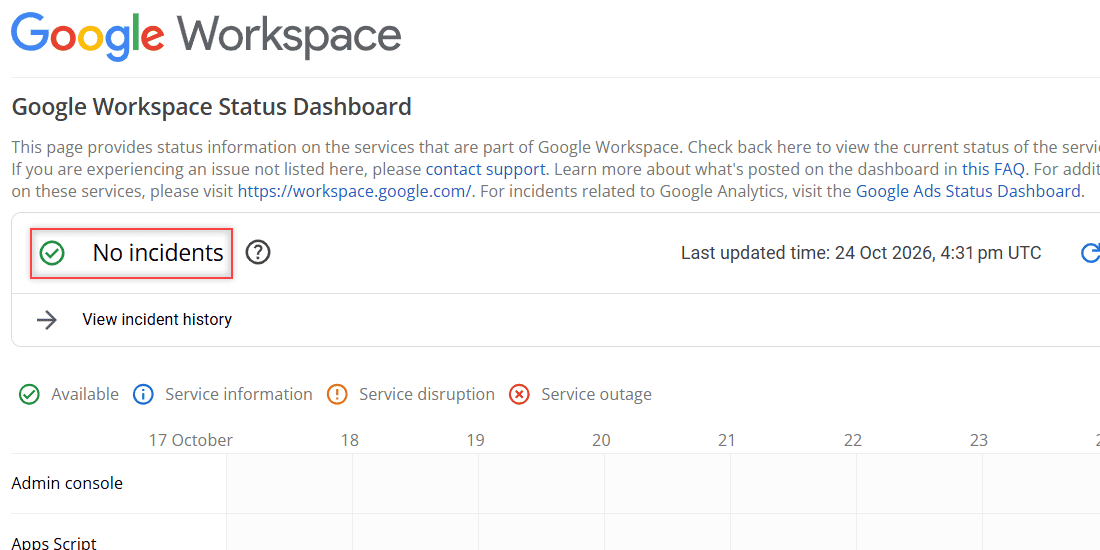
One honest caveat. The dashboard is built for Google Workspace customers. It won’t mention a problem that only affects your personal account, but a disruption next to Google Drive is still a clear sign to wait. If Drive also keeps going offline on you, an outage or a shaky connection is the usual reason.
Test your connection, and look at the upload number
Why: Google says that if files are very slow to load in Drive for the web, you should check your internet connection first. That matches everything I’ve seen. Most home plans give you far less upload speed than download speed, so uploads feel slow even when Netflix is fine.
How: run any speed test and write down both numbers. Then do the boring stuff that actually works:
- Pause other heavy traffic, like video calls, game downloads, or another cloud backup.
- Move closer to the router, or plug in with a cable for a big upload.
- Restart the router if the speed test looks far below what you pay for.
- Try a different network, like your phone’s hotspot, to see if the problem follows you.
If Drive is fast on another network, the problem is your connection, not your account. That was exactly my parking-lot problem.
Keep the browser up to date and clear out what slows it down
Why: Google asks you to use one of the two most recent versions of your browser, with cookies and JavaScript turned on. Older versions may still open Drive, but some features might not work. A bloated cache and too many open tabs make things worse, which was the heart of the old version of this post.
How: update your browser first. Then clear the browser cache and cookies and reload Drive, which is Google’s own first fix. I walk through the clicks in how to clear the cache for Google Drive. Close tabs you aren’t using, too. Twenty open Docs and Sheets all compete for memory.
Next, look at add-ons. Google warns that virus scanners and adblockers can sometimes interfere with Drive files, so make sure they aren’t blocking Google Workspace. If you use helpers from my list of Chrome extensions for Google Drive, turn them off one at a time and test.
Still laggy? Open Drive in a different browser. If it’s quick there, your main browser is the problem.
Check Drive’s own settings before you blame the browser
Why: a few switches in Drive change how it behaves on a weak connection. Google says you can use offline mode while your connection is weak or unavailable, so your recent files keep opening even when the network drags.
How: in Drive on the web, click the gear icon, then Settings, and stay on General. Here’s what I look at:
- Offline: “Create, open and edit your recent Google Docs, Sheets, and Slides files on this device while offline.” I turn this on for my own laptop. Google labels it “Not recommended on public or shared computers”, so leave it off on a shared machine.
- Uploads: “Convert uploads to Google Docs editor format.” I keep this off so my Word and Excel files upload exactly as they are.
- Preview cards: the details card that pops up when you hover on a file. It’s handy, and I leave it on.
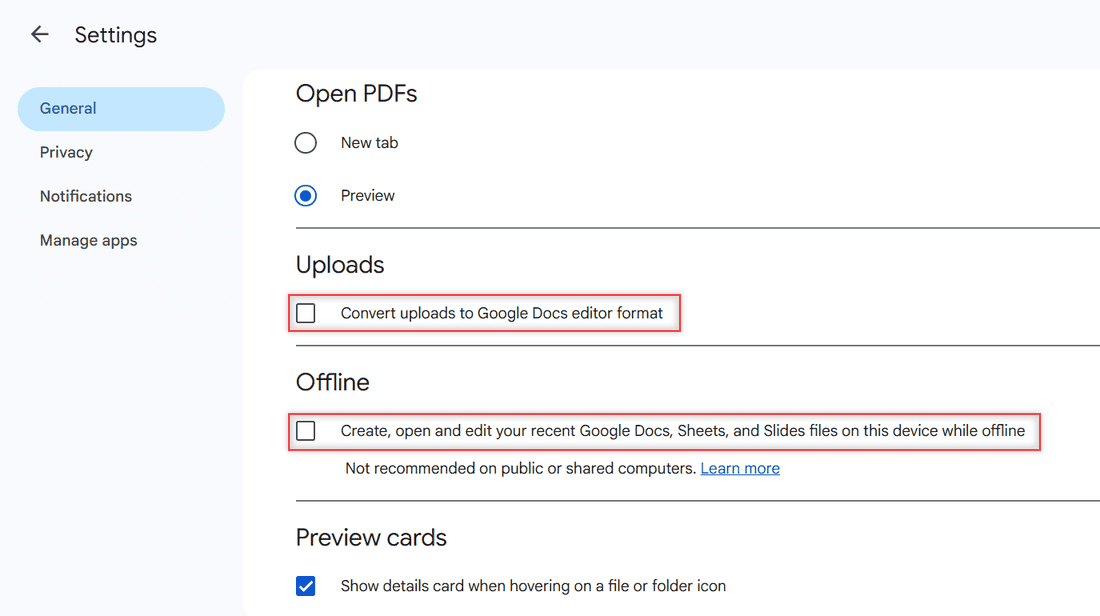
Offline mode won’t make a slow upload faster. What it does is keep your day moving while the connection catches up, which is often what you really need.
Expect big uploads to take time, and help them along
Why: upload time depends mostly on file size and your upload speed. In my test, a 252.3 MB audio file showed “1 min left” on a good home connection. The same file on a weak signal would take many times longer, and nothing in Drive can change that.
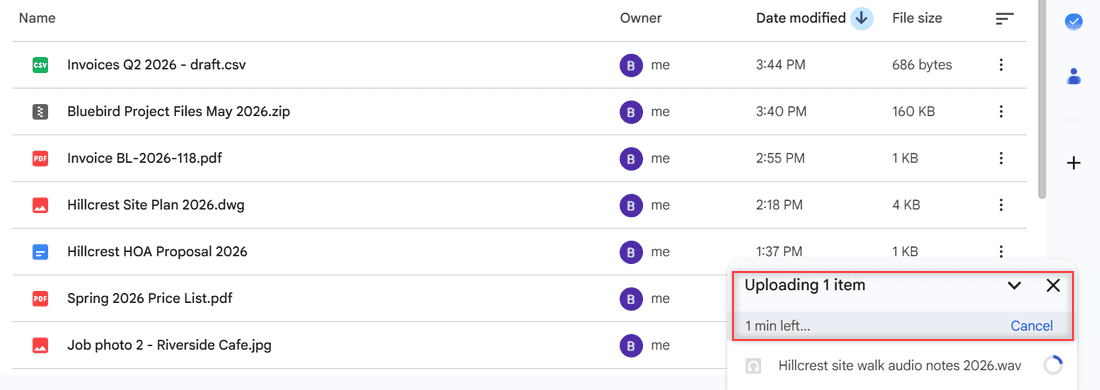
How: keep the browser tab open until the panel says the upload is complete. Closing the tab or letting the computer sleep stops it. For anything really large, I follow the steps in my guide to uploading large files to Google Drive and upload in smaller batches instead of one giant drop.
Limits matter too. Google lists a 5 TB maximum file size, and for Google Workspace accounts each user can upload and copy 750 GB within 24 hours. Hit that cap and new uploads stop until it refreshes. If your files just sit there, see why Drive gets stuck on waiting to upload.
Started the wrong upload and it’s hogging your connection? You can cancel a Google Drive upload from the same panel and start over with just the files you need.
Download in smaller pieces when downloads drag
Why: when you download a folder or several files at once, Drive packages them before the download starts. A big folder means a long wait before anything happens, and then a big file to pull down. Google also notes that some files can only be downloaded a limited number of times per day.
How: download the files you actually need rather than the whole folder. Big videos come down faster one at a time. If the waiting bothers you, here’s how to handle a Google Drive download without zipping.
And if you see a quota message on a popular shared file, read my notes on the download quota exceeded error, because waiting is often the only real fix.
Pause Drive for desktop when it slows your computer
Why: Drive for desktop syncs in the background. Right after you install it, add a new folder, or drop in a pile of photos, it works hard to copy everything, and that can make your computer feel sluggish. Google says you can pause or resume syncing at any time.
How: click the Drive icon in the taskbar on Windows, or the menu bar on a Mac. In the window that opens, click the pause syncing button at the top, next to the settings gear. Do your heavy work, then click it again to resume. When everything has caught up, the window says “Your files are up to date.”
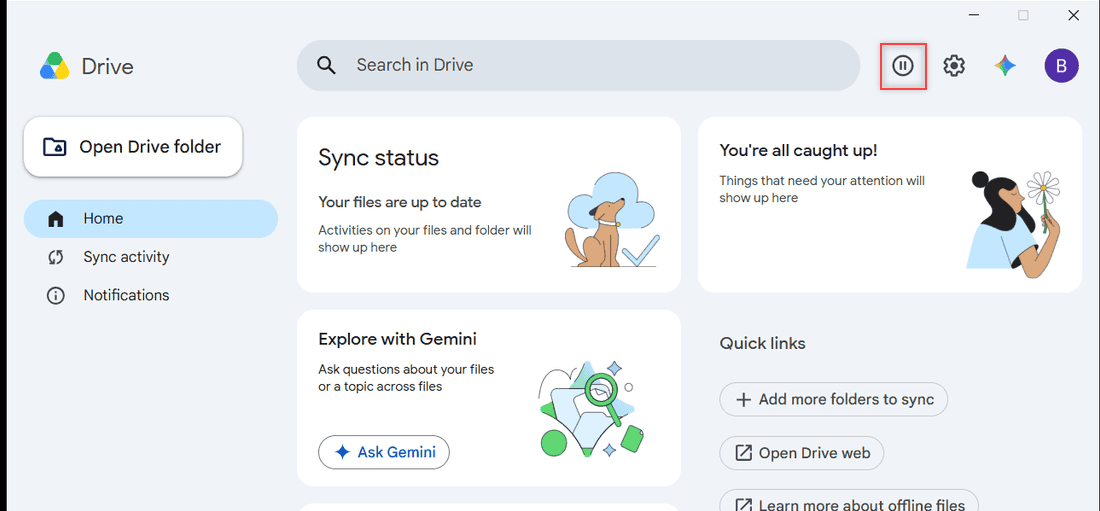
If you never want certain folders on this computer, stopping sync for good is a better move than pausing every day. I cover both in how to turn off Google Drive sync.
Stream your files if your hard drive is filling up
Why: Drive for desktop has two modes for My Drive. Google explains that streaming uses almost no computer space, while mirroring downloads a full copy of every file to your computer. On a laptop with a small or nearly full disk, a big mirror can slow everything else down.
How: click the settings gear in Drive for desktop, choose Preferences, and find My Drive syncing options. Pick Stream files to keep everything in the cloud and open it from a virtual drive, or Mirror files to keep a full copy on your computer. Streamed files only use hard drive space when you open them or make them available offline.
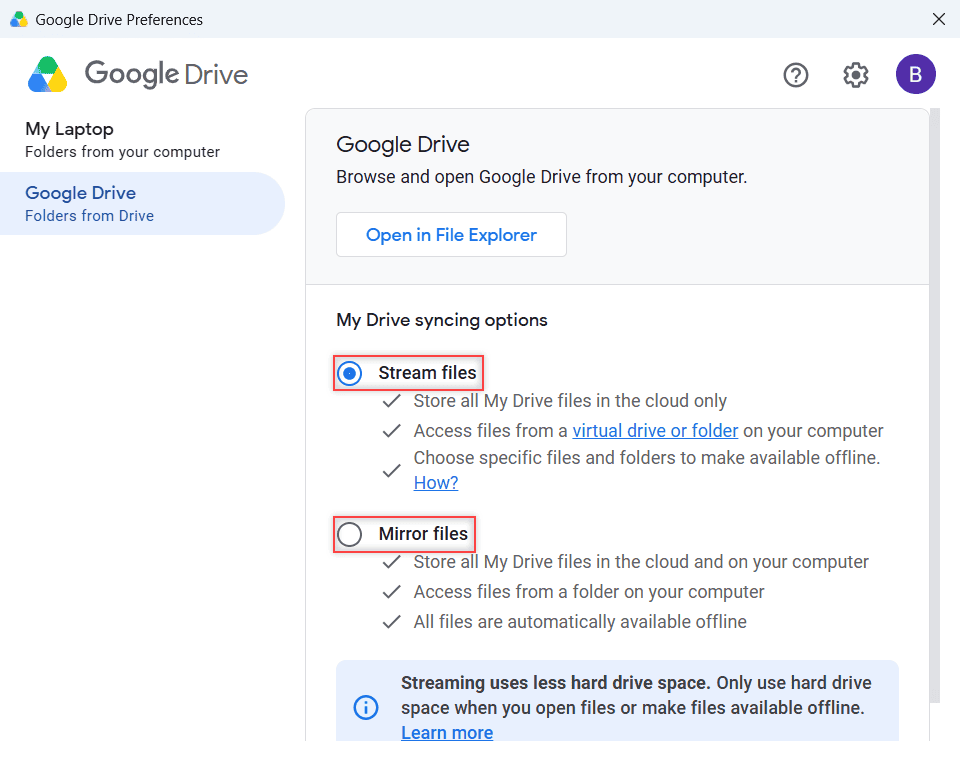
I stream on my laptop and mark only my current client folders for offline use. On a work computer, check with IT first. Google’s admin guide shows that Workspace admins can set download and upload speed caps for Drive for desktop, in kilobytes per second, and their settings override yours.
Watch out: Google warns that system cleaner apps such as CCleaner may edit Drive for desktop’s settings and cause errors or even data loss. Leave Drive’s folders out of any cleanup tool.
Restart the app and the computer when nothing else works
Why: a stuck sync or a browser that has been open for a week can drag on for no good reason. A restart clears it, and Google lists it as one of the first fixes for Drive for desktop.
How: in Drive for desktop, open the settings menu and choose Quit, then open the app again. If that doesn’t help, restart the computer. If a sync doesn’t finish because of a limit, Google says to wait a day and restart the app.
If the app won’t open afterward, follow my fix for when Drive for desktop won’t launch.
For the website, close the browser completely and reopen it. It sounds too simple, but it’s what fixed my own laggy Drive more often than anything fancy.
My five-minute checklist for a slow Google Drive
When Drive starts dragging, I run through this list in order and stop as soon as it’s fast again:
- Name the problem: laggy website, slow upload, slow download, or a slow computer.
- Check the Google Workspace Status Dashboard for Google Drive.
- Run a speed test and look at the upload number.
- Update the browser, clear the cache and cookies, and close extra tabs.
- Turn off adblockers and extensions one at a time, or try another browser.
- Turn on offline mode on your own computer if your connection is weak.
- Upload and download in smaller batches, and keep the tab open.
- Pause Drive for desktop during heavy work, or switch My Drive to Stream files.
- Quit and reopen Drive for desktop, then restart the computer.
A few more Drive fixes that pair well with this checklist:
- Google Drive not uploading from your phone
- Drive storage is full but you see no files
- reduce file size in Google Drive
- the Drive error list and Retry all
Questions I get about this
Why does uploading to Google Drive take so long?
Usually because your upload speed is much lower than your download speed, and big files need a lot of it. Other traffic on your network, a weak Wi-Fi signal, and very large batches all add time.
Why is Google Drive slowing down my computer?
Drive for desktop may be busy syncing a lot of files, or mirroring every file onto a nearly full disk. Pause syncing while you work, or switch My Drive to Stream files in Preferences.
Why is Google Drive so laggy in the browser?
An outdated browser, a full cache, too many tabs, or an adblocker interfering can all make it lag. Google lists these checks in Google Drive Help: Fix common issues.
Is there a limit on how much I can upload to Google Drive per day?
For Google Workspace accounts, Google says each user can upload and copy 750 GB within 24 hours, and a single file can be up to 5 TB. Once you hit the daily cap, uploads stop until it refreshes.

I am Carissa Gudinoa, a technology buff, and Office online and Apple expert with over 9 years of experience. I am passionate about helping others get the most out of their Apple devices. I have written extensively about Apple products and technologies. I am committed to providing my clients with the best possible service and am always up-to-date on the latest Apple products and features. I also write extensively on other software available for use at minimal cost or free. This includes Word Online, Outlook Online, Excel Online, and other Office online programs… Check out more.