
Here’s what you’ll end up with: your Drive video sitting in YouTube Studio, marked Private, with its own YouTube link that you can share whenever you’re ready. Getting there takes two short steps, because the two apps don’t talk to each other directly.
In this tutorial, I’ll show you how to upload video from Google Drive to YouTube on a computer and on a phone, which settings to pick on the way, and the limits that trip people up.
I tested it with a short clip from my made-up business, Bluebird Landscaping: “Hillcrest HOA spring walk-through 2026.webm”, a 10-second clip for a client job.
Can you connect Google Drive to YouTube directly?
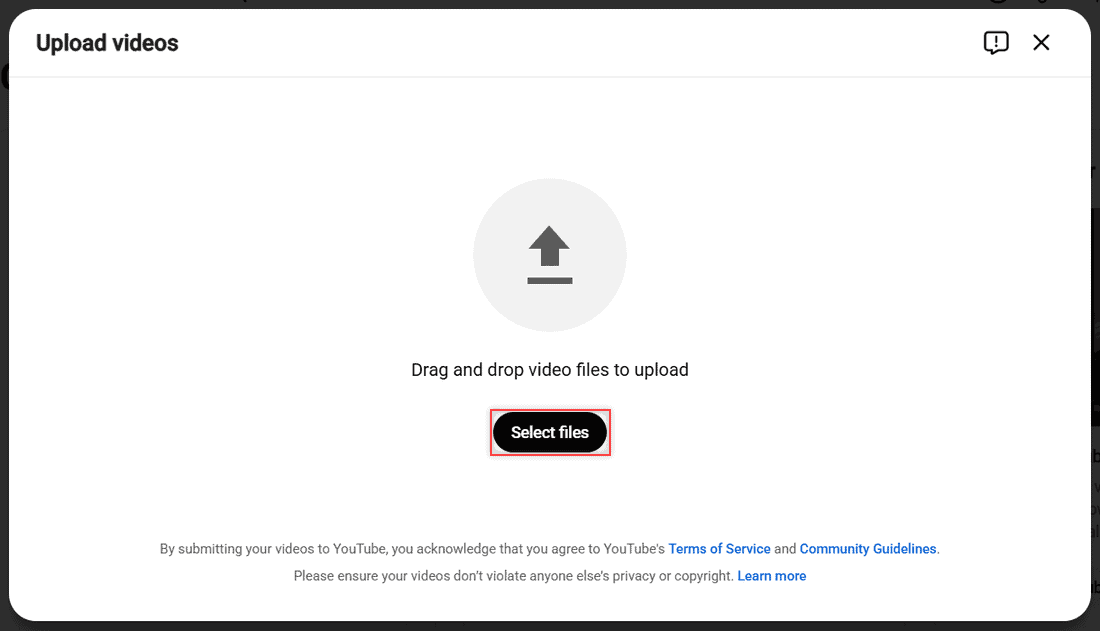
No. I looked hard for it. When I opened the upload window in YouTube Studio, the only choices were “Drag and drop video files to upload” and Select files. There’s no Google Drive button, and Drive has no “Send to YouTube” option either.
So the honest path is: download the video from Drive to your device, then upload that file to YouTube. It’s the reverse of what people do when they save a YouTube video to Google Drive, and it works the same way for any Google account.
Automation services can be set up to copy new Drive files to YouTube, but they need access to both accounts, so I stick with the manual way for client videos.
One more thing before you start: YouTube Help says you need a YouTube channel to upload videos. My demo account didn’t have one yet, so YouTube asked me to create one the first time. It took less than a minute.
Method 1: Download from Drive and upload in YouTube Studio
This is the way I use most, because YouTube Studio on a computer shows every setting on one screen.
Download the video from Google Drive
- Go to drive.google.com and open the folder with your video.
- Right-click the video file.
- Click Download.
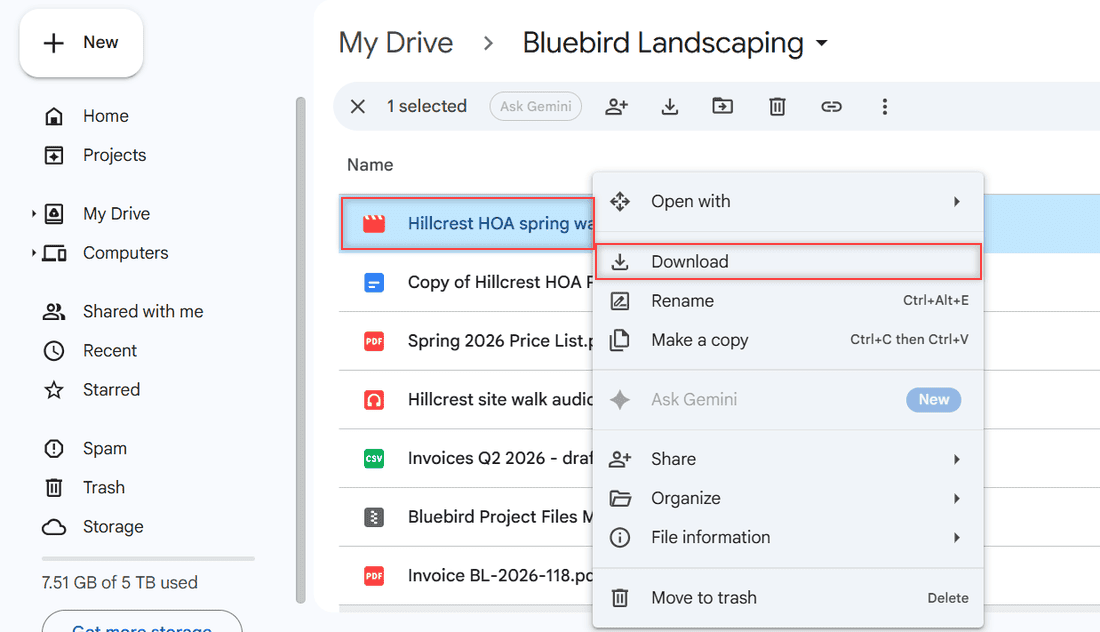
Drive saved my clip to the Downloads folder with the same file name. Grabbing several videos at once and getting a .zip file? Here’s how to download from Google Drive without zipping. No Download option at all? See why you cannot download files from Google Drive.
Upload the file in YouTube Studio
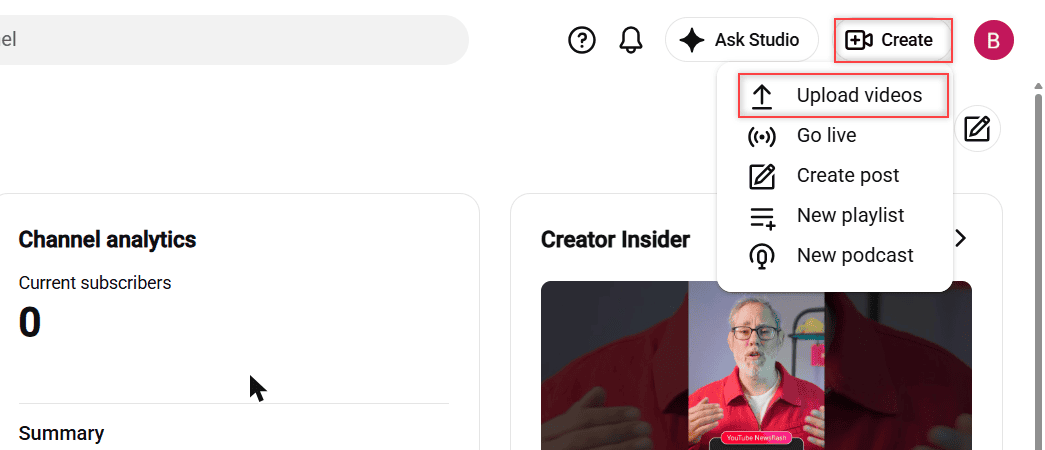
- Open studio.youtube.com while signed in to the Google account that owns your channel.
- Click Create at the top right, then Upload videos.
- In the Upload videos window, click Select files.
- Pick the video you just downloaded from Drive. You can also drag it into the window.
Fill in the details
The upload starts right away, and the Details step opens. Studio filled in my title from the file name and quietly dropped the hyphen, so it read “Hillcrest HOA spring walk through 2026”. You can retype it here. I kept it and added a short description.
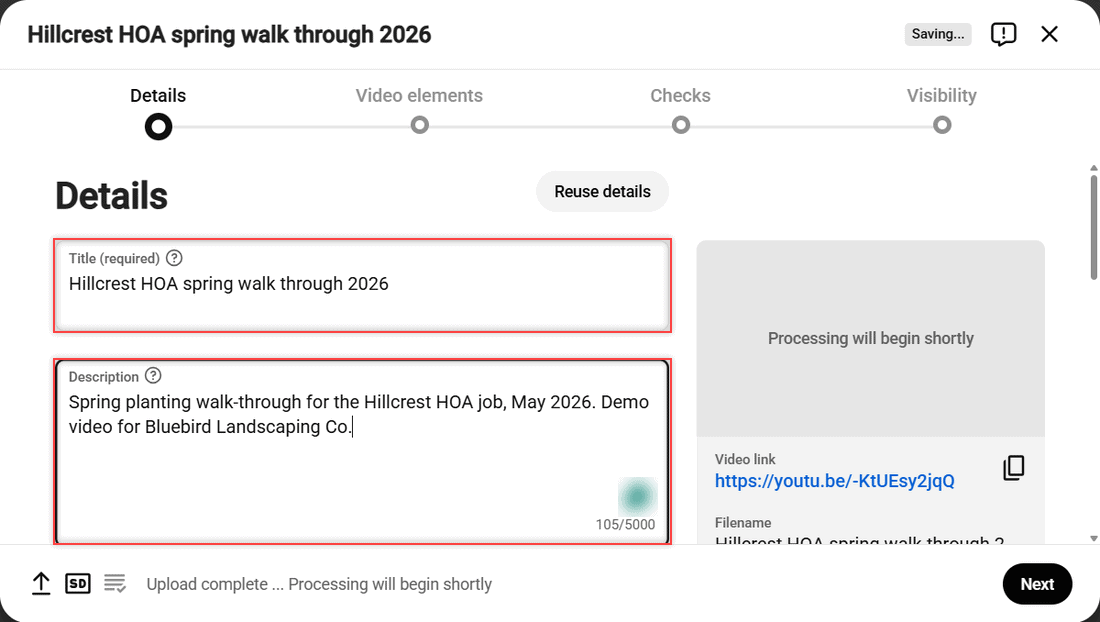
Further down, answer Is this video made for kids?. I chose “No, it’s not made for kids”. Then click Next through Video elements and Checks. My clip showed “Checks complete. No issues found.”
Choose who can see it and save
- On the Visibility step, pick Private, Unlisted, or Public.
- Click Save.
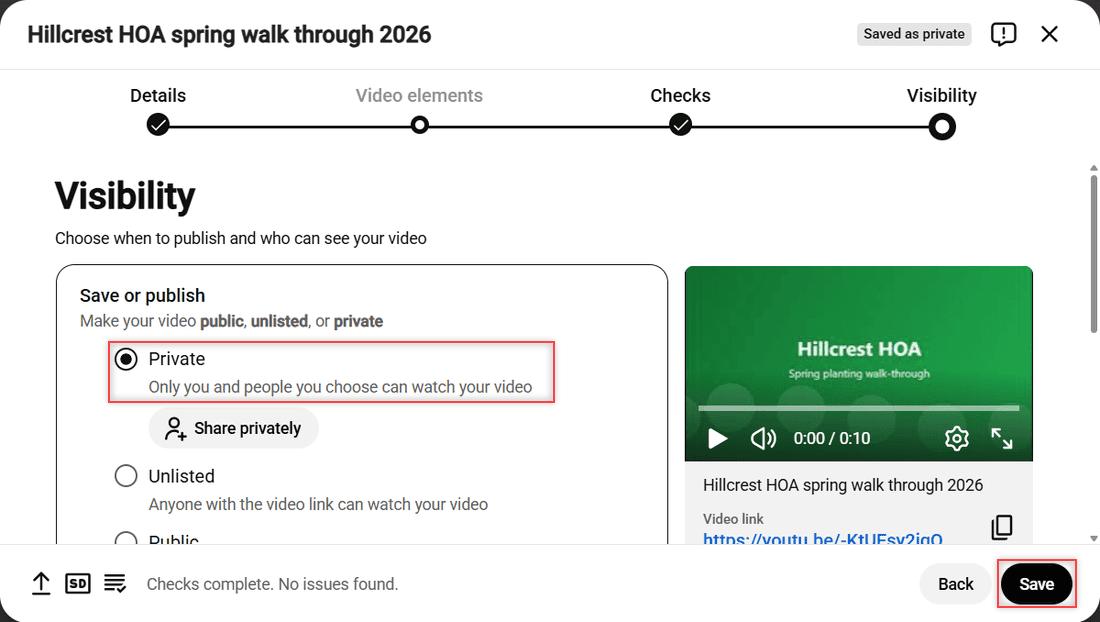
I chose Private, which YouTube describes as “Only you and people you choose can watch your video.” After I clicked Save, a message popped up: “This video is only visible to you.”
How does this work?
YouTube never sees your Drive. It only gets the file you hand it, so the copy on YouTube and the copy in Drive are separate from that moment on. Editing or deleting one doesn’t touch the other.
Pro tip: Upload as Private first, even if the video is meant to be public. You can check the title, thumbnail, and captions in peace, then switch it to Public later.
Method 2: Move the video from the Drive app to the YouTube app on your phone
On a phone, the steps are the same idea: save the video to the phone, then upload it in the YouTube app. If you do this often, my guide on how to save files to your phone from Google Drive covers the Drive side in more detail.
Save the video from Google Drive
- iPhone or iPad: in the Drive app, tap More next to the video, tap Send a copy, then Save video. It lands in your Photos.
- Android: in the Drive app, tap More next to the video, then Download. Google says this option is missing while Data Saver is on.
Upload it in the YouTube app
- Open the YouTube app and tap Create.
- Tap Video.
- Pick the video you saved and tap Next, then add the details and choose the visibility.
Watch the shape of your video. YouTube Help says square or vertical videos of 3 minutes or less upload as Shorts. If an iPhone video won’t show up in the picker, the steps to save photos and videos from Google Drive to iPhone may help.
How does this work?
The phone’s photo library or Files app is the middle stop, just like the Downloads folder on a computer. If you close the YouTube app before you finish the settings, YouTube keeps the upload as a draft on your Content page.
Find your uploaded video in YouTube Studio
To make sure the upload worked, open YouTube Studio and select Content in the left menu. My clip showed up under Videos with its 0:10 length, Visibility Private, and the date Oct 25, 2026 marked Uploaded.
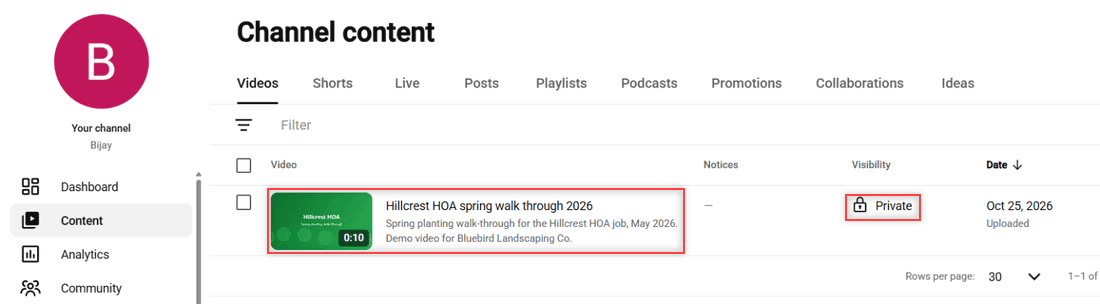
From here you can copy the link, change the visibility, or delete it. If you only need the video on a website and not on YouTube at all, you can also embed a video from Google Drive directly.
Things to keep in mind
- Length: by default, YouTube accepts videos up to 15 minutes. Verify your Google Account to upload longer ones.
- Size: the maximum is 256 GB or 12 hours, whichever is less.
- Formats: MP4, MOV, AVI, WMV, FLV, MPG, WebM, 3GPP, and HEVC (H.265) files all work, plus a few pro formats such as ProRes. My .webm clip uploaded without any conversion.
- Batch size: you can upload up to 15 videos at a time, and each channel has a daily upload limit.
Downloads can be blocked on the Drive side too. If someone shared the video with you as a viewer, the owner can turn off downloading, and then only they can give you a copy. Here’s more on whether viewers on Google Drive can download files.
A popular shared video can also hit Drive’s download limit for a while. That usually clears within 24 hours, and my post on the download quota exceeded error explains what to do in the meantime.
The same steps work for personal Google accounts and work or school accounts. YouTube Help does note that uploading may not be available with supervised accounts.
If you work with videos in Drive a lot, these may come in handy
- fix “This video cannot be played” in Google Drive
- upload large files to Google Drive
- share Google Drive links on WhatsApp
- Google Drive storage full but no files
Frequently Asked Questions
Why does YouTube say my video is too long?
New accounts can upload videos up to 15 minutes by default. Verify your Google Account with a code by text or voice call, and you can upload longer videos, up to 12 hours.
Can I schedule a Google Drive video to go public later?
Yes. On the Visibility step in YouTube Studio, choose Schedule instead of Save or publish and pick a date and time. YouTube Help: Upload YouTube videos lists every option.
Does deleting the video from Google Drive remove it from YouTube?
No. YouTube keeps its own copy of the file you uploaded, so you can delete or move the Drive file and the YouTube video stays put.
Can I upload a Google Drive video someone shared with me?
Only if you can download it. If the owner turned off downloading for viewers, ask them to send you the file or upload it themselves, and make sure you have the right to post it.

I am Carissa Gudinoa, a technology buff, and Office online and Apple expert with over 9 years of experience. I am passionate about helping others get the most out of their Apple devices. I have written extensively about Apple products and technologies. I am committed to providing my clients with the best possible service and am always up-to-date on the latest Apple products and features. I also write extensively on other software available for use at minimal cost or free. This includes Word Online, Outlook Online, Excel Online, and other Office online programs… Check out more.