
Yes, OneDrive is secure for most people. Microsoft encrypts your files on the way up and while they’re stored, watches for suspicious sign-ins, and keeps older versions and deleted files so you can recover. The weak spots are usually on our side: a reused password or a sharing link sent to the wrong person.
In this tutorial, I’ll answer is OneDrive secure honestly: what Microsoft protects for you, what Personal Vault and ransomware recovery actually do, how work and school accounts differ, and the few settings you should check yourself.
How Microsoft protects your OneDrive files
I went through Microsoft’s own security pages for this, because security claims are easy to exaggerate. Here’s what Microsoft says it does for every OneDrive, personal or business.
Encryption in transit and at rest
Files moving between your device and OneDrive travel over TLS encryption. Microsoft doesn’t allow signed-in connections over plain HTTP; they get redirected to HTTPS.
Once stored, each file is encrypted at rest with its own unique AES256 key. Those file keys are themselves protected by master keys kept in Azure Key Vault.
For work and school accounts, Microsoft Learn describes two layers: BitLocker encryption on the disks, plus per-file encryption with keys stored apart from the content.
Who at Microsoft can get in
Microsoft says no engineer has standing access to the service. Access has to be requested, it’s checked, and when it’s approved it’s time-limited.
Your data is also copied to at least two Azure regions several hundred miles apart. A problem in one data center doesn’t take your files with it.
Monitoring that runs in the background
- Suspicious sign-ins: OneDrive watches for and blocks suspicious sign-in attempts and emails you about unusual activity.
- Virus scanning: the Windows Defender anti-malware engine scans documents when they’re downloaded.
- Mass deletion alerts: if lots of files disappear at once, OneDrive alerts you and shows how to get them back.
That download scan is a nice extra, but it doesn’t replace antivirus on your own PC. I cover the Google side of this in my guide to how you can scan Google Drive for viruses.
Is OneDrive end-to-end encrypted?
Not in the zero-knowledge sense, where only you hold the key and the provider can’t read anything. Microsoft’s documentation describes Microsoft creating and managing the encryption keys.
That’s normal for mainstream cloud storage, and it’s what lets features like virus scanning, file previews and search work. It does mean you’re trusting Microsoft’s access controls rather than a key only you have.
If that matters for a specific file, the honest answer is to keep it out of any cloud folder, or use the extra protections below. I made the same point when I wrote about whether you can add a password to Google Drive.
Security features compared: personal vs work accounts
Not every safety feature is in every OneDrive. This table sums up what Microsoft lists for each kind of account.
| Feature | Personal (free) | Personal with Microsoft 365 | Work or school |
|---|---|---|---|
| TLS + encryption at rest | Yes | Yes | Yes (BitLocker + per-file) |
| Version history | Yes, all file types | Yes, all file types | Yes, unless an admin turned it off |
| Recycle bin | 30 days | 30 days | 93 days, unless an admin changed it |
| Personal Vault | Up to 3 files | As many as your storage allows | Personal plans only |
| Ransomware detection alerts | First alert and recovery free | Yes | Ask your IT admin |
| Restore your whole OneDrive (30 days) | No | Yes | Yes |
| Password and expiry on sharing links | No | Yes | Ask your IT admin |
| Who controls sharing | You | You | Your IT admin |
Personal Vault
Personal Vault is a locked folder inside OneDrive for your most sensitive files, like scans of an ID or insurance cards. Each time you open it, you prove it’s you with a code by email or text, the Microsoft Authenticator app, or a fingerprint or face.
It locks itself after 20 minutes of inactivity on the web and 3 minutes on mobile by default. Files in it can’t be shared until you move them out. On a Windows PC, they sit in a BitLocker-encrypted area of the drive.
Microsoft lists Personal Vault for personal plans: OneDrive Basic, Personal and Family. Our Bluebird Landscaping OneDrive is a Microsoft 365 work account, so it isn’t something I could use there.
Ransomware detection and Restore your OneDrive
If Microsoft 365 spots a ransomware attack on your files, you get a notification and an email, and OneDrive.com shows a Signs of ransomware detected screen. Microsoft says to clean every device with antivirus before restoring, or the files can get encrypted again.
Then Restore your OneDrive rolls everything back to a point in the last 30 days. On a personal account it needs Microsoft 365; on a work or school account it’s under Settings as Restore OneDrive.
What your IT admin controls on a work account
On a work or school account, a lot of security is decided before you ever open the Share button. Microsoft Learn says external sharing is turned on by default, but admins set it at the organization and site level, and the most restrictive setting wins.
OneDrive’s sharing settings can match SharePoint’s or be stricter, never looser. Here’s what that looks like in our Bluebird account. When I opened a folder’s link settings, I only got two choices.
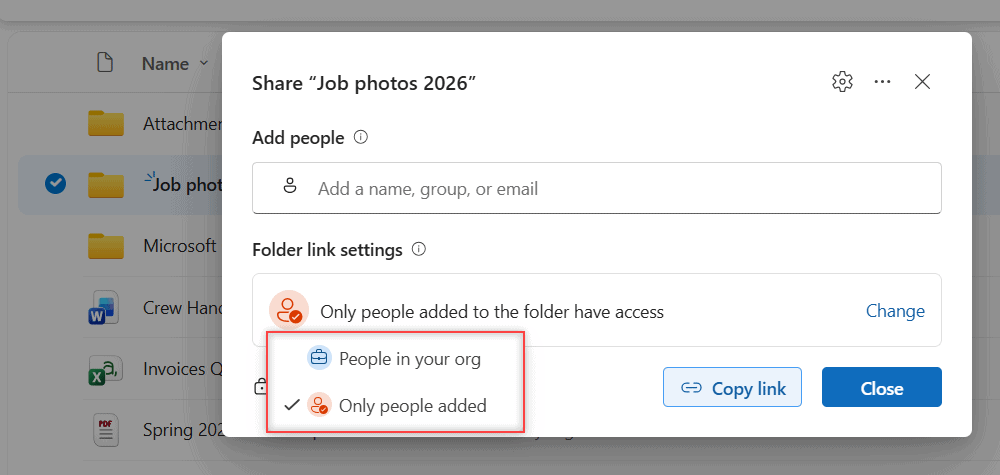
There’s no Anyone option, because our admin turned off links that work without signing in. That alone closes the most common way files leak.
Then I tried to share with our office manager’s personal address, dana.brooks@example.com. OneDrive stopped me right in the dialog.
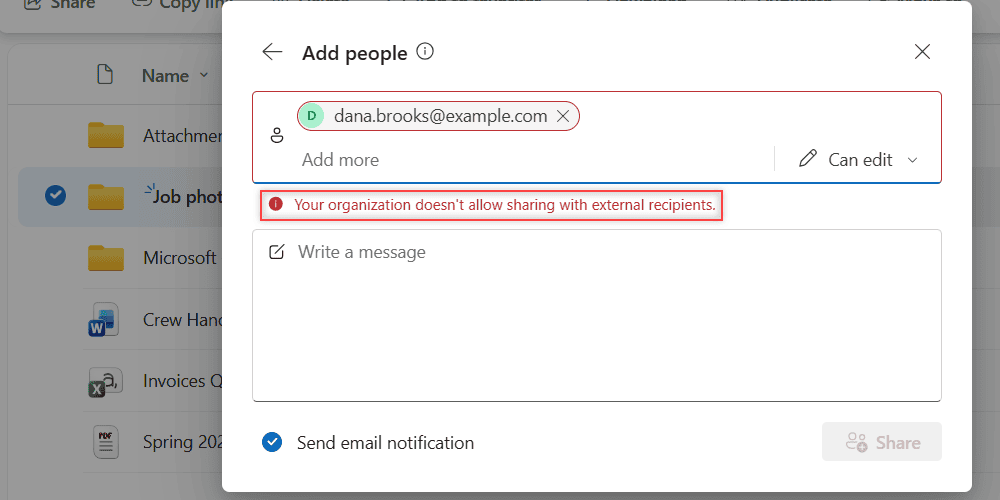
The exact message, in case you’re searching for it:
Your organization doesn't allow sharing with external recipients.That’s not a bug. It means your organization blocks sharing outside the company, and only your admin can change it. If you need to get a file to someone outside, ask IT rather than emailing it from a personal account.
Our team also files client mail in this OneDrive; here’s how to save Outlook emails to OneDrive.
Admins can also apply retention policies. Under one, OneDrive keeps a copy of edited or deleted files in a hidden Preservation Hold library for compliance, even after you delete them.
What’s on you: sharing links and sign-in
Microsoft can encrypt everything perfectly and it won’t matter if the wrong person gets a link or your password. These are the parts you control.
Pick the smallest permission that works
Every share in OneDrive starts with a permission choice. Here’s the list I see in our work account.
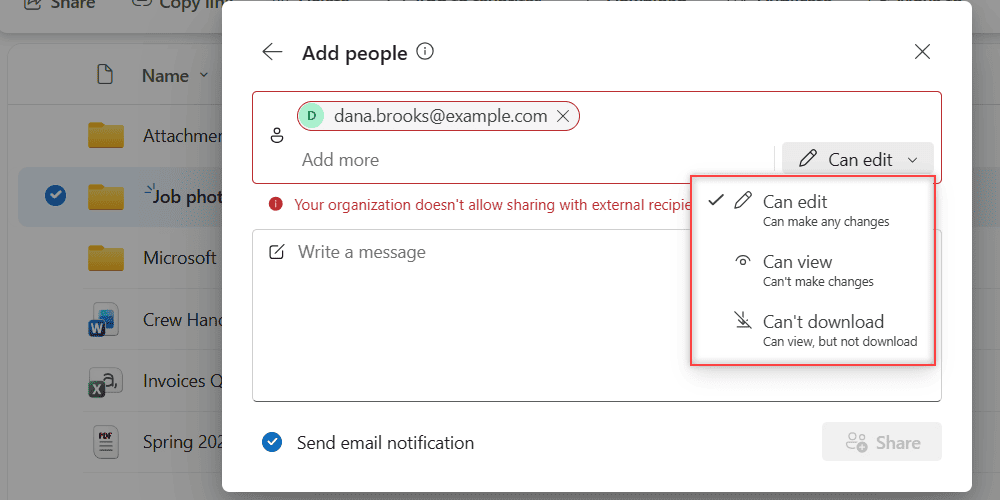
- Can edit: they can change, and delete, what you shared. Save it for people you work with.
- Can view: they can open and read it but not change it.
- Can’t download: they can view in the browser without the download option.
Send email notification emails the person a link for you. I leave it on so they know the share came from me and not a phishing email pretending to be me.
Speaking of phishing, fake “someone shared a file” emails are common with every cloud service. My guide on whether a Google Drive link can be dangerous covers the warning signs, and they apply to OneDrive links too.
Lock down your sign-in
For a personal Microsoft account, Microsoft recommends a strong password, up-to-date security info, and two-step verification. With two-step on, you need a code whenever you sign in on a device that isn’t trusted.
- Go to account.microsoft.com/security and sign in.
- Select Manage how I sign in.
- Under Two-step verification, select Turn on and follow the prompts.
Add more than one contact method before you turn it on, so you don’t lock yourself out. Some older apps need an app password afterward. On a work account like ours, sign-in rules come from your IT department, not this page.
Microsoft also suggests turning on device encryption on your iPhone or Android phone, since synced files live there too.
How OneDrive helps you recover from mistakes
Security isn’t only about keeping people out. It’s also about getting files back after an accident, and this is where OneDrive does well.
Version history
OneDrive keeps version history for every file type. I edited our Fall Cleanup Checklist 2026.docx a few times on November 7, 2026, and each save shows up as its own version.
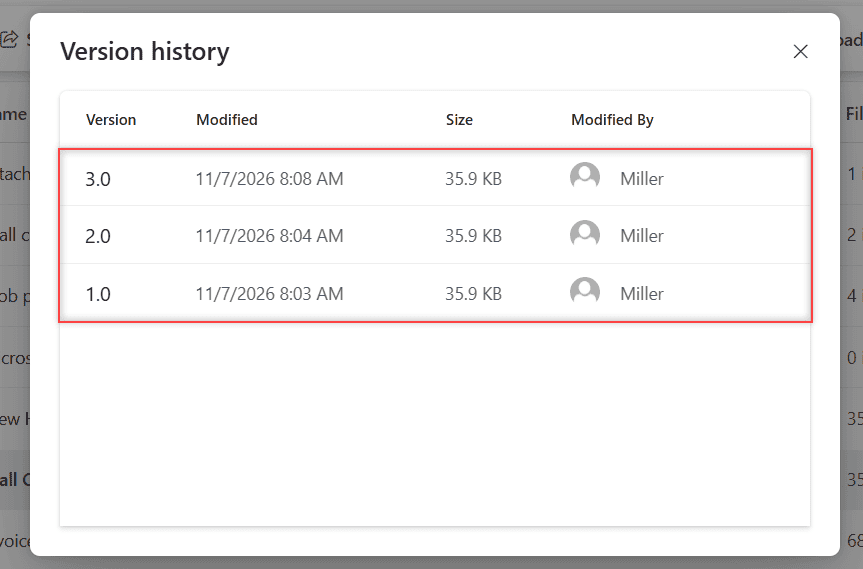
Versions 1.0, 2.0 and 3.0 were saved at 8:03, 8:04 and 8:08 AM. If someone overwrote the checklist, I could restore any of them. By default, SharePoint and OneDrive libraries keep at least 500 major versions.
Google keeps versions too, if you’re comparing; here’s how Google Drive version history works.
The recycle bin and the second-stage bin
Deleted files go to the recycle bin for 30 days on personal accounts and 93 days on work or school accounts, unless an admin changed that. My guide to the OneDrive recycle bin shows where to find it.
Work accounts have an extra safety net. When you empty the recycle bin, items move to a second-stage recycle bin, and the 93 days covers both.
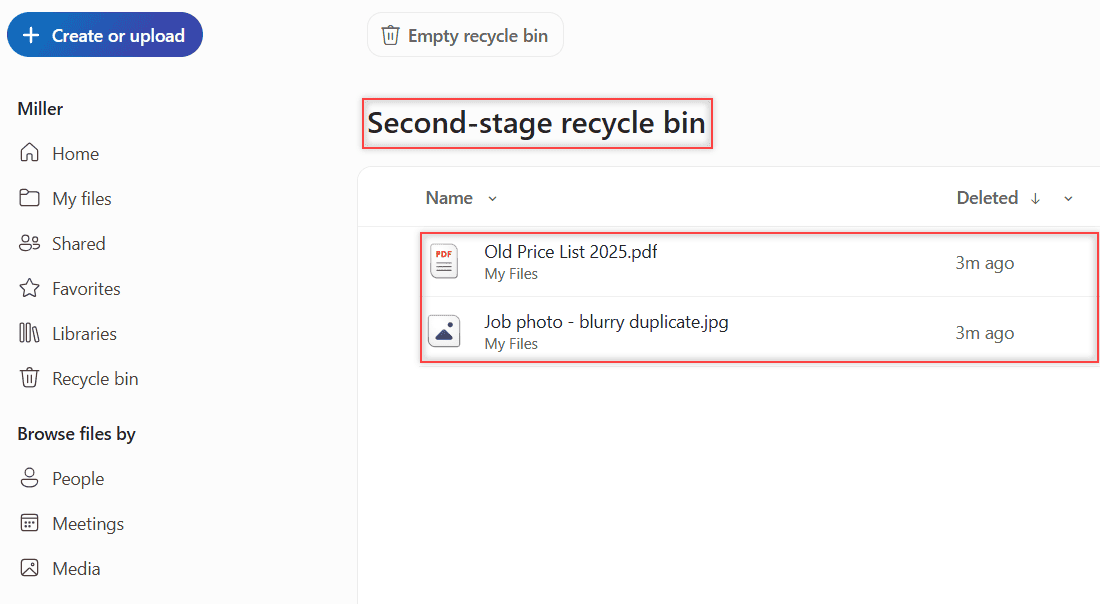
I emptied our first bin and both test files were still waiting here. Once a file is permanently deleted from the last bin, though, it’s gone.
Limits: what OneDrive security can’t do
Here’s where I’d set expectations. None of these mean OneDrive is unsafe; they mean it isn’t the whole plan.
- It can’t stop a link you shared. Anyone with edit access can change or delete what you gave them. Stop sharing when the job’s done.
- It can’t fix a stolen password. Without two-step verification, a reused password is the easiest way in.
- Sync copies deletions. Delete a file on one device and it’s deleted everywhere, so the recycle bin is your safety window.
- Personal Vault isn’t on work accounts. Business files follow your company’s rules instead.
- It isn’t zero-knowledge storage. Microsoft manages the keys, so very sensitive files may belong somewhere offline.
For a true second copy that doesn’t sync, I like to back up OneDrive to an external hard drive every month or so.
My verdict on OneDrive security
For everyday files, OneDrive is a safe place to keep things. The encryption, sign-in monitoring, version history and recycle bin cover the risks most of us actually face.
Turn on two-step verification, share with the smallest permission that works, and use Personal Vault for the few files that really matter if you’re on a personal plan. Still weighing services? My Google Drive vs OneDrive comparison covers more than security.
More OneDrive and Microsoft 365 help from me:
- all my OneDrive tutorials
- how to send a confidential email in Outlook
- moving OneDrive files to Google Drive
- my Outlook on the web guides
Common questions
Can Microsoft see my OneDrive files?
Microsoft says no engineer has standing access; access must be requested, approved and is time-limited. The full list is in Microsoft Support: how OneDrive safeguards your data.
Is OneDrive safe for tax documents and IDs?
For a personal account, Personal Vault is the safer spot, since it asks for a second identity check and locks itself. On a work account, follow your company’s rules for sensitive files.
Is OneDrive safer than keeping files on my PC?
For losing files, usually yes, because a dead laptop doesn’t take your cloud copy with it and deleted files can be restored. Keep an offline backup too for anything you can’t replace.
Does OneDrive scan my files for viruses?
Yes. Microsoft says the Windows Defender anti-malware engine scans documents when they’re downloaded. Keep antivirus running on your own devices as well.

I am Carissa Gudinoa, a technology buff, and Office online and Apple expert with over 9 years of experience. I am passionate about helping others get the most out of their Apple devices. I have written extensively about Apple products and technologies. I am committed to providing my clients with the best possible service and am always up-to-date on the latest Apple products and features. I also write extensively on other software available for use at minimal cost or free. This includes Word Online, Outlook Online, Excel Online, and other Office online programs… Check out more.