
Last week Dana, our office manager at Bluebird Landscaping, told me OneDrive wouldn’t take her new job photos. I spent November 7, 2026 cleaning up our Microsoft 365 work account, and the same few habits fixed it.
In this tutorial, I’ll show you how to free up space in OneDrive in both senses: freeing cloud storage so uploads work again, and freeing disk space on your PC without losing any files.
Check what is actually using your storage first
Don’t start deleting blind. On a work or school account, look at the bottom of the left menu in OneDrive on the web. It shows how much you’ve used out of your quota.
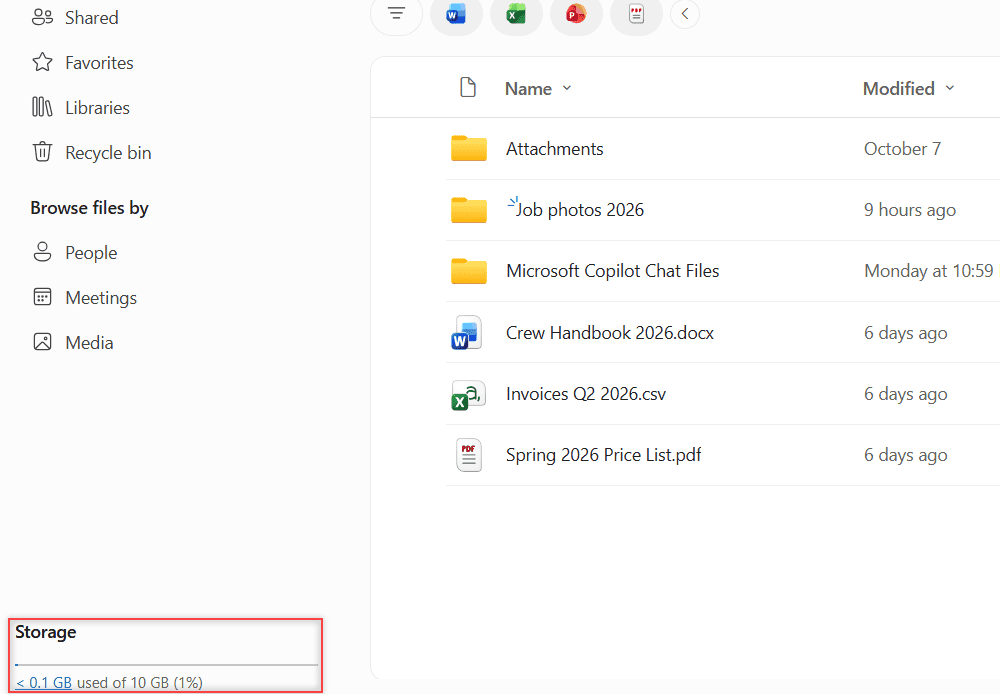
My test account shows a 10 GB limit because that’s what our admin set for it. Your number will differ. For a closer look, open the gear icon, then OneDrive settings > More Settings > Storage Metrics.
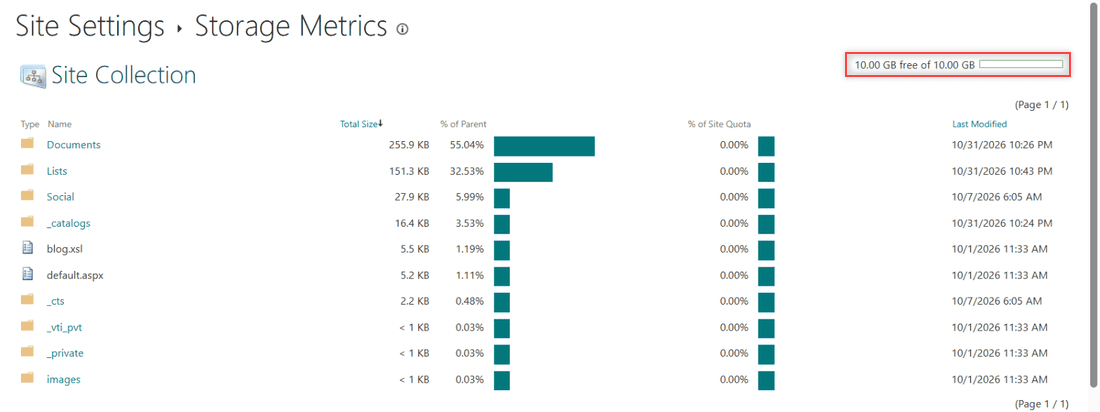
This matters because a full OneDrive stops uploads, edits and sync, and your files turn read-only. Google Drive has the same trap, which I covered in Google Drive storage full but no files.
Sort by file size and delete the biggest files
A handful of big files usually eats most of the space. In My files, click the File size column header and choose Larger to smaller.
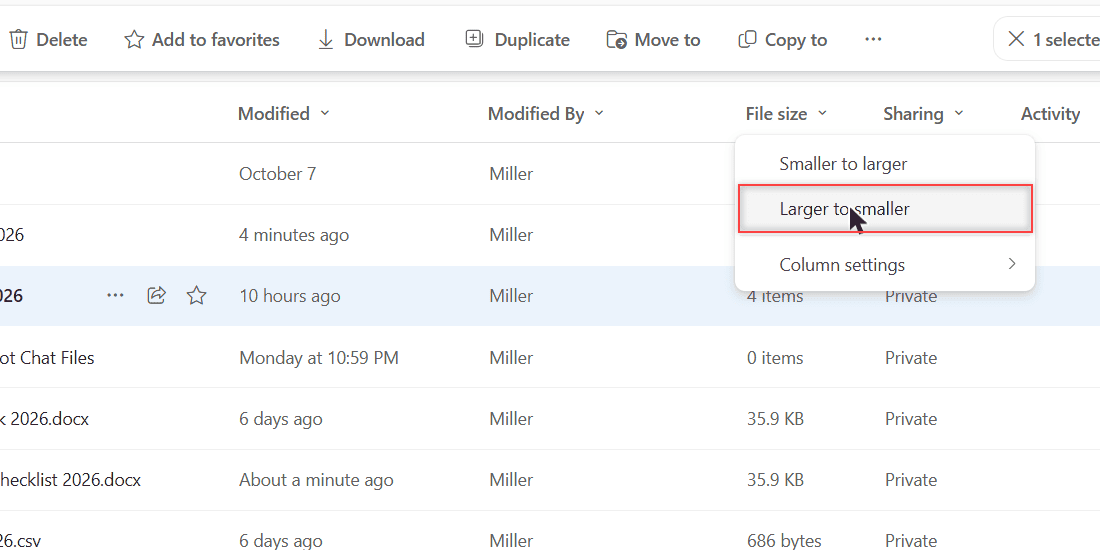
Now the heavy stuff sits at the top: videos, ZIP files and old backups. Delete what you don’t need, or move it somewhere else first.
Before I delete anything I might want later, I back up OneDrive to an external drive. Moving old project folders to another cloud works too, like when you transfer OneDrive files to Google Drive.
Empty the recycle bin or the space never comes back
This is the step most people miss. Deleted files go to the OneDrive Recycle bin, and Microsoft says items there still count toward your storage.
Open Recycle bin in the left menu and click Empty recycle bin. If you can’t find it, here’s how to open the OneDrive recycle bin.
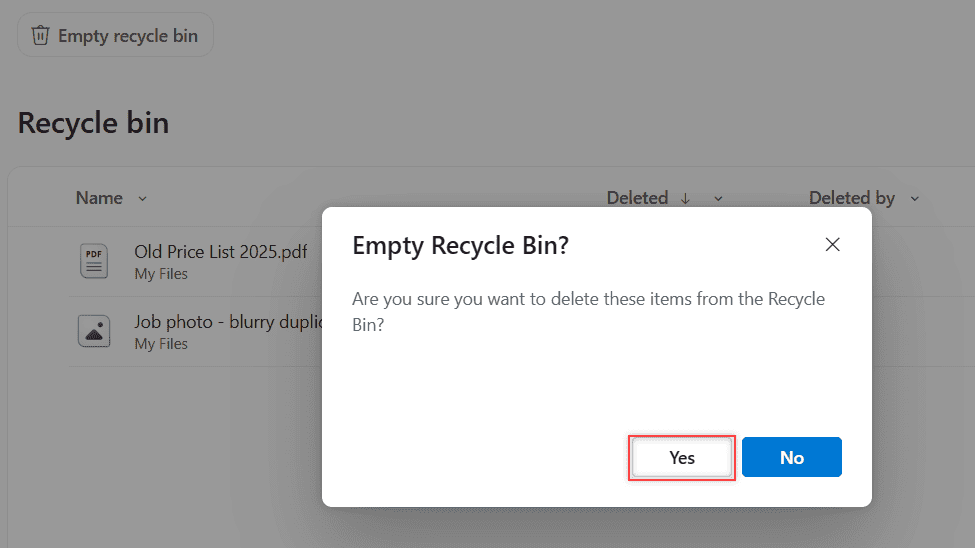
Click Yes. Emptying the Recycle Bin on your Windows desktop doesn’t touch this one, so do it online.
On a work account there’s one more stop. A link at the bottom of the page opens the Second-stage recycle bin, and my two deleted files were still sitting there.
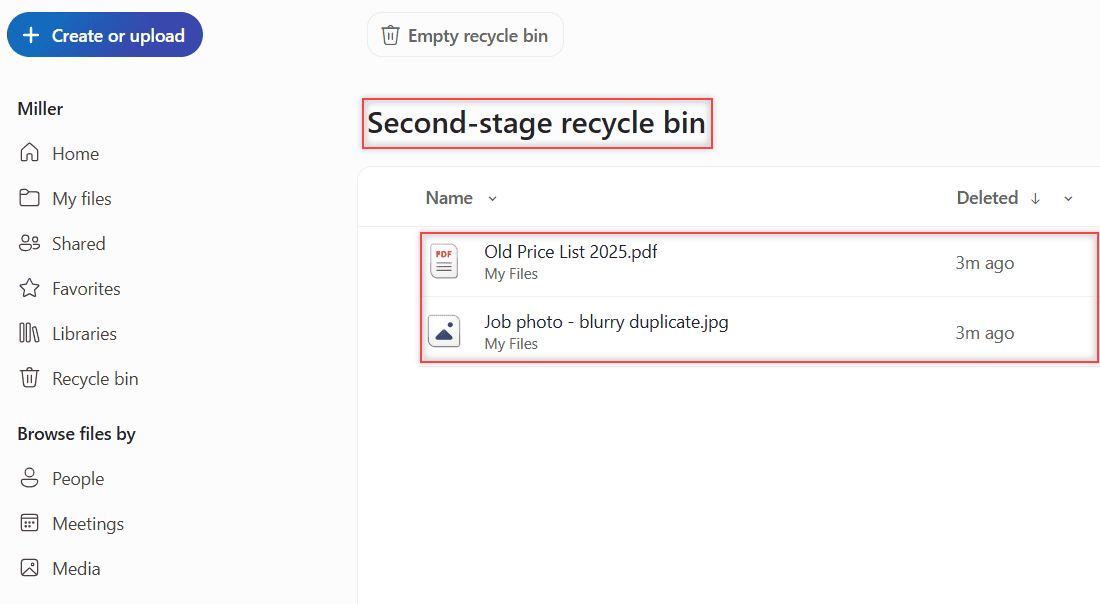
Select them there and delete them again. Then give it time: Microsoft says the quota can take up to 24 hours to update.
Delete old versions of files you edit a lot
OneDrive keeps earlier versions of your files. For a big spreadsheet or presentation edited all season, those copies pile up.
Right-click the file and pick Version history. Click the three dots next to an old version to see Open File, Restore and Delete Version.
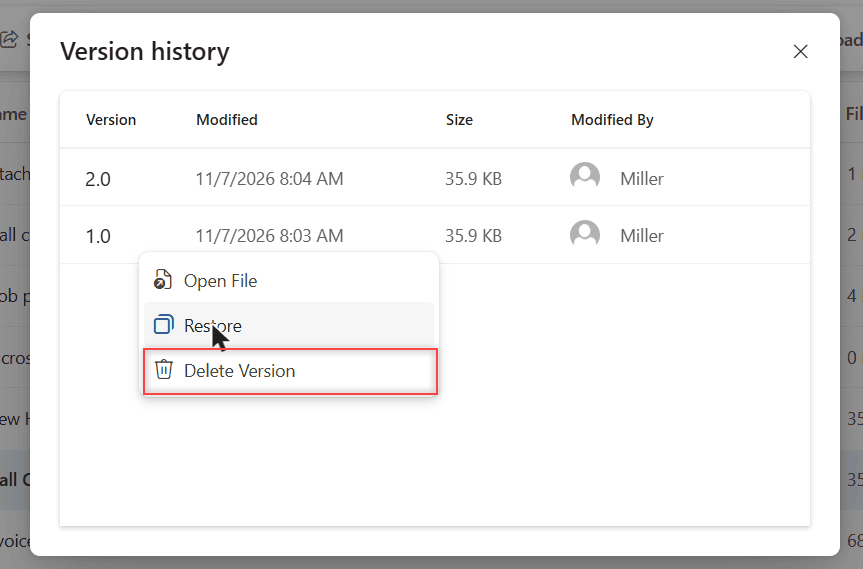
I only clear versions I’m sure I won’t need. Microsoft’s help pages don’t say how much versions add to your total, so I treat this as a last step after big files and the recycle bin.
Free up disk space on your PC without deleting files
The other meaning of “free up space” is your computer’s drive. If the OneDrive app syncs to Windows, Files On-Demand handles it.
In File Explorer, right-click a file or folder in your OneDrive folder and choose Free up space. It becomes online-only, shows a cloud icon, and stops using space on your PC.
Files marked Always keep on this device stay downloaded and keep using space. Online-only files need an internet connection to open.
To automate it, turn on Storage Sense under Windows Settings > Storage. It turns OneDrive files you haven’t opened in a while back to online-only, 30 days by default.
None of this changes your cloud storage, though. If the cloud icons never appear, make sure OneDrive is running on your PC.
My OneDrive cleanup checklist
- Check storage used and Storage Metrics before deleting anything.
- Sort My files by File size, Larger to smaller.
- Back up or move big files you still want.
- Empty the Recycle bin, then the Second-stage recycle bin on work accounts.
- Clear old versions of large files you edit often.
- Use Free up space or Storage Sense if your PC drive is the problem.
- Wait up to 24 hours for the storage number to catch up.
Still tidying up your files? These come next:
- Google Drive vs OneDrive
- how to empty trash in Google Drive
- how to save Outlook emails to OneDrive
- all my OneDrive tutorials
Questions I get about this
Why is my OneDrive still full after deleting files?
Deleted files still count until you empty the Recycle bin, and work accounts also keep a second-stage bin. The storage total can take up to 24 hours to update.
Does Free up space delete my files from OneDrive?
No. Free up space only removes the local copy on your PC. The file stays in OneDrive and downloads again when you open it.
How long do deleted files stay in the OneDrive recycle bin?
Personal accounts keep them 30 days and work or school accounts 93 days, unless an admin changed the setting.
What happens when OneDrive storage is full?
You can’t upload, edit or sync new files, and existing files become read-only, though you can still download or delete them. Details are in Microsoft Support: My OneDrive says it is full.
How do I get more OneDrive storage on a work account?
Ask your IT admin, since they set the quota. For a personal account, check Microsoft’s plans page for current storage options.

I am Carissa Gudinoa, a technology buff, and Office online and Apple expert with over 9 years of experience. I am passionate about helping others get the most out of their Apple devices. I have written extensively about Apple products and technologies. I am committed to providing my clients with the best possible service and am always up-to-date on the latest Apple products and features. I also write extensively on other software available for use at minimal cost or free. This includes Word Online, Outlook Online, Excel Online, and other Office online programs… Check out more.