
Share the file with your other account, then open the share settings, change that person’s role to Transfer ownership and send the invitation. Once the other account accepts, the file belongs to it and stops using your storage. That’s how I moved Bluebird Landscaping’s Spring 2026 Price List.pdf toward my second Gmail account.
In this tutorial, I’ll show you how to transfer Google Drive files to another account step by step, how to check and cancel a transfer, and two backup routes for when ownership transfer won’t work: download and re-upload, or Google Takeout.
What you need before you start
You need to be signed in to the account that owns the file, and you need the email address of the account you’re moving it to. I’ll call mine “my second Gmail account” here.
Ownership can only go to someone the file is already shared with. If sharing is new to you, my guide on how to share a file on Google Drive covers the basics.
The account type changes the rules, so here they are in plain words:
- Personal Gmail to personal Gmail: works with an invitation. The other account has to accept.
- Personal to a work or school account: not allowed. Use download and re-upload instead.
- Google Workspace: you can only transfer to someone in your own organization, and they don’t need to accept. Admins can also move files in bulk.
It works on a computer. I did everything in Chrome at drive.google.com, because Google’s transfer steps are written for the web.
Here’s how the three routes in this guide compare, so you can pick one before you start clicking:
| Method | Best for | Keeps sharing and history | Who needs to act |
|---|---|---|---|
| Transfer ownership | A few files or folders between personal Gmail accounts | Yes, it’s the same file | Both accounts |
| Download and re-upload | Personal to work or school, or a quick copy | No, it’s a new file | Just you |
| Google Takeout | Moving a whole Drive at once | No, everything is a new copy | Just you |
For Bluebird, I only needed one price list in the other account, so Transfer ownership was the obvious pick.
Transfer ownership of a file to your other account
My test file was a PDF, so this isn’t limited to Google Docs. Uploaded files like PDFs, Word files and spreadsheets show the same option. I ran these steps on November 7, 2026.
Share the file with the other account as an Editor
- Right-click the file in Drive and choose Share.
- Type the other account’s email address and pick it from the list.
- Set the role to Editor.
- Untick Notify people if you don’t want a sharing email, then click Share.
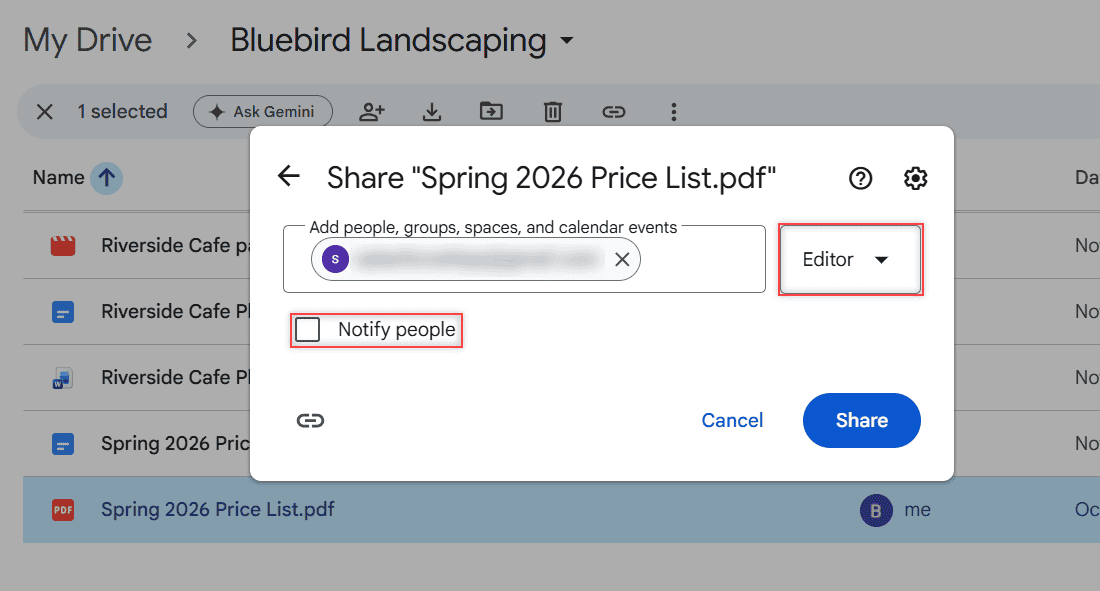
Skipping the email is fine here. The ownership invitation sends its own message in the next step.
Open the Transfer ownership option
Open Share again. Under People with access, I saw myself as Owner and my second account as Editor. Click the role drop-down next to the other account.
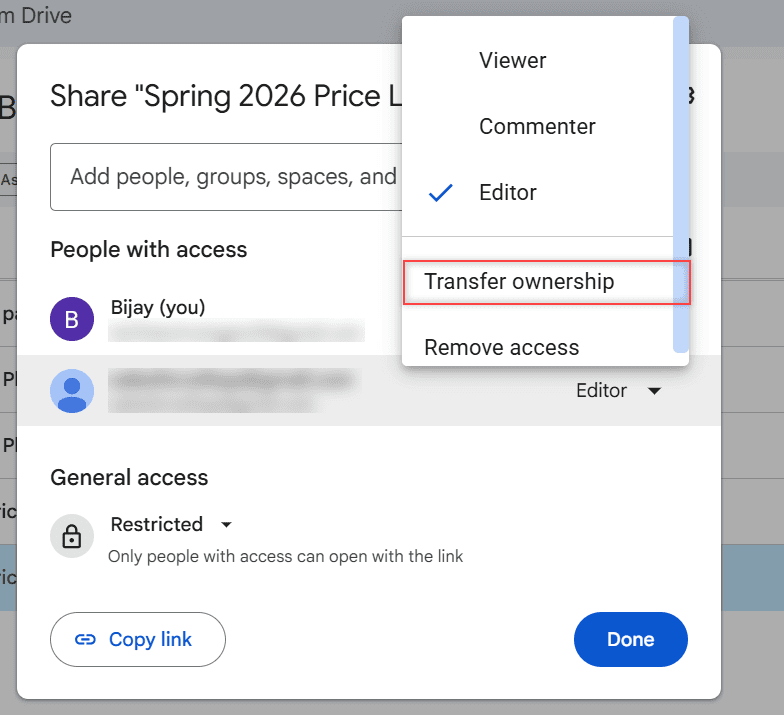
The menu lists Viewer, Commenter, Editor, Transfer ownership and Remove access. Pick Transfer ownership.
Notice that General access stayed at Restricted. You don’t need a public link to move a file, and I’d leave it that way. If you ever do want one, here’s how to turn on link sharing in Google Drive.
Send the ownership invitation
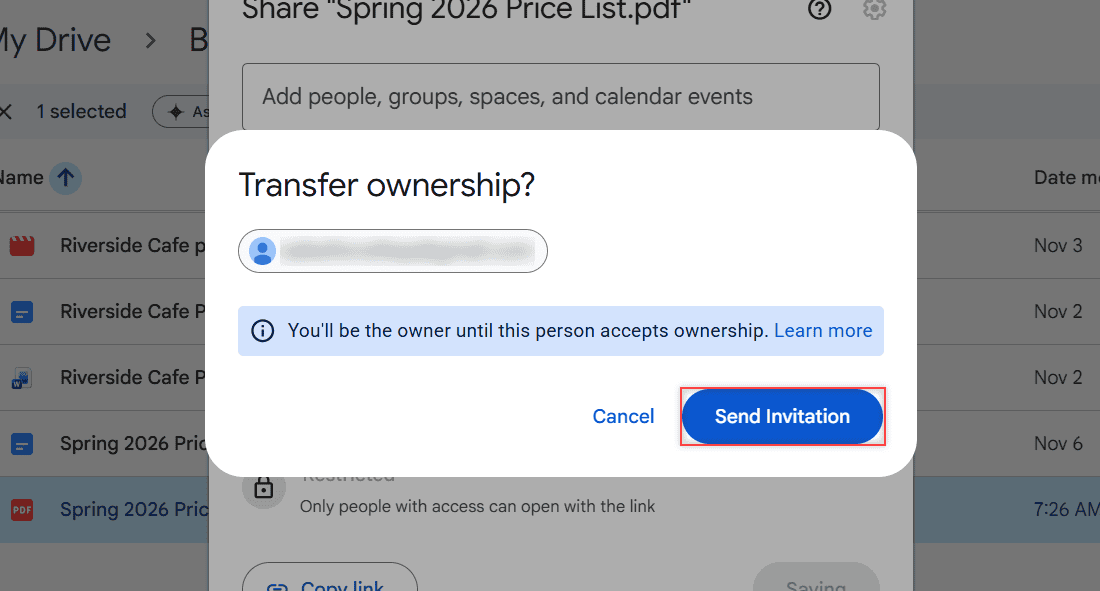
A Transfer ownership? box pops up. It says you’ll stay the owner until the other person accepts. Click Send Invitation.
Accept ownership from the new account
I didn’t accept on my test, so this part follows Google’s help page. The new account gets an email. In that account’s Drive, search for pendingowner:me to find every file waiting for it.
Right-click the file, click Share, then Accept ownership? and choose Accept. Decline instead, and the original owner keeps the file.
Check that the transfer went through
Back in the original account, open Share on the file. Until the invitation is accepted, the other account shows Pending owner under its Editor role.
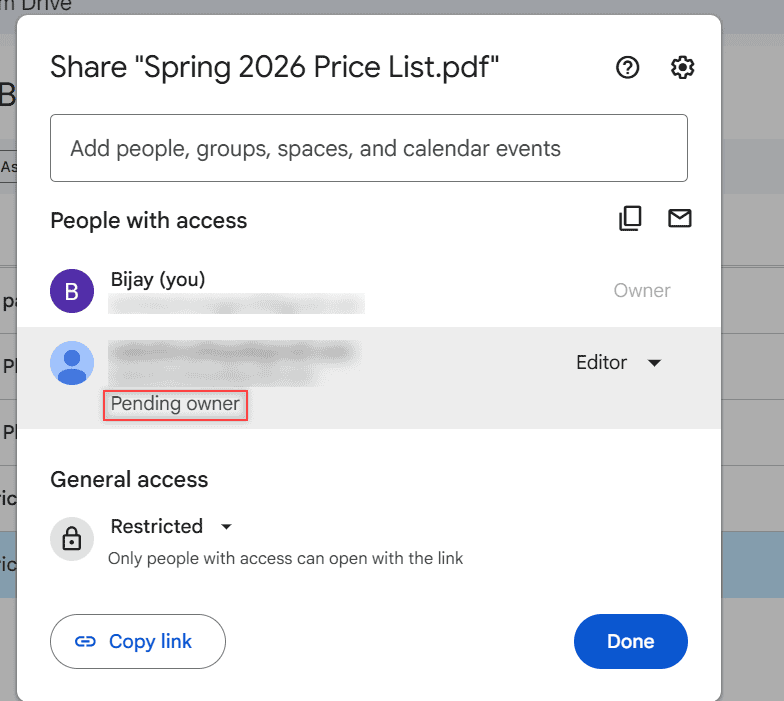
After acceptance, the new account shows as Owner and your old account drops to Editor. The new owner can remove you, so don’t count on keeping access.
The file also stops counting toward your storage and counts toward the new owner’s. If space still looks off afterward, check why Drive storage shows full with no files.
Cancel a transfer you sent by mistake
Sent it to the wrong account, or changed your mind? Open Share, click the role drop-down next to the pending owner and choose Cancel ownership transfer.
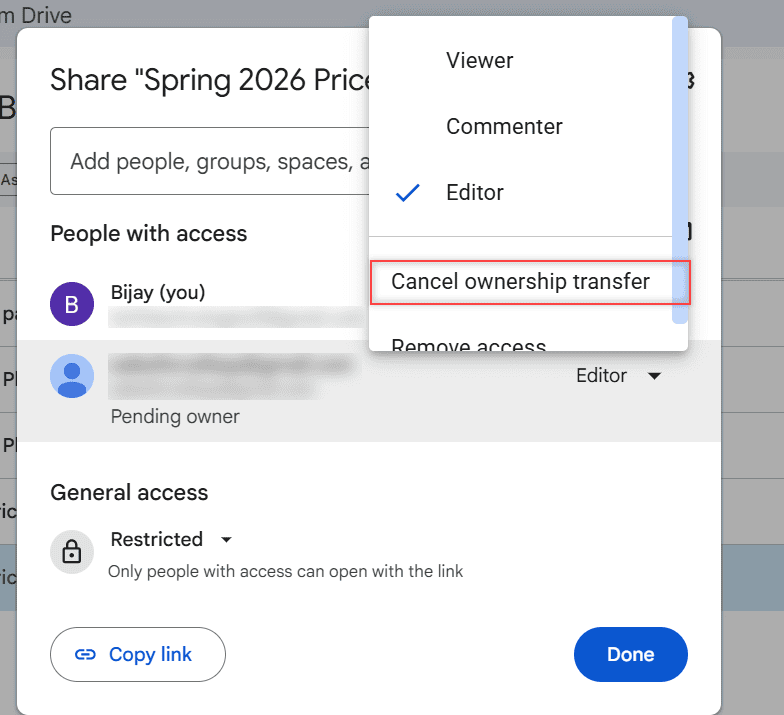
Drive asks you to confirm and says the person won’t be notified. Click Cancel transfer. That’s what I did, and then I used Remove access to take my second account off the file.
You can’t cancel once the other account has accepted. At that point, you’d have to ask the new owner to send it back. Cleaning up access on a whole folder instead? See how to unshare a folder in Google Drive.
Move files by downloading and uploading them
Use this route when ownership transfer isn’t allowed, like personal to a work account, or when you just want a copy in the new account. The other account gets a brand-new file with no sharing settings and no version history.
- In the old account, select the files. Hold Ctrl (Command on a Mac) to pick several.
- Right-click and choose Download.
- Sign in to the other account at drive.google.com and drag the files in, or use New > File upload.
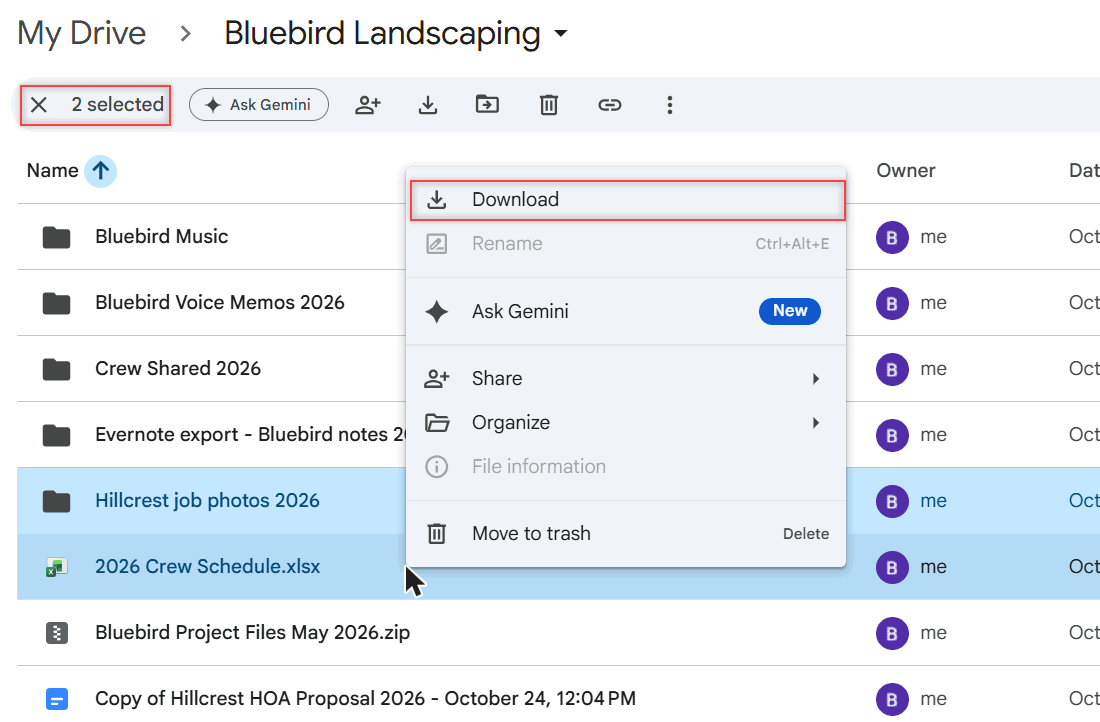
Picking more than one file makes Drive pack them into a ZIP. If you’d rather skip that, here’s how to download from Google Drive without zipping. Big videos or archives go up more smoothly with my tips to upload large files to Google Drive.
Copy your whole Drive with Google Takeout
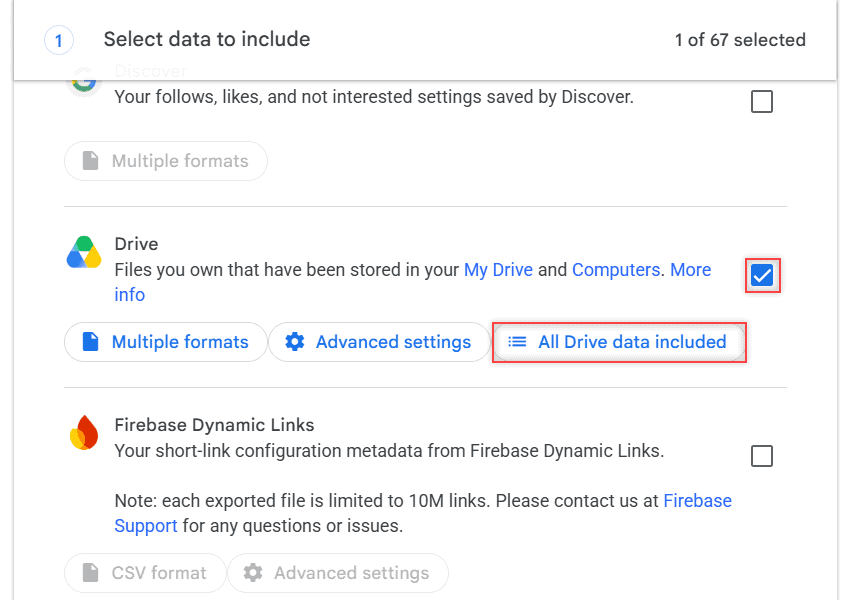
For a full account move, Google Takeout exports everything in one go. Go to takeout.google.com, click Deselect all, tick Drive and click Next step.
Under Transfer to, choose Send download link via email. The other choices, Add to Drive, Add to Dropbox and Add to Box, put the archive somewhere else for you.
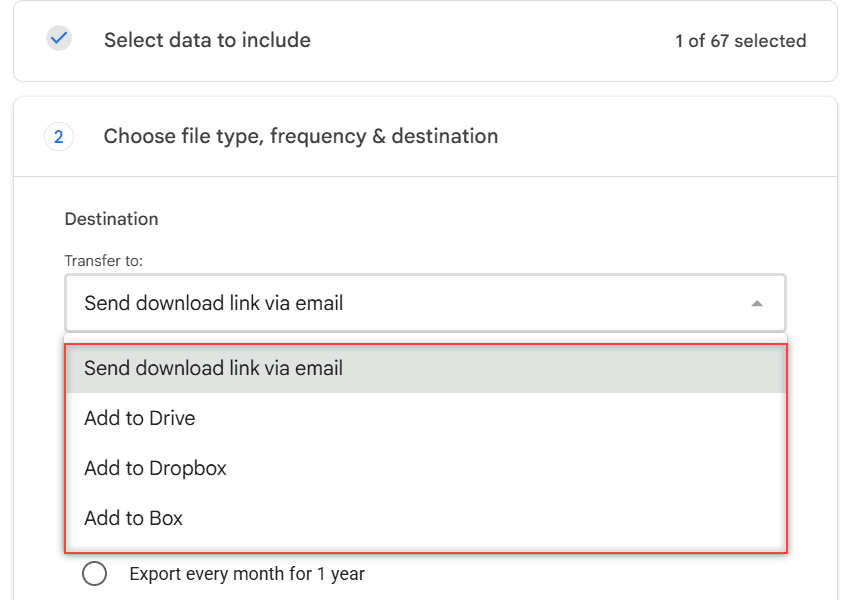
Careful with Add to Drive: it saves the archive in the same account you’re exporting from, not your new one. So I download the ZIP, unzip it, then upload the folders while signed in to the other account.
Pick ZIP, set a size (Takeout splits big exports into several files) and create the export. Google emails the link when it’s ready. Download it within about 7 days, since the archive expires, and each file can be downloaded up to 5 times.
Check the file types Takeout lists for your Docs, Sheets and Slides before you create the export, since that’s the format the copies arrive in. If you upload a ZIP without unzipping it, Drive can still show what is inside ZIP files, but you can’t edit the files there.
Big Drives can take hours or even a day or two to export. Google says most people get theirs the same day.
Change it for your own files
Moving a whole folder works the same way: share the folder, then transfer it. One catch: the files already inside stay yours. Here’s how to share a Google Drive folder if that’s your first step.
Shared folders behave differently with storage, too. My post on whether shared folders use your space explains who pays for what.
If one account is through work or school, the admin is in charge. My breakdown of Google Drive personal vs business covers how those accounts differ.
Moving files somewhere else entirely? Try these:
- transfer OneDrive files to Google Drive
- move files from Google Drive to iCloud
- all my Google Drive tutorials
Questions about this setup
Can I transfer all my Google Drive files to another account at once?
Not with one click on a personal account. You can select several files and transfer them, or use Google Takeout to export everything and upload it to the new account.
Do I lose access after I transfer ownership?
No, you become an Editor once the new owner accepts. The new owner can remove you later, though.
Can I transfer Google Drive files from a personal account to a work account?
No. Personal files can’t be transferred to a work or school account, so download them and upload them there instead.
Why don’t I see Transfer ownership in Google Drive?
The person has to be shared on the file first, and you have to own it. Google lists the rest of the rules in Google Drive Help: transfer file ownership.

I am Carissa Gudinoa, a technology buff, and Office online and Apple expert with over 9 years of experience. I am passionate about helping others get the most out of their Apple devices. I have written extensively about Apple products and technologies. I am committed to providing my clients with the best possible service and am always up-to-date on the latest Apple products and features. I also write extensively on other software available for use at minimal cost or free. This includes Word Online, Outlook Online, Excel Online, and other Office online programs… Check out more.