
No, files and folders other people share with you don’t use your Google Drive storage. They count against the owner’s storage instead. The exceptions are copies you make of shared files and your own files that you add to someone else’s folder, because those belong to you.
In this tutorial, I’ll answer do shared folders take up space in Google Drive for each situation, show you where Drive tells you who owns a file, and explain how shared drives and ownership transfers change the picture.
Google Drive charges storage to the owner, not the viewer
Every file in Drive has exactly one owner, and that’s the account whose storage it uses. You own the files you create or upload.
When someone shares a file or folder with you, you get access to it, but the bytes stay on their account. That’s why the files in your Shared with me list never show up when you check folder sizes in Google Drive.
Google’s storage help puts it plainly: files in shared folders use the quota of the original file owner, never the recipient. Your role doesn’t change that: Viewer, Commenter, and Editor all work the same way here.
You can see this on the Storage page. Here’s the one for my demo Drive for Bluebird Landscaping Co., a made-up lawn care business in Austin. The account is on a paid Google One plan, so the total is 5 TB.
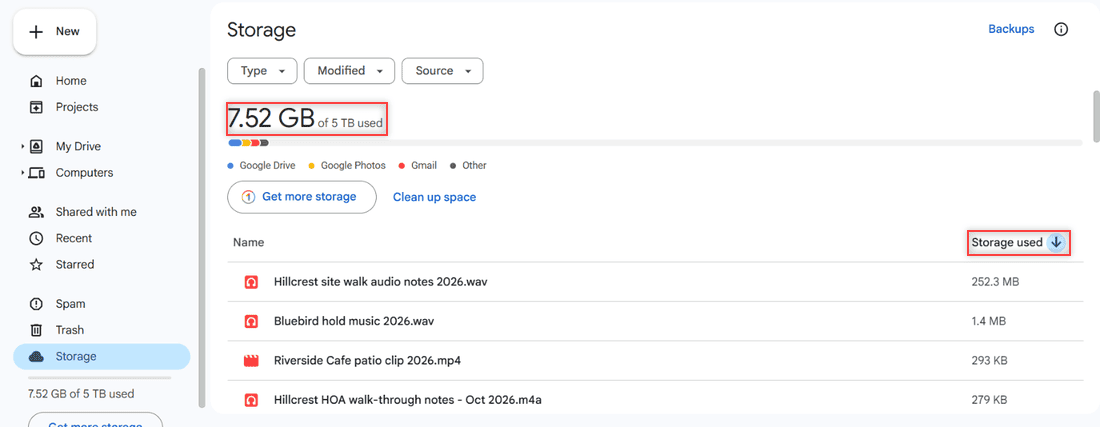
The list under the bar is sorted by Storage used, and it only includes files this account owns. The crew files my coworkers shared with me aren’t on it, even though I open them every week.
Here’s how the common situations break down, based on Google’s storage and ownership help pages:
| Situation | Whose storage it uses |
|---|---|
| A file or folder in Shared with me | The owner who shared it |
| Files inside a folder someone shared with you | Whoever owns each file |
| Your own file uploaded into a folder someone shared with you | Yours |
| A copy you made of a shared file | Yours |
| A file whose ownership was transferred to you | Yours, from then on |
| A file in a shared drive (work or school accounts) | Not yours personally; the organization owns it |
To check a single file, select it and open its details. The Details panel shows both the storage it uses and who owns it.
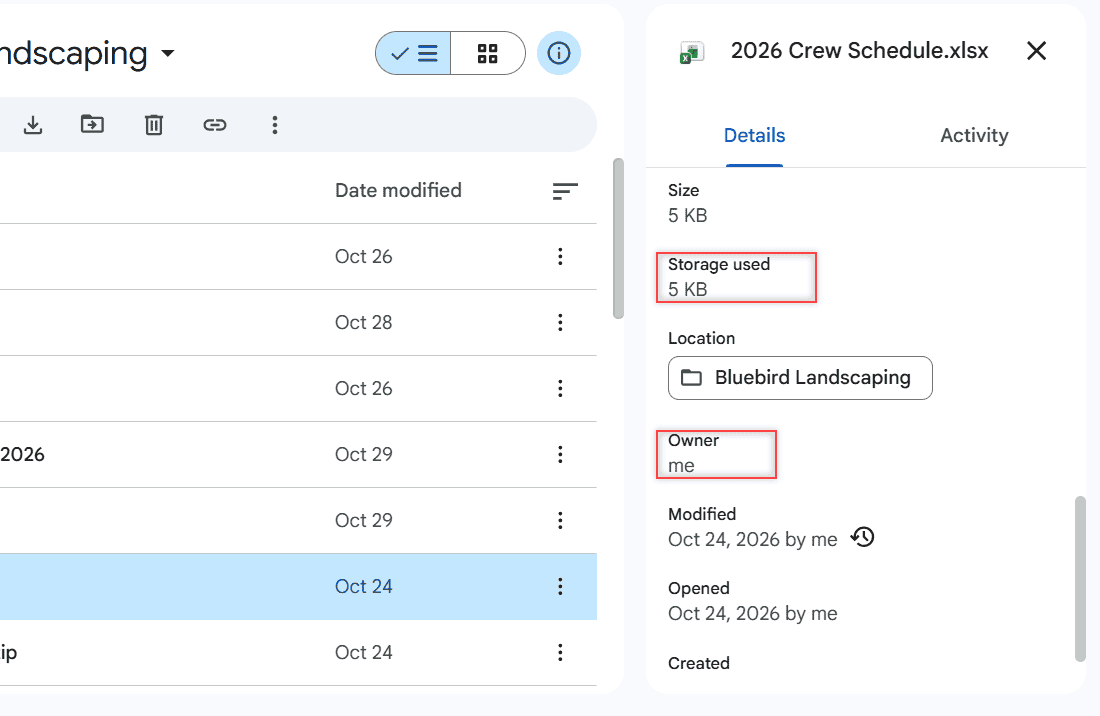
If Owner says me, that file counts toward your storage. If it shows someone else’s name, it counts toward theirs.
When a shared file starts using your storage
There are two ways a shared file turns into something you pay for. Both create a new file that you own.
You make a copy
When you right-click a shared file and choose Make a copy, Drive creates a separate file in your Drive. The original still belongs to the person who shared it, but the copy is yours and uses your storage.
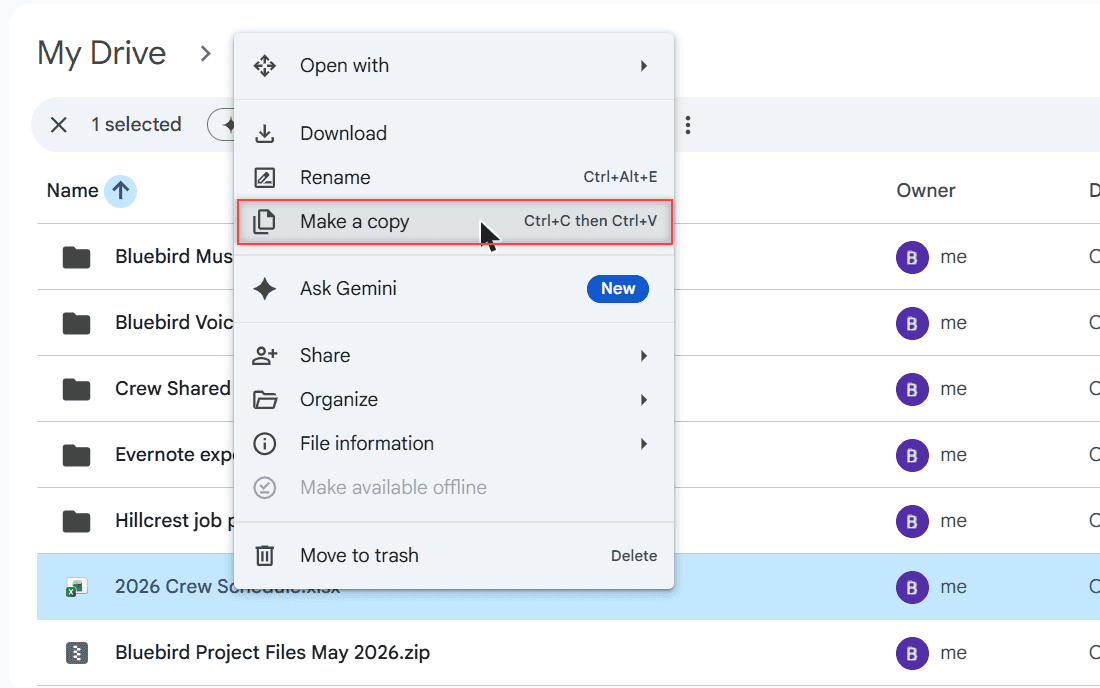
That’s handy when you need your own version, just know that big files add up. Copying a 2 GB video someone shared means 2 GB of your quota. If the copy fails partway, my notes on the error creating a copy in Google Drive can help.
You add your own files to their folder
This is the one that surprises people. If a coworker shares a folder with you as an Editor and you upload files into it, you still own those uploads. They sit in their folder, but they count against your storage, not theirs.
So if your storage is creeping up and you can’t find anything big in My Drive, think about the shared folders you upload to. That’s one of the reasons I list when Google Drive storage is full but shows no files.
What changes when you’re the one sharing
Flip it around. When I share a folder from the Bluebird account, every file I own inside it keeps counting against my storage, no matter how many people can open it. Adding more people or turning on a link doesn’t double anything.
Here’s the Share dialog for my Crew Shared 2026 folder. One crew lead has Editor access, and anyone with the link can open it too. Every file I put in there is still mine, so it still counts against my storage.
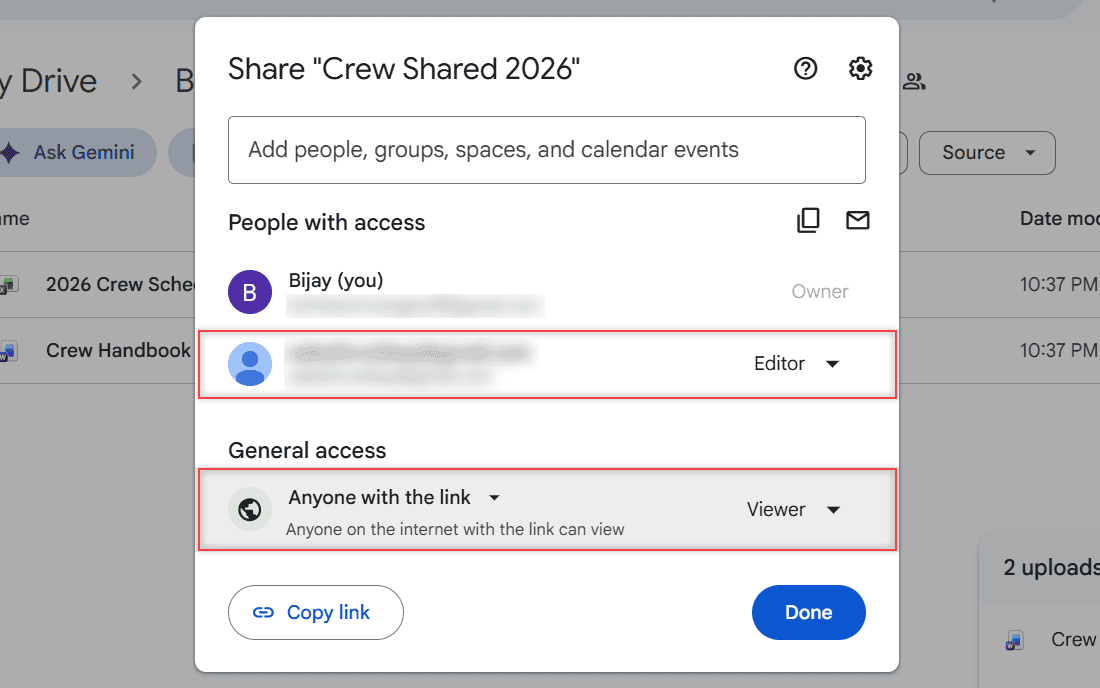
Sharing with a link works the same way. You can turn on link sharing for a folder of photos and it still only uses your space, once.
If you want a file off your quota without deleting it, you can transfer ownership to someone you’ve already shared it with. Once the transfer goes through, the file leaves your My Drive and counts toward the new owner’s storage. The rules differ by account type:
- Personal Google accounts: the new owner gets an email and has to accept. Until they do, you’re still the owner. If they accept, you become an Editor. You can’t transfer from a personal account to a work or school account.
- Work or school accounts: you can only transfer to someone in your organization, and they don’t have to accept.
Heads up: Transferring a folder doesn’t move the files inside it. You still own those files, so they keep using your storage until you transfer them too.
How shared drives work in work and school accounts
Shared drives are a separate thing from shared folders, and they’re only available for work or school accounts. If you use a free Gmail account, you won’t see them.
Files in a shared drive belong to the organization, not to any one person. Members share ownership, and the files a person added stay put when that person leaves the shared drive. Because no individual owns them, they don’t show up as yours the way My Drive files do.
Your administrator might set a storage limit on a shared drive. If you hit it, that’s a question for your IT admin, not your personal plan. I compare the two account types in my post on Google Drive personal vs business.
Why removing shared files won’t free up your space
A lot of people try to clean up Shared with me when their storage gets tight. It won’t help, because none of those files were using your quota in the first place.
You also can’t delete someone else’s file. When I right-click a file another account shared with my demo account, Move to trash is greyed out with this message.
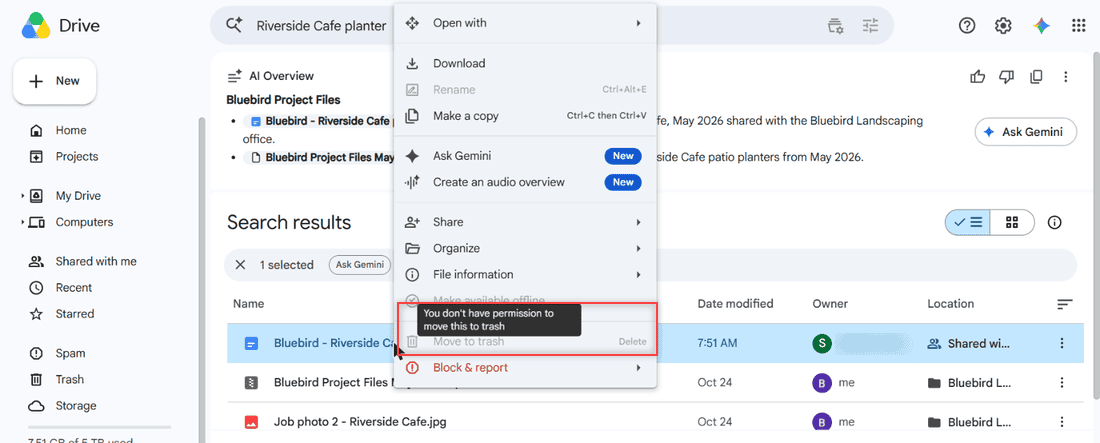
You can still remove shared files from your Google Drive view to tidy the list. If a file needs to be gone for everyone, ask the owner, since it’s their file and their storage.
To actually free space, look at what you own. Sort the Storage page by size, delete what you don’t need, and then empty the trash in Google Drive, because trashed files still count until they’re deleted. Remember your storage is shared with Gmail and Google Photos, so big attachments and original-quality photos count too.
More Google Drive storage and sharing guides
- How to unshare a folder in Google Drive
- How long Google Drive keeps deleted files
- Reduce file size in Google Drive
- Request access to a Google Drive file
If your storage bar keeps creeping up anyway, I put together a full walkthrough on managing Google Drive storage. It shows how to sort the Storage page by size, empty the trash so the space actually comes back, and hunt down duplicates and old backups.
Common questions

I am Carissa Gudinoa, a technology buff, and Office online and Apple expert with over 9 years of experience. I am passionate about helping others get the most out of their Apple devices. I have written extensively about Apple products and technologies. I am committed to providing my clients with the best possible service and am always up-to-date on the latest Apple products and features. I also write extensively on other software available for use at minimal cost or free. This includes Word Online, Outlook Online, Excel Online, and other Office online programs… Check out more.