
Most people only need two Google Drive extensions, and Google makes both: Google Docs Offline for offline mode, and Save to Google Drive for saving web pages. If you live in Gmail or share a lot, I’d add one more pick: Save Emails to Drive by cloudHQ or Checker Plus for Google Drive.
In this tutorial, I’ll walk you through the Chrome extensions for Google Drive I’d actually install in 2026, what each one is good at, where each one falls short, and which old favorites you can safely skip. I’ll also show you why the apps inside Drive’s Connect more apps menu aren’t Chrome extensions at all.
The Google Drive extensions I would install today
I checked every listing in the Chrome Web Store in October 2026 and kept only extensions that are still published. All of them work with a free personal Google account like mine. If you’re still choosing between account types, my notes on personal vs business Google Drive cover the differences.
Google Docs Offline (Google)
This is the one extension I tell everyone to keep. Google’s help page says offline access in the browser needs Chrome or Microsoft Edge plus the Google Docs Offline extension, and it doesn’t work in private browsing.
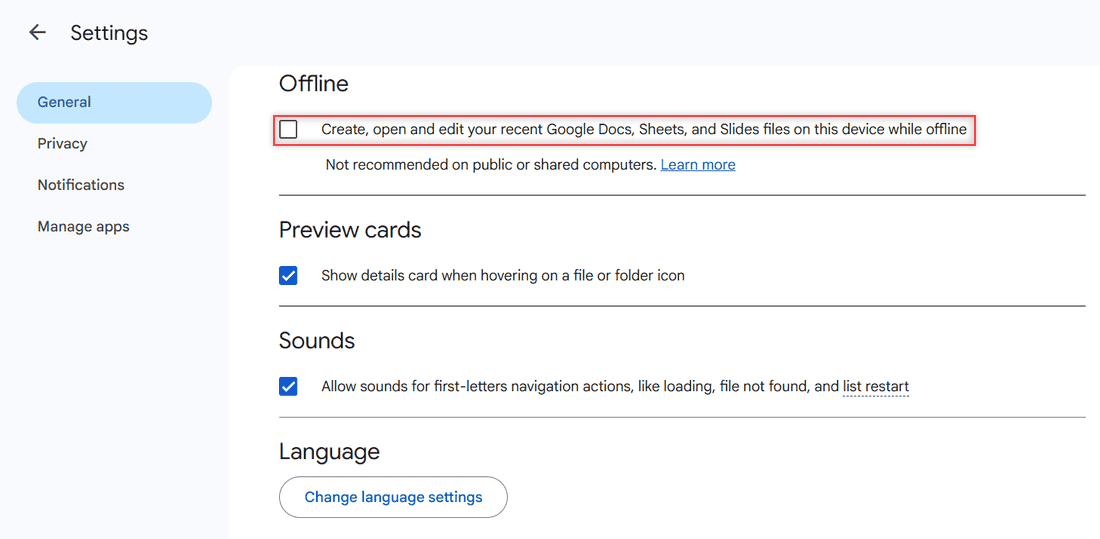
Once it’s installed, open Drive, click the gear, choose Settings, and check the Offline box under General. In my demo account it sat unchecked until I turned it on.
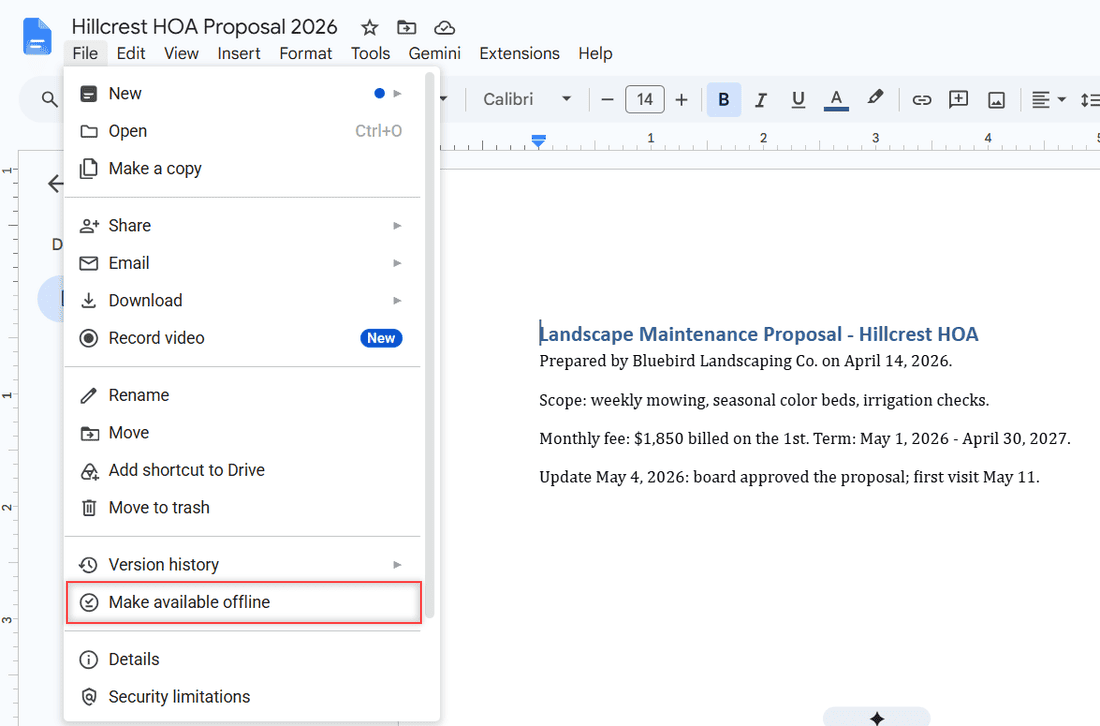
To keep a specific file ready, open it and choose File > Make available offline. I did this for our Hillcrest HOA proposal before a site visit with no signal.
Drawbacks: it only covers Google Docs, Sheets, and Slides in the browser. PDFs, photos, and Office files need Drive for desktop. Work or school admins can turn offline sync off, and only one account per browser profile can use it. If Drive drops your connection a lot, see why Google Drive keeps going offline.
Save to Google Drive (Google)
Yes, it still exists. The listing was updated in July 2025 and shows about 7 million users. It adds a toolbar button that saves the page you’re on, and a right-click option that saves links, images, and media straight into Drive.
In the extension’s options you pick the folder and the page format: an entire-page image, the visible part, raw HTML, MHTML, or a Google Doc. It’s my favorite way to save a web link to Google Drive for supplier spec sheets.
Drawbacks: the store rating is middling (about 3.1 out of 5), and image captures of long pages aren’t searchable text. Pick the Google Doc format when you want to search later.
Application Launcher For Drive (Google)
This one lets you right-click a file in Drive, choose Open with, and open it in an app installed on your computer, like Word or a CAD program. It’s handy for file types Drive can’t preview.
Drawbacks: it needs Drive for desktop installed and running, and the listing hasn’t changed since June 2024. If the desktop app won’t start, fix that first with this Drive for desktop launch fix.
Checker Plus for Google Drive (Jason Savard)
Checker Plus puts your Drive in a toolbar pop-up, so you can search, open, and delete files without opening a Drive tab. Its best feature is desktop notifications when people you’ve shared with change your files.
Drawbacks: it’s an independent developer’s extension with in-app purchases, and it needs broad access to your Drive to do its job. If you only want alerts, Drive’s own notifications for new files in a folder may be enough.
Save Emails to Drive by cloudHQ (cloudHQ)
This saves Gmail messages and their attachments to Drive as PDF, TXT, HTML, or EML, and it can autosave everything under a Gmail label. Our office manager, Dana, uses that for supplier invoices.
Drawbacks: the free plan stops at 50 emails, and you need a cloudHQ account. For the odd message, Gmail’s built-in options in saving an email to Google Drive cost nothing.
Marketplace apps are not Chrome extensions
Here’s what confused me at first. In Drive, click New > More and you’ll see Google’s own apps plus Connect more apps.
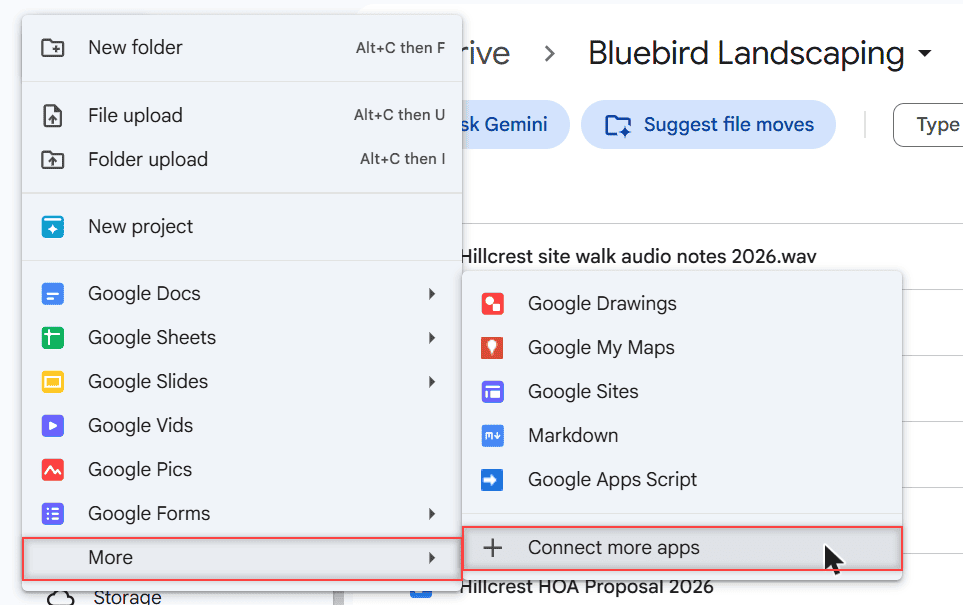
That link opens the Google Workspace Marketplace, not the Chrome Web Store. With the Works with Drive filter on, I saw Adobe Acrobat, Litera, Lucidchart, and Lucidspark as featured apps.
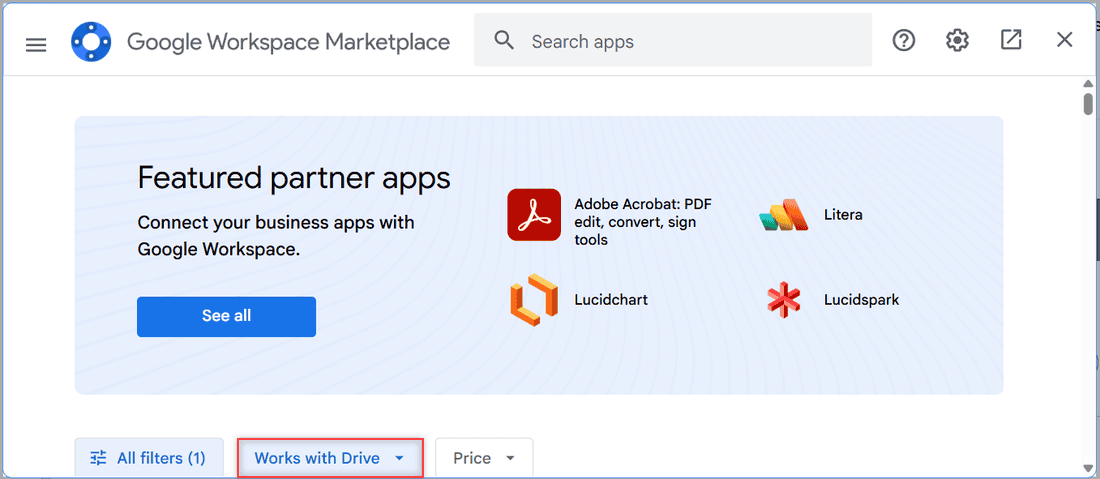
Google’s help says these apps connect to Drive and show up under Open with when you right-click a file. Some may ask to view some or all of your Drive files.
You remove one from Drive Settings > Manage apps > Options > Disconnect from Drive. A Chrome extension lives in the browser instead. For odd file types, my guide to opening unsupported files in Google Drive shows both routes.
Google Drive extensions side by side
| Extension | Made by | What it does | Best for |
|---|---|---|---|
| Google Docs Offline | Lets Docs, Sheets, and Slides open and save without internet | Everyone who travels or has spotty Wi-Fi | |
| Save to Google Drive | Saves the current page, links, and images to Drive | Research and saving receipts or spec sheets | |
| Application Launcher For Drive | Opens Drive files in installed desktop apps | Drive for desktop users with Office or CAD files | |
| Checker Plus for Google Drive | Jason Savard | Toolbar file browser plus change notifications | People who share files and want alerts |
| Save Emails to Drive | cloudHQ | Saves Gmail messages and attachments to Drive | Filing invoices and client emails |
| Docusign eSignature for Chrome | Docusign | Signs and sends documents from the browser | Docusign users (listing doesn’t mention Drive) |
| Google Drive (old app) | An old shortcut to Drive, last updated in 2020 | Nobody; a bookmark does the same |
Extensions I dropped from my old list
When I first wrote this post, Drive Anywhere and OmniDrive made the cut. Drive Anywhere’s store page no longer loads, and OmniDrive hadn’t been updated in years even then, so both are gone.
Kami’s listing now describes a classroom platform for students and teachers, so it fits schools better than a small business. Docusign’s Chrome extension is fine for signing, but its listing doesn’t mention Drive, so it’s in the table for reference only.
Check permissions before you click Add to Chrome
An extension that can read your Drive can see your files. Google’s Chrome Web Store help says to only approve extensions you trust, and its permissions page explains that a warning doesn’t mean an extension is dangerous, just that it can be.
My own rule: I read the permissions on every install, and I skip anything that wants access to all sites for one small feature. I also remove extensions I haven’t used in a month.
Work and school accounts may also block some extensions. If a shared link ever looks off, read whether a Google Drive link can be dangerous.
Who should install what, and who can skip extensions
- Everyone: Google Docs Offline. Offline access in the browser doesn’t work without it.
- Researchers, students, and writers: Save to Google Drive, set to save pages as Google Docs.
- Heavy Gmail users: Save Emails to Drive by cloudHQ, if 50 free emails won’t cover you.
- Anyone sharing a lot: Checker Plus for change alerts.
- Drive for desktop users: Application Launcher For Drive for Office and CAD files.
You can skip extensions entirely if you only open Drive now and then. Drive in a normal tab, a bookmark, and Drive for desktop cover most of it.
A few more Drive guides worth a look:
- advantages and disadvantages of Google Drive
- how to stop Google Drive notifications
- checking recent activity on Google Drive
- scanning Google Drive for viruses
Still deciding?
Is there an official Google Drive extension for Chrome?
Yes. Google publishes Google Docs Offline, Save to Google Drive, and Application Launcher For Drive in the Chrome Web Store. The old Google Drive app listing hasn’t been updated since 2020, so I don’t bother with it.
Do I need an extension to use Google Drive offline?
Yes, in the browser. Google says you need Chrome or Edge with the Google Docs Offline extension, then the Offline box in Drive settings. See Google Drive Help: use Drive files offline.
Do Google Drive extensions work in Microsoft Edge?
Google Docs Offline does: Google’s help says Edge users get it from the Chrome Web Store. For other extensions, check the listing before you install.
How do I remove a Chrome extension I no longer use?
Open More > Extensions > Manage extensions in Chrome, select the extension, and choose Remove. You can also right-click its icon and pick Remove from Chrome.

I am Carissa Gudinoa, a technology buff, and Office online and Apple expert with over 9 years of experience. I am passionate about helping others get the most out of their Apple devices. I have written extensively about Apple products and technologies. I am committed to providing my clients with the best possible service and am always up-to-date on the latest Apple products and features. I also write extensively on other software available for use at minimal cost or free. This includes Word Online, Outlook Online, Excel Online, and other Office online programs… Check out more.