
By the end, our Hillcrest HOA walk-through video plays right on the Bluebird crew page. New crew members press play on the page itself, and the file still lives in my Google Drive, so I never had to upload it anywhere else.
In this tutorial, I’ll show you how to embed video from Google Drive step by step: set the sharing, grab the embed code from the Drive viewer, paste it into Google Sites or WordPress, and check that people can actually watch it.
What you need before you embed the video
I did this with a demo account for my made-up business, Bluebird Landscaping Co. The video is called “Hillcrest HOA spring walk-through 2026,” and the page is a new Google Site named “Bluebird crew videos 2026.”
- The video in your Drive. Google lists WebM, MPEG4, 3GPP, MOV, AVI, MPEGPS, WMV, FLV, MTS, and OGG as supported. If it’s still on your laptop, here’s how to upload large files to Google Drive.
- A page that accepts HTML. Google Sites, a WordPress Custom HTML block, or any site builder with an embed or HTML box.
- Permission to share the file. With a work or school account, Google notes your admin may block sharing outside your organization.
One more thing from Google’s video help: a freshly uploaded video can play for you right away but still be processing for everyone else. Give a large file some time before you test the embed.
Getting the embed code and adding the video
Here’s the whole setup in the order I did it. The first three steps happen in Drive, the last two on the page.
Share the video with anyone who has the link
In Drive, right-click the video and select Share. Under General access, change Restricted to Anyone with the link and keep the role on Viewer. The dialog then says “Anyone on the internet with the link can view.” Select Done.
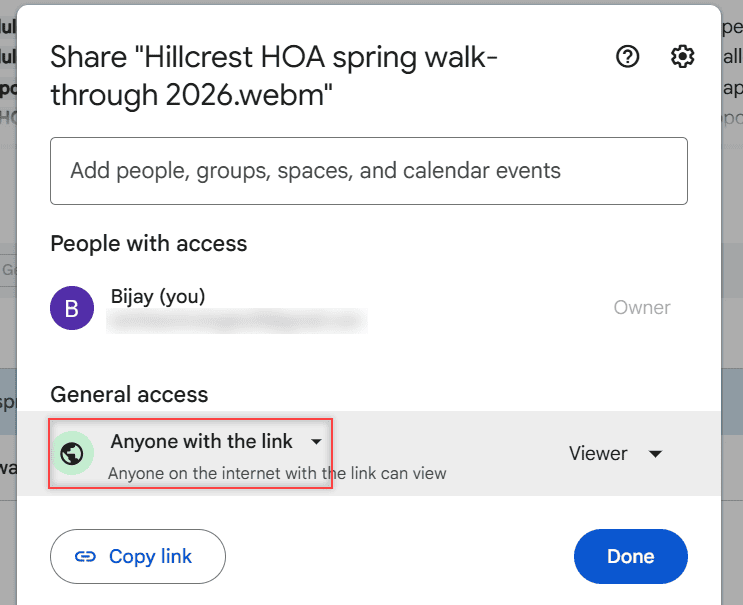
This is the step most people skip, and it’s why so many embedded videos don’t play. If you’d like the longer version of this dialog, I wrote about how to turn on link sharing in Google Drive.
Open the video and choose Get embed link
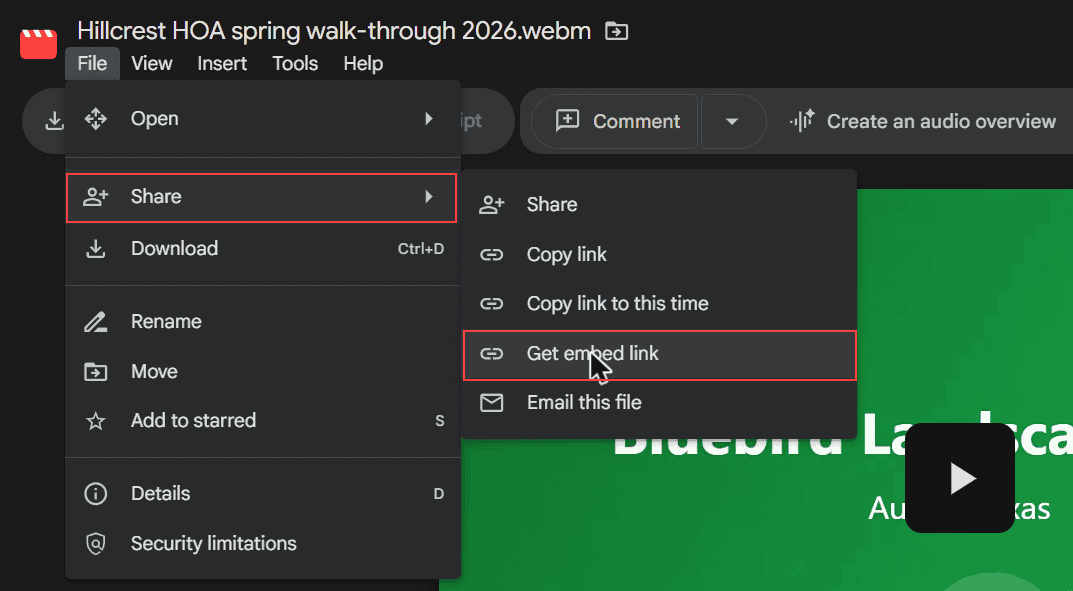
Double-click the video to open it in Drive’s viewer. The current viewer has a menu bar across the top: File, View, Insert, Tools, and Help. Older guides tell you to find a three-dot menu and “Embed item,” but I didn’t see that in 2026.
Select File > Share. The submenu shows Share, Copy link, Copy link to this time, Get embed link, and Email this file. Select Get embed link.
Copy the Google Drive embed code
An Embed file dialog opens with the label “Paste HTML to embed in website:” and a ready-made iframe. Copy all of it. Mine looked exactly like this:
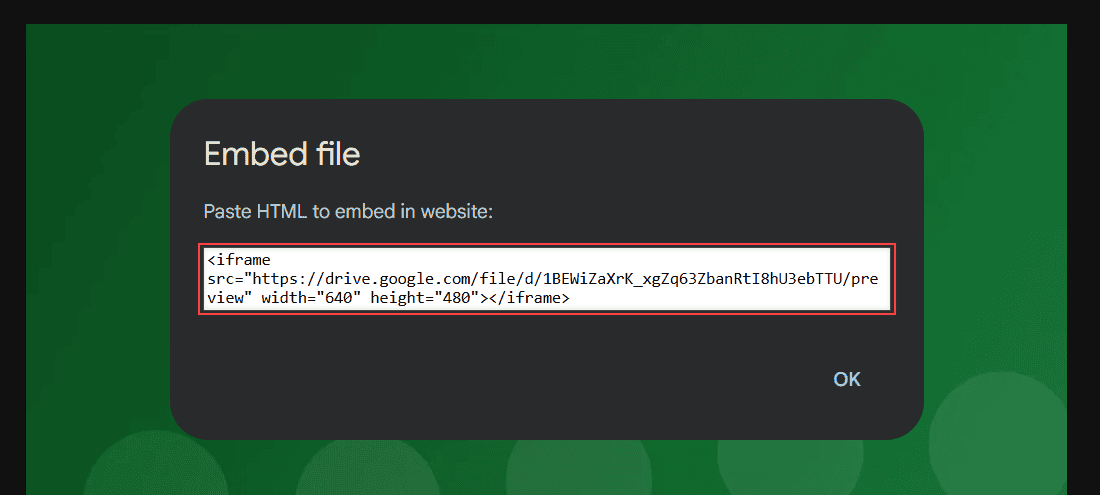
<iframe src="https://drive.google.com/file/d/1BEWiZaXrK_xgZq63ZbanRtI8hU3ebTTU/preview" width="640" height="480"></iframe>The pattern is simple. Take the file ID from the video’s normal link, the part after /file/d/, and end the address with /preview instead of /view. You can build the code by hand like this:
<iframe src="https://drive.google.com/file/d/FILE_ID/preview" width="640" height="480"></iframe>Paste the code into Google Sites with Insert > Embed
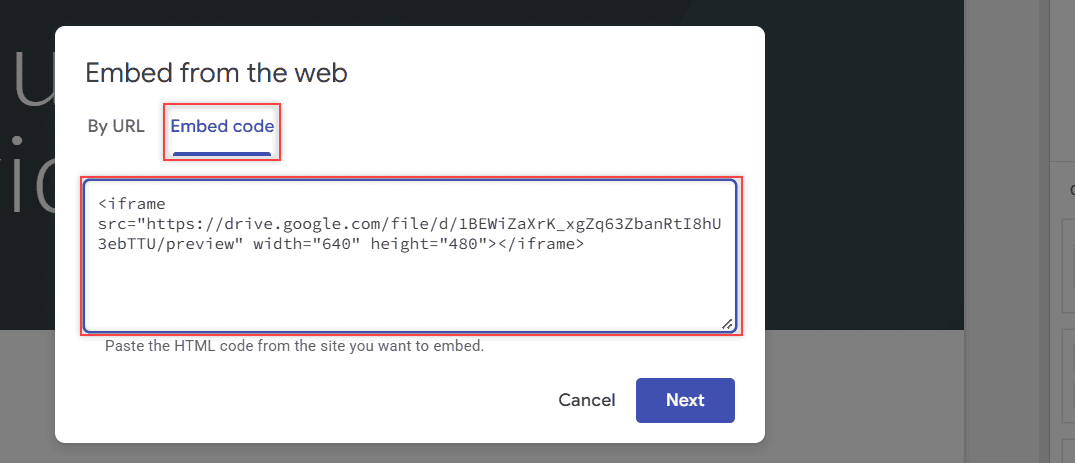
In Google Sites, select Insert > Embed on the right. In the “Embed from the web” dialog, open the Embed code tab, paste the iframe, select Next, then Insert.
Or skip the code with Insert > Drive
Google Sites also has a no-code route. Select Insert > Drive, and a Google Drive panel opens on the right with My Drive, a file type filter, and your folders. Pick the video and insert it.
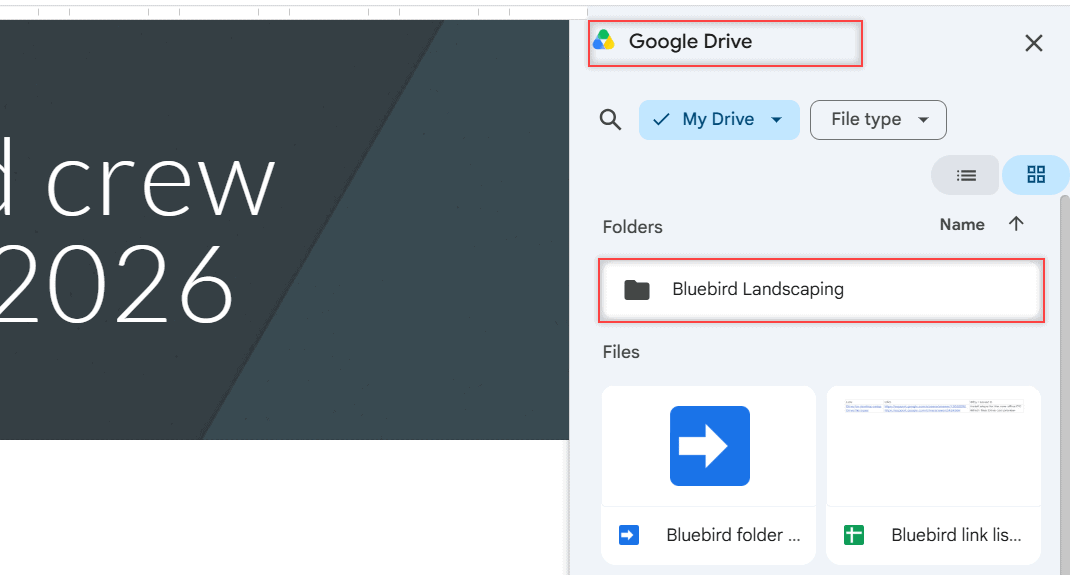
Either way, Google says to publish the site when you’re done, and the page doesn’t go live until you do.
Check that the embedded video plays
Before publishing, I selected Preview in Google Sites. A banner said “You’re viewing an unpublished version of this site,” and the video sat on the page with its play button.
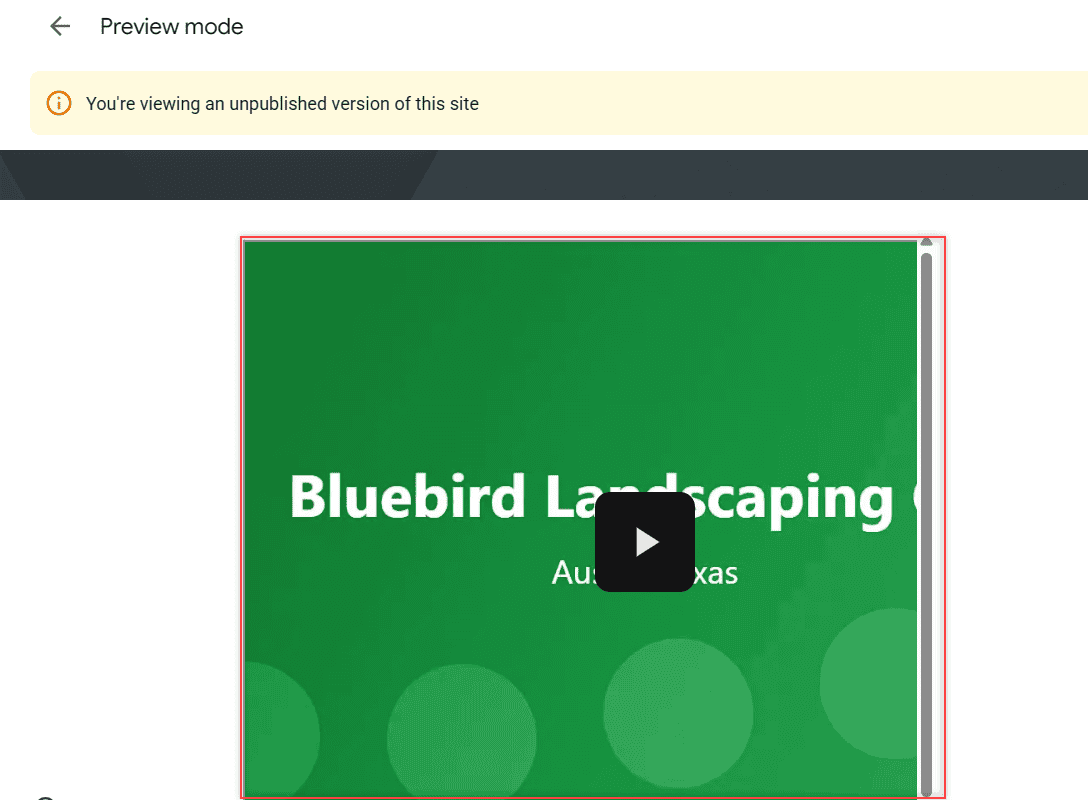
I also spotted scroll bars around the video. The code asks for a 640 by 480 frame, and my Sites box was smaller. Drag the embed box bigger, or lower the width and height numbers in the code, and they go away.
Next, test it as a viewer would. Open the published page in a private window where you’re not signed in.
If the file is still Restricted, Google’s access help says people get a “You need access” screen with a Request access button, the same thing covered in my post on requesting access in Google Drive.
Google’s Sites help puts it plainly: Drive files with restricted sharing are visible only to people with access. If the player shows up but won’t start, my guide to fixing a Drive video that cannot be played has more.
Embed a Google Drive video in WordPress
WordPress works with the same iframe. In the block editor, add a Custom HTML block where the video should go, paste the code, and switch to Preview to check it before you update the post.
The sharing rule doesn’t change: the video still needs Anyone with the link, or your readers see the access screen instead. The steps are nearly the same if you want to embed a PDF from Google Drive next to it.
Change it for your own videos
Once the first embed works, these are the small changes I make for other videos.
- Size: edit width and height in the iframe to fit your page, keeping roughly the same shape so the video doesn’t look squashed.
- Just a link: if your page can’t take HTML, use File > Share > Copy link and paste a normal link. Copy link to this time starts the video at the spot you’re paused on.
- Downloads: anyone with the link can view, so think about what viewers can do with it. Here’s what Google says about whether viewers can download Drive files.
- Taking it down: I set my demo video back to Restricted afterward. Do the same when a video shouldn’t be public anymore, and the embed stops playing for everyone without access.
For anything else Drive-related, my Google Drive tutorials page lists the rest.
Working with Drive videos and links? These pick up where this one ends
- Upload a video from Google Drive to YouTube
- Share Google Drive links on WhatsApp
- Save a YouTube video to Google Drive
- Save a link to Google Drive
Questions about this setup
Why is my embedded Google Drive video not playing?
Usually the file is still Restricted, so viewers without access can’t watch it. Google also says a new upload can still be processing for other people, and that Drive video playback needs third-party cookies turned on.
Where is the embed code for a Google Drive video?
Open the video in Drive’s viewer and select File > Share > Get embed link. The Embed file dialog shows the iframe code to copy.
Can I embed a Google Drive video without an iframe?
In Google Sites, yes: Insert > Drive adds the video without any code. On other sites, the iframe is the embed, so if your page can’t take HTML, share a normal Copy link instead.
Do viewers need a Google account to watch an embedded Drive video?
Not when the file is set to Anyone with the link, since Google says anyone with the link can open it without signing in. Google’s Google Sites help on adding Drive files explains restricted files.

I am Carissa Gudinoa, a technology buff, and Office online and Apple expert with over 9 years of experience. I am passionate about helping others get the most out of their Apple devices. I have written extensively about Apple products and technologies. I am committed to providing my clients with the best possible service and am always up-to-date on the latest Apple products and features. I also write extensively on other software available for use at minimal cost or free. This includes Word Online, Outlook Online, Excel Online, and other Office online programs… Check out more.