
I had a Spring 2026 price list sitting in Google Drive as a PDF, and I wanted it right on a web page. Not a download link, not an email attachment, just the document scrolling inside the page. Drive can do that, and it takes about two minutes once you know where the embed code lives.
In this tutorial, I’ll show you how to embed PDFs from Google Drive the way I do it now: where to find the embed code, how to size it, which sharing setting makes it visible to visitors, and how to paste it into Google Sites, WordPress, or plain HTML.
Get the embed code from the PDF viewer, not the file list
Why: the file list in Drive doesn’t show an embed option for a PDF. The code comes from Drive’s own PDF viewer, so you have to open the file first.
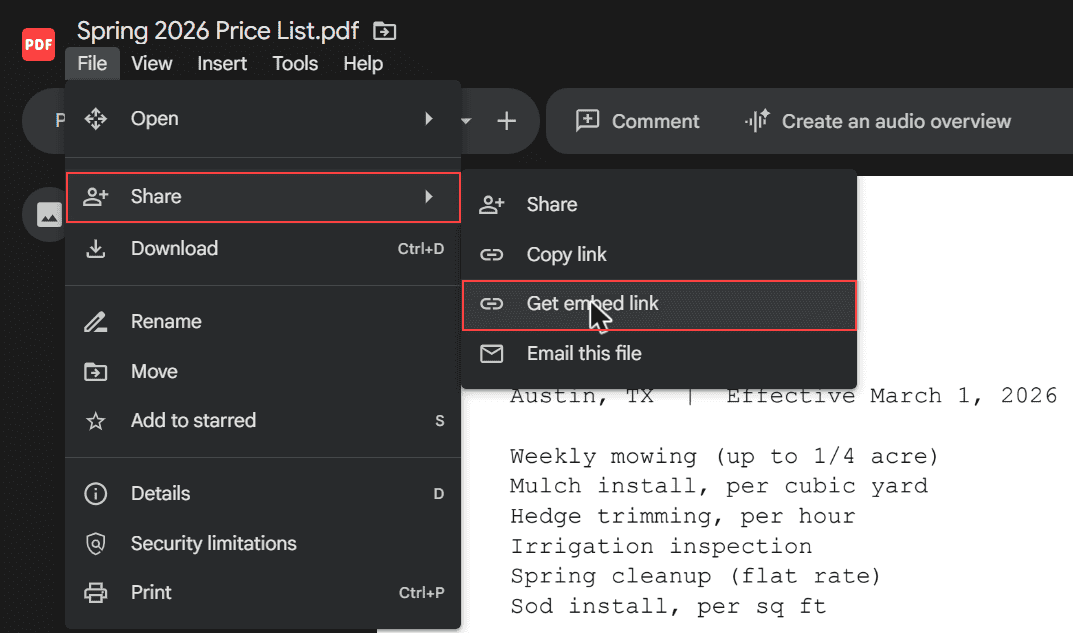
How: double-click the PDF in Drive to open it in the viewer. In the viewer’s menu bar, click File, then Share. The submenu has Share, Copy link, Get embed link, and Email this file. Click Get embed link. It works the same way I described for embedding a video from Google Drive, just with a PDF in the frame.
An Embed file dialog opens with a box labeled “Paste HTML to embed in website:”. That box holds an iframe tag. Copy the whole thing. Here’s what mine looked like, with the file’s ID swapped for a placeholder:
<iframe src="https://drive.google.com/file/d/FILE_ID/preview" width="640" height="480"></iframe>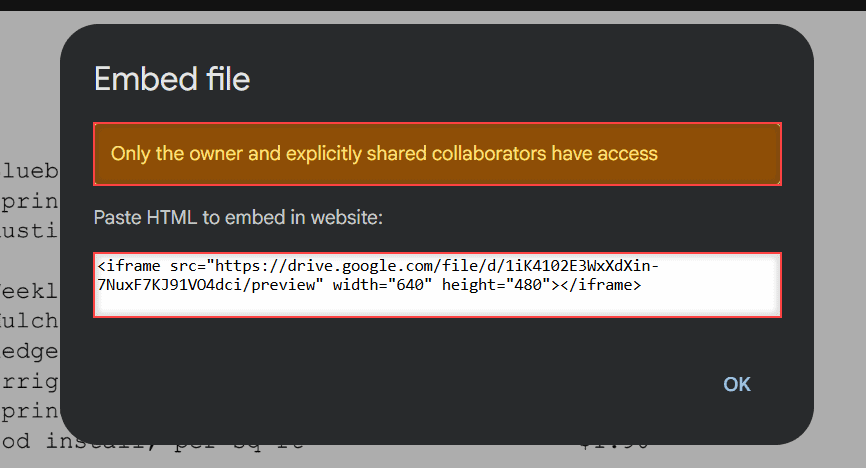
If your file is still a photo or scan, turn the image into a PDF in Google Drive first. The viewer handles a real PDF much better than a stack of images.
Change the width and height to fit your page
Why: Drive hands you a 640 by 480 frame. On most pages that’s a small box, and a full-page PDF inside it means a lot of scrolling.
How: edit the width and height numbers in the code before you paste it. I like a frame that stretches to the column width and is tall enough to show most of a page:
<iframe src="https://drive.google.com/file/d/FILE_ID/preview" width="100%" height="800"></iframe>Width can be a percentage or a pixel number. Height works best as pixels, so pick something between 600 and 1000 and check it on your phone. Leave the src address alone, since that’s what points to your file.
Set General access to Anyone with the link before you publish
Why: the embed code doesn’t change who can see the file. Look at the orange banner in the Embed file dialog. Mine said “Only the owner and explicitly shared collaborators have access” because my PDF was Restricted. On a public page, every other visitor would get an access message instead of the PDF.
How: open the PDF’s Share dialog and click the General access dropdown. Pick Anyone with the link and keep the role on Viewer. If you’ve never changed this setting, here’s how to turn on link sharing in Google Drive step by step.
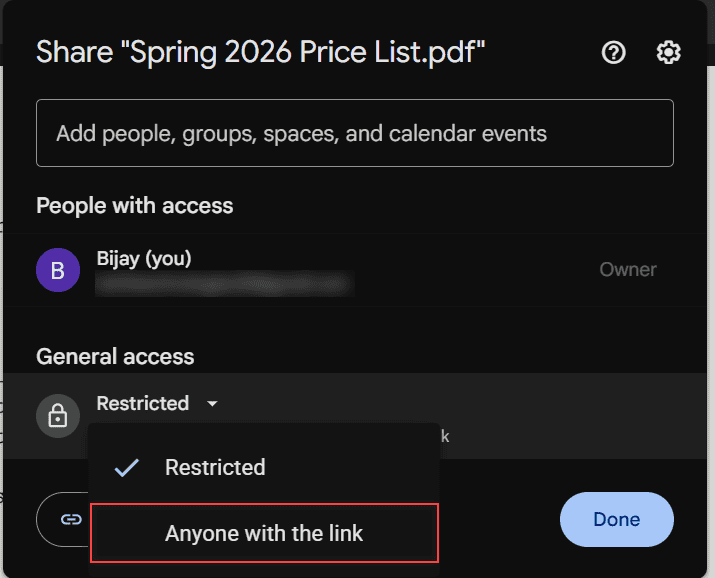
Be honest with yourself about what that means. Google says anyone on the internet who has the link can open the file without signing in, and the embed code contains the link. Viewers can’t edit it, but read whether viewers can download your Drive files before you embed anything you’d rather keep private.
On a work or school account, your admin may restrict link sharing outside your organization, so Anyone with the link might not be available. Ask your admin rather than working around it. The same goes for files someone else owns. If you see a printing is disabled error or similar limits, those are the owner’s choices to respect.
Use Insert, then Embed on Google Sites
Why: Google Sites doesn’t take code typed into a text box. It has its own Embed tool for iframes, and that tool lets you resize the frame right on the page.
How: in the Sites editor, open Insert on the right and click Embed. The Embed from the web dialog has two tabs, By URL and Embed code. Click Embed code, paste the iframe, and click Next.
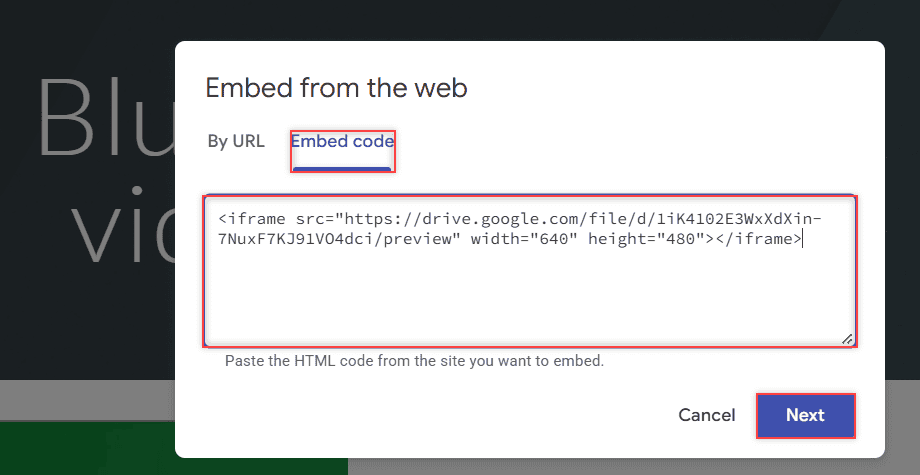
You get a preview of the PDF. Click Insert, and the PDF lands on the page in a box you can drag to resize. Publish the site when you’re happy with it.
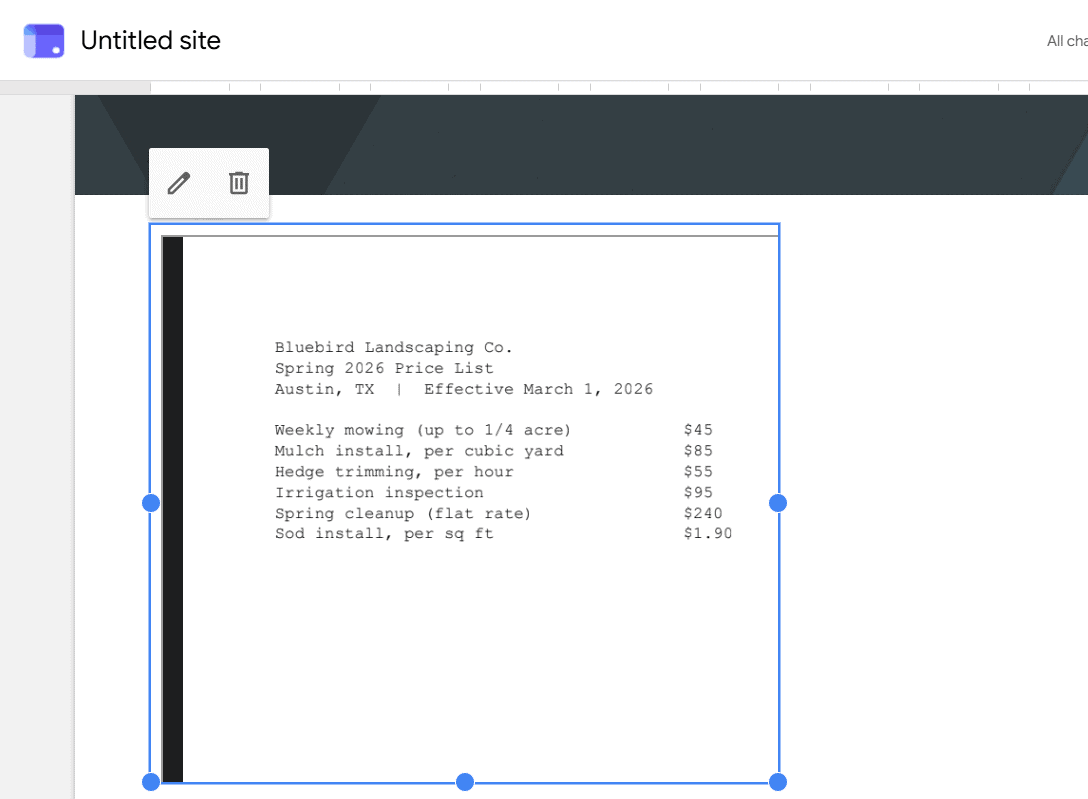
Sites also has Insert, then Drive, which lets you pick the file straight from your Drive without copying any code. Either way, Google notes that a restricted file only shows for people who have access, so the sharing rule above still applies.
Paste the iframe into a Custom HTML block anywhere else
Why: if you paste the code into a normal paragraph, many site builders show it as plain text. You’ll see the iframe tag itself on the page instead of the PDF.
How: on WordPress, add a Custom HTML block and paste the iframe there, then preview the page. On other builders, look for an HTML, code, or embed element. On a hand-coded page, drop the iframe into your HTML where you want the PDF to appear.
You don’t need a plugin for this. I keep the Google Drive tutorials hub bookmarked for the other sharing settings I touch along the way.
Publish Docs, Sheets, and Slides from their own app
Why: Get embed link is for files like PDFs that open in Drive’s viewer. A Google Doc, Sheet, or Slides deck isn’t a PDF, and it has a different, built-in way to share on the web.
How: open the file and go to File, then Share, then Publish to web. Click the Embed tab, choose your options, click Publish, and copy the HTML.
A published Doc shows as a read-only version without the toolbar. If you’re not sure which kind of file you have, my Google Drive vs Google Docs guide clears it up. Work and school admins can turn publishing off, so it might be grayed out for you.
My checklist before an embedded PDF goes live
- The file is a real PDF, and I own it or have the owner’s OK to share it publicly.
- I copied the iframe from File, then Share, then Get embed link in the PDF viewer.
- Width and height fit my page, and I checked it on a phone.
- General access is Anyone with the link, role Viewer, and nothing private is in the file.
- On Google Sites I used Insert, then Embed (or Insert, then Drive), then published.
- Everywhere else the code sits in a Custom HTML block, not a paragraph.
- I opened the page in a private browser window to see it the way a visitor does.
A few more Drive sharing guides worth a look
- what visitors see when they request access
- whether a Google Drive link can be dangerous
- sharing Google Drive links on WhatsApp
- how to unshare a folder in Google Drive
Questions I get about this
How do I embed a Google Drive PDF in HTML?
Open the PDF in Drive, click File, then Share, then Get embed link, and copy the iframe. Paste it into your HTML where the PDF should appear and adjust the width and height.
Why does my embedded Google Drive PDF ask visitors for access?
The file is still Restricted. Change General access to Anyone with the link with the Viewer role. Google Drive Help on sharing files explains each option.
Do visitors need a Google account to see an embedded PDF?
Not when the file is set to Anyone with the link. Google says anyone with the link can open it without signing in. Restricted files only show for people you shared them with.
Does Google Drive have a PDF viewer I can embed?
Yes. The embed code points to Drive’s preview viewer, so visitors scroll and read the PDF inside your page without installing anything.

I am Carissa Gudinoa, a technology buff, and Office online and Apple expert with over 9 years of experience. I am passionate about helping others get the most out of their Apple devices. I have written extensively about Apple products and technologies. I am committed to providing my clients with the best possible service and am always up-to-date on the latest Apple products and features. I also write extensively on other software available for use at minimal cost or free. This includes Word Online, Outlook Online, Excel Online, and other Office online programs… Check out more.