
By the end, Bluebird Landscaping’s QuickBooks backup lives in a private Google Drive folder called QuickBooks Backups 2026, every new backup from the office PC lands there on its own, and I know exactly how to get a copy back if the computer dies.
In this tutorial, I’ll show you how to backup QuickBooks to Google Drive the safe way: make a .QBB backup file, upload it to a dedicated folder, choose between dated copies and versions, sync new backups automatically with Drive for desktop, and restore from a downloaded copy.
What you need before you start
Google Drive isn’t a QuickBooks feature, so there’s no magic button inside QuickBooks Desktop that sends your books to Drive. What you upload is a normal backup file. Intuit’s own Mac backup help even suggests keeping a copy of your backups somewhere besides your work, and it lists Google Drive as one option.
- A QuickBooks Desktop backup file. It ends in .QBB. That’s the file you store in Drive, not your working company file.
- A Google Account with free space. Uploads count against your storage. If you’re close to the limit, clear space in a full Google Drive first.
- Drive for desktop (optional). You only need it for the automatic part later on.
QuickBooks Online is different. It has no .QBB file. Intuit’s help covers a Google Drive export only for QuickBooks Online Advanced (and Intuit Enterprise Suite), which I explain near the end.
Heads-up: QuickBooks isn’t installed on my test PC, so the screenshots use a sample backup file named the way QuickBooks Desktop names its backups. The Drive steps are exactly the same for a real one.
Upload the QuickBooks backup to a private Drive folder
I’ll do this once by hand first. It shows you every screen Drive throws at you, which makes the automatic setup later much easier to trust.
Make a local .QBB backup in QuickBooks Desktop
Intuit’s Windows help lists these steps for a one-time backup:
- Go to File > Switch to Single-user Mode.
- Go to File > Back up Company > Create Local Backup.
- Select Local Backup, then Next.
- Select Browse and pick a folder on your computer, such as Documents\QuickBooks Backups.
- Leave Complete verification on, select OK, then Save it now.
On a Mac, QuickBooks Desktop uses File > Back Up instead. Either way, remember that Intuit says the backup doesn’t include payroll forms, so save those separately if you run payroll.
Create a dedicated backup folder in Drive
Keep backups away from everyday files. In Bluebird Landscaping I made a folder named QuickBooks Backups 2026 inside the company folder. If you haven’t done that before, here’s how to create subfolders in Google Drive.
Upload the .QBB file
Open the folder, click New > File upload, and choose the backup. Dragging the file from File Explorer into the folder works too. Drive shows a small panel at the bottom right that says 1 upload complete when it’s done.
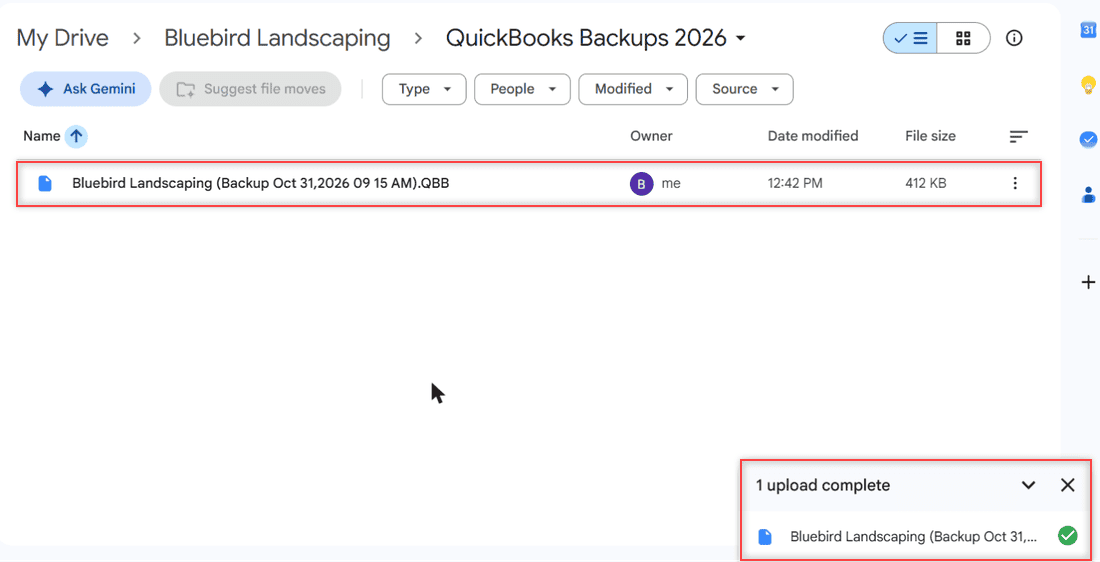
Real company files can get big after a few years of transactions. If an upload stalls, these tips for uploading large files to Google Drive help.
Choose dated copies or versions of one file
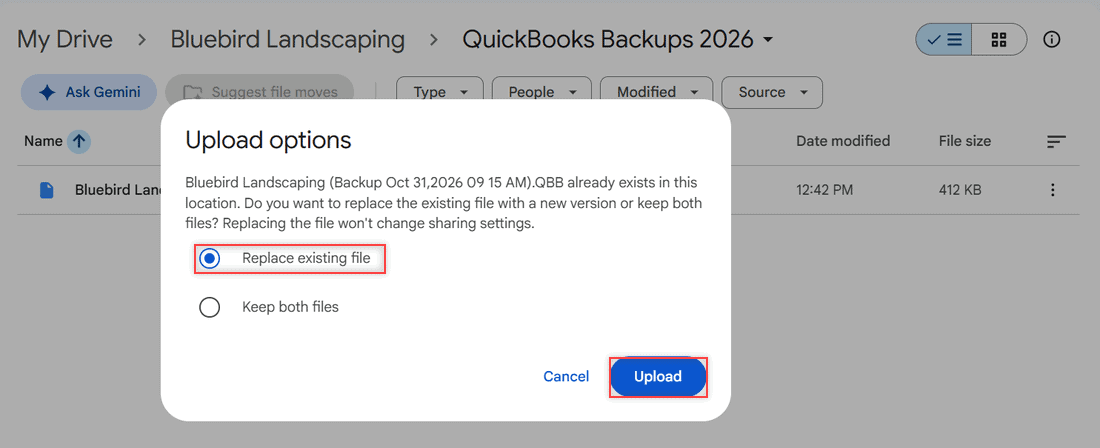
Here’s the decision most guides skip. If you upload a backup with the same name as one already in the folder, Drive asks what to do with an Upload options dialog.
| Choice | What you get | Good for |
|---|---|---|
| Replace existing file | One file in the folder; the older copy becomes a previous version | A quick “latest backup” spot |
| Keep both files | Two separate files side by side | Keeping several restore points |
| Dated file names | A new file every time (QuickBooks adds the date for you) | Long-term history |
I prefer dated names for anything I’d hate to lose. QuickBooks Desktop already puts the date and time in the backup name, so each upload becomes its own file and nothing gets cleaned up behind my back.
Keep the folder sharing Restricted
Your books hold customer names, bank details and payroll numbers. Leave the folder’s General access on Restricted so only you can open it. If your bookkeeper needs a copy, share that one folder with their email address and nothing else. You can always unshare the folder later.
Check the backup landed and see its versions
After I chose Replace existing file, the upload panel said Version 2. To see what Drive kept, right-click the file and choose File information.
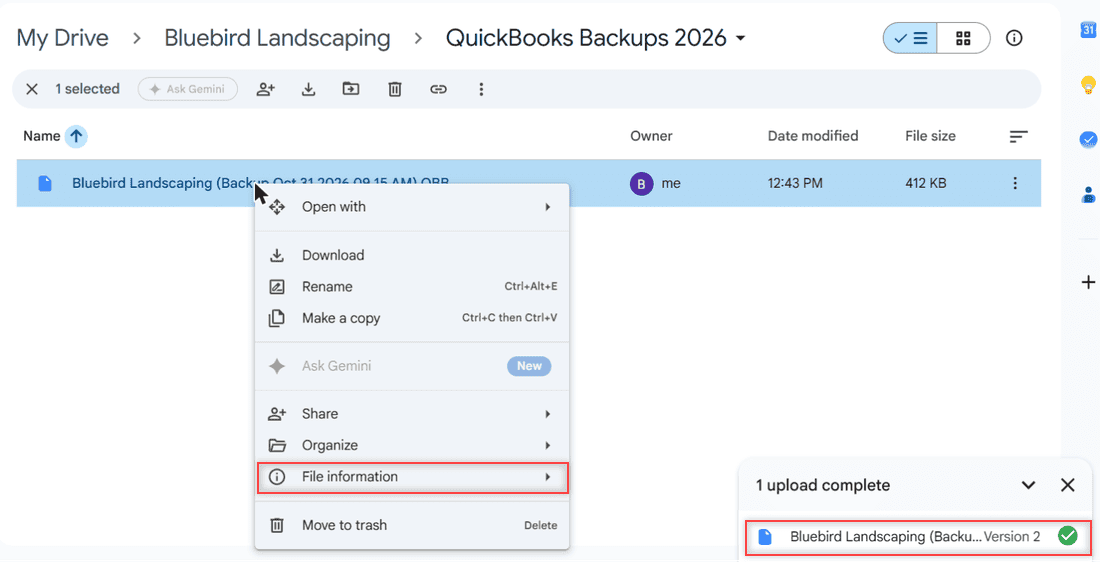
Then open Manage versions. My test file showed the current version from 12:43 PM and Version 1 from 12:42 PM, plus a note that temporary versions may be deleted after 30 days or after 100 versions. It works the same as version history in Google Drive for any other file.
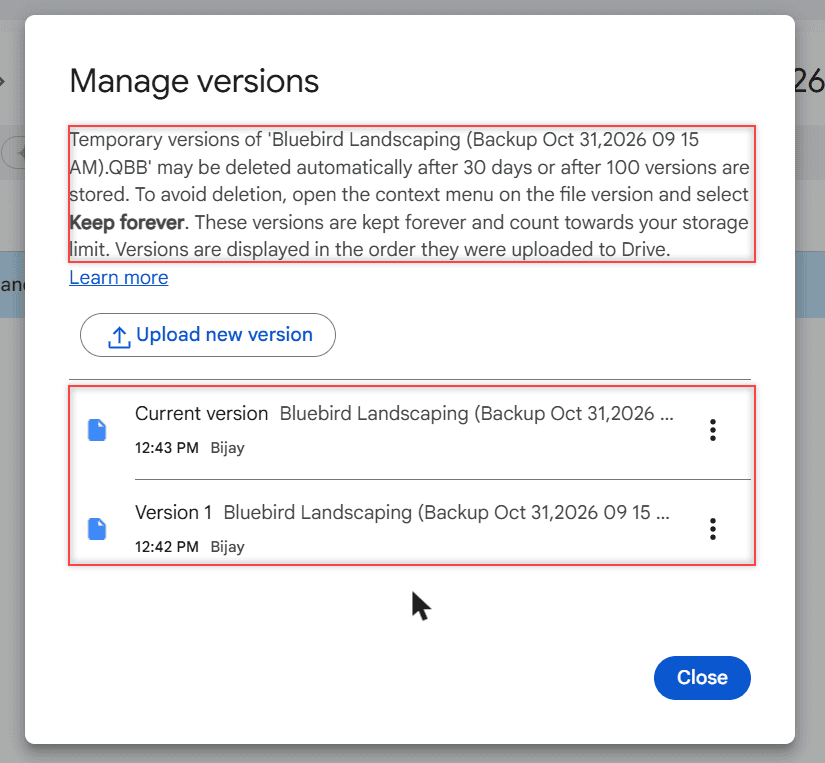
The dialog text mentions Keep forever, but in my test the menu next to a version showed only Download and Delete for this .QBB in a personal Google account.
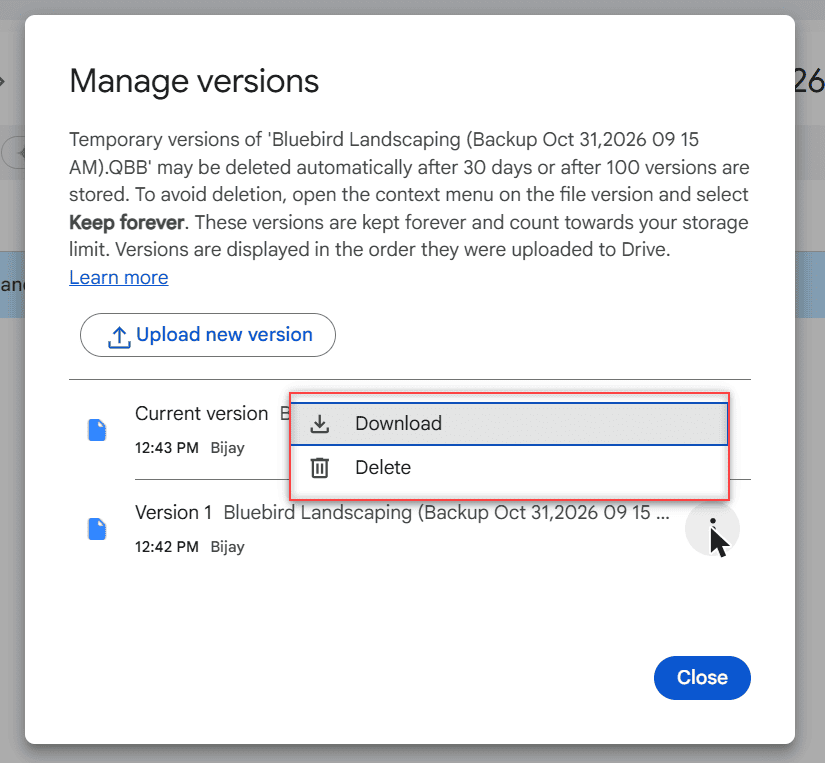
So don’t count on old versions sticking around. Download any version you really need, or upload backups under separate dated names so each one stays a normal file.
Send new backups to Drive automatically
Uploading by hand every Friday gets old fast. Drive for desktop can watch the folder where QuickBooks saves its backups and upload new ones for you. Google says edits in synced folders sync automatically.
Add the QuickBooks backup folder to Drive for desktop
If the app isn’t on your PC yet, install Google Drive for desktop on Windows first. During setup, Drive offers to sync Documents, Desktop and Downloads. Untick what you don’t want and use Add folder to pick your QuickBooks backup folder.
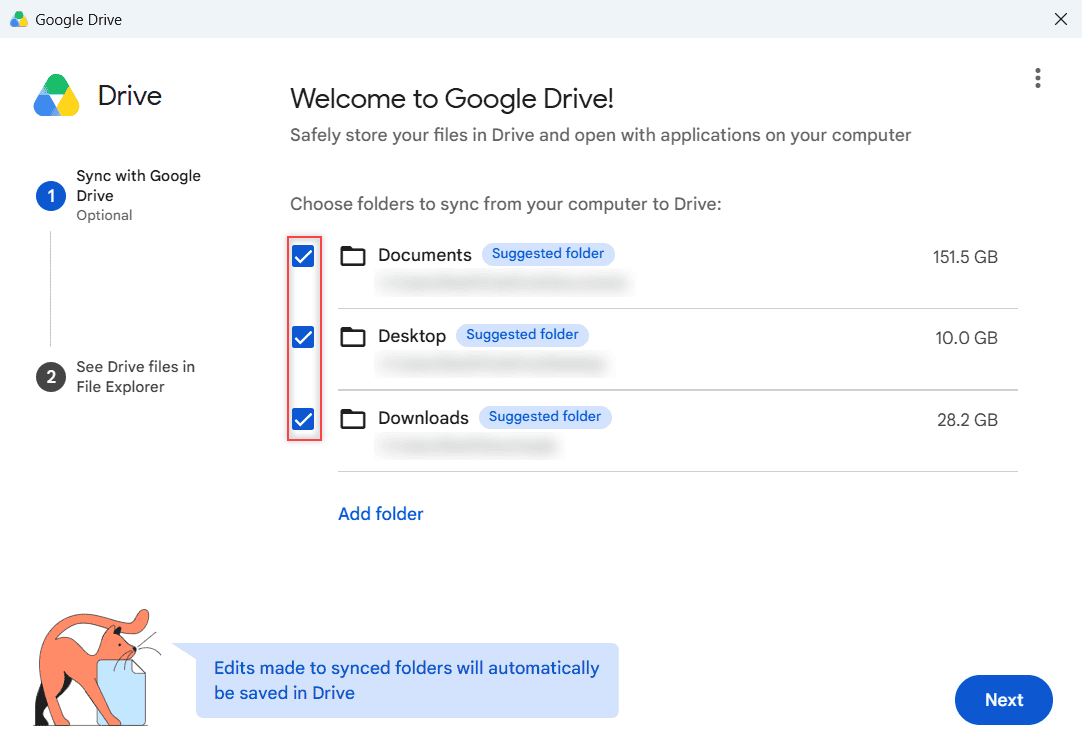
Then turn on scheduled backups in QuickBooks Desktop. Intuit’s help describes Save backup copy automatically when I close my company file and scheduled backups at a set time. Point them at the same synced folder, and new .QBB files flow to Drive without you touching anything.
Pick Stream files or Mirror files for My Drive
In Preferences > Google Drive, you choose how My Drive itself shows up on the computer. Google notes that folders from your computer can only be mirrored, so this setting doesn’t change how the backup folder uploads.
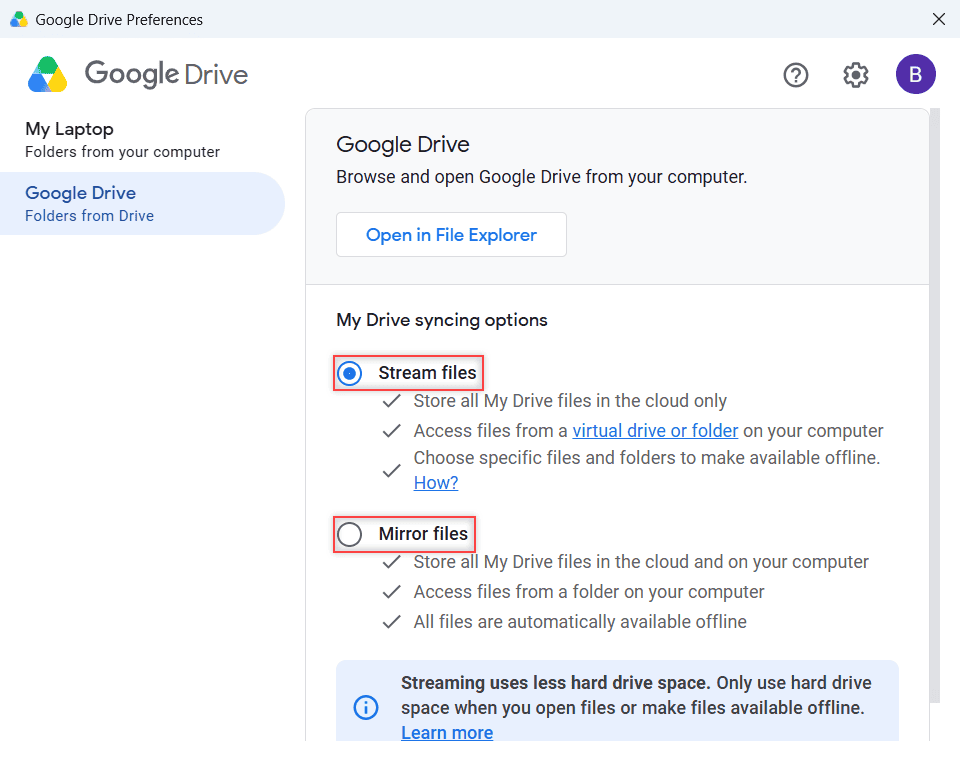
Stream files saves disk space. Mirror files keeps a full offline copy of My Drive. Need a break from syncing during month-end? You can pause or turn off Google Drive sync for a while.
My rule: Sync the backup folder, never the folder with your working .QBW company file. QuickBooks keeps that file open while you work, and a sync app copying it mid-save is a risk I won’t take.
Restore QuickBooks from a Google Drive backup
You can’t open or restore a company file straight from Drive. Download the .QBB to the computer’s local drive first. Intuit says backups kept on an external device or a hosting service like Box must be moved to your local hard drive before you restore, and Drive works the same way.
- In Drive, right-click the backup and choose Download.
- Move the .QBB into a local folder, such as Documents.
- In QuickBooks Desktop, use the restore command and point it at that local file.
- Open the restored company and spot-check a few recent invoices before you keep working.
If the download refuses to start, this guide to fixing Google Drive download problems covers the usual causes.
Change it for your own business
For QuickBooks Online Advanced, Intuit’s path is Settings > Back up company > Personal cloud archive > Export Backup, then Google Drive, after you link Drive under Account and settings > Advanced. The file arrives as a .cab archive, and Intuit says you can’t restore from a cloud archive yet.
For QuickBooks Desktop, I’d keep it simple: dated backups, one private folder, Drive for desktop doing the uploads, and a yearly cleanup. Deleted backups sit in trash for a while, and how long Google Drive keeps deleted files decides how long you can change your mind.
Third-party automation tools can move QuickBooks data into Drive too. I haven’t tested them for this, so check what each one actually copies before you rely on it.
If you’re tidying up the rest of your business files, these may help:
- Google Drive personal vs business accounts
- see how big a Drive folder is
- stop Google Drive from duplicating files
- what Drive viewers can download
Questions about this setup
Can I back up QuickBooks Online to Google Drive?
Only QuickBooks Online Advanced (and Intuit Enterprise Suite) has a built-in Google Drive export, called Personal cloud archive. It saves a .cab file, and Intuit says you can’t restore data from that archive yet, so treat it as a record, not a restore point.
Can I open a QuickBooks company file directly from Google Drive?
No. Download the .QBB backup to your computer’s local drive first, then restore it in QuickBooks Desktop. Keep your working company file on a local drive, not in a synced Drive folder.
How long does Google Drive keep old versions of a QuickBooks backup?
Older versions of an uploaded file may be deleted after 30 days or once 100 newer versions exist, per Google Drive Help: Manage versions. Download versions you need or use dated file names.
Is it safe to keep QuickBooks backups in Google Drive?
It’s reasonable if the folder stays Restricted, you share it only with people who need it, and your Google Account has 2-Step Verification turned on. Keep a second copy somewhere else too.
Does Google Drive connect to QuickBooks Desktop?
Not directly. QuickBooks Desktop saves a backup file, and Drive for desktop uploads that file from a synced folder. That combination gives you automatic off-site backups without any add-on.

I am Carissa Gudinoa, a technology buff, and Office online and Apple expert with over 9 years of experience. I am passionate about helping others get the most out of their Apple devices. I have written extensively about Apple products and technologies. I am committed to providing my clients with the best possible service and am always up-to-date on the latest Apple products and features. I also write extensively on other software available for use at minimal cost or free. This includes Word Online, Outlook Online, Excel Online, and other Office online programs… Check out more.