
Here’s the message that sends most people looking for help, word for word from Google’s own help page:
Video is still processing. Try again later.The fix that works most often is the boring one: leave the video alone for a while, then reload the page. Google says a large file may take awhile before it’s ready, and the message goes away by itself when Drive finishes.
In this tutorial, I’ll show you what a google drive video still processing message really means, how to tell a slow video from a broken one, and what’s worth trying when waiting doesn’t help.
What the processing message really means
When you upload a video to Google Drive, the upload and the processing are two separate jobs. The upload moves your file to Google’s servers. Processing is the work Drive does afterward so the video can stream in its player.
That’s why you can see “1 upload complete” and still not have a finished video. Your file arrived safely. The player just isn’t fully ready yet.
I tested this on my demo account with a tiny 58 KB WebM file. I opened it about a second after the upload finished, and it played right away. Drive showed this banner across the top:
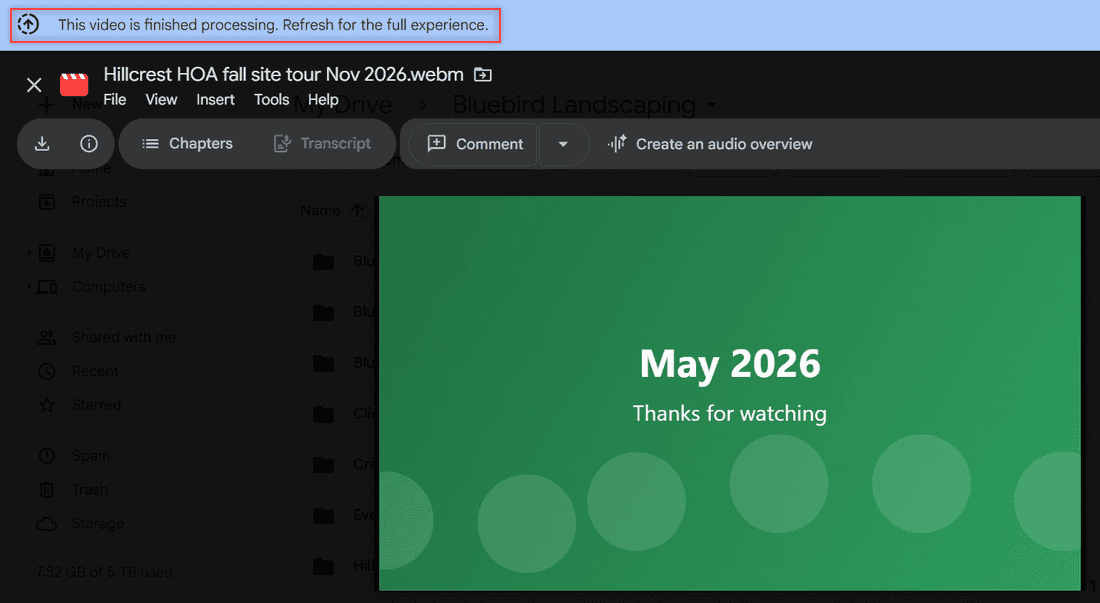
This video is finished processing. Refresh for the full experience.Notice the player, too. Before the refresh I had only pause, 10-second skips, and volume. There was no settings gear and no captions button. After a refresh in an earlier run, the full set of controls showed up.
An earlier upload gave me a slightly different banner, which is worth knowing because it isn’t an error either:
This video is ready for you to watch. More features will be available once processing is complete.So a banner like these means you’re in the good part of the process. You can watch now and refresh later.
What I couldn’t reproduce: The exact “Video is still processing. Try again later.” message never appeared on my tiny test files, so I can’t show you a real screenshot of it. The wording above comes from Google’s help page, and I won’t fake a picture of it.
Why it plays for you but not for everyone else
Google calls this instant playback. You can watch a video right after uploading it, but that only applies in the same browser session you uploaded from.
On your phone, on another computer, or for someone you shared it with, the video might still be processing. That’s the classic version of this problem: it works perfectly for you, and your coworker gets the processing message.
If that’s your situation, nothing is wrong with the file or with how you shared it. Give it more time, then ask the other person to reload the page.
Match the message you see to the right fix
Google Drive shows several messages that look alike but mean different things. Check yours against this table before you try anything. If your exact wording is different, I’ve got a separate guide for when a video cannot be played at all.
| Message | What it means | What to do |
|---|---|---|
| Video is still processing. Try again later. | Drive hasn’t finished preparing the video | Wait, then reload (Fix 1) |
| This video is currently unavailable. | The video isn’t ready to be played | Try again in a few minutes (Fix 1) |
| Playback limits | You hit the limit for viewers who aren’t signed in | Sign in to a Google Account (Fix 2) |
| Video is unplayable. | The file may be corrupted or in a format that won’t work | Check the format, re-upload (Fix 4, Fix 6) |
| This video file is an invalid format and is not supported by Drive. | Drive can’t play this file type | Check the format, or download it (Fix 4, Fix 5) |
Only the first two rows are truly about processing. If you’ve got one of the last two, waiting won’t change anything, so skip ahead.
Fix 1: Give a large video time, then refresh
How to tell this applies: you see the processing message or the “currently unavailable” message, and the file was uploaded recently.
Google doesn’t publish a processing time, and I’m not going to invent one. Its help page only says that a large file may take awhile. A long video will generally need more patience than a short clip, but there’s no chart you can trust.
- Give it some time. Google doesn’t publish a processing time, and only says a large file may take a while.
- Come back and reload the page with your browser’s refresh button.
- If you see the “finished processing” banner, refresh once more to get the full player.
If the file is big, make sure the upload actually finished before you start the clock. My notes on uploading large files to Drive cover what to watch for. A file that’s waiting to upload hasn’t reached the processing stage at all.
Fix 2: Sign in with your Google Account
How to tell this applies: you opened a shared link while signed out, or the message mentions playback limits.
Google limits how much viewers who aren’t signed in can watch. The fix is what the message says: sign in to a Google Account, then open the link again. The file’s sharing settings still apply, so the account you use needs access to the video.
If you’re signed in to several accounts in one browser, check which one is active in the top-right corner. Opening the video in a private window with only the right account signed in is a quick way to rule out an account mix-up.
Fix 3: Turn on third-party cookies or try another browser
How to tell this applies: the video won’t load in one browser, but the file looks fine elsewhere.
Google states that you need third-party cookies turned on to play videos in Drive. If you’ve blocked them in your browser’s privacy settings, allow them for Drive and reload.
A quick test is opening the same video in a different browser where you’re signed in. If it plays there, the problem is in the first browser’s settings, not the video. The same kind of browser check helps with Drive errors that block access too.
On a work or school computer, your browser may be managed, so you might not be able to change this yourself. Ask your IT team. Google’s help page lists the same messages for everyone and doesn’t split them by personal or Workspace account.
Fix 4: Check the file format and size
How to tell this applies: you see “Video is unplayable” or a message about an invalid format, and it doesn’t go away with time.
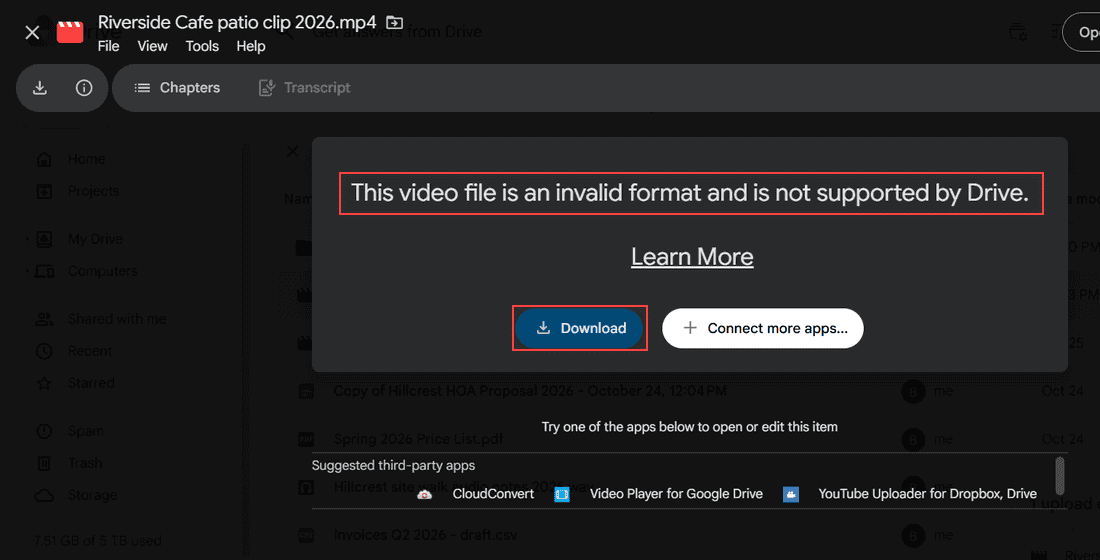
This video file is an invalid format and is not supported by Drive.Here’s what Google lists as supported for playback:
| Container | Video and audio codecs |
|---|---|
| WebM | VP8 video, Vorbis audio |
| MPEG4, 3GPP, MOV | H.264 or MPEG4 video, AAC audio |
| AVI | MJPEG video, PCM audio |
| MPEG-PS | MPEG2 video, MP2 audio |
| FLV | FLV1 video, MP3 audio |
| WMV, MTS, OGG | Listed as supported |
The container name isn’t the whole story. An MP4 with an unusual video codec can still fail, because Drive cares about what’s inside the file. Google also notes that not all video types work on all devices.
Two more limits to check. The maximum playback resolution is 1920 x 1080, and the minimum file size for playback is 4 KB. A very short test clip can fall under that floor, so don’t assume a tiny file is broken.
Fix 5: Download the video instead of waiting
How to tell this applies: you need to watch or use the video right now, and the preview won’t cooperate.
The preview player and the file are separate things. Drive still offered me a Download button on the file it refused to preview, so a stuck player doesn’t have to stop you.
- Go to the file in your Drive list.
- Right-click the video.
- Choose Download, then open the file in a video player on your computer.
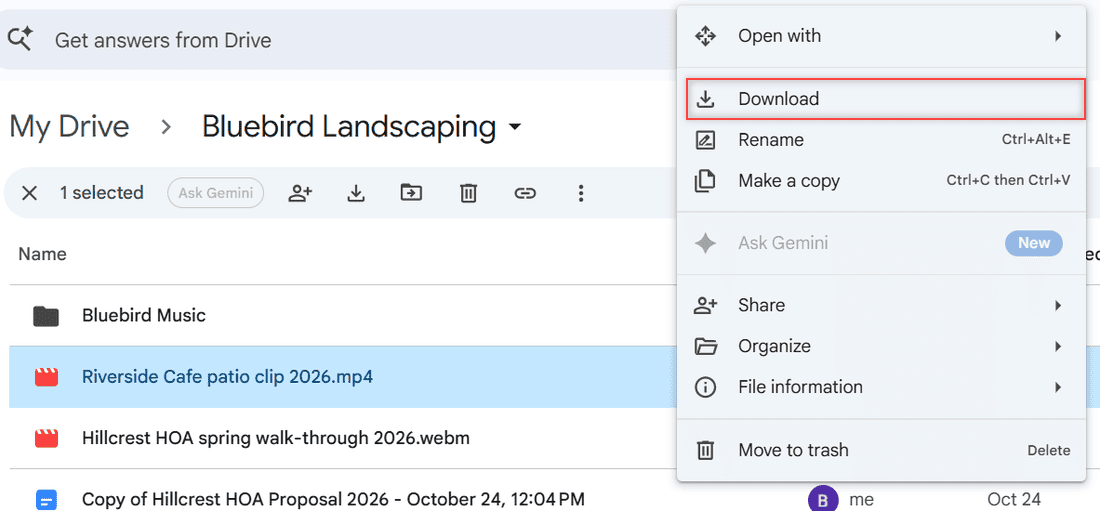
If the download itself fails, that’s a different problem, and my guide to files that will not download goes through it. Busy shared videos can also hit the download quota limit.
If you only have view access and don’t see Download, the owner may have turned it off. Here’s what viewers can and cannot download. In that case, the right move is asking the owner for a copy.
Fix 6: Re-upload a damaged file
How to tell this applies: the video has been stuck far longer than similar files, or you get “Video is unplayable” even though the format looks right.
Before you upload anything again, play your original copy on the device it came from. That one check saves a lot of time. If it won’t play there, Drive isn’t the problem, and uploading it again won’t help.
If it plays fine locally, upload it again and let the transfer finish without closing the browser. Then compare the size of the new file against your original. A much smaller file in Drive suggests the first upload was cut short.
If the format was the issue, export the video again from the app or editor that made it, using MP4 with H.264 video and AAC audio. That combination is on Google’s supported list.
One thing I tried that I wouldn’t count on: making a copy. A “Make a copy” of a video that had already processed showed no banner and had the full player.
But that video was already done. I haven’t seen it rescue a stuck one, so treat it as a free try at most.
Fix 7: Check Google’s status page
How to tell this applies: several videos are misbehaving at once, including ones that played fine yesterday.
Open the Google Workspace Status Dashboard and look at the Google Drive row. Here’s an example of that page from a capture I took on October 24, 2026, so yours will show today’s status.
If you’re getting other server messages too, my post on the Google Drive failed server error may help.
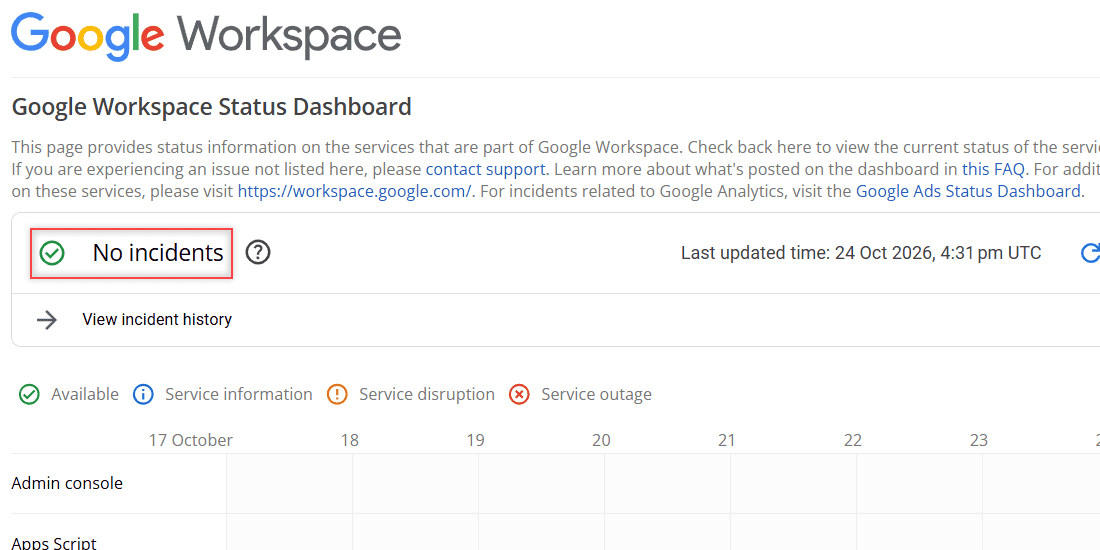
If Drive has an incident listed, there’s nothing to fix on your end. Wait for Google to resolve it, then reload the video. If the dashboard is clear, go back to the fixes above.
Still processing? How to prevent it next time
If you’ve waited, reloaded, tried another signed-in browser, and confirmed the file plays on your own device, you’ve done the reasonable checks. At that point, I’d download it to use it now and upload a fresh copy to see if that one finishes.
For future videos, a few habits make this much less painful:
- Upload well before you need to share it, especially for a long recording.
- Keep to a format on Google’s list. MP4 with H.264 and AAC is the safe pick.
- Stay at or under 1920 x 1080 if viewers will watch inside Drive.
- After sharing, open the link from another device or a signed-in private window to see what your viewer sees.
- Tell people a new video may need some time before it plays for them.
If the video is headed somewhere else anyway, you might not need Drive’s player at all. You can send it to YouTube or embed the video on a page once it’s ready.
A few more Drive guides you might want while you’re sorting this out:
- Fix a video that will not upload from your phone
- Stop an upload that is going nowhere
- Browse all my Google Drive tutorials
Sometimes the video plays fine but the preview tile in your folder stays blank. My guide on Google Drive thumbnails not showing walks through what’s normal and what to try in your browser.
More about this error
How long does it take Google Drive to process a video?
Google doesn’t give a fixed time. It only says a large file may take awhile before the video is ready, as you’ll see in Google Drive Help on video playback errors.
Why can I watch my video but the person I shared it with can’t?
Instant playback works in the same browser session you uploaded from. On other devices, or for people you shared the video with, it might still be processing, so they need to wait and reload.
Why doesn’t my new upload have a settings gear or captions button?
When I opened a fresh upload, Drive used a reduced player with only pause, 10-second skips, and volume, under a banner asking me to refresh. In an earlier run, the full controls appeared after the refresh.
Can a video be too small or too sharp for Drive to play?
Yes to the first one: the minimum size for playback in Drive is 4 KB. The maximum playback resolution is 1920 x 1080.

I am Carissa Gudinoa, a technology buff, and Office online and Apple expert with over 9 years of experience. I am passionate about helping others get the most out of their Apple devices. I have written extensively about Apple products and technologies. I am committed to providing my clients with the best possible service and am always up-to-date on the latest Apple products and features. I also write extensively on other software available for use at minimal cost or free. This includes Word Online, Outlook Online, Excel Online, and other Office online programs… Check out more.