
It depends on which version of the video you mean: the Drive player can show you a softer picture, capped at 1080p and affected by your connection, but that’s what you’re streaming, not necessarily what you uploaded.
In this tutorial, I’ll answer why does google drive reduce video quality by separating three things people tend to lump together: the player, the stored file, and Google Photos. You’ll also see how to change the player’s quality, how to read a video’s real dimensions, and what I could and couldn’t confirm.
The blurry picture usually comes from the player
When you double-click a video in Drive, you aren’t opening the file on your computer. You’re watching a stream inside Drive’s own player, and that stream has its own rules.
Google’s help page gives two of those rules directly. You can upload a video of any resolution, but the maximum playback resolution is 1920 x 1080. It also says internet quality and speed may affect playback quality.
If a video refuses to play at all, that’s a different problem from one that plays and looks soft.
So a 4K clip can sit in your Drive, and Google’s stated limit still tops out at 1080p when you press play there. Nothing about that limit says the upload itself got smaller.
That’s the part that trips people up. The word “reduce” suggests Drive shrank your file. What Google actually documents is a ceiling on what the player shows.
Three places your video can look different
Before you change anything, work out which of these you’re looking at. Each one follows different rules.
| Where you see it | What Google says | Can it lower quality? |
|---|---|---|
| Drive player (preview) | Any upload resolution; playback tops out at 1920 x 1080; connection may affect it | Yes, for what you see while streaming |
| Stored file in Drive | The help page says nothing about re-encoding it | Google doesn’t say. Check it yourself, as shown below |
| Google Photos, Original quality | Same resolution, no change to quality | No, by Google’s description |
| Google Photos, Storage saver | Slightly reduced quality; videos above 1080p are resized to 1080p | Yes, on purpose |
That last row is where a lot of the confusion starts. Storage saver is a Google Photos backup setting, and the page that describes it covers Photos backups. It isn’t a setting on files you put in Drive. If you use both apps, my comparison of Drive and Photos explains how they differ.
So if a clip came out of your phone’s Photos backup looking smaller, look at that backup setting first. It’s a separate question from what happened in Drive.
How to change the quality in the Drive player
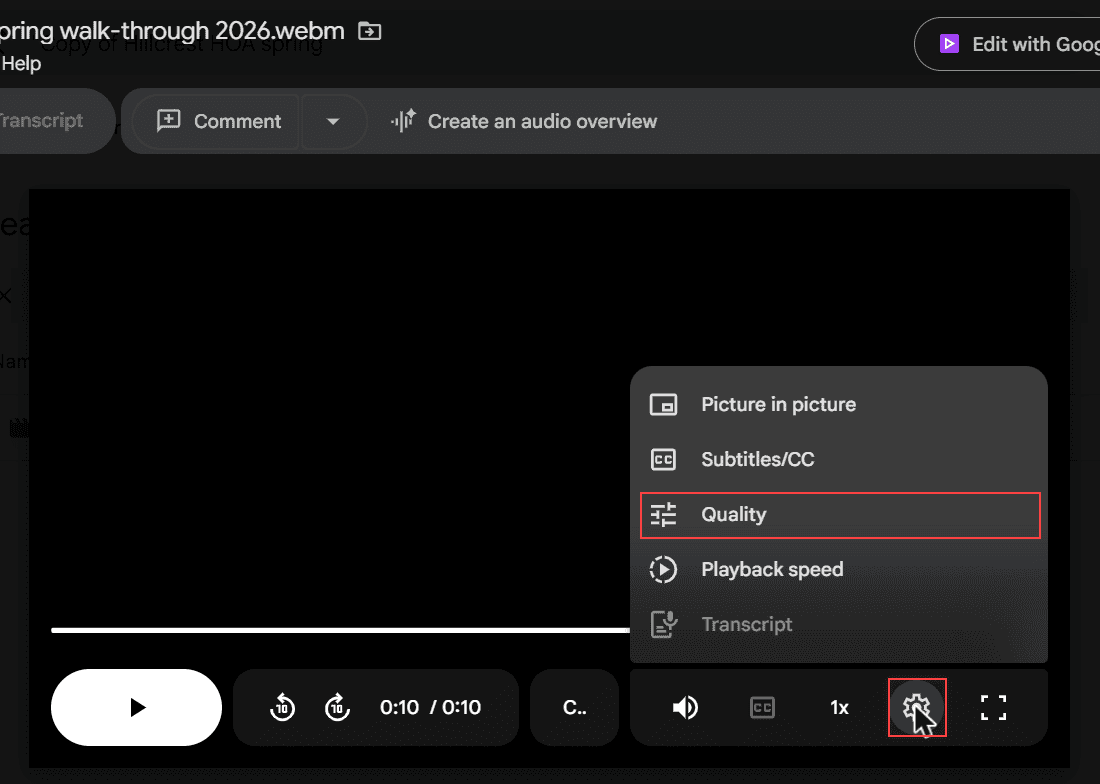
The player has a Quality option, so you don’t have to accept whatever it picked. Open the video, then select the gear icon in the player controls. Choose Quality from that menu.
On my demo account I used a 1280 x 720 clip. The menu offered exactly three choices: 720p, 360p, and Auto. 720p was the one checked.
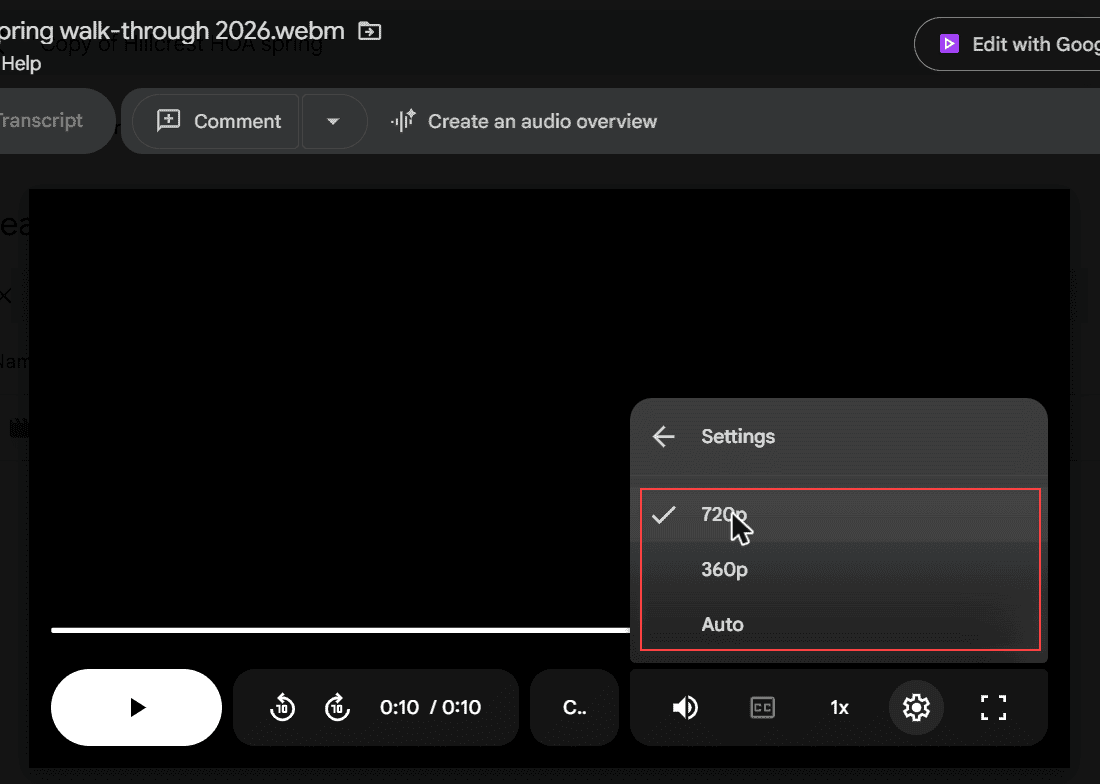
Pick the highest number on the list if you want the sharpest view. If playback then stutters, step down one level or go back to Auto.
My inference is that Auto adjusts to your connection, since that’s how the name reads and Google says connection can affect playback. Google’s page doesn’t describe the Auto option, so treat that as my reading rather than a documented rule.
I’d also expect the list to change with the source. A 720p clip showing 720p as its top choice fits that idea, but I only tested this one size, so I can’t promise what a 1080p or 4K file will list.
Why a just-uploaded video can look worse
Fresh uploads are the other common cause. Google says you can play a video right after uploading, but it might still be processing so that it can be viewed on other devices. If you just finished uploading a video to Drive, give it some time before judging the picture.
I saw a version of this myself. A clip I’d just uploaded opened in a reduced player with no gear menu, so there was no Quality option to pick. After I refreshed the page, the normal controls appeared.
Google doesn’t give a time for processing, and it will depend on the file. Longer and larger videos are the ones I’d be patient with, especially if you’ve been working through big jobs like moving several large files into Drive at once.
If you see the message below instead of a soft picture, Drive is telling you the same thing more bluntly. Wait and try again later.
Video is still processing. Try again later.How to check what the stored file really is
This is the check I’d run before worrying that Drive damaged anything. It takes under a minute, and it uses numbers instead of your eyes.
Right-click the video in Drive and open its file information so the Details panel appears. Look for Dimensions, Storage used, and Duration. My demo clip showed Dimensions 1,280 x 720, Storage used 58 KB, and Duration 00:09.
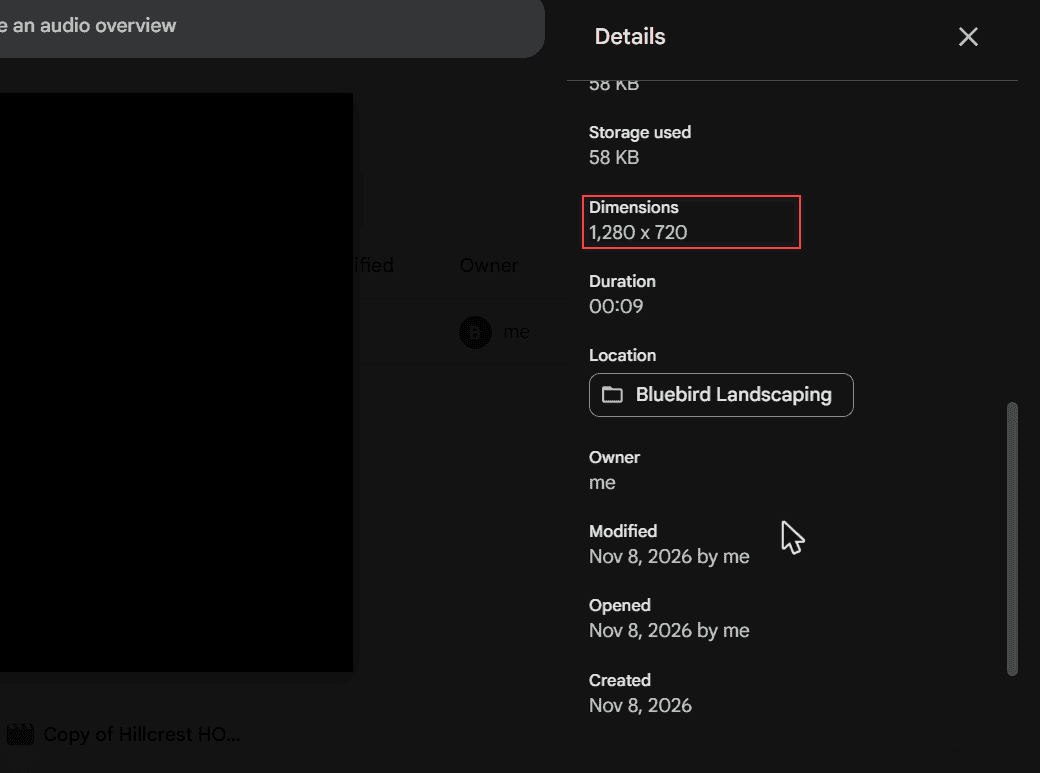
Compare those dimensions with the original on your phone or computer. If Details shows the size you recorded, then what Drive reports matches your source, even if the player looks softer.
For a stricter test, download the video and compare it with your original. Right-click it in Drive, then choose Download.
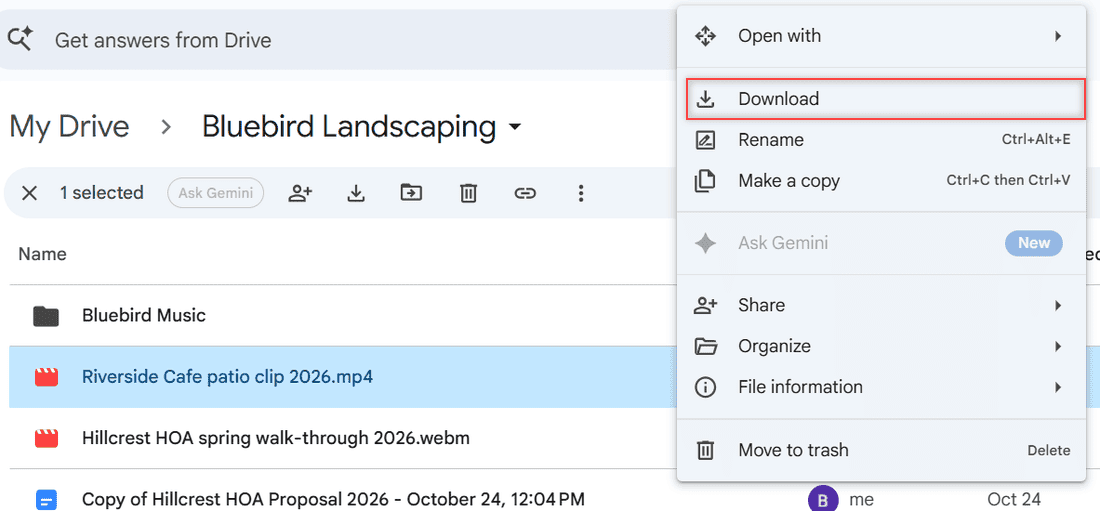
On Windows, right-click the downloaded file, choose Properties, and open the Details tab. On a Mac, select the file and choose Get Info. Then compare the resolution and the file size with your original.
To be upfront: I didn’t run a download-and-compare on this clip, and I couldn’t find a Google help page saying outright that Drive keeps every upload byte for byte. So I won’t claim it.
Run the comparison on the video that matters to you, and if the download itself fails, here’s what to try when Drive downloads stop working.
What the Drive player can’t do, and what I didn’t test
Knowing the limits saves a lot of fiddling. These are the ones I can back up.
- It can’t play above 1920 x 1080, according to Google, whatever resolution you uploaded.
- It can’t guarantee a steady picture on a weak connection, since Google says internet quality and speed may affect playback.
- It needs third-party cookies turned on, or playback may not work.
- It won’t play a file smaller than 4 KB, the minimum Google lists.
- Not every video type works on every device, so an unusual format may need converting before it plays.
Storage is a separate limit. Google says you can store videos up to 5 TB if you’ve purchased at least that much storage, so a long, high-resolution file is fine as long as your account has room.
The help page doesn’t list a different playback limit for Google Workspace accounts, and my test ran on a personal account. If your organization manages your Drive, an admin may have their own rules on sharing and downloads, but I can’t say that changes the player.
Here’s what I didn’t test: a true 4K or 1080p source, a downloaded copy compared against the original, and how the player behaves on a slow network. Everything above about those cases comes from Google’s wording, not from my own run.
I also won’t tell you why Google built the player this way. Plenty of articles offer reasons, but Google’s page doesn’t give one, so anything else is a guess.
If someone sent you the video, or you need to share it sharp
On the receiving end, you have the same options as the owner while watching: gear icon, then Quality. Your own connection matters too, so a video that looked great to the sender can look soft to you if Drive is running slowly on your network.
If you need the full-resolution file, ask for it to be downloadable. The owner decides whether viewers can download a shared file, so if there’s no Download option, ask them to turn it on or send you the original.
If you’re the owner and quality matters, tell your viewers to check the Quality menu, and let them download the file when the recipient really needs every pixel. Editors and clients generally want the file, not the preview.
Sharing on a website adds another layer. My guess is that a video embedded from Drive follows the same 1080p ceiling, since it’s still Drive’s player, though I didn’t measure that.
When a video has to reach a big audience, Drive’s preview may simply be the wrong tool. Plan the handoff around what the viewer actually needs, whether that’s a quick look in the player or the large original file itself.
A few more guides that come up alongside video problems in Drive:
- moving a Drive video over to YouTube
- an upload stuck on waiting
- the download quota error on shared files
- storage that looks full for no reason
Common questions
Does Google Drive compress videos when you upload them?
Google’s Drive video help page doesn’t say it compresses the stored file, and it doesn’t say it never does. What it states is a 1080p playback limit, so compare the Details panel or a downloaded copy with your original.
Can Google Drive play 4K video?
You can upload a 4K video, because Google accepts any resolution. Playback in Drive tops out at 1920 x 1080, so you won’t see 4K in the player. I didn’t test a 4K file myself.
Why is my Drive video only showing 360p?
Open the gear icon, choose Quality, and pick a higher number if one is listed. If there’s no gear menu on a new upload, refresh the page, since the video may still be processing.
Does Storage saver affect files in Google Drive?
Storage saver is a Google Photos backup option, and it resizes videos above 1080p down to 1080p. Google describes it for Photos backups, not for files you upload to Drive.

I am Carissa Gudinoa, a technology buff, and Office online and Apple expert with over 9 years of experience. I am passionate about helping others get the most out of their Apple devices. I have written extensively about Apple products and technologies. I am committed to providing my clients with the best possible service and am always up-to-date on the latest Apple products and features. I also write extensively on other software available for use at minimal cost or free. This includes Word Online, Outlook Online, Excel Online, and other Office online programs… Check out more.