
No, Drive on the web has no Pause button for uploads. You can only cancel, either one file at a time or everything in the queue. The one place you can truly pause is Drive for desktop on a computer.
In this tutorial, I’ll show you how to stop Google Drive upload jobs the way they actually work in 2026. You’ll learn which button cancels everything, which one cancels a single file, what the “Cancel upload?” box means, how to pause syncing on a computer, and what you can do on a phone.
How Drive handles an upload that is already running
When you drop files into Drive in a browser, a small panel pops up at the bottom right. It shows how many items are uploading, a rough time left, and one row per file with a spinner. That panel is your only remote control for a web upload.
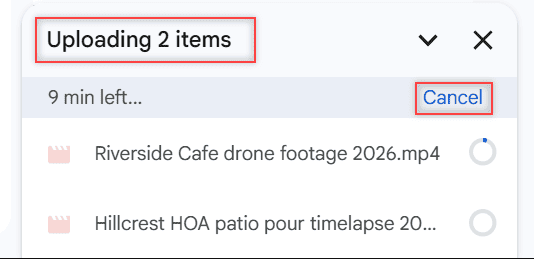
I tested this in my demo Drive on October 28, 2026 with two video files from a client walkthrough. The panel said “Uploading 2 items” and “9 min left…”, with a blue Cancel link on the right.
Where you started the upload decides what you can do with it. If big files are the reason you want to stop, my guide on uploading large files to Google Drive has tips for the next attempt. Here’s the short version for each place:
| Where the upload runs | Pause? | Cancel? | How |
|---|---|---|---|
| Drive on the web (any browser) | No | Yes, one file or all | Upload panel: row X for one file, Cancel for all |
| Drive for desktop (Windows or Mac) | Yes | Stop by pausing or quitting | Settings menu > Pause syncing, later Resume syncing |
| Drive app on Android | Not documented | Not documented | Turn on “Transfer files only over Wi-Fi” in Settings |
| Drive app on iPhone or iPad | Not documented | Not documented | Choose Wi-Fi only for file transfers |
“Not documented” means Google’s Android and iPhone upload help doesn’t describe a pause or cancel control. I’d rather tell you that than invent a button.
Cancel every upload at once from the panel
This is the fastest stop when you grabbed the wrong folder or need your bandwidth back right now.
- Look at the upload panel at the bottom right of Drive.
- Find the blue Cancel link next to the time left.
- Click it. Every file still in progress stops.
Files that already finished stay in Drive, so check the folder afterward. If the panel looked stuck before you canceled, my notes on Drive stuck on waiting to upload explain why a queue sometimes freezes.
Don’t see the panel? It can be collapsed. Click the small arrow in its header to open it again.
Cancel just one file and keep the rest going
Sometimes only one file is the problem, like a huge video I didn’t mean to include. Drive lets you drop that one and leave the others alone.
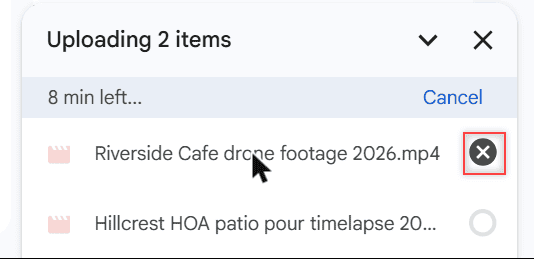
- Hover over the file’s row in the upload panel.
- The spinner turns into a dark round X button.
- Click the X to cancel only that file.
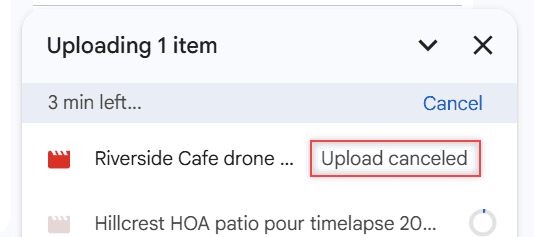
In my test, the row changed to “Upload canceled” and the header dropped from “Uploading 2 items” to “Uploading 1 item”. The second video kept going without a hiccup.
Picking files carefully up front saves this step. My guide to selecting multiple files in Google Drive shows how to build the right set before you upload.
What the “Cancel upload?” box is asking you
The panel header also has an X. If you click it while files are still uploading, Drive doesn’t just hide the panel. It asks first.
The box reads “Cancel upload?” with the line “Your upload is not complete. Would you like to cancel the upload?” You get two buttons:
- Continue upload closes the box and lets everything keep going.
- Cancel upload stops every file that hasn’t finished yet.
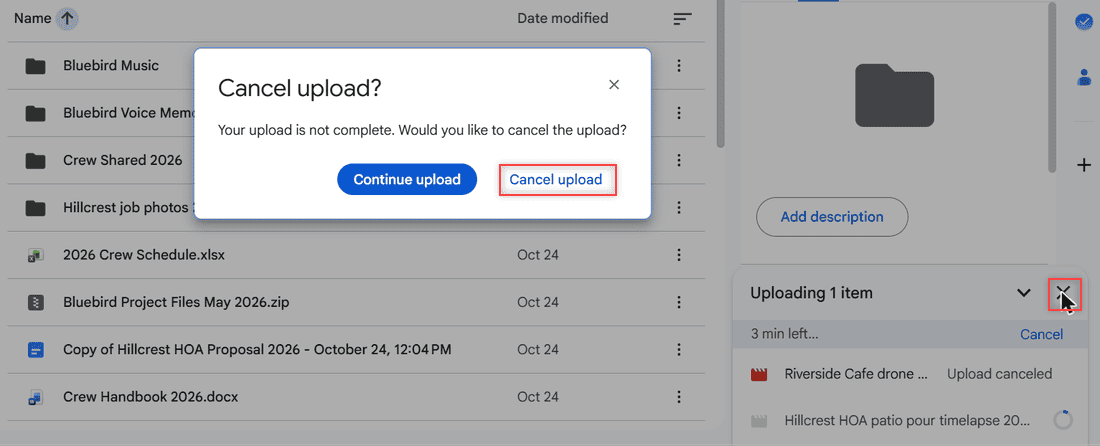
I clicked Cancel upload and then opened the folder. Nothing from the canceled files was there, not even a partial file. Drive cleans up after itself, so there’s nothing to delete later.
Pause uploads with Drive for desktop instead
If you upload by dragging files into the Google Drive folder on your computer, Drive for desktop does the work in the background. Unlike the browser, this app has a real pause.
Google’s steps: open the Drive for desktop menu (system tray on Windows, menu bar on a Mac), go to Settings, and choose Pause syncing. On my Windows laptop the Home window also has a Pause syncing button at the top right.
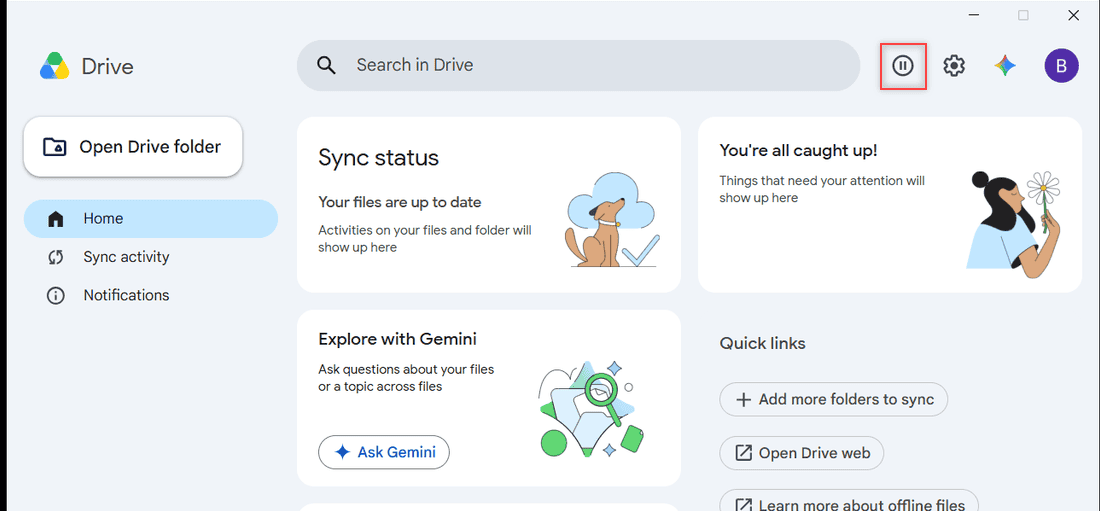
Once paused, the status card says Paused. Google says a paused app stops syncing mirrored folders in both directions, stops updates to streamed files, and stops backups to Google Photos.
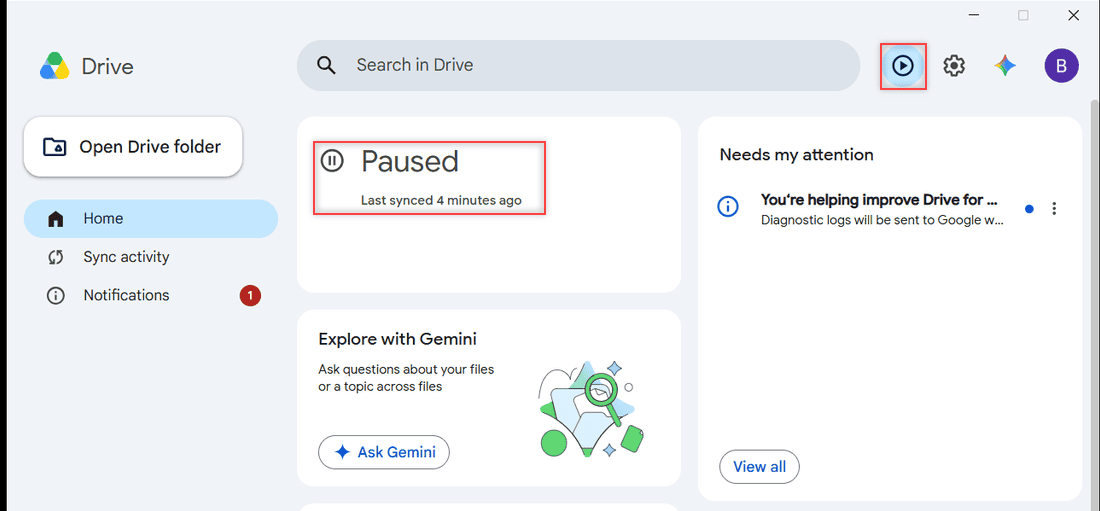
When you’re ready, choose Resume syncing from the same menu. If you want it off for longer, I cover quitting and disconnecting in how to turn off Google Drive sync. And if the app won’t open at all, try these Drive for desktop launch fixes.
Stopping uploads in the Drive app on Android and iPhone
This is where most people get stuck, and I get why. Google’s Android and iPhone upload help explains how to upload (New or Add, then Upload) but doesn’t describe a pause or cancel button for a running upload.
What Google does document is a Wi-Fi setting, and it’s the closest thing to a pause on mobile data:
- Android: in the Drive app, open the menu at the top left, tap Settings, and under data usage turn on Transfer files only over Wi-Fi. Google notes the option only appears on devices that can use mobile data.
- iPhone and iPad: Google says you can choose to use mobile data or only Wi-Fi to transfer files.
With Wi-Fi only on, an upload that started on cellular waits until you’re back on Wi-Fi. That’s what the old version of this post was really after: a 2 GB video eating your data plan. If phone uploads never start at all, see Drive not uploading from your phone.
If you need everything to stop right now, airplane mode cuts the connection, so nothing can upload until you switch it off. The upload simply waits.
What canceling doesn’t do, and other limits
A few things surprised me when I tested this, so here they are in one place:
- No resume. A canceled web upload doesn’t pick up where it left off. You start it again from New, then File upload, or drag the file back in.
- Finished files stay. Cancel only stops files still in progress. Anything already done sits in the folder.
- Pausing isn’t the same as canceling. Drive for desktop keeps your files queued while paused. Resume, and it carries on.
- A daily cap still counts. Google’s Workspace admin help says each user can upload and copy 750 GB to Drive in 24 hours, so restarting huge uploads over and over can hit that.
If you deleted a finished file you didn’t want, it goes to the trash first, and how long Drive keeps deleted files tells you how much time you have. Uploads that keep failing are a different problem, and the Drive error list with Retry all walks through that.
Restart an upload after you cancel it
Because there’s no resume, restarting is just a fresh upload. Here’s what I do so it goes better the second time:
- Open the folder where the file should live.
- Click New, then File upload or Folder upload, or drag the files onto the page.
- Leave the tab open until the panel says the upload is complete.
- For very large files on a slow connection, use Drive for desktop so you can pause instead of cancel.
If the restart crawls, my fixes for a slow Google Drive cover connections, browsers, and the desktop app. That’s usually the real reason people want to stop an upload in the first place.
Still sorting out uploads? These might help next
- uploading a folder on Android
- the Drive upload failure 38 error
- Drive storage full with no files
- Drive that keeps going offline
Common questions
Can you pause a Google Drive upload?
Not in a browser. Drive on the web only lets you cancel one file or all of them. Drive for desktop on Windows or Mac can pause and resume syncing from its Settings menu.
Does canceling a Google Drive upload delete the file?
It never touches the original on your computer. In my test, the canceled files left nothing behind in Drive, while files that had already finished stayed in the folder.
How do I stop uploading files in Google Drive on mobile?
Google’s Android and iPhone help doesn’t describe a cancel button. You can turn on Wi-Fi only transfers in the Drive app’s settings, which holds uploads until you’re on Wi-Fi.
Will a canceled upload resume later?
No. Upload the file again from New, then File upload. To pause and resume instead, use Drive for desktop, as explained in Google Drive Help: Customize Drive for desktop settings.

I am Carissa Gudinoa, a technology buff, and Office online and Apple expert with over 9 years of experience. I am passionate about helping others get the most out of their Apple devices. I have written extensively about Apple products and technologies. I am committed to providing my clients with the best possible service and am always up-to-date on the latest Apple products and features. I also write extensively on other software available for use at minimal cost or free. This includes Word Online, Outlook Online, Excel Online, and other Office online programs… Check out more.