
OneDrive is Microsoft’s cloud storage service, built into Windows 11 and included with every Microsoft account and Microsoft 365. Do you need it? Not strictly. It’s very useful for backup and file sharing, but you can turn it off without losing anything stored in the cloud.
In this tutorial, I’ll answer what is OneDrive and do I need it in plain terms: what it does on your PC, who gets real value from it, who can safely ignore it, and what happens to your files if you unlink or uninstall it.
How OneDrive works on a Windows 11 PC
Think of OneDrive as a folder that lives in two places at once. One copy sits in Microsoft’s cloud, and the OneDrive app on your PC keeps a matching folder in File Explorer. Change a file in one place and the other catches up.
That syncing is done by a small app that runs in the background. You’ll see its cloud icon in the notification area near the clock. When that app stops, sync stops, which is why errors like make sure OneDrive is running on your PC pop up.
You don’t need the app at all to use OneDrive, though. Everything is also available at onedrive.com in any browser. That’s where I checked our account on November 7, 2026, and the Settings panel there links right back to the desktop and phone apps.
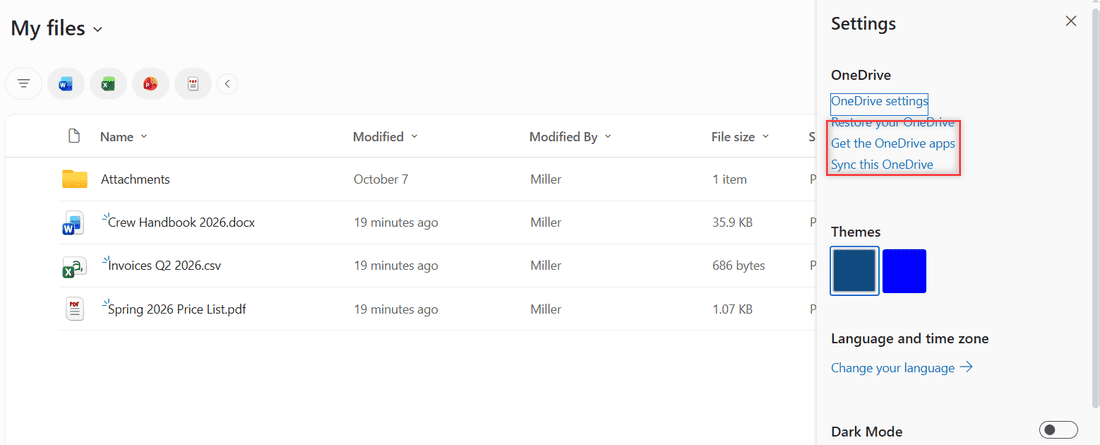
Sync this OneDrive connects the web library to the app on your computer. Get the OneDrive apps points you to the Windows, Mac, iPhone and Android versions.
Files On-Demand keeps your disk from filling up
On Windows, Files On-Demand is turned on by default in current versions of the app. It lets you see every OneDrive file in File Explorer without downloading all of them.
- Online-only (blue cloud icon): the file takes no space on your PC and downloads when you open it. You need internet to open it.
- Locally available (green check): you opened it, so a copy is on your PC. Right-click and pick Free up space to make it online-only again.
- Always available (solid green circle): you chose Always keep on this device, so it stays on your PC for offline use.
One catch worth knowing: deleting an online-only file from your PC deletes it from OneDrive everywhere, not only from that computer.
What OneDrive does for you
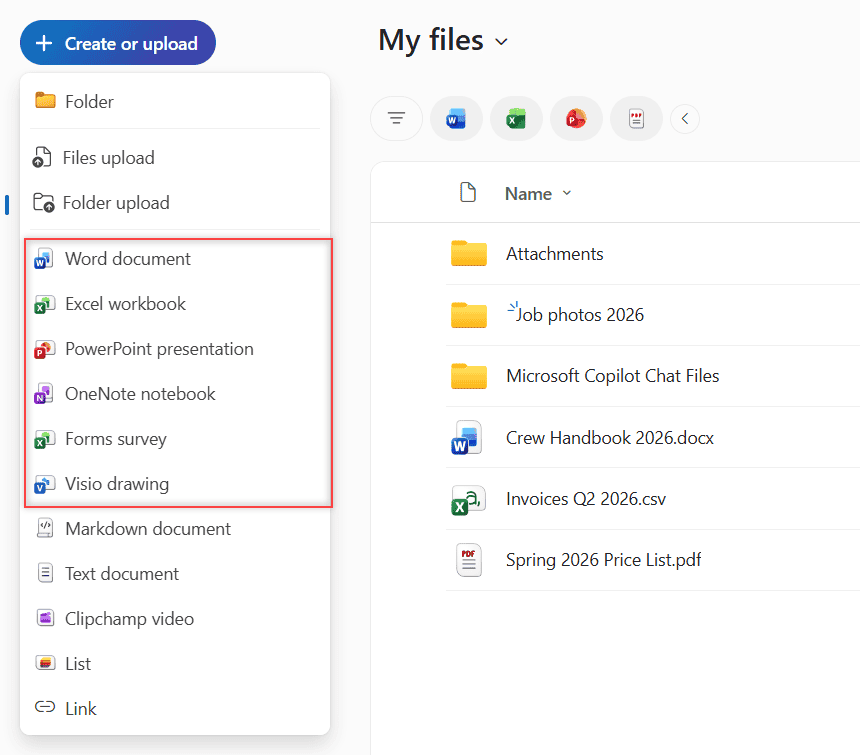
At Bluebird Landscaping, our team uses a Microsoft 365 work account. Our OneDrive holds a Job photos 2026 folder, the Crew Handbook 2026.docx, Invoices Q2 2026.csv and our Spring 2026 Price List.pdf. Here’s what it does for us beyond plain storage.
The Create or upload button shows how much it does. You can upload files or whole folders, or start a new Word, Excel or PowerPoint file right in the browser.
Sync across devices
I edit the crew handbook on my office PC, and my crew lead reads the same version on her phone at a job site. No emailing copies back and forth.
PC folder backup
The Windows app can back up your Desktop, Documents, Pictures, Music and Videos folders. You turn it on in OneDrive settings under Sync and backup, then Manage backup. On a work account, your IT admin may have switched this on, or off, for you.
Folder backup protects you if a laptop dies or gets stolen. It isn’t a second copy of your OneDrive, though. If you want that, here’s how to back up OneDrive to an external hard drive.
Sharing
You can share a file or folder with a link instead of attaching it to an email. Work and school accounts can share with coworkers, and with people outside the company if your organization allows it.
Version history and the recycle bin
If someone saves over a good file, right-click it on the web and pick Version history to restore an older version. It works on every file type.
Deleted files go to the OneDrive recycle bin first. Personal accounts keep them for 30 days, and work or school accounts keep them for 93 days unless an admin changed that. My guide on how to open the OneDrive recycle bin shows where it hides.
Who needs OneDrive and who can skip it
This is the part most people actually want answered. Here’s how I’d sort it out for friends and clients.
| Your situation | Do you need OneDrive? | Why |
|---|---|---|
| Your job uses Microsoft 365 (Teams, Outlook, Word) | Yes, keep it | Your company files, sharing and Teams attachments live there, and IT may require it |
| You use Word, Excel or PowerPoint at home | Probably | Files save to OneDrive by default and open on any device |
| You have no other backup for your Desktop and Documents | Yes, at least for backup | PC folder backup copies them off your PC automatically |
| You switch between a PC, a phone and a tablet | Helpful | Same files everywhere without emailing them to yourself |
| You already use Google Drive, iCloud or Dropbox for everything | No | Two sync apps doing the same job just use up space and attention |
| Your PC is offline most of the time or has a separate backup | No | Local files and an external drive cover you |
If you’re torn between Microsoft and Google, my side-by-side of Google Drive vs OneDrive goes through storage, apps and sharing for each.
And if you’ve already settled on Google, you don’t have to leave your old files behind. You can move them across and then turn OneDrive off.
Free storage vs Microsoft 365 storage
Every Microsoft account comes with 5 GB of free cloud storage. That space is shared across your OneDrive files and photos, Outlook.com attachments and your Microsoft 365 apps.
Five gigabytes fills up fast once photos are syncing. When you go over, you can’t upload, edit or sync new files, and you can’t send or receive Outlook.com email. If an account stays over the limit for six months, Microsoft says it might delete your OneDrive.
A Microsoft 365 subscription adds far more space. The amounts depend on the plan and have been changing, so check Microsoft’s plans page for the current numbers before you buy.
Work and school accounts are different again: your organization sets the quota. You can see yours at the bottom of the left menu on onedrive.com.
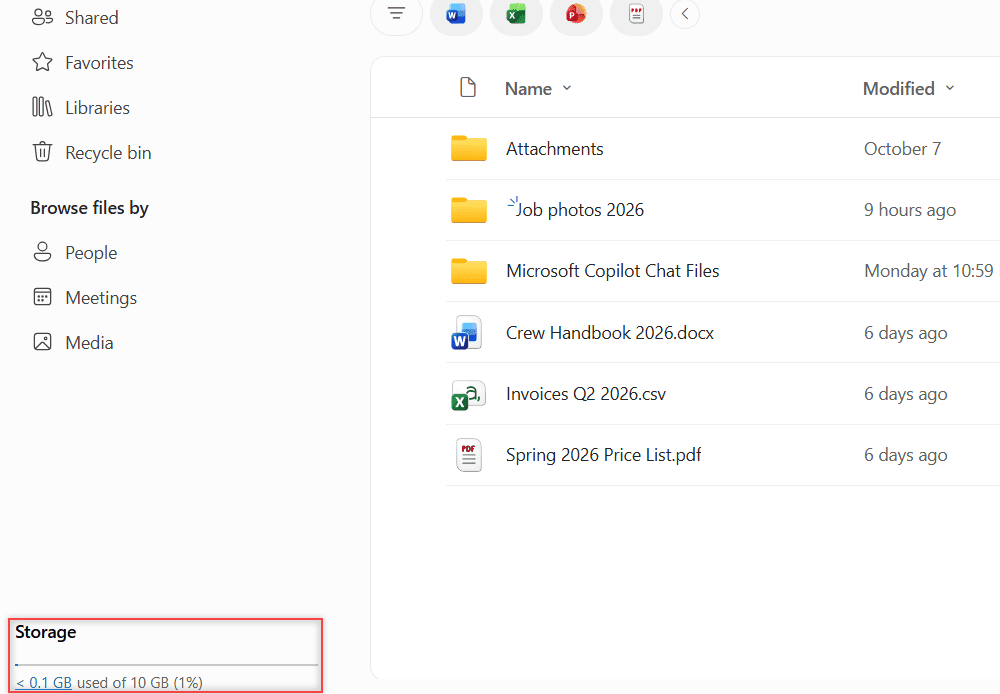
Our test work account shows a 10 GB limit, but that’s a number our admin set, not a standard plan size. Yours will likely look different.
Personal vs work or school OneDrive
There are really two kinds of OneDrive, and they behave a little differently.
- Personal: tied to a Microsoft account, the one you use for Outlook.com, Xbox or signing in to Windows. You manage it yourself.
- Work or school: tied to your organization’s Microsoft 365 account. Your IT department manages it, sets storage and sharing rules, and can turn features on or off.
You can’t merge the two, but the Windows app can sync both at once, so you can copy files between them. Our office also saves client emails into the work OneDrive; here’s how to save Outlook emails to OneDrive.
If OneDrive came with a work laptop, check with IT before turning anything off. Some companies rely on it for backup and won’t let you switch it off.
What happens if you unlink or uninstall OneDrive
Here’s the good news. Microsoft says you won’t lose files or data by unlinking or uninstalling OneDrive. Whatever is already in the cloud stays there, and you can sign in at onedrive.com any time.
What stops is the syncing. New files you save on your PC don’t go to the cloud, and changes made elsewhere don’t come down. Online-only files won’t open from File Explorer without the app, so download anything you need offline first.
Unlink this PC (the gentle option)
- Click the OneDrive cloud icon in the notification area.
- Click Help & Settings, then Settings.
- Open the Account tab and click Unlink this PC.
- Confirm with Unlink account.
To make the folder disappear afterward, set the OneDrive folder to Hidden in its File Explorer properties, then choose Quit OneDrive from the same settings menu.
Uninstall it completely
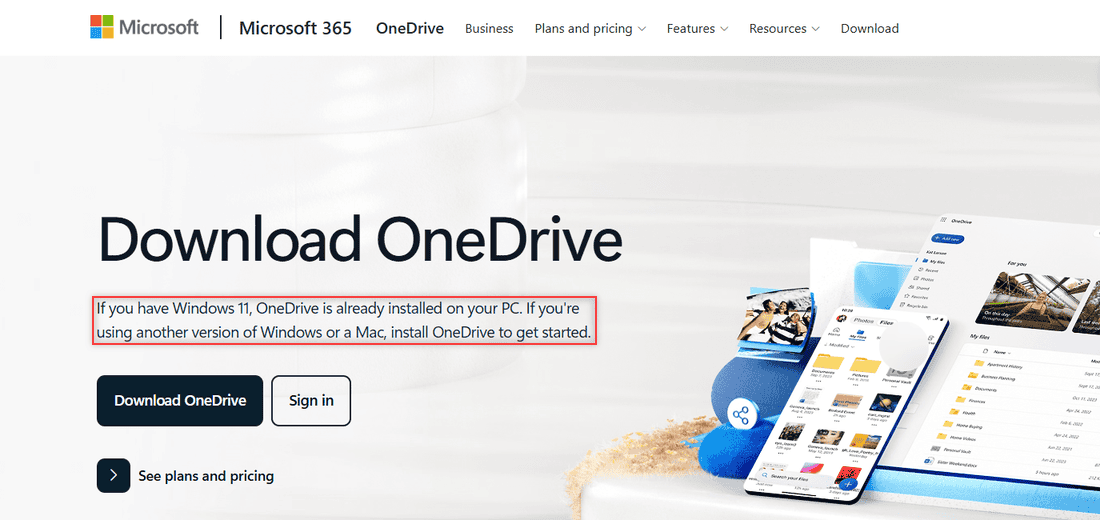
On Windows 11, search the Start menu for Add or remove programs, find Microsoft OneDrive and click Uninstall. On some Windows versions OneDrive is built in and can’t be uninstalled, so hiding it is the fallback.
Changed your mind later? Download the app again from Microsoft’s OneDrive page and sign back in. If you’re moving everything to Google first, my guide to transfer OneDrive files to Google Drive covers that move.
I’d skip registry edits and third-party removal tools. The built-in options above are enough, and they’re easy to undo.
Limits: what OneDrive doesn’t do
OneDrive is good at a few things, and people sometimes expect more than it offers.
- It isn’t a full backup. Sync means a deletion on one device deletes the file everywhere. The recycle bin helps for a while, but it’s not a separate copy.
- Folder backup only covers set folders. Desktop, Documents, Pictures, Music and Videos. Apps, settings and other folders aren’t included.
- Online-only files need internet. On a plane or a job site with no signal, you only get files marked to keep on the device.
- Free space is small. 5 GB is shared with Outlook.com, so a busy phone camera can use it up quickly.
None of these are deal-breakers. They just mean OneDrive works best as one layer of protection, not the only one.
The bottom line
If you use Microsoft 365 for work or school, keep OneDrive. Your files, sharing and Teams attachments depend on it, and IT is counting on it too.
If you’re a home user with no other backup, keep it at least for PC folder backup. It’s the easiest way to get your Desktop and Documents off a single hard drive.
If you already live in Google Drive or another service, unlink it and move on. Your cloud files stay safe, and you can always come back.
Want to go further with OneDrive and Outlook? Start here:
- all my OneDrive tutorials
- my Outlook on the web guides
- my Google Drive tutorials if you’re switching
Common questions
Is it OK to turn off OneDrive?
Yes. On a personal PC it’s fine to unlink or quit OneDrive if you back up your files another way. On a work computer, ask IT first, since your company may rely on it.
Will I lose my files if I uninstall OneDrive?
No. Files already in the cloud stay at onedrive.com after you unlink or uninstall the app. Microsoft explains each option in Microsoft Support: turn off, disable, or uninstall OneDrive.
Is OneDrive free?
Yes, every Microsoft account includes 5 GB of free cloud storage shared with Outlook.com attachments. More space comes with a Microsoft 365 subscription; check Microsoft’s plans page for current options.
Why does OneDrive keep saving my files?
PC folder backup is probably on, so your Desktop, Documents and Pictures save to OneDrive. You can turn each folder off in OneDrive settings under Sync and backup, then Manage backup.

I am Carissa Gudinoa, a technology buff, and Office online and Apple expert with over 9 years of experience. I am passionate about helping others get the most out of their Apple devices. I have written extensively about Apple products and technologies. I am committed to providing my clients with the best possible service and am always up-to-date on the latest Apple products and features. I also write extensively on other software available for use at minimal cost or free. This includes Word Online, Outlook Online, Excel Online, and other Office online programs… Check out more.