
To empty the trash in Google Drive on a computer, click Trash on the left, click Empty trash at the top right, then click Delete forever. On the phone app, tap Menu, then Trash, then More, then Empty trash.
In this tutorial, I’ll show you how to empty trash in Google Drive on a computer and a phone, how to delete just one file, and what happens to files you’ve shared with other people.
Empty the whole trash on a computer
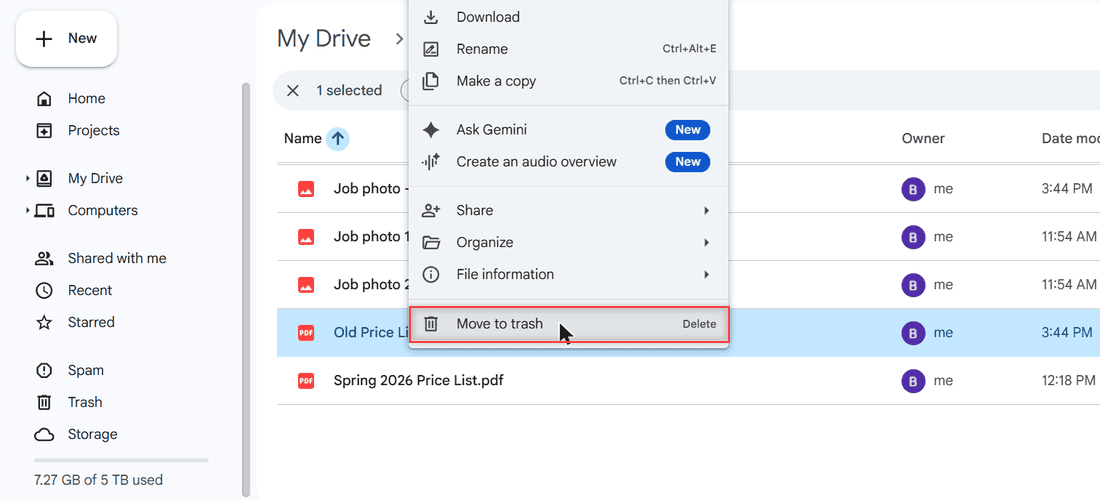
I tested this in my demo Drive for a made-up business, Bluebird Landscaping Co. First I sent two old files to Trash: an outdated price list and a blurry job photo.
To trash a file, right-click it and choose Move to trash, or select it and press Delete. You can select several files at once and trash them together.
Now go to drive.google.com and click Trash in the left menu. You’ll see a banner that says items in trash are deleted forever after 30 days, with an Empty trash link on the right.
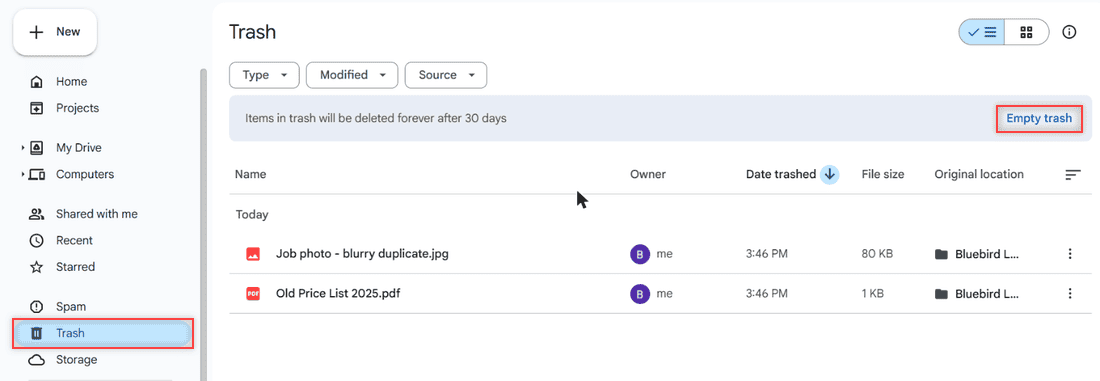
The list shows each file’s owner, the date you trashed it, its size, and where it came from. Take a quick look before you empty anything. I always do, because this is my last chance to change my mind.
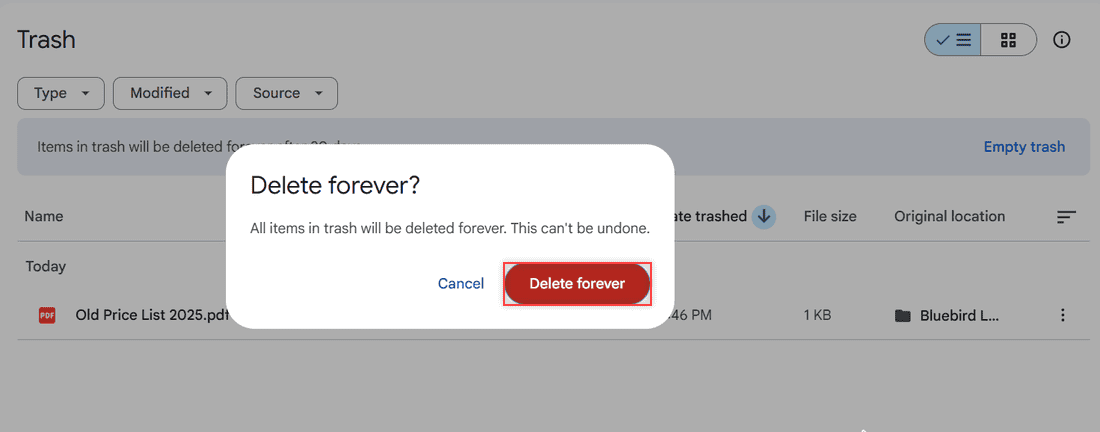
Click Empty trash. Drive asks you to confirm and warns that this can’t be undone. Click Delete forever.
My Trash page switched to Trash is empty right away. The folder’s Activity panel also logged that I permanently deleted 2 items.
Delete one file forever and keep the rest
You don’t have to wipe everything. In Trash, right-click a single file and choose Delete forever. Restore sits right above it, in case you trashed something by mistake.
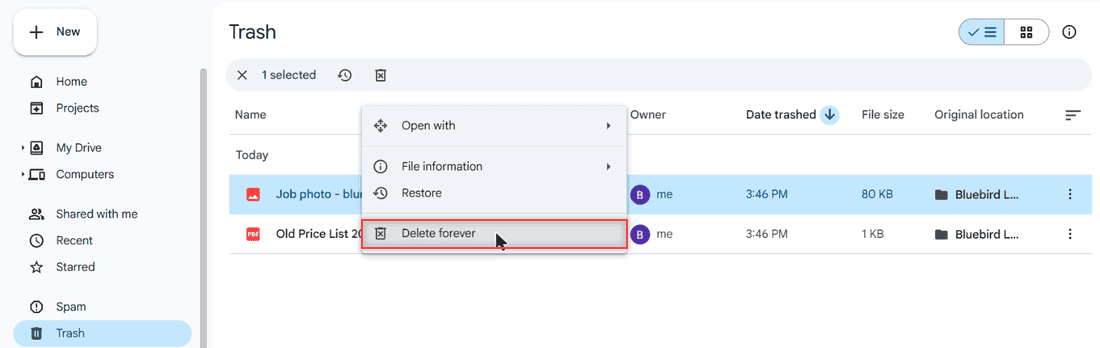
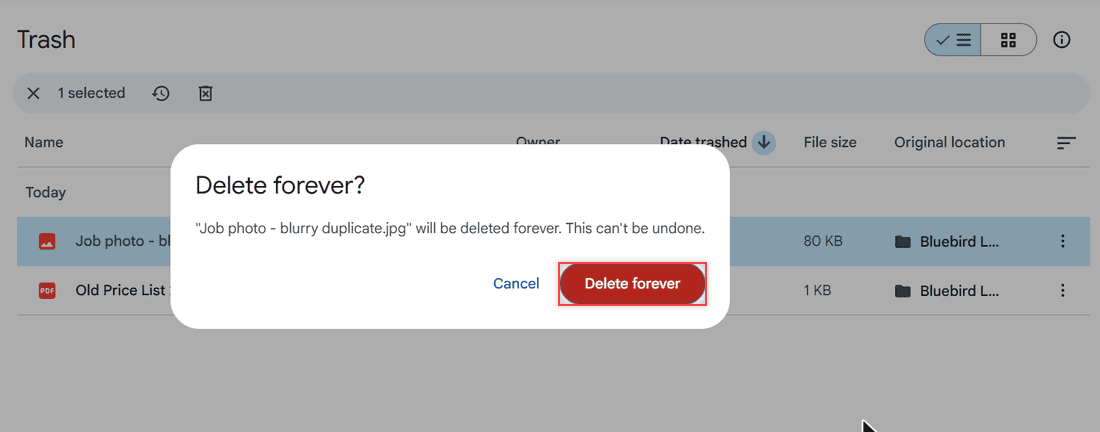
Drive names the file and asks again. I clicked Delete forever to confirm.
Tip: click the Date trashed column to sort by when things were deleted. That makes it easy to find what you tossed last week. If you’re still deciding, read how long Google Drive keeps deleted files.
Empty trash on Android or iPhone
Open the Google Drive app and tap Menu (the three lines). Tap Trash. In some regions it’s called Bin.
Tap More (the three dots) at the top right, then tap Empty trash and confirm. To delete a single file, tap More next to it and pick Delete forever.
What about Google Docs and Sheets trash?
There isn’t a separate trash for Google Docs, Sheets, or Slides. Those files live in Drive, so anything you delete from Docs lands in the same Drive Trash. Empty it there, using the steps above.
Things to know before you empty it
- Trashed files still use storage. They count toward your quota until they’re permanently deleted, so emptying Trash is a quick win when Drive storage looks full.
- Drive empties it for you. Anything in Trash is deleted forever automatically after 30 days.
- Only the owner can delete forever. If someone else owns a file, you can only remove it from your Drive, and others keep access. Here’s how removing shared files works.
- Shared files vanish for everyone. After you trash a file you own, people you shared it with can still open it. Once you delete it forever, they lose access too. Transfer ownership first if a teammate needs it.
- Drive for desktop counts too. Deleting a file from a synced folder on your computer sends it to Trash everywhere. You can turn off Google Drive sync if that’s a problem.
When the files don’t go away
If Empty trash seems to do nothing, refresh the page. Big trashes can take a moment to clear. Also check the profile picture at the top right, since you might be signed in to another account.
If your storage number hasn’t dropped, give it some time to update. Large files elsewhere may also be the cause, so check your folder sizes next.
Want to free up more space? Try these
- Ways to reduce file size in Google Drive
- Delete recent activity on Google Drive
- All Google Drive tutorials
Emptying the trash is the last step, so make sure the right items are in there first. My guide on deleting files from Google Drive shows how that works on a computer and on your phone.
Emptying the trash is only one piece of the cleanup. My guide to managing your Google Drive storage covers what counts against your quota, how Google One can flag cleanup candidates for you, and the monthly checklist I use to stay under my limit.
Quick answers
Can I recover files after emptying the trash in Google Drive?
Generally, no. Once a file is deleted forever, treat it as gone. If it was important, check Google Drive Help: Recover a deleted file for your options.
Does Google Drive empty trash automatically?
Yes. Files in Trash are deleted forever automatically after 30 days, so you only need to empty it yourself if you want the space back sooner.
Does emptying trash free up Google Drive storage?
Yes. Trashed files keep counting toward your storage until they’re permanently deleted. Emptying Trash removes them from your quota.
Where is the trash in Google Drive?
On a computer, it’s Trash in the left menu at drive.google.com. In the app, tap Menu and then Trash, which may show as Bin.

I am Carissa Gudinoa, a technology buff, and Office online and Apple expert with over 9 years of experience. I am passionate about helping others get the most out of their Apple devices. I have written extensively about Apple products and technologies. I am committed to providing my clients with the best possible service and am always up-to-date on the latest Apple products and features. I also write extensively on other software available for use at minimal cost or free. This includes Word Online, Outlook Online, Excel Online, and other Office online programs… Check out more.