
By the end of this, Bluebird Landscaping’s crew handbook, schedule, invoices and price list sit in a Google Drive folder called OneDrive export 2026, still in their Word, Excel, CSV and PDF formats. Nothing is lost, nothing is renamed, and the OneDrive copies are still there until I decide to delete them.
In this tutorial, I’ll show you how to transfer OneDrive files to Google Drive the way I did it for our crew files. You’ll learn the download-and-upload method step by step, the faster route if you use both desktop apps, and what a Google Workspace admin can do when a whole company is moving.
What you need before you move anything
There’s no button inside OneDrive that sends files to Google Drive. Microsoft and Google don’t connect the two for regular users, so every manual method boils down to one thing: the files pass through a computer on the way. That’s fine for a few folders. It just takes some planning.
- Both accounts signed in in the same browser, or in two tabs. Personal Microsoft accounts and work or school (Microsoft 365) accounts download the same way.
- Enough Google storage. A free Google account has 15 GB, shared across Gmail, Drive and Photos. Check the size of your OneDrive folders first, and if Drive is tight, free up space in a full Google Drive.
- Free disk space on your computer for the downloaded copies, at least for the batch you’re moving right now.
- A target folder plan. Decide where things land in Drive before you start, so you’re not sorting hundreds of files afterward.
Which method fits you depends mostly on how much you’re moving and what account you have on the Google side:
| Method | Best for | What you need | Watch out for |
|---|---|---|---|
| Download and upload | A few folders, any computer | Just a browser | Zip limits, extracting first |
| Both desktop apps | Lots of files, ongoing moves | OneDrive app + Drive for desktop | Online-only files, cut vs copy |
| Workspace data migration | A whole company | A Google Workspace admin | Not for personal Gmail |
Here’s the one difference that matters most. If you have a personal Google account (Gmail), you’ll use the manual methods below. If your business runs on Google Workspace, your admin also has a built-in migration service for OneDrive, which I cover further down.
Heads-up: My OneDrive screenshot comes from a Microsoft 365 work account. A personal OneDrive looks almost the same, and the Download button sits in the same toolbar.
Move the files with download and upload
This is the method I’d pick for anyone moving a few folders. It works in any browser, on Windows or Mac, and you don’t install anything. It’s also the method most of the top guides start with, and for good reason.
Select the files in OneDrive on the web
Sign in at onedrive.com, open My files, and check the circle next to each file or folder you want to move. The toolbar changes to show what you can do with the selection, and the right side counts how many items you picked.
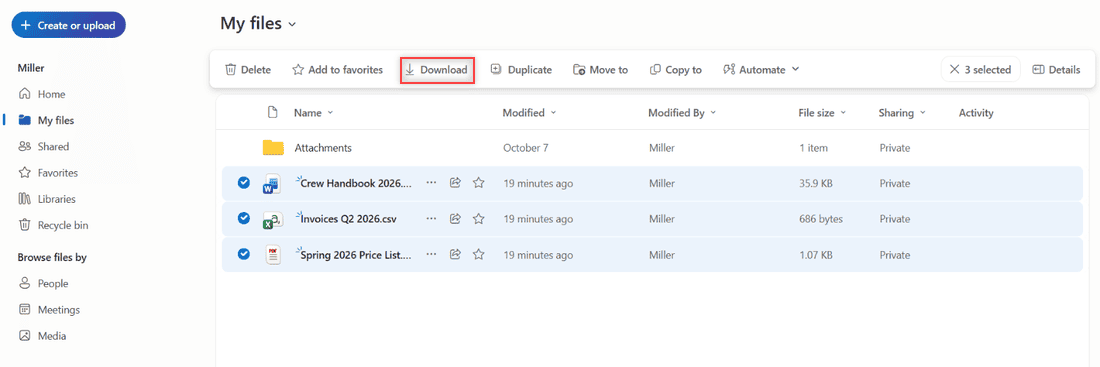
For our move I checked Crew Handbook 2026.docx, Invoices Q2 2026.csv and Spring 2026 Price List.pdf. If you want everything in a folder, check the folder itself instead. Deleted files you still need? Pull them back first, since you can restore items from the OneDrive recycle bin.
Download the selection as a .zip and extract it
Select Download in the toolbar. One file downloads as itself. Several files, or a folder, download as a single .zip file. Some browsers ask where to save it, others drop it straight into your Downloads folder.
Microsoft lists a few limits for these downloads: up to 10,000 files in total, no more than 10,000 files per folder, and a .zip can be up to 10 GB, with 20 GB overall. If your OneDrive is bigger than that, download it in batches, one top-level folder at a time.
Before uploading, extract the .zip. On Windows, right-click it and choose Extract All. On a Mac, double-click it. If you upload the .zip as is, Drive stores one archive and you can’t open the files inside normally. (Drive can only preview what is inside a zip file.)
Make a destination folder in Google Drive
Open drive.google.com and go to the folder where the files should end up. I made a folder named OneDrive export 2026 inside Bluebird Landscaping, so I’d know exactly what came from where. Here’s how to create subfolders in Google Drive if your structure needs more levels.
Choose whether Office files get converted
Do this before you upload, because it only affects new uploads. Click the gear icon, then Settings. On the General tab, find Uploads and the Convert uploads to Google Docs editor format box.
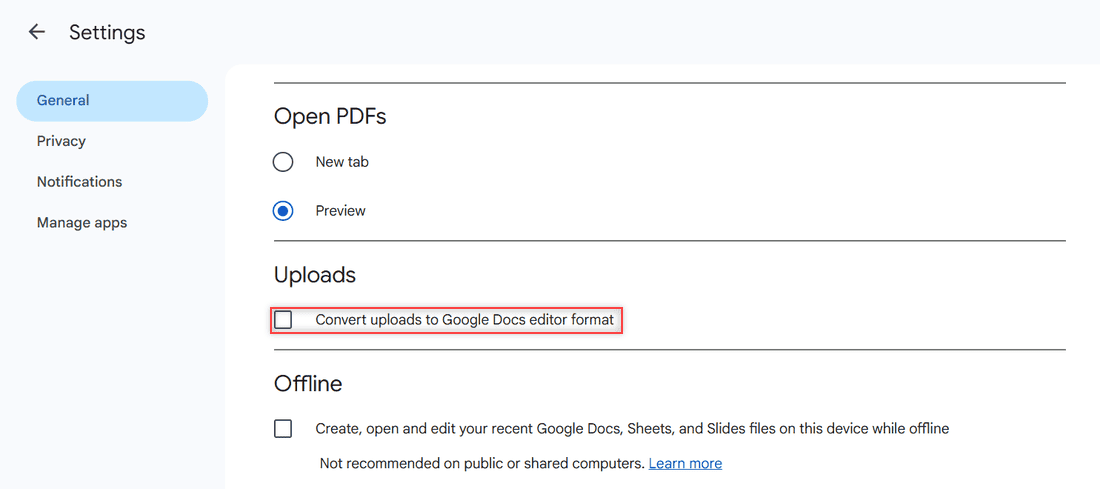
| Setting | What you get | Good for |
|---|---|---|
| Unchecked (my choice) | Files stay .docx, .xlsx, .pptx; you can still open and edit them in Drive | People who still send Office files to clients |
| Checked | Word, Excel and PowerPoint files become Google Docs, Sheets and Slides | Teams moving fully to Google tools |
I left it unchecked. Our bookkeeper still opens the invoices in Excel, so keeping the original formats made life easier. You can convert a single file later from inside Docs or Sheets if you change your mind.
Upload the files or the whole folder
Inside the destination folder, click New. Pick File upload for loose files or Folder upload to send an extracted folder with everything in it. The menu also shows keyboard shortcuts if you prefer them.
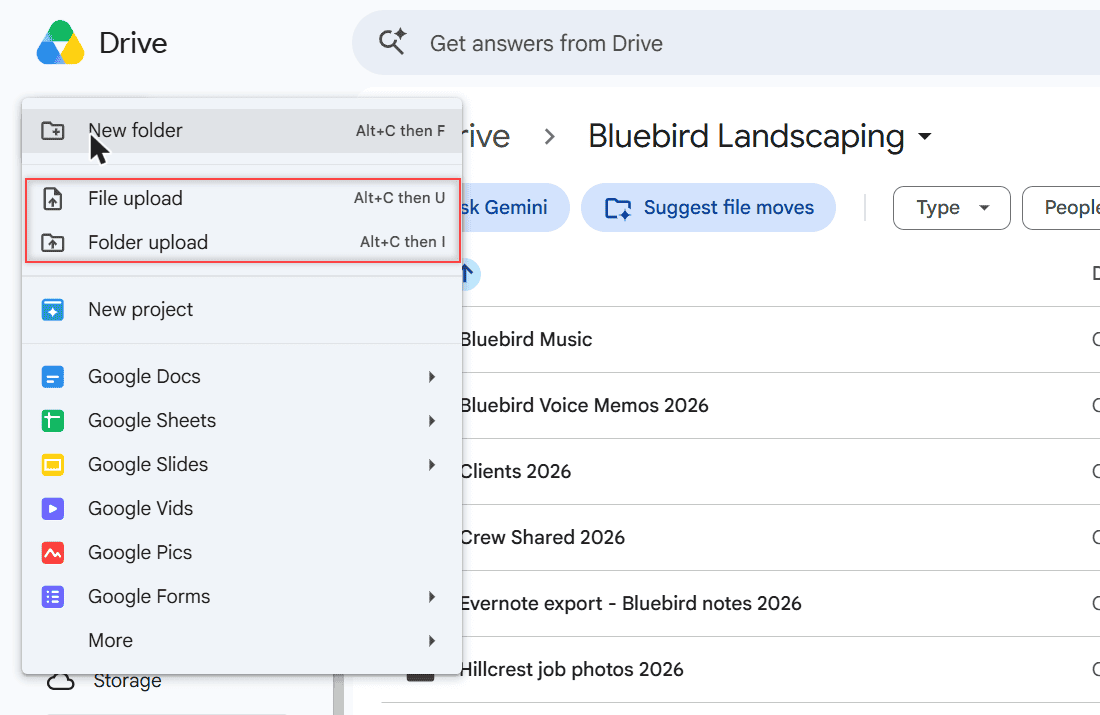
Dragging files from File Explorer or Finder into the open Drive folder works too, and it’s what I usually do. Drive shows a progress panel in the bottom-right corner while files go up. Big video or CAD files take a while, and these tips for uploading large files to Google Drive help when they stall.
One thing to watch: if a file with the same name already exists in that folder, Drive treats the upload as a new version of it. Choose Keep both files when Drive asks if you want two separate copies.
Use both desktop apps to drag files across
If you already run the OneDrive app and Google Drive for desktop on the same computer, you can skip the .zip entirely. Both apps show up as folders in File Explorer (Windows) or Finder (Mac), so moving files is just copying from one folder to the other.
I don’t have either app installed on my test PC, so there are no screenshots for this part. These steps come straight from Microsoft’s and Google’s help pages.
- Install Google Drive for desktop and sign in with the Google account that should receive the files. Work or school accounts may need an admin to install it.
- Open the OneDrive folder in File Explorer or Finder.
- Make sure the files are really on the computer. Files with a blue cloud icon are online-only, so right-click the folder and choose Always keep on this device, then wait for the green check marks.
- Open the Google Drive folder, go into My Drive, and open your destination folder.
- Copy the files from the OneDrive folder and paste them into the Google Drive folder. Drive for desktop uploads them in the background.
Copy rather than cut. If you move files out of the OneDrive folder, OneDrive treats that as a delete and removes them from the cloud too. Keep the originals until you’ve checked the Google side. If OneDrive won’t start at all, this fix for the OneDrive is not running error helps.
Drive for desktop also has its own quirks. If it refuses to open, here’s what to do when you cannot launch Drive for desktop. If uploads sit there without moving, check why Google Drive says waiting to upload.
The same move on a Mac
Nothing changes on a Mac except where things live. OneDrive on the web and Google Drive in the browser look exactly the same in Safari or Chrome. The .zip lands in your Downloads folder, and double-clicking it in Finder extracts a regular folder next to it.
With the desktop apps, both OneDrive and Google Drive appear in the Finder sidebar. Copy from one to the other the same way you would on Windows, and keep the originals until Drive finishes syncing.
Moving files that were shared with you
Here’s a gotcha I ran into with older Bluebird files. Things other people shared with you in OneDrive don’t sit in My files. They show up under Shared, and they still belong to the person who shared them.
You can usually open those and download them just like your own files, as long as the owner allowed downloads. Once you upload them to Drive, though, the Google copy is yours, separate from the original. Later edits the owner makes in OneDrive won’t show up in your Drive copy.
For anything a client or coworker still updates, I’d ask them to share it again from wherever they keep it, rather than freezing an old copy. If the owner turned off downloads, the right move is to ask them for a copy.
The same rules apply on the Google side, and here’s how viewers on Google Drive can download files if you share the new folder back.
Fix common problems during the move
Most moves go smoothly, but a few problems come up often enough that I keep this list handy.
- The download stops or the .zip won’t open. You’re probably near the 10 GB per .zip limit. Select fewer folders and download again.
- Drive says your storage is full. Every upload counts against your quota, so delete what you don’t need or add storage before the next batch.
- An upload fails partway. Retry just the failed files from the upload panel. For one stubborn error code, see Google Drive upload failure 38.
- You started the wrong upload. You can cancel it from the progress panel before it finishes.
- Files show up twice. You probably uploaded the same batch again and chose Keep both files. Delete the extra copies once you’ve checked them.
Moving a whole company to Google Workspace
When a business switches from Microsoft 365 to Google Workspace, nobody should be downloading files person by person. Google gives Workspace admins a data migration service that supports Microsoft OneDrive as a source. It copies files straight from Microsoft’s cloud into each user’s Drive.
- Who can use it: administrators of Google Workspace business, enterprise, education and nonprofit editions. It isn’t available for personal Gmail accounts.
- What comes over: files and folders in their existing formats, up to 180 versions of each file, and sharing permissions mapped to Drive roles (for example, Writer becomes Editor).
- What doesn’t: Personal Vault files, Favorites, folder colors, and files owned by people outside your organization. It also can’t import into shared drives.
- Scale: the default method handles up to 500 users at a time.
You’ll also see plenty of third-party cloud-to-cloud transfer services online. They exist, and some people use them, but every one of them needs sign-in access to both your Microsoft and Google accounts. I’d think hard before handing that over for business files, especially when the free methods above work fine.
Check that the transfer worked
Don’t delete anything from OneDrive until you’ve checked the Google side. When my upload finished, the panel in the corner said 4 uploads complete with a green check next to every file.
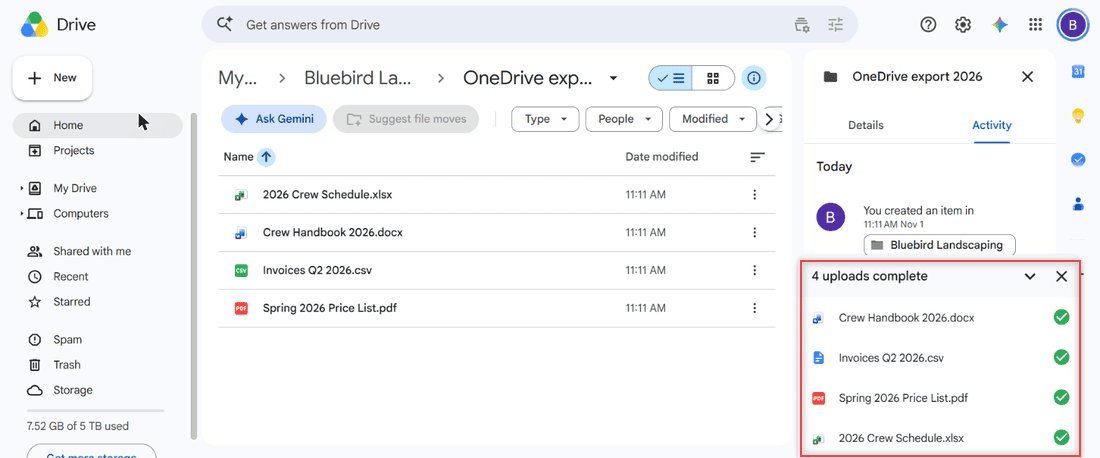
Here’s my quick checklist after any move:
- Count the files. Compare the number of items in the OneDrive folder with the Drive folder. For bigger moves, it helps to list every file in a folder and its subfolders.
- Open a few of each type. I opened the handbook, the schedule and the PDF to make sure they weren’t damaged on the way.
- Compare sizes. You can see the folder size in Google Drive and match it against OneDrive.
- Look at the formats. With conversion off, the icons still show Word and Excel. With it on, they show Docs and Sheets.
Change it for your own files
Our move was four files. Yours may be ten years of photos or a whole shared team folder, so a few adjustments make a big difference.
- Go folder by folder. Smaller batches stay under the download limits and are easy to check.
- Sharing doesn’t follow you. With download and upload, OneDrive sharing links and permissions stay behind. Share the new Drive folders again with the people who need them.
- Version history stays behind too. Only the current version of each file is downloaded. Keep the OneDrive account for a while if you might need older versions.
- Keep a local backup. Before deleting anything, you could also back up OneDrive to an external hard drive.
- Uploads use your storage, even when you upload into a folder someone else shared with you.
Tell people where the files went
The part everyone forgets is the links. Old emails, bookmarks and documents still point to the OneDrive copies, and those links keep working until you delete the originals. That sounds handy, but it means people quietly keep editing the old version.
My plan for Bluebird is simple: one short note to the crew with the new Drive folder link, then a couple of weeks before I clean up OneDrive. That gives everyone time to update their bookmarks.
When you do delete the originals, don’t empty the OneDrive recycle bin right away. Leaving them there for a while is cheap insurance in case someone still needs a file you missed in the move.
Still deciding which service should be home base? My Google Drive vs OneDrive comparison covers storage, Office support and sharing side by side.
If you’re reorganizing your cloud storage, these might help too
- transfer files from Google Drive to iCloud
- download from Google Drive without zipping
- stop a Google Drive upload
- turn off Google Drive sync
Questions about this setup
Can I transfer files from OneDrive to Google Drive directly without downloading?
Not with the built-in tools for personal accounts. Google Workspace admins can use Google’s data migration service, which copies OneDrive files cloud to cloud. Third-party services also exist, but they need access to both accounts.
How do I migrate OneDrive to Google Drive for my whole company?
Ask your Google Workspace admin to run the data migration service with OneDrive as the source. It brings over files, folders, up to 180 versions per file and mapped sharing permissions.
Will my Word and Excel files turn into Google Docs?
Only if you check Convert uploads to Google Docs editor format in Drive Settings before uploading. Otherwise they stay Office files you can still open in Drive. See Google Drive Help: Upload files and folders.
Why did OneDrive download my files as a zip?
OneDrive packs several selected files, or any folder, into one .zip download. Extract it first, then upload the files or folder. Microsoft’s download help lists the size and file-count limits.

I am Carissa Gudinoa, a technology buff, and Office online and Apple expert with over 9 years of experience. I am passionate about helping others get the most out of their Apple devices. I have written extensively about Apple products and technologies. I am committed to providing my clients with the best possible service and am always up-to-date on the latest Apple products and features. I also write extensively on other software available for use at minimal cost or free. This includes Word Online, Outlook Online, Excel Online, and other Office online programs… Check out more.