
By the end of this, our Greenleaf Garden Supply receipt is a one-page PDF instead of a loose phone photo. Priya, our bookkeeper, gets a file that opens the same way on any computer and drops straight into the October 2026 expense folder.
In this tutorial, I’ll show you how to convert image to PDF in Google Drive using Google Docs, since Drive has no one-click JPG to PDF button. You’ll see the quick Open with route, the cleaner blank-doc route, how to check the result, and what to do on your phone.
What you need before you start
I did all of this on October 27, 2026, in our demo Drive, which is a personal Google account. The image was a JPG called Receipt – Greenleaf Garden Supply Oct 2026, sitting in My Drive > Bluebird Landscaping.
- The image already uploaded to Drive. JPG, PNG and GIF files all work the same way.
- Google Drive open in a browser on a computer. Phone steps are further down.
- Google Docs, which comes with every Google account. If you’re fuzzy on how the two fit together, here’s how Google Drive and Google Docs work together.
The idea is simple: the image goes into a Google Doc, and the Doc is what you download as a PDF. Work and school accounts use the same menus.
Quick route: open the JPG with Google Docs
This is the fastest way, and it has a bonus. Docs also tries to read any text in the picture, which is handy for receipts and printed forms.
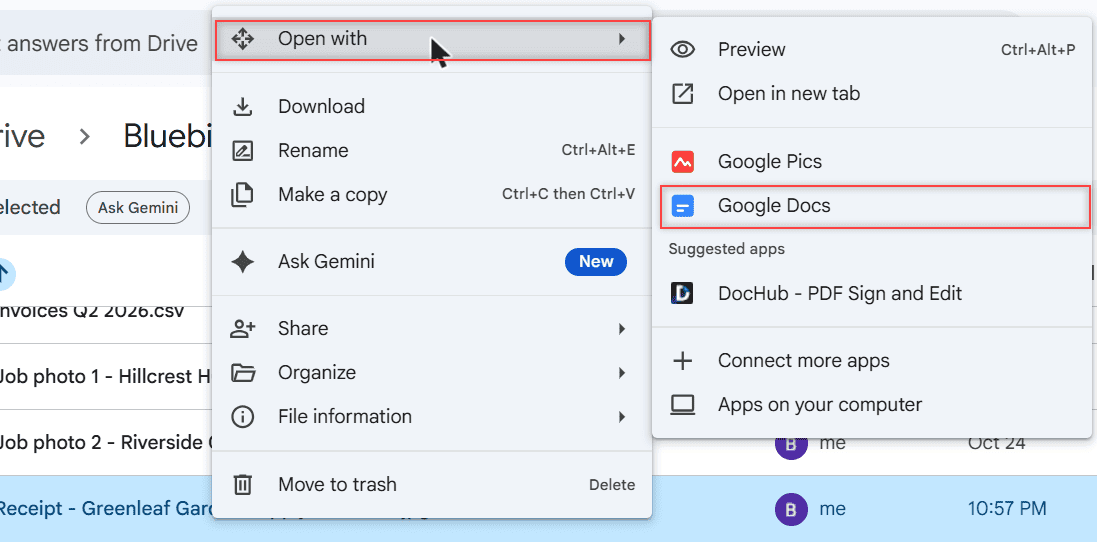
Right-click the JPG and choose Open with > Google Docs
In Drive, I right-clicked the receipt, pointed to Open with, and clicked Google Docs. The same submenu also lists Preview, Open in new tab, Google Pics, a suggested app called DocHub and Connect more apps. You don’t need any add-on for this.
A few seconds later, Drive created a new Google Doc with the same name as the image. The receipt photo sits at the top of page 1.
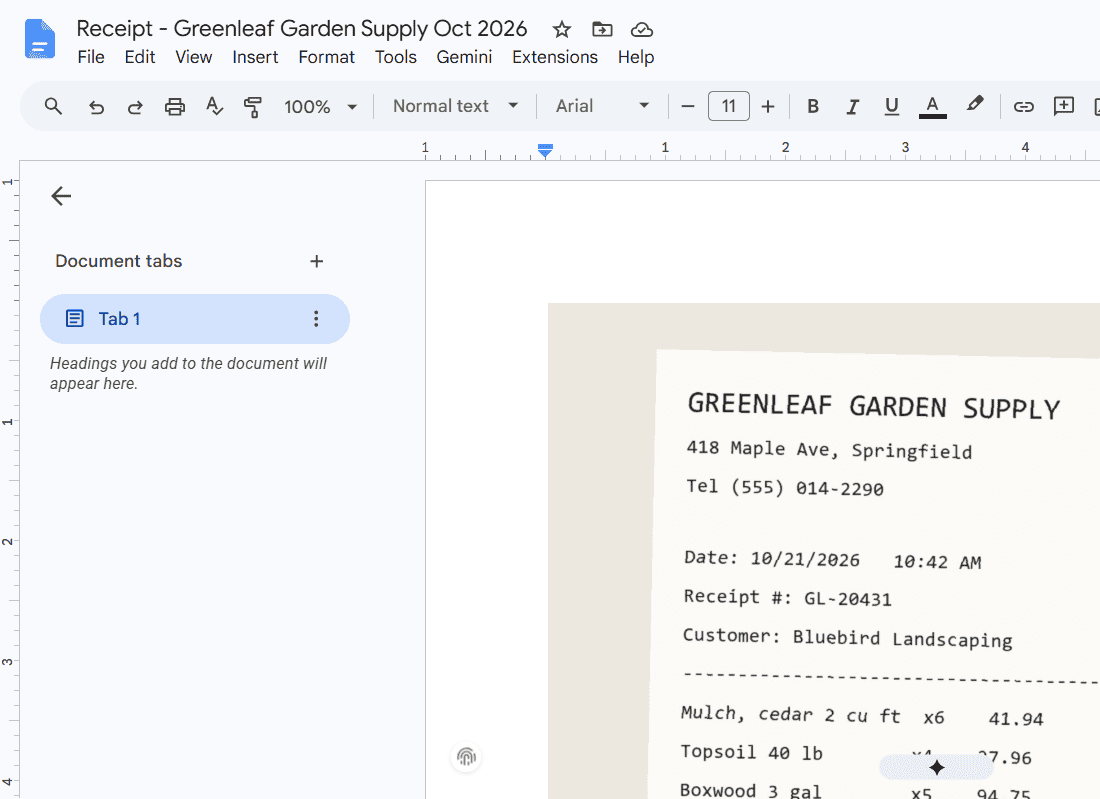
Look at the text Docs pulled out of the image
Below the picture, on page 2, Docs placed the text it read from the receipt: store name, address, the 10/21/2026 date, the receipt number and every line item. It’s searchable and you can copy it.
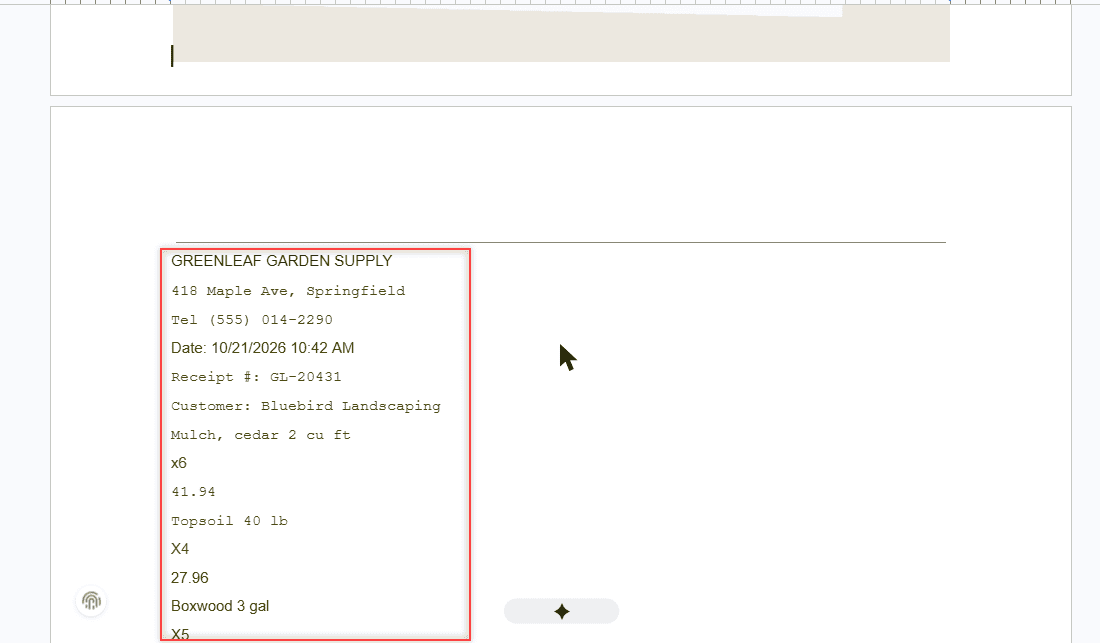
The formatting isn’t perfect. Each price landed on its own line because Docs split the receipt’s columns. Google’s help says bold, italics and line breaks usually survive, but tables and columns usually don’t, and the image should be 2 MB or smaller for text to be read.
If you only want the picture in your PDF, delete the text on page 2 first. Need a refresher on that? Here’s how to edit a document in Google Drive. Then jump to the download step below.
Clean route: build a one-page PDF from a blank doc
When the PDF is going to a client or an accountant, I prefer this route. I control the page size, the margins and how big the image is.
Start a blank doc and insert the receipt from Drive
In Drive, click New > Google Docs > Blank document. I named mine Greenleaf receipt for PDF – Oct 2026. Then click Insert > Image. The submenu shows Generate an image, Upload from computer, Search the web, Drive, Photos, Camera and By URL.
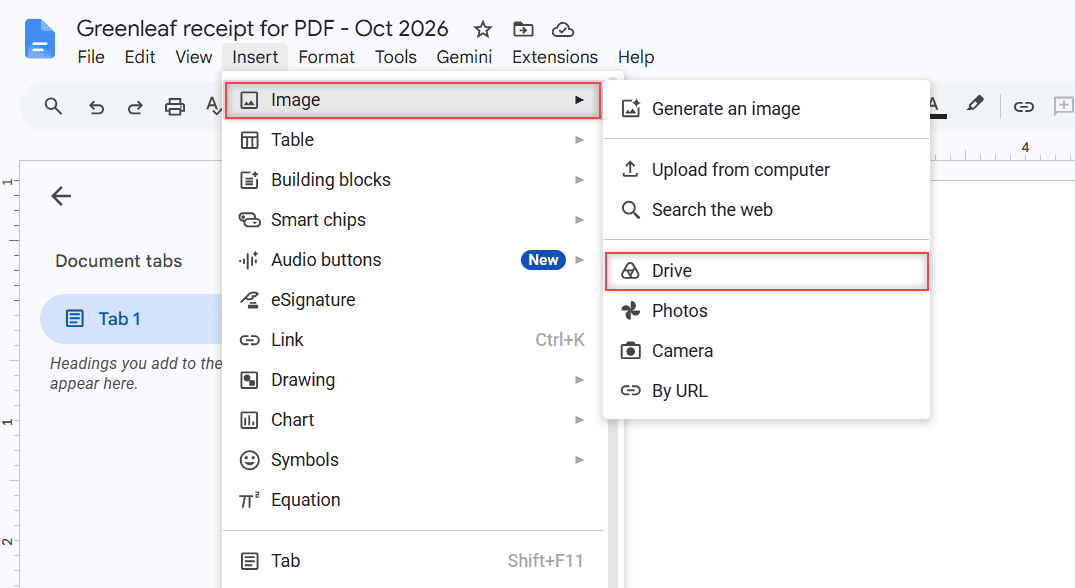
I picked Drive because the receipt was already there. If your picture lives in Google Photos, pick Photos instead, which is the easy answer for anyone turning Google Photos pictures into a PDF.
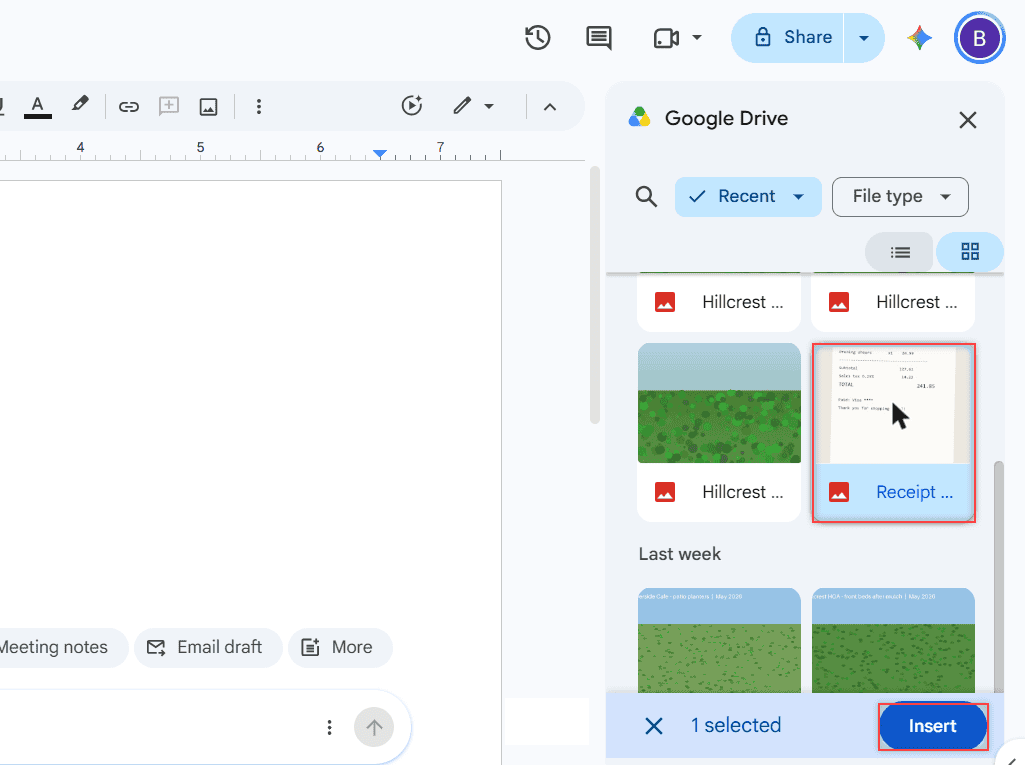
The Google Drive panel opens on the right with Recent and File type filters. Click the image, check that it says 1 selected, and click Insert.
Set half-inch margins in Page setup
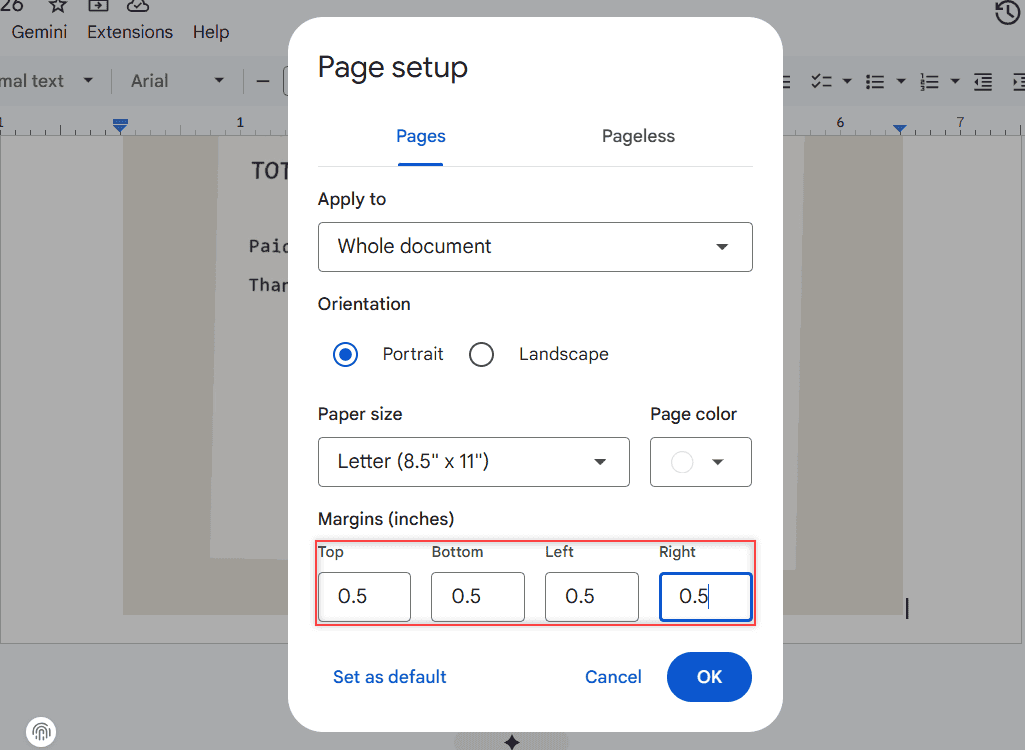
Go to File > Page setup. Keep the Pages tab, Apply to Whole document, Portrait and Letter (8.5″ x 11″). I set Top, Bottom, Left and Right to 0.5 so the receipt could use more of the page, then clicked OK.
Drag the corner to fit the image to the page
Here’s the part that surprised me: changing the margins did not make the image bigger. It stayed the size it was when I inserted it. I clicked the image and dragged a corner handle until it filled the page.
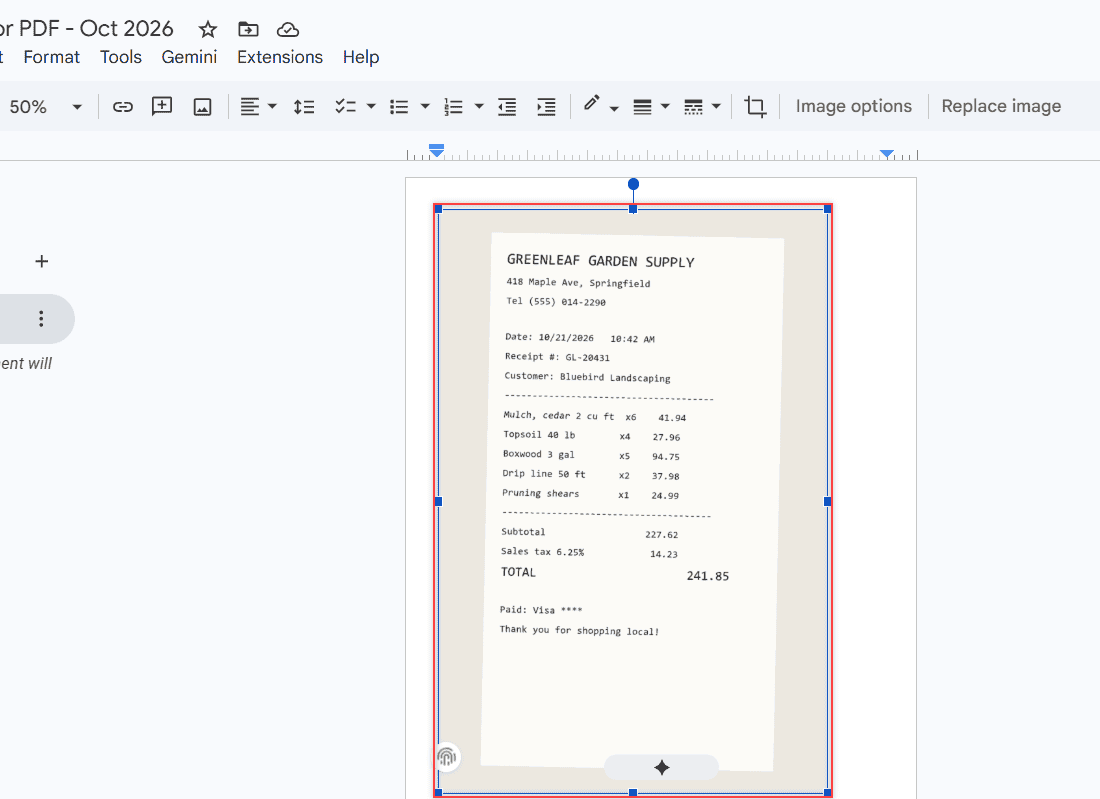
Dragging a corner keeps the proportions, so the receipt doesn’t stretch. Zooming out to 50% makes it easier to see the whole page while you resize.
Download the doc as a PDF Document
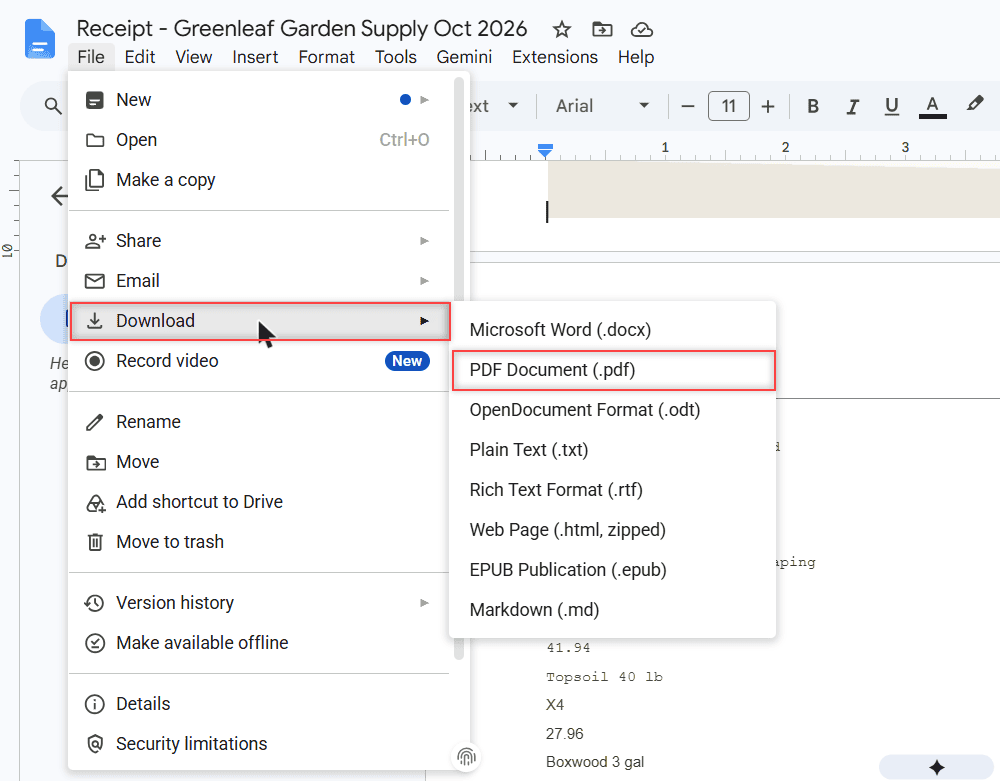
Click File > Download > PDF Document (.pdf). The other choices are Word, OpenDocument, Plain Text, Rich Text, Web Page, EPUB and Markdown, so make sure you pick the PDF one.
Chrome also has a second way that Google suggests for long documents: File > Print, set Destination to Save as PDF, and click Save.
Check the PDF and save it back to Drive
The download goes to your computer, not to Drive. There’s no Save as PDF into Drive button in Docs, so this step trips people up. Open the file from your Downloads folder before you send it anywhere.
- The receipt is on one page and nothing is cut off at the edges.
- Small print, like totals and dates, is still readable when you zoom in.
- There’s no leftover blank page or extracted text you meant to delete.
To keep the PDF in Drive, upload it back: New > File upload, then pick the PDF. Our tips for uploading files to Google Drive help if it stalls. If the download never starts, check why Google Drive downloads fail.
On a work or school account, the steps are identical. If Download or an Open with option is missing, ask your Google Workspace admin, since they manage what your account can use.
Convert images to PDF on your phone
On a phone, the Google Drive app’s scanner is the built-in way to get a PDF. It’s made for paper, so you photograph the receipt instead of picking an image you already took.
- Android: open the Drive app and tap the camera icon at the bottom right. On iPhone or iPad, tap Add, then Scan.
- Aim at the receipt. A blue outline shows what will be kept.
- Take the photo, then crop, rotate, switch to grayscale or add more pages.
- Tap Done, give the file a name and choose the Drive folder.
- Save. On Android you can pick .pdf or .jpg, so pick .pdf. iPhone and iPad save scans as searchable PDFs.
For a photo that’s already in your gallery, upload it to Drive and use the computer steps above. If the upload sits there, try these fixes for Drive not uploading from your phone.
Change it for your own files
Got several images? Insert them all into the same blank doc, one after another, and download once. You’ll get a single PDF with every picture. I put each one on its own page with Insert > Break > Page break so they don’t run together.
Want to print the originals instead? See how to print an entire folder in Google Drive. And if the PDF is going on a website, you can embed a PDF from Google Drive once it’s uploaded.
If you work with files in Drive a lot, these are worth a look:
- save Word documents to Google Drive
- print from Google Drive on an iPhone
- save several Drive photos to your iPhone
- what viewers can download from your Drive
Once your PDF is sitting in Drive, you may want to change the words in it too. I explain how to edit a PDF in Google Drive, including the Google Docs conversion, why the layout breaks afterward, and what Drive simply can’t do with PDFs.
Questions about this setup
Can Google Drive convert JPG to PDF directly?
Not with one button. You open the JPG with Google Docs or insert it into a blank doc, then use File > Download > PDF Document (.pdf).
How do I convert an image to PDF in Google Drive on mobile?
Use the Drive app scanner: camera icon on Android, Add > Scan on iPhone. On Android choose .pdf when you save; iPhone saves scans as PDFs. For an existing photo, upload it and use Docs on a computer.
Why didn’t Google Docs pull any text out of my image?
The image should be 2 MB or smaller, the text at least 10 pixels high and right-side up. Details are in Google Drive Help: Convert PDF and photo files to text.
How do I put several images into one PDF?
Insert all of them into one Google Doc, add page breaks between them, and download the doc once as a PDF.
Does the PDF get saved in Google Drive automatically?
No. Docs downloads the PDF to your computer. Upload it back to Drive with New > File upload if you want it there.

I am Carissa Gudinoa, a technology buff, and Office online and Apple expert with over 9 years of experience. I am passionate about helping others get the most out of their Apple devices. I have written extensively about Apple products and technologies. I am committed to providing my clients with the best possible service and am always up-to-date on the latest Apple products and features. I also write extensively on other software available for use at minimal cost or free. This includes Word Online, Outlook Online, Excel Online, and other Office online programs… Check out more.