
By the end, the office PC at Bluebird Landscaping has a new drive in File Explorer called Google Drive (G:), and the crew’s Bluebird Landscaping folder sits right there under My Drive. I can open a job estimate from Word or save a site photo straight into Drive without ever opening a browser.
In this tutorial, I’ll show you how to install Google Drive on Windows 10 and Windows 11 with Google Drive for desktop, sign in, choose between streaming and mirroring, and then uninstall it cleanly if you ever stop using it.
What you need before you install Drive for desktop
First, a quick name check. The old Backup and Sync app is gone. The only Windows app Google offers now is called Google Drive for desktop, and it’s free with any Google account. Your files still count against your normal storage, so if you’re already tight on space, clean up a full Drive first.
Here’s what Google’s system requirements page lists for Windows:
- 64-bit Windows 10 or Windows 11. 32-bit Windows isn’t supported. On ARM-based PCs, you need Windows 11.
- Microsoft WebView2. It’s already on Windows 11 and most Windows 10 PCs. If yours doesn’t have it, the Drive installer downloads and installs it for you during setup.
- Permission to install apps. On a home PC that’s you. On a work or school computer, your organization might block the app or install it for you, so check with your admin first.
Not sure if your PC is 64-bit? Open Settings > System > About and look at System type. If it says 64-bit operating system, you’re good.
Set up Google Drive for desktop on your PC
I did every step below on a Windows PC with Drive for desktop version 132, using my demo Google account. The screens look the same on Windows 10 and Windows 11.
Download the Windows installer
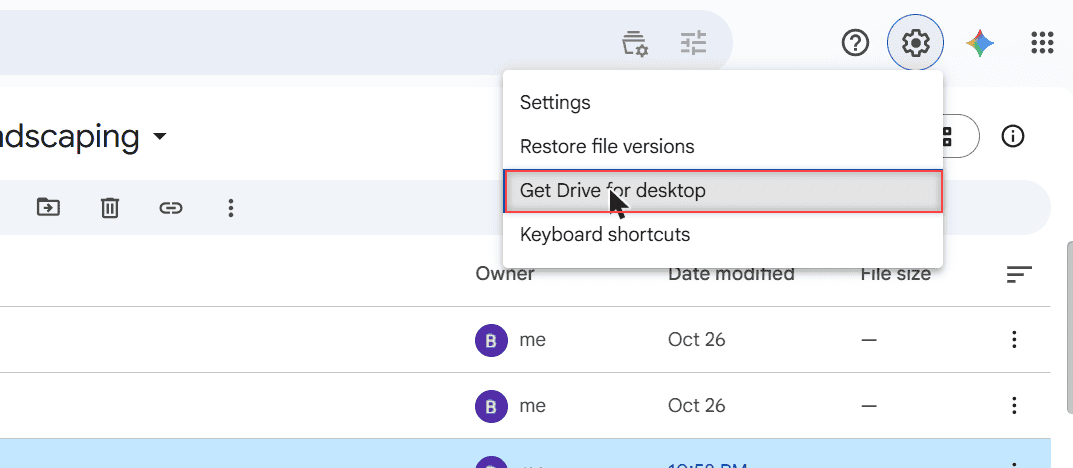
The quickest way in is from Drive itself. Go to drive.google.com, click the gear icon in the top right, and pick Get Drive for desktop.
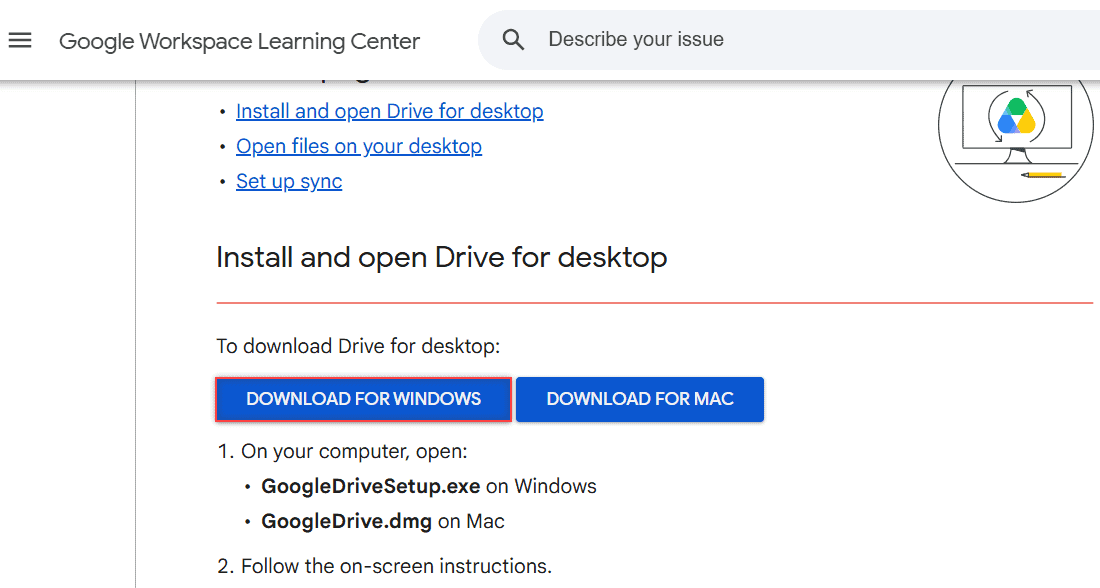
That opens Google’s help page for the app. Click DOWNLOAD FOR WINDOWS, and a file named GoogleDriveSetup.exe lands in your Downloads folder. Ignore any “Google Drive download” sites that aren’t Google’s own. The official installer is the only one you need.
Run GoogleDriveSetup.exe
Open GoogleDriveSetup.exe from your Downloads folder. If Windows asks whether you want to let the app make changes to your device, click Yes, then follow the on-screen steps to finish the install.
Setup takes a minute or two. If WebView2 is missing, this is when the installer quietly grabs it. When it’s finished, you’ll see the Drive icon in the system tray near the clock. If you’d rather have it on the taskbar, here’s how to pin the Google Drive icon.
Sign in with your Google Account
The first time Drive for desktop opens, click Get started, then Sign in. Your browser opens a Google sign-in page. Pick the account you want on this PC and approve the sign-in.
Using a Google Workspace account from work? Sign in with that address instead. If the sign-in gets blocked, it’s usually an admin policy, not a broken install. My post on Drive features disabled by your admin explains what to ask IT for.
Choose which PC folders to back up
Next comes the Welcome to Google Drive screen. It offers to back up folders from your PC, and Documents, Desktop, and Downloads were already ticked for me.
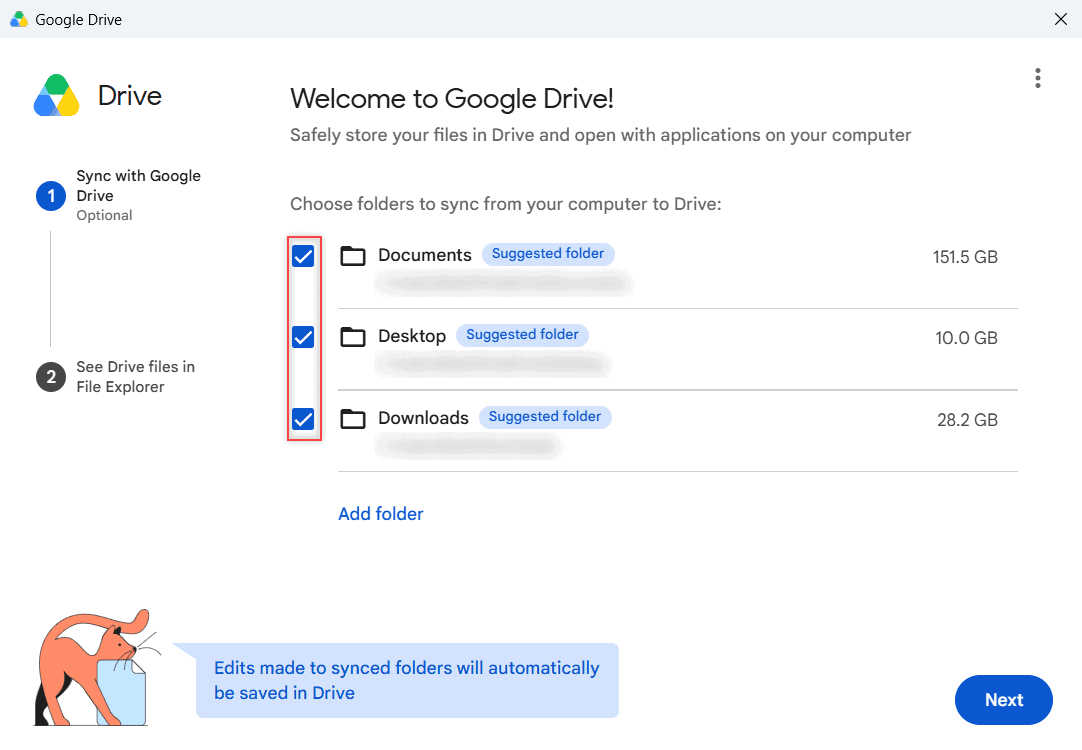
Think before you click Next. Anything ticked here gets uploaded to Drive and uses your storage. I’d untick Downloads on most PCs, since it’s usually full of installers nobody needs in the cloud. You can also click Skip and add folders later from Preferences.
Pick Stream files or Mirror files
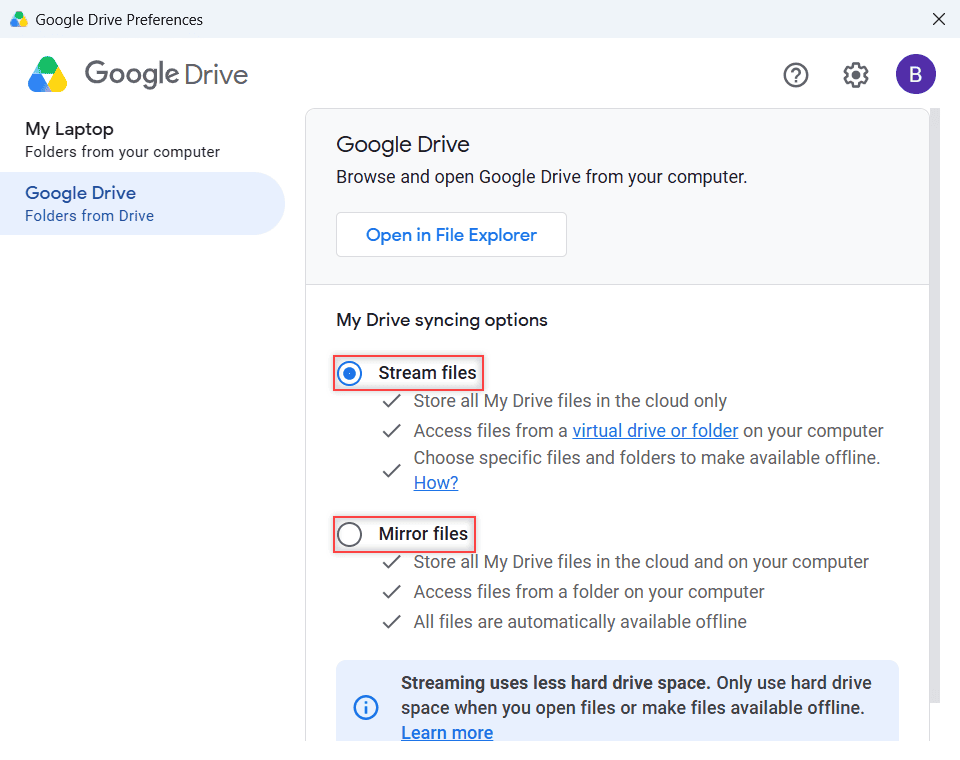
This is the one setting that really changes how Drive behaves on your PC. Click the Drive icon in the tray, then the gear, then Preferences. On the left, click Google Drive (Folders from Drive). You’ll see My Drive syncing options.
| Option | Where files live | Best for |
|---|---|---|
| Stream files (default) | In the cloud; you open them from a virtual G: drive. Files you open are kept for offline use. | Laptops and small SSDs |
| Mirror files | In the cloud and as a full copy in a folder on your PC | Desktops with lots of space and spotty internet |
I left the Bluebird PC on Stream files. Streamed files only show up while Drive for desktop is running, which matters if you ever quit the app. Mirroring keeps a full copy on your hard drive, so plan for the space.
Check that Google Drive shows up in File Explorer
Open File Explorer and look in the left pane. With streaming, you’ll see a new drive called Google Drive (G:). Open it, then My Drive, and your folders should be there. Mine showed the Bluebird Landscaping folder right away.
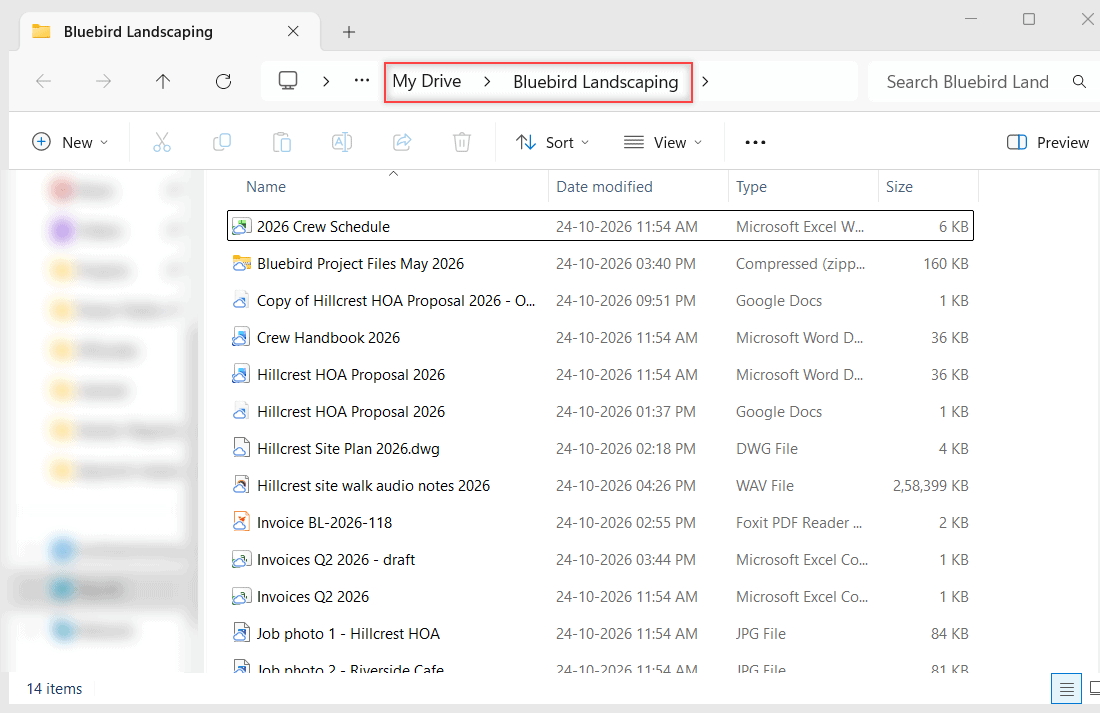
To test it, drag a file into a folder under My Drive, then refresh drive.google.com in your browser. It should show up there shortly. If a file sits on a spinning icon for a long time, my guide to files stuck on waiting to upload walks through the usual causes.
Don’t see the G: drive at all? Make sure Drive for desktop is actually running. If the app won’t open, start with these fixes for Drive for desktop not launching.
Change the setup to fit how you work
Once it’s running, a few settings are worth a look. They all live under the gear menu in the Drive window.
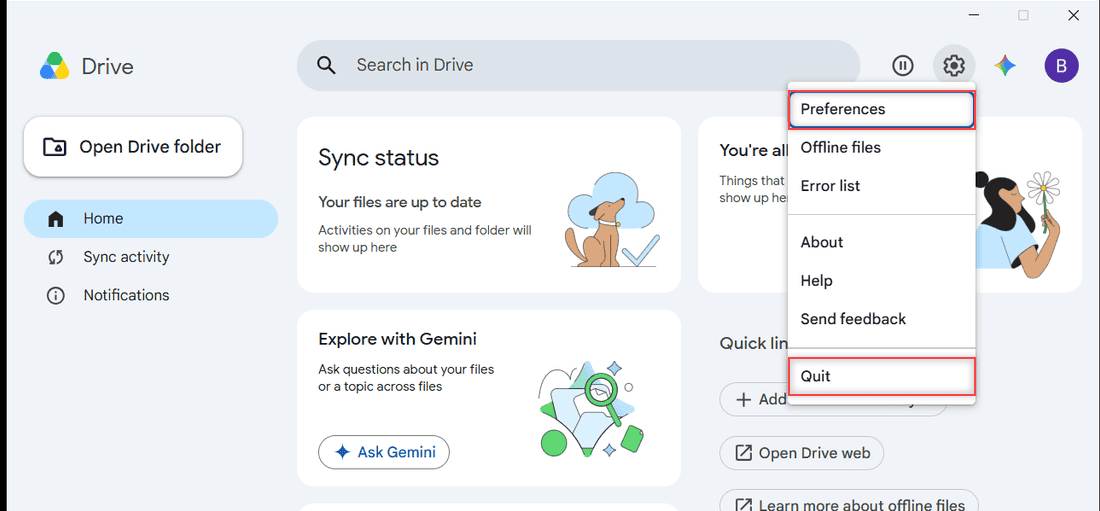
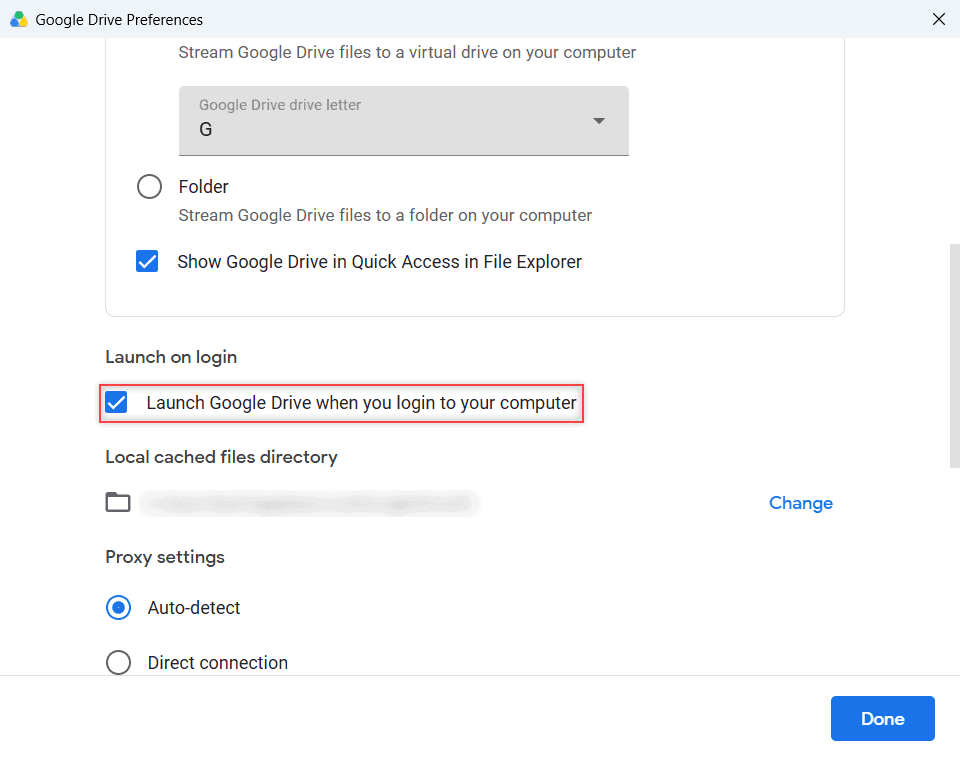
- Start Drive with Windows. In Preferences, click the gear and keep Launch on login ticked so G: is there every morning. Untick it if you only want Drive when you open it.
- Add a second account. You can sign in to up to four Google accounts at once, which is handy if you keep a personal Gmail and a Workspace account on the same PC. Each one gets its own drive.
- Pause it for a while. Choose Quit from the gear menu to stop syncing. For more control, see how to turn off Google Drive sync.
If your connection drops a lot, streamed files can go missing in File Explorer. My post on Drive for desktop going offline covers that one.
Uninstall Google Drive from Windows 10 or 11
If you’re switching to another cloud service or just tidying up, removing Drive takes two parts: disconnect your account (optional, but cleaner), then uninstall the app.
Disconnect your account first
Open Drive for desktop, click the gear, then Preferences. Click the gear inside Preferences to open Settings. Your account row shows how much storage you’re using, with a Disconnect account button next to it.
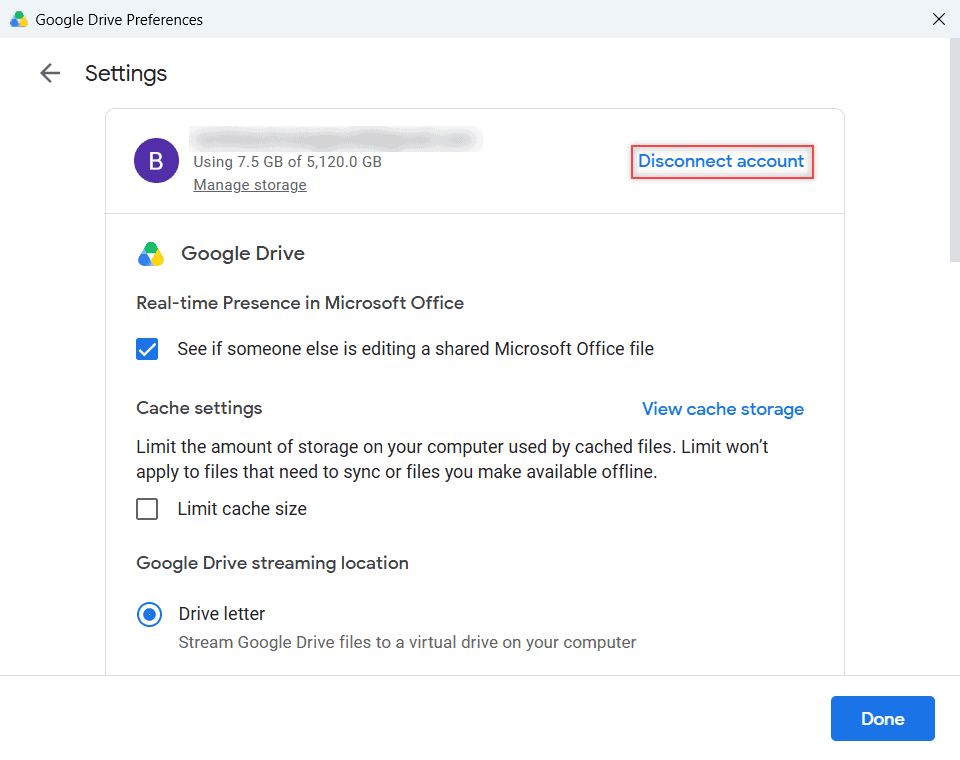
Click it, and Drive asks you to confirm. Click Disconnect.
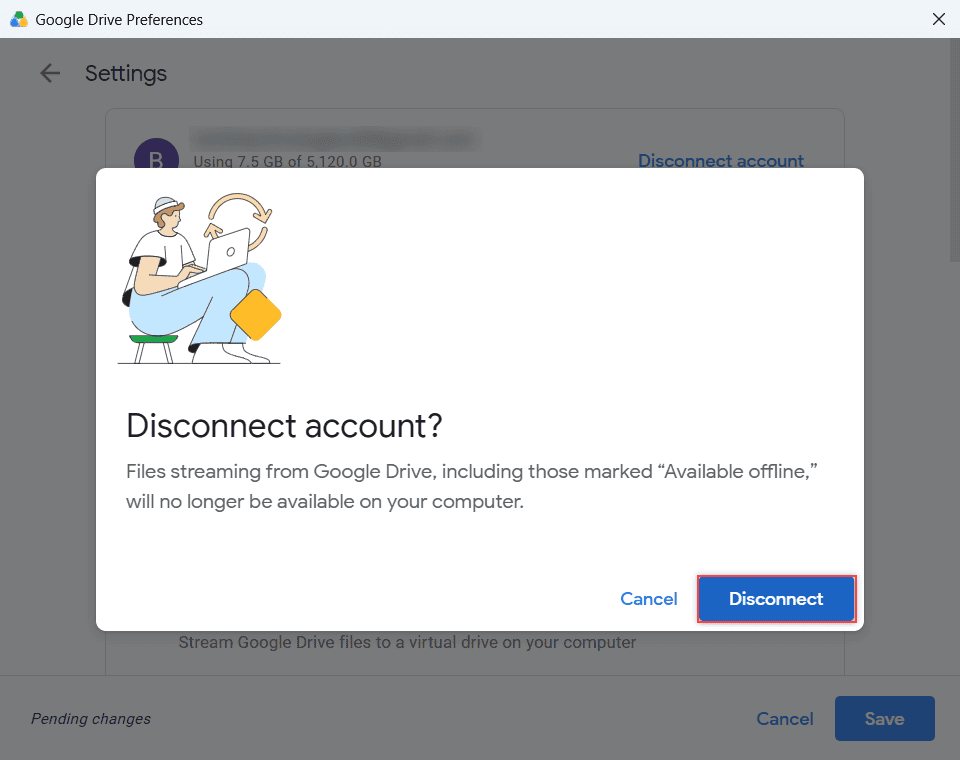
Watch out: On a streaming account, disconnecting removes any files you’d made available offline from this PC. They stay safe in Drive online, but anything not uploaded yet won’t be. Let the sync finish first.
Remove the app in Windows Settings
Now uninstall it the normal Windows way:
- Open Settings > Apps > Installed apps on Windows 11, or Settings > Apps > Apps & features on Windows 10.
- Search for Google Drive.
- Click the three dots (Windows 11) or the app name (Windows 10), then Uninstall, and confirm.
- If Windows asks for permission, click Yes. If the G: drive still shows in File Explorer afterward, a restart clears it.
Prefer the old way? Open Control Panel > Programs and Features, select Google Drive, and click Uninstall. Either route removes the app. Your files stay in your Drive online, and mirrored or backed-up folders stay on your PC too.
A few more Drive guides you might want after setup:
- uploading really large files to Drive
- clearing the Google Drive cache
- personal Drive vs. Workspace Drive
- all my Google Drive tutorials
Questions about this setup
Is Google Drive for desktop free?
Yes. The app itself is free with any personal Google account or Workspace account. Files you sync still count against your account’s storage.
Can I use Google Drive on 32-bit Windows 10?
No. Drive for desktop needs 64-bit Windows 10 or later, and 32-bit Windows isn’t supported. You can still use Drive in your browser at drive.google.com.
Can I have two Google Drive accounts on one PC?
Yes. You can sign in to up to four accounts at once in Drive for desktop, as Google Drive Help: Use Google Drive for desktop explains. Each account shows up as its own drive in File Explorer.
How do I sign out of Google Drive on Windows?
Open Drive for desktop, go to Preferences, click the gear, and choose Disconnect account. To sign in with a different account, click Get started and Sign in again.
Does uninstalling Google Drive delete my files?
No. Uninstalling only removes the app from your PC. Your files stay in Drive online, though offline copies of streamed files are removed when you disconnect.

I am Carissa Gudinoa, a technology buff, and Office online and Apple expert with over 9 years of experience. I am passionate about helping others get the most out of their Apple devices. I have written extensively about Apple products and technologies. I am committed to providing my clients with the best possible service and am always up-to-date on the latest Apple products and features. I also write extensively on other software available for use at minimal cost or free. This includes Word Online, Outlook Online, Excel Online, and other Office online programs… Check out more.