
Your files sit in the Google Drive app with the same gray status for ages, and nothing moves:
Waiting to uploadIn this tutorial, I’ll explain what Google Drive waiting to upload really means and walk you through eight fixes, most likely first. The one that works most often is the Wi-Fi-only setting in the Drive app, so that’s where we’ll start.
What “Waiting to upload” actually means
It isn’t really an error. It means Drive has your files in its upload queue but hasn’t started sending them yet. Something is holding the queue: no usable connection, a setting, full storage, or the app itself.
You’ll see the same thing on a computer. When I uploaded three videos for a landscaping client on drive.google.com, Drive sent the first one while the other two waited with an empty progress ring.
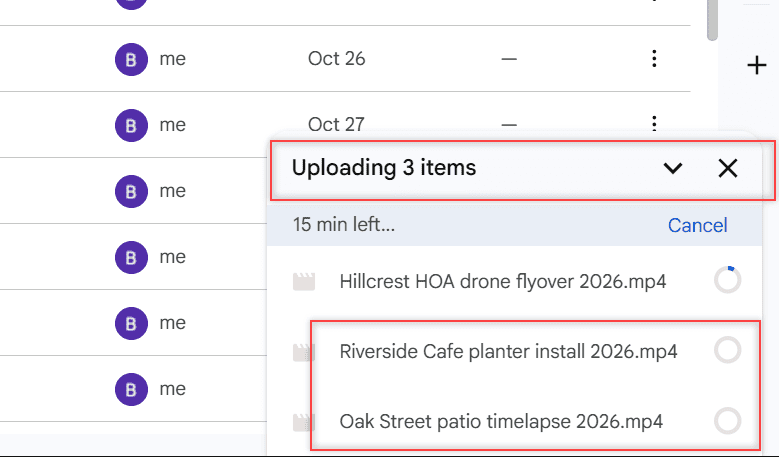
That’s normal. In my test, files in one batch went up one after another, so a big first file made the rest wait. The problem is when nothing moves at all.
If uploads from your phone fail outright instead of waiting, my guide on Google Drive not uploading from your phone covers that case.
Fix 1: Turn off “Transfer files only over Wi-Fi”
This is the first thing I check on Android. If the setting is on and you’re on mobile data, Drive holds every upload until you join a Wi-Fi network. Your files just sit there waiting.
You’ll know it applies if the uploads start the moment you get home to Wi-Fi.
- Open the Google Drive app.
- Tap Menu at the top left, then Settings.
- Under Data usage, turn off Transfer files only over Wi-Fi.
Google notes that this option only shows up when your phone can use mobile data. If you don’t see it, your device has no mobile data connection, and you can skip ahead.
On an iPhone or iPad
Google says you can choose between mobile data and Wi-Fi only on an iPhone, and it points to Apple’s per-app setting. Open your iPhone’s Settings, tap Cellular, and make sure Drive is switched on in the app list.
Fix 2: Check your connection and restart the phone
A weak or dropped connection is the next cause I look for. Google’s own troubleshooting starts with checking your internet connection and trying another network.
If you see a status like this instead, the app can’t reach Google’s servers at all:
Waiting for connection- Open a website in your phone’s browser to confirm the internet works.
- Switch from Wi-Fi to mobile data (or the other way around) to test a different network.
- Restart the phone. On Android, Google says to hold the Power button for about 30 seconds, then tap Restart if asked.
- Open Drive again and watch whether the queue starts moving.
If Drive keeps dropping off even on good Wi-Fi, read why Google Drive keeps going offline. You can also check the Google Workspace Status Dashboard in case Drive itself is having a bad day.
Fix 3: Make sure your Google storage isn’t full
When your storage is full, you can’t upload new files to Drive. Your phone might keep them queued anyway, so full storage can look exactly like a stuck upload.
Remember that your space is shared across Drive, Gmail, and Google Photos. A free account gets 15 GB in total, and a big inbox can fill it without you adding anything to Drive.
- On a computer, open drive.google.com.
- Click Storage in the left menu.
- Check the used amount at the top. The list below shows your files from largest to smallest.
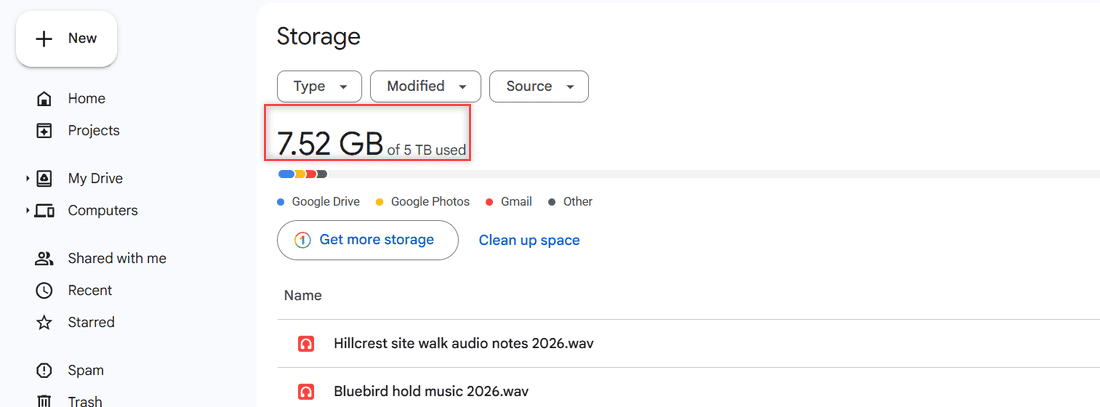
Mine has plenty of room on a 5 TB plan, but I’ve seen plenty of 15 GB accounts sit right at the limit.
Files in Trash still count until they’re gone for good, so empty the trash in Google Drive once you’re sure. If the meter says full and you can’t find the files, see storage full but no files.
Fix 4: Force stop the Drive app and clear its cache
Sometimes the app itself gets stuck, and a force stop is the quickest reset I know. Force stopping it ends whatever it was doing, and the queue usually picks up again when you reopen it. Uploaded files are safe, since they’re already in your account.
Menu names vary a little by phone maker. On a Pixel, Google’s steps are:
- Open Settings and tap Apps, then See all apps.
- Tap Drive, then Force stop, and confirm with OK.
- Tap Storage & cache, then Clear cache.
- Open Drive and check the upload queue.
Stick to Clear cache. Clearing storage or data resets the app on your phone, and Google calls clearing cache a short-term fix, so don’t make it a weekly habit. For the web and desktop side, my post on how to clear cache in Google Drive has the other versions.
Fix 5: Update the Drive app
An old app version can hang on uploads that a newer one handles fine. I update first whenever an app acts odd, and it takes a minute.
- Open the Play Store and tap your profile icon at the top right.
- Tap Manage apps & devices.
- Under Updates available, update Google Drive.
On an iPhone, open the App Store, tap your profile picture, and update Google Drive from the list. Then reopen the app and let it work through the queue.
Fix 6: Resume Drive for desktop if syncing is paused
On a computer, files you drop into the Google Drive folder wait until Drive for desktop syncs them. Google says you can pause or resume syncing at any time, which also means it’s easy to leave it paused by accident.
You’ll know this is it when the Drive for desktop window says Paused at the top.
- Click the Drive for desktop icon in the system tray at the bottom right on Windows, or the menu bar at the top right on a Mac.
- Look at the status at the top of the window.
- If it says Paused, click the Resume (play) button.
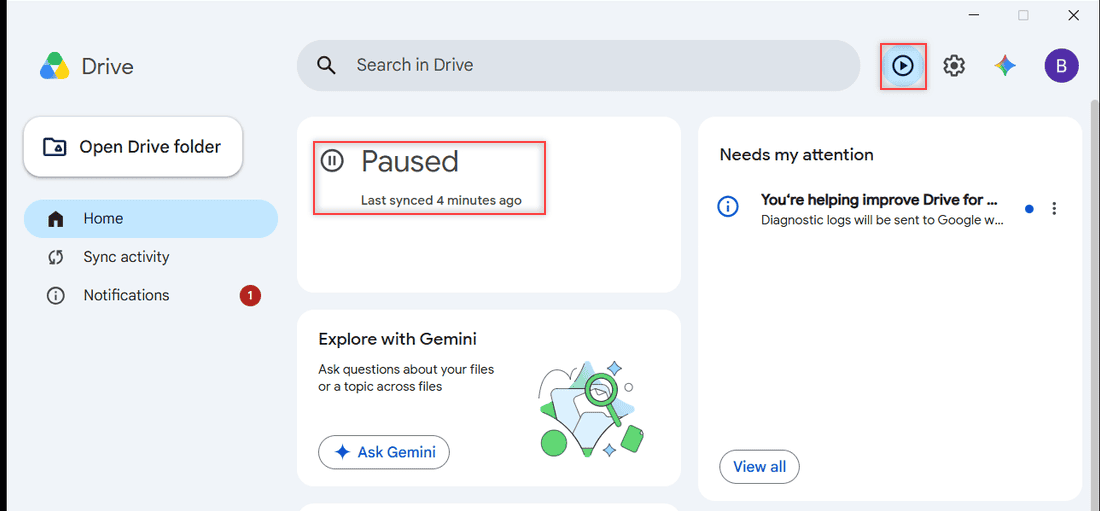
If the app won’t open at all, start with fixing Drive for desktop when it won’t launch. And if you paused it on purpose, here’s how to turn off Google Drive sync properly instead.
Fix 7: Look at Drive’s upload settings on the web
Google says some Drive settings can only be changed from a computer, and the upload conversion setting is one of them. It’s worth a quick look when big Office files are the ones that won’t move.
- On drive.google.com, click the gear icon at the top right, then Settings.
- Find Convert uploads to Google Docs editor format under Uploads.
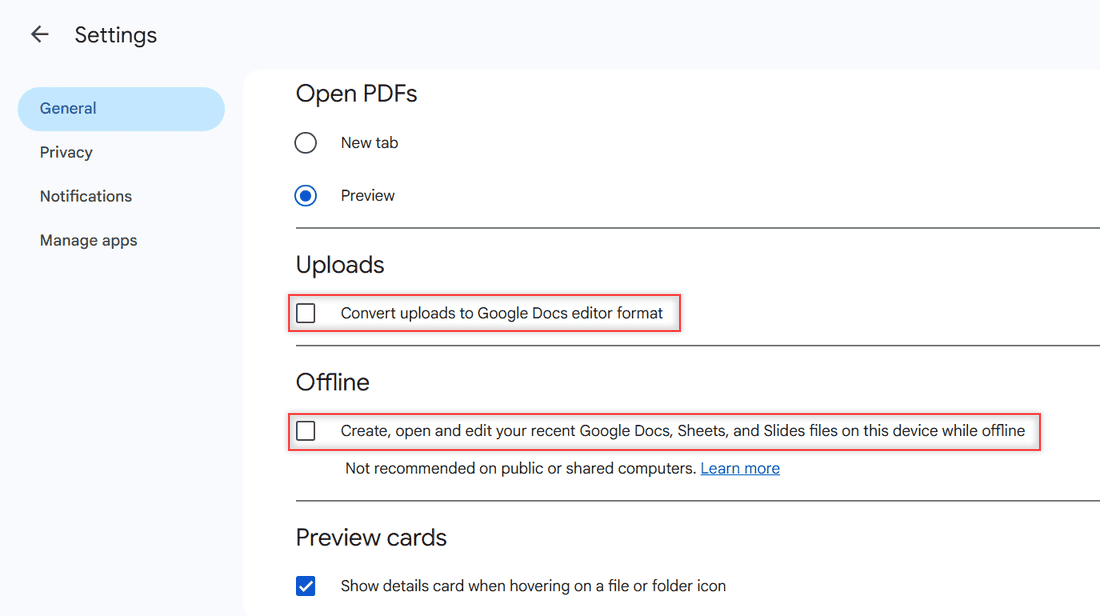
When it’s checked, Drive turns Word, Excel, and PowerPoint files into Google files, and converted files have much smaller limits (50 MB for documents, 100 MB for Sheets and Slides). Leave it unchecked to upload files as they are.
The Offline box just below is for editing recent Docs, Sheets, and Slides without internet. It doesn’t control uploads, so you don’t need to change it for this problem.
Still stuck? Upload from a computer instead
If the phone queue still won’t budge, I’d cancel it and upload the files from a computer. For big videos, my guide on how to upload large files to Google Drive shows the steps. To clear the queue first, here’s how to stop a Google Drive upload.
Files that actually fail, rather than wait, usually show a message in the upload panel. Google Drive upload failure 38 has its own fixes, and why Google Drive is so slow helps when uploads move at a crawl.
Upload in smaller groups too. One huge video at the front of a batch makes everything behind it wait.
Want to keep going? These Drive guides are a good next stop:
- the Google Drive error list and Retry all
- upload a folder from an Android phone
- how shared folders use your storage
- what the green check mark means
More about this error
Why does my Google Drive say waiting to upload?
Your files are in the upload queue, but something is holding it: the Wi-Fi-only setting on mobile data, a weak connection, full storage, or a stuck app. Work through the fixes above in order.
Why does Google Drive say waiting for connection?
The Drive app can’t reach Google right now. Check that your phone is online, try another network, and turn off Transfer files only over Wi-Fi if you’re on mobile data.
What does upload failure 38 mean in Google Drive?
Google doesn’t publish a meaning for code 38. It shows up when an upload stops before it finishes, so treat it as a failed upload and check your connection and storage first.
Does clearing the Drive app cache delete my files?
No. Clearing cache only removes temporary data on your phone, and files that finished uploading stay in your account. Clearing storage or data is different and resets the app. Google Android Help explains the difference.

I am Carissa Gudinoa, a technology buff, and Office online and Apple expert with over 9 years of experience. I am passionate about helping others get the most out of their Apple devices. I have written extensively about Apple products and technologies. I am committed to providing my clients with the best possible service and am always up-to-date on the latest Apple products and features. I also write extensively on other software available for use at minimal cost or free. This includes Word Online, Outlook Online, Excel Online, and other Office online programs… Check out more.