
Last week I uploaded a fresh copy of our Fall Cleanup Checklist 2026.docx and clicked Replace without thinking. The old checklist, with all the crew notes, looked gone. It wasn’t, because OneDrive had kept the earlier version for me.
In this tutorial, I’ll show you how to use OneDrive version history to see older copies of a file and bring one back, on the web, in File Explorer and inside Office apps.
Method 1: Restore an older version on OneDrive on the web
This is the method I tested on November 7, 2026, in my Bluebird Landscaping work account. It works for one file at a time.
- Go to onedrive.com and sign in.
- Find the file in My files or its folder.
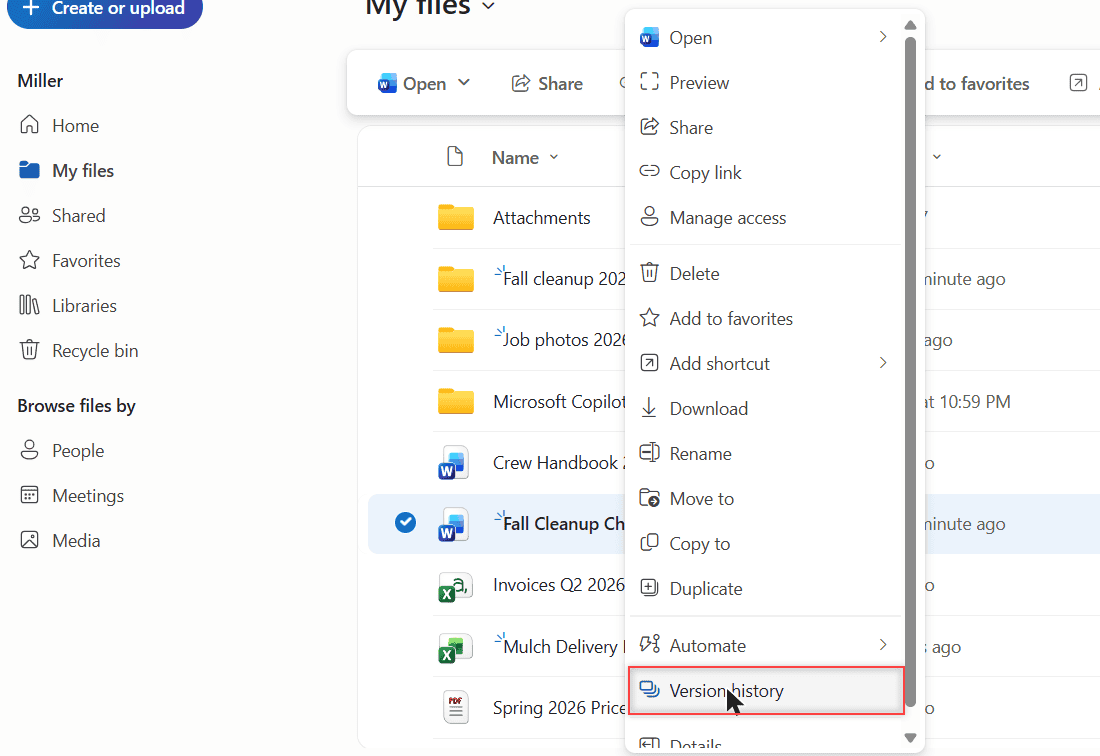
- Right-click the file and pick Version history near the bottom of the menu.
The Version history dialog lists every saved version with its number, the time it was modified, the size and who changed it.
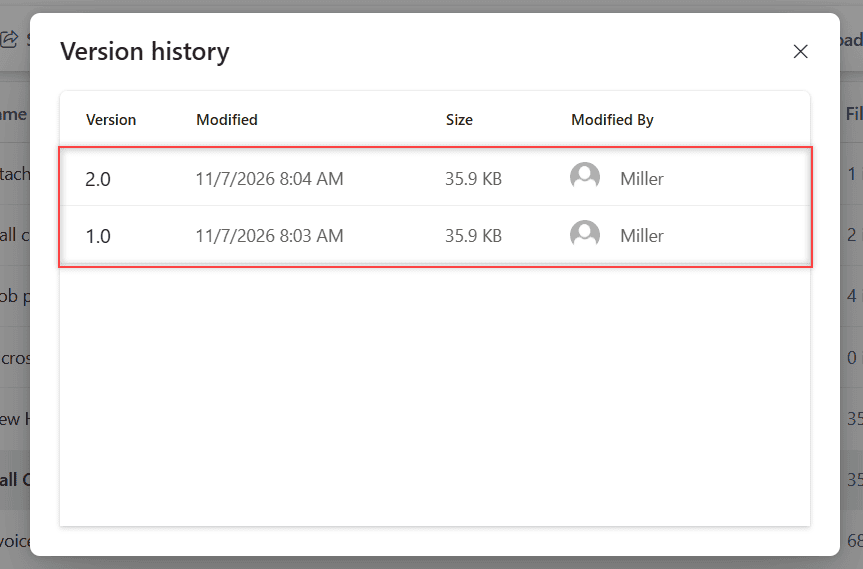
Mine showed 2.0 at 8:04 AM (35.9 KB, Miller) and 1.0 at 8:03 AM. Version 1.0 was the one I wanted.
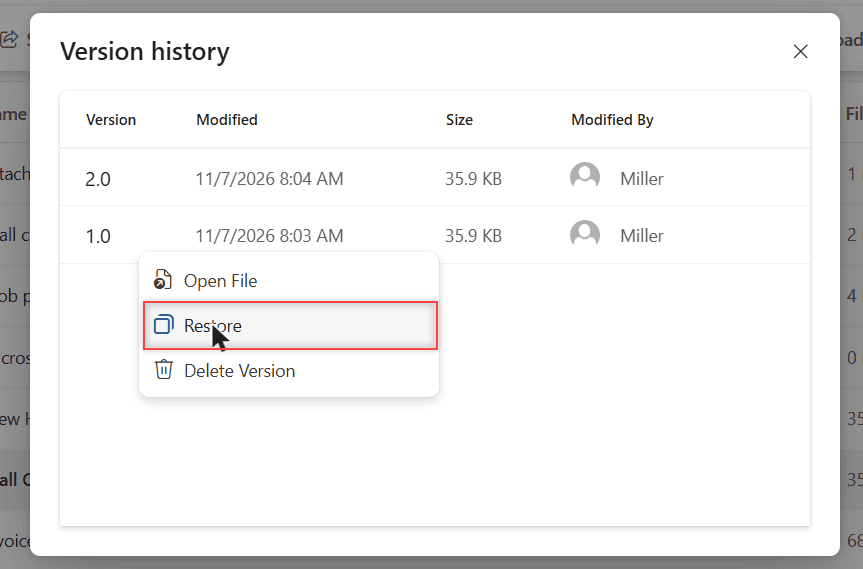
- Point at the old version and click the … (more options) button.
- Pick Open File first if you want to check it.
- Click Restore.
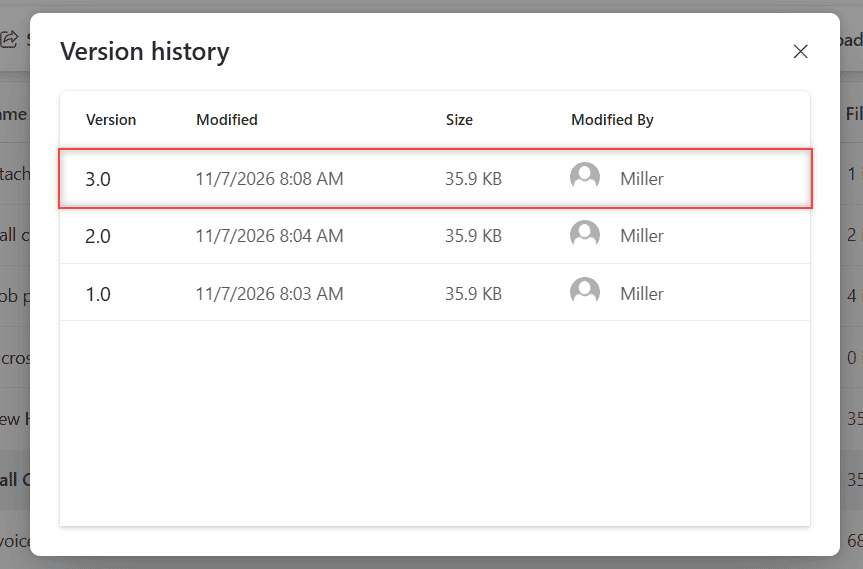
The list didn’t change right away. I closed the dialog, opened Version history again, and there it was.
How does this work?
Restore doesn’t erase anything. OneDrive copies version 1.0 on top as a brand-new version, 3.0 at 8:08 AM, and keeps 2.0 and 1.0 in the list. If you restored the wrong one, just restore again.
Deleted the whole file instead of overwriting it? Version history can’t help there, so check the OneDrive recycle bin first.
How a new version gets created
Uploading a file with the same name into the same folder is one way OneDrive adds a version, and it’s exactly how I made version 2.0.
When I dragged the new checklist into the same folder, OneDrive showed this message:
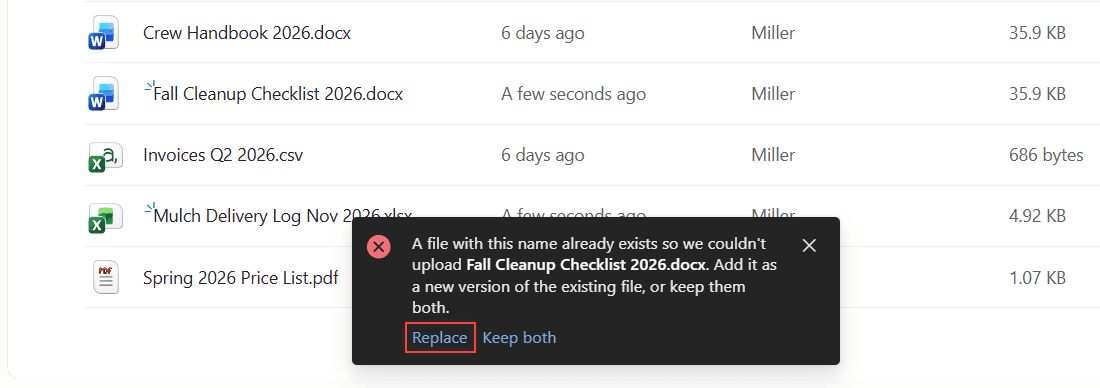
A file with this name already exists ...
Add it as a new version of the existing file, or keep them both.
Replace    Keep both
Replace adds the upload as a new version. Keep both keeps the old file and the new one as two separate files.Versions live in the cloud, so it’s still smart to back up OneDrive to an external drive now and then.
Method 2: Use Version history in File Explorer on Windows
If the OneDrive sync app runs on your PC, you don’t need the browser at all.
- Open your OneDrive folder in File Explorer.
- Right-click the file and choose Version history.
- Click the … next to the version you want and pick Restore.
How does this work?
File Explorer opens the same version list you see online, because the versions are stored in OneDrive, not on your PC. If the option is missing, make sure OneDrive is running on your PC.
Method 3: Open older versions from Word, Excel or PowerPoint
When the file is saved in OneDrive and already open in a Microsoft 365 app, you can reach the same history from inside the app.
- Click the file’s name in the title bar at the top of the window.
- Choose Version history.
- Select a version. It opens in a separate window so you can compare it.
- Click Restore if it’s the one you want.
Pro tip: Open the old version and copy just the part you need into the current file. That way you keep today’s changes and still get the lost text back.
Google Drive works in a similar way, and I walk through it in Google Drive version history.
Things to keep in mind
- Version history works for all file types, including Office files, PDFs, CAD files, photos and videos.
- You can only open the version list for one file at a time.
- Personal accounts keep version history for 30 days.
- Work or school accounts follow limits your admin sets, and an admin can even turn versioning off.
- Old versions trimmed by a work limit are deleted for good and skip the recycle bin.
If long version history matters to you, it’s one of the things I weigh in Google Drive vs OneDrive.
Want to keep your OneDrive files safe? Read these next:
- how to transfer OneDrive files to Google Drive
- how to save Outlook emails to OneDrive
- all my OneDrive tutorials
Frequently Asked Questions
How far back does OneDrive version history go?
On a personal account, versions are kept for 30 days. On a work or school account, your admin sets the limit. Microsoft explains it in Restore a previous version of a file stored in OneDrive.
Does restoring a version delete the newer one?
No. OneDrive copies the old version on top as a new version and keeps the others, so you can switch back any time.
Why is Version history missing in OneDrive?
On a work or school account, your admin may have turned versioning off. In File Explorer, the option also needs the OneDrive sync app on your PC.
Can I delete an old version in OneDrive?
Yes. Click the … next to the version and pick Delete Version. Use it with care, since you may need that copy later.

I am Carissa Gudinoa, a technology buff, and Office online and Apple expert with over 9 years of experience. I am passionate about helping others get the most out of their Apple devices. I have written extensively about Apple products and technologies. I am committed to providing my clients with the best possible service and am always up-to-date on the latest Apple products and features. I also write extensively on other software available for use at minimal cost or free. This includes Word Online, Outlook Online, Excel Online, and other Office online programs… Check out more.