
Pick OneDrive if you already use Word, Excel, Outlook, or a Microsoft 365 work account, because it’s built into all of them and the free plan is bigger. Pick Dropbox if your files come from many different apps, you work on Linux, or your team mixes Microsoft and non-Microsoft tools.
In this tutorial, I’ll compare Dropbox vs OneDrive one difference at a time: free storage, Office apps, syncing, sharing controls, version history, platforms, security, and admin tools for a small business. I’ll also say plainly where personal plans and business plans behave differently.
I checked the OneDrive side in a Bluebird Landscaping Microsoft 365 work account on November 7, 2026. I don’t have a Dropbox account, so every Dropbox detail below comes from Dropbox’s own plan and help pages.
Dropbox vs OneDrive at a glance
Here’s the short version. If you’re also weighing Google, I’ve done the same side-by-side for Google Drive vs Dropbox and for Google Drive vs OneDrive.
| Feature | Dropbox | OneDrive |
|---|---|---|
| Free storage | 2 GB on Dropbox Basic | 5 GB with a Microsoft account |
| What counts against it | Only your Dropbox files | OneDrive files, Outlook.com attachments, Microsoft 365 apps |
| Office apps | Edits Office files through Office for the web | Word, Excel, PowerPoint built in |
| Free device limit | 3 devices on Basic | No device cap listed |
| Deleted files | 30 days (Basic, Plus), up to 1 year on top team plans | 30 days personal, 93 days work or school |
| Link passwords and expiry | Professional and team plans | Microsoft 365 subscribers and work accounts |
| Linux app | Yes (Ubuntu, Fedora) | Not listed |
| Extra file protection | Two-step verification for all users | Personal Vault, ransomware detection |
| Business storage | Team plans from 3 TB | 1 TB per user on Business plans |
I’m not listing prices anywhere in this post. Both companies change them and they vary by region, so check each plan page before you buy.
Free storage and what counts against it
A free Microsoft account comes with 5 GB of cloud storage. Dropbox Basic, the free Dropbox plan, gives you 2 GB. So OneDrive wins on free space, but there’s a catch in what shares that 5 GB.
Microsoft says the 5 GB covers your OneDrive files and photos, Outlook.com attachments, and files from Microsoft 365 apps. Your Outlook.com mailbox itself has a separate 15 GB limit. Dropbox space holds only your Dropbox files.
Go over the limit on the personal side and your OneDrive turns read-only, and Outlook.com stops sending and receiving mail. Stay over for six months and Microsoft says it might delete your OneDrive. If that’s already happening, here’s how to check your Outlook storage space.
On paid personal plans, Microsoft 365 Personal includes 1 TB, and Family includes 2 TB you can share with up to five more people. Dropbox Plus gives one person 2 TB.
One more personal-plan detail: Microsoft says Basic and Personal storage can’t be shared with anyone, while Family storage is shared but each person’s files stay private. If you want one plan for a household, Family is the OneDrive tier built for it.
Work accounts are different. The storage line in our Bluebird test account reads 0.1 GB used of 10 GB. That 10 GB is a limit our admin set for testing, not a plan size.
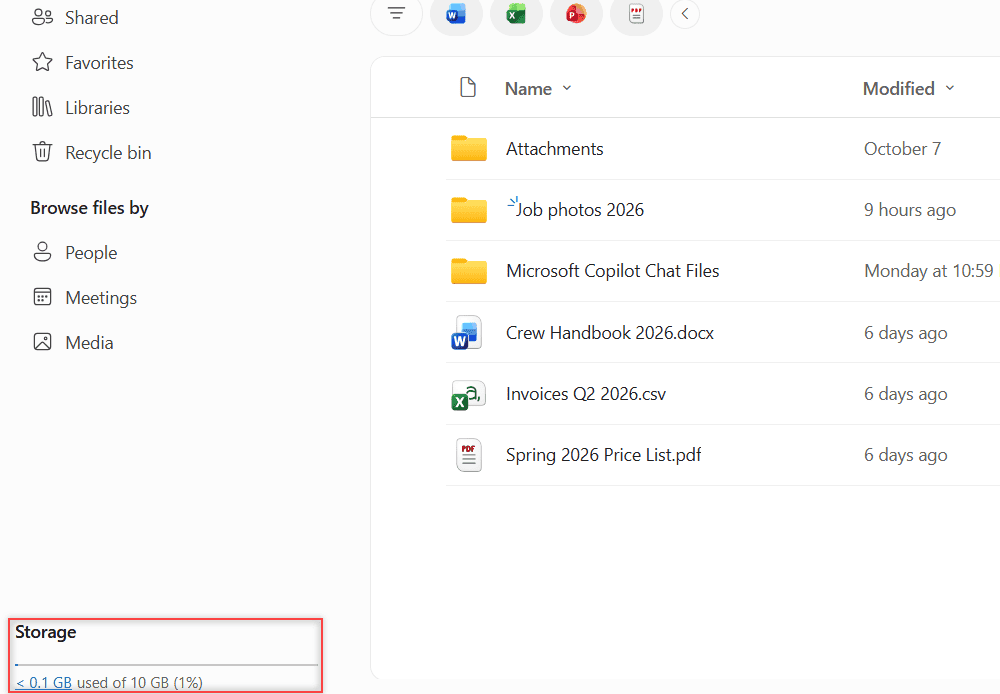
Microsoft’s Business Basic, Standard, and Premium plans include 1 TB per user, and an admin can set a lower default. Dropbox team plans start at 3 TB for the whole team on Standard.
Office integration: OneDrive is built for Word and Excel
This is OneDrive’s biggest edge. Even the free Microsoft account includes the web versions of Word, Excel, and PowerPoint, and new documents save to OneDrive automatically.
In our work account, the Create or upload button lists Word, Excel, PowerPoint, OneNote, Forms, Visio, Clipchamp, and Lists right next to the upload options. You never leave OneDrive to start a document.
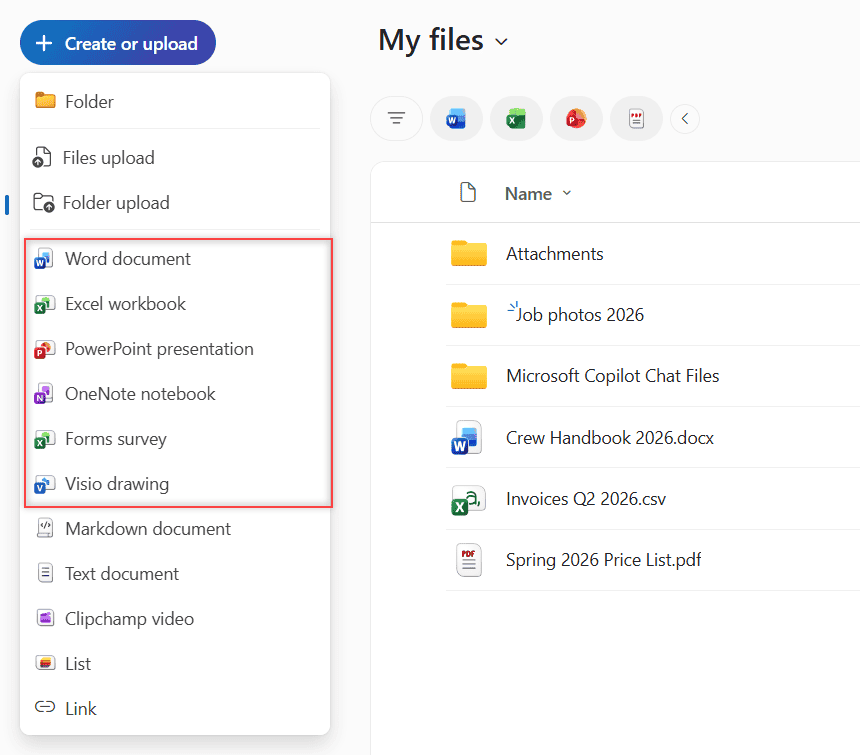
Dropbox works with Office too, just from the outside. From dropbox.com you can open .docx, .xlsx, and .pptx files in Office for the web, edit them, and save the changes back to Dropbox.
On Basic, Plus, and Family, Dropbox says you don’t need a Microsoft account to edit existing files. Team accounts need an enterprise Microsoft license, and creating new Office files from Dropbox needs an Office Online subscription.
If you save a lot of mail attachments, OneDrive also plugs straight into Outlook. Here’s how I save Outlook emails to OneDrive.
How each one syncs files to your computer
Both apps put a folder on your computer and keep it in step with the cloud. Both can also leave files online until you open them, which saves disk space on a small laptop.
OneDrive calls this Files On-Demand, and it’s on by default in current versions. A file can be online-only, locally available after you open it, or set to Always keep on this device. Right-click and Free up space sends it back online.
Dropbox calls them online-only files. Right-click a file or folder in File Explorer or Finder and choose Make online-only. You can also set online-only as the default for new files in the app’s Sync preferences.
Dropbox has one extra for offices: LAN sync, which can copy files between computers on the same local network. Dropbox’s help page says it isn’t supported on Macs running Dropbox with Apple File Provider.
If the OneDrive app ever stops syncing on Windows, my fix for the OneDrive is not running error walks through it.
Sharing controls and link settings
Sharing a folder in OneDrive takes a few clicks. Here’s the Share dialog for our Job photos 2026 folder. By default, only people I add can open it, and Copy link creates a link with that same setting.
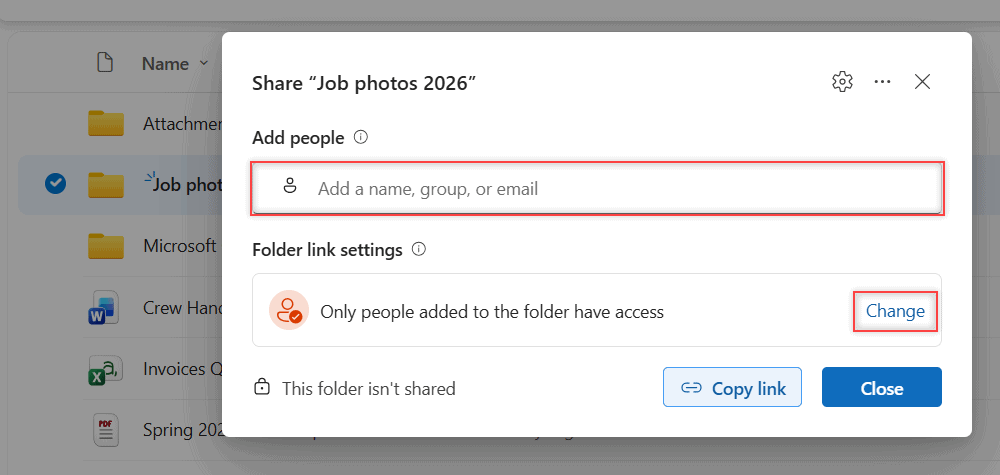
OneDrive links can be set to Anyone, People in your organization (work accounts), People with existing access, or Specific people. Personal accounts get expiration dates and passwords only with a Microsoft 365 subscription.
Dropbox offers Anyone with link and, on team accounts, Team members only. Passwords, expiration dates, and disabled downloads are listed for Professional, Essentials, and the team plans. Basic and Plus aren’t on that list.
Dropbox also notes that disabling downloads only stops downloads through Dropbox. People can still save what they see by other means, so don’t treat it as a lock. OneDrive’s Block download option is limited to work or school accounts and view-only sharing.
For big files, Dropbox has Transfer, which sends a copy without sharing the folder. The plans page lists transfers up to 50 GB on Plus and up to 100 GB on Standard and Advanced.
So for a free or Plus account, OneDrive with a Microsoft 365 subscription gives you more link control. On the business side, both let admins set the rules for everyone.
Version history and deleted-file recovery
Both keep older versions, so a bad edit isn’t the end of the world. In OneDrive, right-click a file and choose Version history. My test file shows versions 3.0, 2.0, and 1.0, all saved on November 7, 2026.
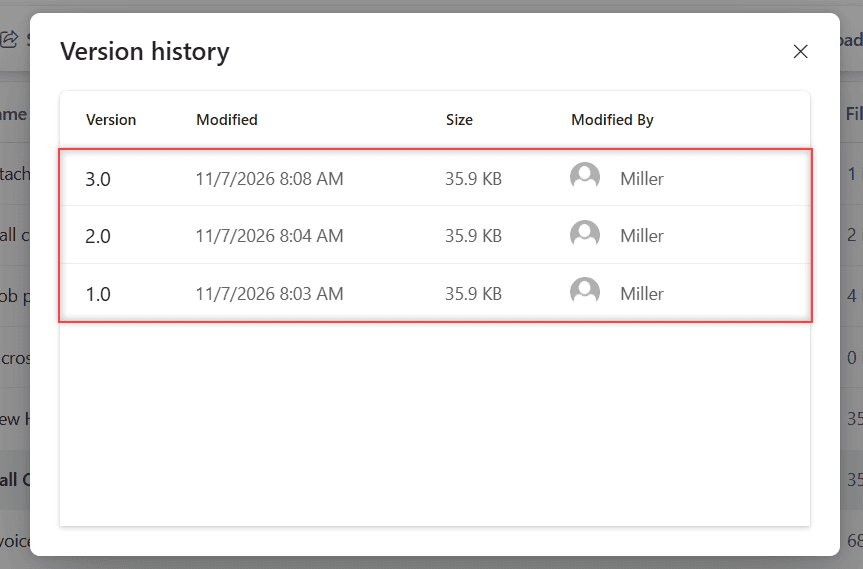
Microsoft’s help page says file version history is kept for 30 days and works with all file types. In work accounts, admins set version limits by count, by age, or with an automatic setting.
Deleted files go to the OneDrive Recycle bin: 30 days for personal accounts and 93 days for work or school accounts unless an admin changed it. Microsoft 365 subscribers can also restore their whole OneDrive to any point in the last 30 days.
I cover the restore steps in my guide to the OneDrive recycle bin.
Dropbox ties recovery to the plan. Versions and deleted files last 30 days on Basic, Plus, and Family, 180 days on Professional, Essentials, and Standard, and one year on Advanced and Business Plus. Dropbox says versions don’t use your storage.
If you upgrade Dropbox to get a longer window, the longer history starts on the upgrade day. It doesn’t reach back to recover files you lost before you switched, so pick the plan before you need it.
Platforms: Windows, Mac, Linux, and phones
Both cover the basics: Windows 10 and 11, Mac, iPhone, Android, and any modern browser. The OneDrive app needs Windows 10 22H2 or Windows 11, macOS 15.8 or newer, iOS 18, and Android 8.0 or later.
Dropbox supports macOS 11 and later, so it runs on older Macs that OneDrive’s current app doesn’t. It also has a Linux app for 64-bit Ubuntu 18.04 and Fedora 28 or later. Microsoft doesn’t list Linux at all.
One limit to watch on free Dropbox: Basic can be signed in on only three devices at a time. Using dropbox.com in a browser doesn’t count, and Plus, Family, Professional, and Essentials have no device cap.
Whichever one you use, keep a second copy of anything you can’t lose. Here’s how I back up OneDrive to an external drive.
Security features beyond a password
On personal accounts, OneDrive has Personal Vault, a protected folder that asks for a second verification step every time you open it and locks after 20 minutes idle on the web. Without Microsoft 365 Personal or Family, it holds three files.
OneDrive also has ransomware detection. Microsoft notifies you when files look attacked and guides you through restoring them. Non-subscribers get the first notification and recovery free.
Dropbox offers two-step verification to every user, with an authenticator app, text message, security key, or passkey, plus 10 backup codes. Its Advanced team plan adds end-to-end encryption, single sign-on, and audit logs.
Microsoft 365 work accounts handle sign-in security through the company’s Microsoft account setup, so your admin decides those rules rather than you.
Business admin for a small team
This is where the two feel most different. OneDrive for work is storage for each person’s own work files, and Microsoft points shared team files to SharePoint instead.
Admins run OneDrive from the SharePoint admin center. They set the default storage limit per user, and under Policies, Sharing they pick who people can share with, from Anyone to Only people in your organization.
The OneDrive sharing level can’t be looser than SharePoint’s, and admins can force Anyone links to expire after a set number of days. That admin setting is why our test account shows a 10 GB limit.
Dropbox runs everything for a team from its Admin console. Standard includes team folders, groups, and sharing controls. Admins on Advanced and Business Plus can remote wipe team files from a member’s lost computer.
A remote wipe can’t be undone, and it leaves a member’s linked personal Dropbox account alone. It’s meant for a laptop that was lost, stolen, or kept by someone who left the team.
If you’re moving a team off OneDrive later, my guide on how to transfer OneDrive files to Google Drive shows how messy a move can get. Pick the one you’ll keep.
Who should pick Dropbox, and who should pick OneDrive
- Pick OneDrive if you already pay for Microsoft 365, live in Word and Excel, or your company gave you a work account. It sits inside every Office app.
- Pick OneDrive on a free plan if you want the most free space, 5 GB against Dropbox’s 2 GB.
- Pick Dropbox if you use Linux, an older Mac, or files from many different apps, and you don’t want your storage shared with email.
- Pick a Dropbox team plan if your team needs one shared pool with long recovery windows and doesn’t run on Microsoft 365.
For Bluebird Landscaping, OneDrive is the easy call because our proposals and invoices are Word and Excel files. For more Microsoft how-tos, browse my OneDrive guides.
A few more reads before you move your files:
- personal vs business Google Drive
- Google Drive version history
- how long Google Drive keeps deleted files
Still deciding?
Is Dropbox better than OneDrive?
Not for everyone. OneDrive is better if you use Microsoft 365 or Windows and want more free space. Dropbox is better if you work across many apps, use Linux, or want storage that holds only your files.
Which gives more free storage, Dropbox or OneDrive?
OneDrive. A free Microsoft account includes 5 GB, shared with Outlook.com attachments, while Dropbox Basic gives 2 GB. Microsoft explains what counts in its Microsoft storage FAQ.
Can I use Dropbox and OneDrive on the same computer?
Yes. Each app syncs its own folder, so they can run side by side. Just remember free Dropbox Basic allows only three signed-in devices.
Can I edit Word files stored in Dropbox?
Yes. Dropbox opens .docx, .xlsx, and .pptx files in Office for the web. Personal Dropbox plans need no Microsoft license for that, but team accounts need an enterprise Microsoft license.

I am Carissa Gudinoa, a technology buff, and Office online and Apple expert with over 9 years of experience. I am passionate about helping others get the most out of their Apple devices. I have written extensively about Apple products and technologies. I am committed to providing my clients with the best possible service and am always up-to-date on the latest Apple products and features. I also write extensively on other software available for use at minimal cost or free. This includes Word Online, Outlook Online, Excel Online, and other Office online programs… Check out more.