
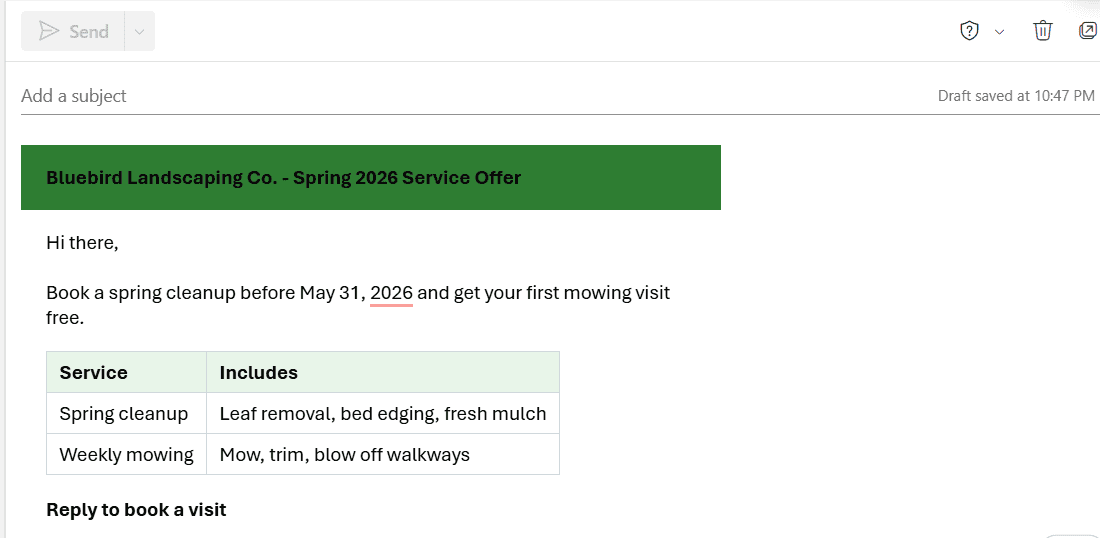
By the end, I have a “Bluebird – spring service offer” template saved in Outlook on the web and a styled spring offer email, with a green header and a service table, sitting in a new message ready to send.
In this tutorial, I’ll show you how to send HTML email in Outlook on the web by pasting rendered HTML into a message, how to save it as a template you can reuse, which styles came through in my test, and how the same job works in classic Outlook for Windows.
What you need before you start
I ran all of this in a Microsoft 365 work mailbox for my made-up business, Bluebird Landscaping Co. in Austin. Here’s the short list:
- Outlook on the web (or the new Outlook for Windows, which uses the same Settings).
- A Microsoft 365 subscription that includes Mail Templates. Microsoft says the built-in templates need a qualifying plan, so a free account may not show the option.
- Your HTML email as a .html file. I wrote mine in a text editor and saved it as spring-offer.html.
- Any web browser to open that file, because that’s where you copy it from.
Here’s a shortened version of the HTML I used. It’s one 560-pixel table with a green header, an intro line, a two-column service table, and a yellow “button” that’s really just a styled line of text.
<table width="560" cellpadding="0" cellspacing="0" style="font-family: Arial, sans-serif;">
  <tr>
    <td style="background:#2e7d32; color:#ffffff; padding:16px; font-size:20px;">
      <b>Bluebird Landscaping Co. - Spring 2026 Service Offer</b>
    </td>
  </tr>
  <tr>
    <td style="padding:16px;">
      Hi there,<br><br>
      Book a spring cleanup before May 31, 2026 and get your first mowing visit free.
      <table width="100%" cellpadding="8" style="border-collapse:collapse; margin-top:12px;">
        <tr style="background:#c8e6c9;">
          <th style="border:1px solid #999;">Service</th>
          <th style="border:1px solid #999;">Includes</th>
        </tr>
        <tr>
          <td style="border:1px solid #999;">Spring cleanup</td>
          <td style="border:1px solid #999;">Leaf removal, bed edging, fresh mulch</td>
        </tr>
        <tr>
          <td style="border:1px solid #999;">Weekly mowing</td>
          <td style="border:1px solid #999;">Mow, trim, blow off walkways</td>
        </tr>
      </table>
      <p><span style="background:#f9a825; padding:10px 18px;"><b>Reply to book a visit</b></span></p>
    </td>
  </tr>
</table>
Keep images small if you add any. A big banner makes the message heavy, and it helps to shrink images before you add them to Outlook first.
Building the Bluebird spring offer template
Outlook on the web doesn’t have a box where you type or paste raw HTML code, and there’s no “edit source” view in the message editor. So I split the job in two: a template to reuse, and the HTML pasted in as already-rendered content.
Open the Templates page in Mail settings
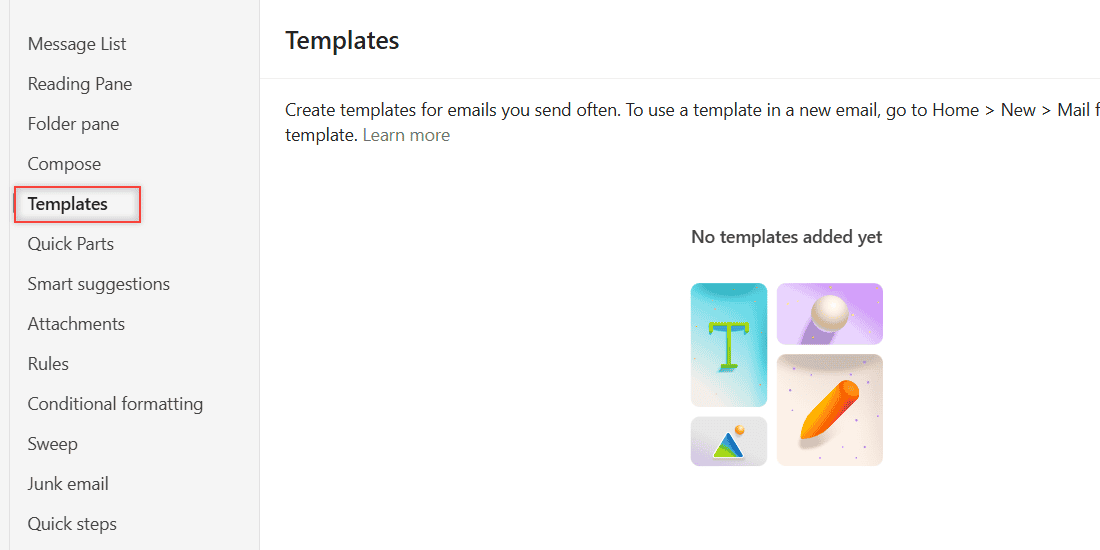
Click the Settings gear at the top right, choose Mail, and then pick Templates. The Mail list runs from Message List down to Quick steps, with Templates in between.
The page explains itself: “Create templates for emails you send often.” Since this was a fresh mailbox, mine said “No templates added yet.”
Name a new template with the Add menu
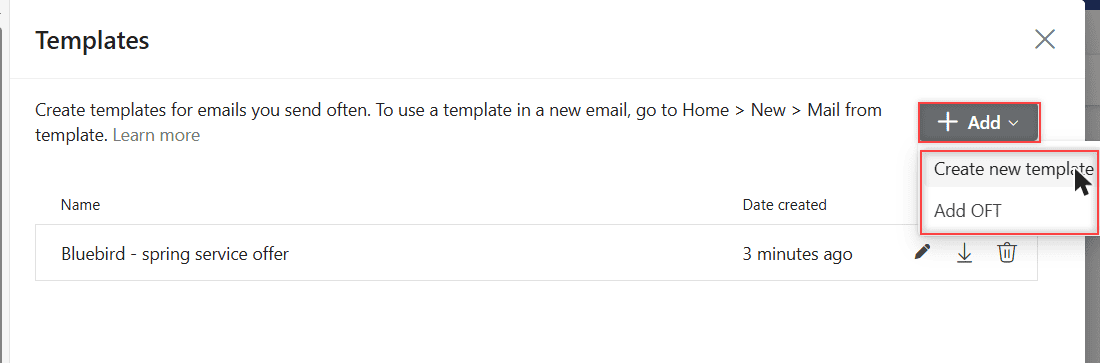
Click Add. Two choices show up: Create new template and Add OFT. Add OFT is for a template file you already have from classic Outlook, which I cover further down.
I chose Create new template. The dialog asks you to “Name your new email template,” and I typed Bluebird – spring service offer, then clicked Create.
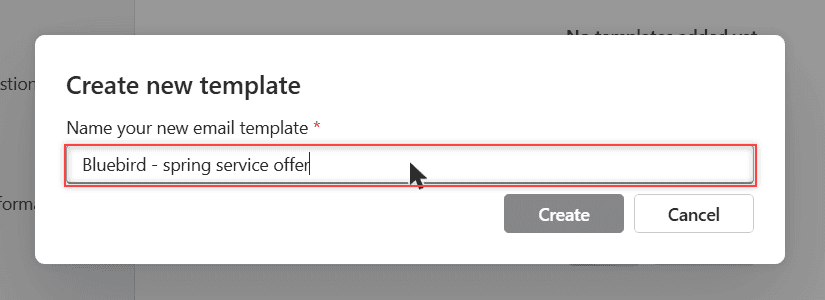
Pick a name you’ll recognize in a list of ten. I put the business name first so all my Bluebird templates sort together.
Confirm the template is in your list
Back on the Templates page, my new row showed the name, “3 minutes ago” under Date created, and small icons to edit or delete it.
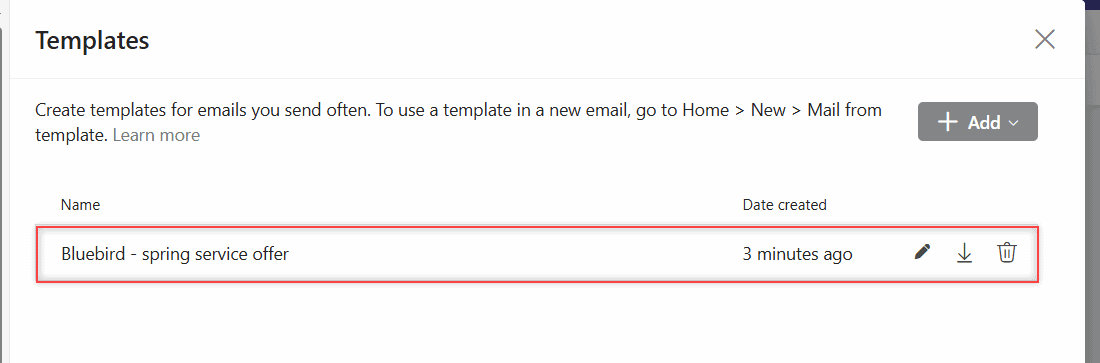
The edit button opens the template’s content in a separate pop-up window. I filled in my template from a regular message instead, which is the route Microsoft describes: write the email, then use Mail template > Save email as template on the Message ribbon.
Start a new message from the template
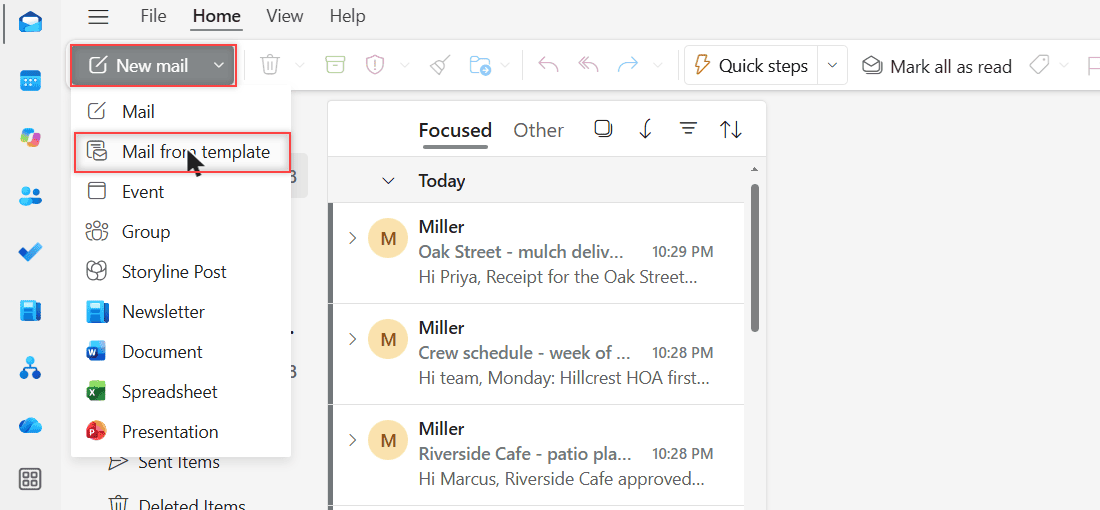
On the Home tab, click the small arrow next to New mail. The list includes Mail, Mail from template, Event, Group, Newsletter, and a few more. Choose Mail from template.
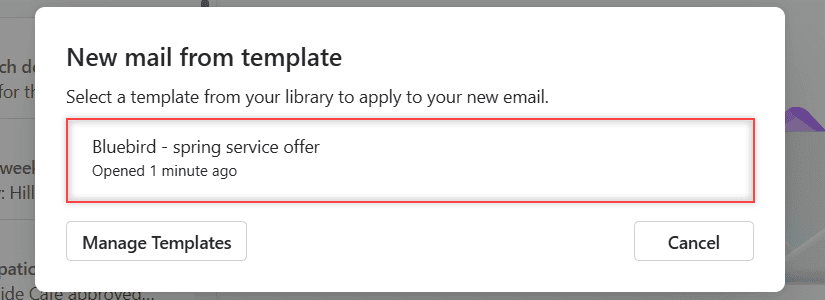
A dialog titled “New mail from template” asks you to select a template from your library. Mine showed “Bluebird – spring service offer” with “Opened 1 minute ago,” plus Manage Templates and Cancel buttons. Clicking the row opened a new message.
Paste the rendered HTML into the message body
This is the part that actually gets HTML into Outlook. Don’t copy the code itself, or Outlook shows the tags as plain text. Copy the page your browser draws from it.
- Double-click your .html file so it opens in Chrome, Edge, or another browser.
- Press Ctrl+A to select everything on the page, then Ctrl+C to copy it.
- Click into the body of the new Outlook message.
- Press Ctrl+V. A small paste-options “(Ctrl)” button appears next to the pasted content.
Fill in the subject, and leave the To line for later. If a customer replies with photos of their yard, you can forward several emails at once to your crew lead instead of one by one.
Check what survived the paste
Outlook cleans up pasted HTML, so what you see in the browser isn’t always what lands in the message. Here’s how my spring offer came out.
| Part of my HTML | In the browser | After pasting into Outlook |
|---|---|---|
| Header background | Green #2e7d32 | Kept |
| Header text color | White, bold | Bold, but turned black |
| Service table borders | Gray lines | Kept |
| Table header row | Light green | Kept |
| Line breaks and bold text | As written | Kept |
| “Reply to book a visit” button | Yellow #f9a825 box | Background dropped, bold text only |
The green-on-black header was readable, but not what I designed. If a color matters, pick text that still works if Outlook changes it, like dark text on a light background.
The fake button lost its yellow box, so I’d never rely on a colored span as a call to action. A plain bold line or a normal link holds up much better.
Outlook saved the message as a draft on its own (mine said “Draft saved at 10:47 PM”). When I was done looking, I discarded the draft and didn’t send anything.
Send a test to yourself first
Before the email goes to customers, put only your own address in the To line and send it. Open it in your inbox and check the colors, the table, and any links.
I only tested Outlook on the web. I didn’t check how Gmail, Apple Mail, or phone apps draw this message, and Microsoft notes that a recipient’s mail program may convert HTML to plain text.
If you can, send the test to a second address too. For anything private, like a customer’s quote, you can also mark the email as confidential before it goes out.
Change it for your own emails
Once the template exists, reusing it is quick. Here’s how I’d adapt the setup for a different campaign:
- Keep the layout simple. One table, inline styles, and Arial or a similar safe font. If you want a different look, you can change the default font in Outlook Online for your normal mail.
- Swap the content, not the structure. Change the header text, dates, and table rows in your .html file, then paste again.
- Save the finished version as a template. Write the message, then use Mail template > Save email as template so the formatting is stored with it.
- Use free pictures if you need them. Outlook can add stock images in Outlook Online without hunting for files.
If you add images or attachments to your templates, the drafts and sent copies take up mailbox space. It’s easy to check your Outlook storage now and then.
Doing the same job in classic Outlook for Windows
If you still use classic Outlook, the HTML part works the same way: open the file in a browser, copy, and paste into a new message. Microsoft’s help pages cover the rest.
First, make sure you’re composing in HTML. HTML is the default, but you can check it in File > Options > Mail, under “Compose messages in this format.” For one message, use Format Text > HTML in the message window.
To save a template, write the message and choose File > Save As. In Save as type, pick Outlook Template (*.oft). Microsoft says the default folder is usually this one:
c:\users\username\appdata\roaming\microsoft\templatesTo use it, go to New Items > More Items > Choose Form, set Look In to User Templates in File System, and open your template. Changes you make before sending aren’t saved back into the template.
That .oft file is also what the Add OFT button on the web takes. I saw the option in my test, but I didn’t upload a file, so I can’t tell you how much of an .oft’s formatting carries over.
For more everyday Outlook tasks, the Outlook Online tutorials page has the full list.
If you want to keep going with Outlook
- Set up inbox rules in Outlook Online
- Turn on automatic replies
- Save Outlook emails to OneDrive
- Download an Outlook email
Once your template looks right, two small touches finish the job: set a default signature in Outlook so you don’t paste it in by hand, and schedule the email to land at a better hour.
Questions about this setup
Can I paste HTML code directly into Outlook?
Not as code. Outlook on the web has no HTML source box, so pasted tags show up as plain text. Open the .html file in a browser, copy the rendered page, and paste that into the message.
Why does my HTML email look different in Outlook?
Outlook cleans up pasted formatting. In my test, table borders and a green background stayed, but white text turned black and a yellow button background disappeared. Send yourself a test before you send it to anyone else.
Can I use an OFT template in Outlook on the web?
Yes, the Templates page in Mail settings has an Add OFT option next to Create new template. You make the .oft file in classic Outlook with File > Save As > Outlook Template.
How do I send an HTML email in classic Outlook?
Check that File > Options > Mail is set to compose in HTML, then paste your rendered HTML into a new message. Microsoft’s guide to creating email templates in Outlook explains saving it as a reusable template.

I am Carissa Gudinoa, a technology buff, and Office online and Apple expert with over 9 years of experience. I am passionate about helping others get the most out of their Apple devices. I have written extensively about Apple products and technologies. I am committed to providing my clients with the best possible service and am always up-to-date on the latest Apple products and features. I also write extensively on other software available for use at minimal cost or free. This includes Word Online, Outlook Online, Excel Online, and other Office online programs… Check out more.