
By the end of this walkthrough, every new email and reply Miller Hayes sends from Bluebird Landscaping ends with his name, title, and phone number, without him typing a thing. And when his number or title changes, he can fix it in about 30 seconds.
In this tutorial, I’ll show you how to change signature in Outlook on the web, step by step: how to add a new one, set it as the default for new messages and replies, check that it works, and edit it later. I’ll also cover the classic Outlook for Windows and Mac paths.
What you need before you start
You only need an Outlook mailbox you can sign in to on the web. I tested everything on November 3, 2026, in Outlook on the web with a work account. Microsoft says the steps are the same in the new Outlook for Windows, so if you use that app, you can follow along there too.
Have your signature text ready: name, title, company, and phone is plenty. If you want a different look, it helps to know which fonts Outlook on the web offers before you start formatting.
Create the signature in Outlook on the web
Open Settings > Account > Signatures
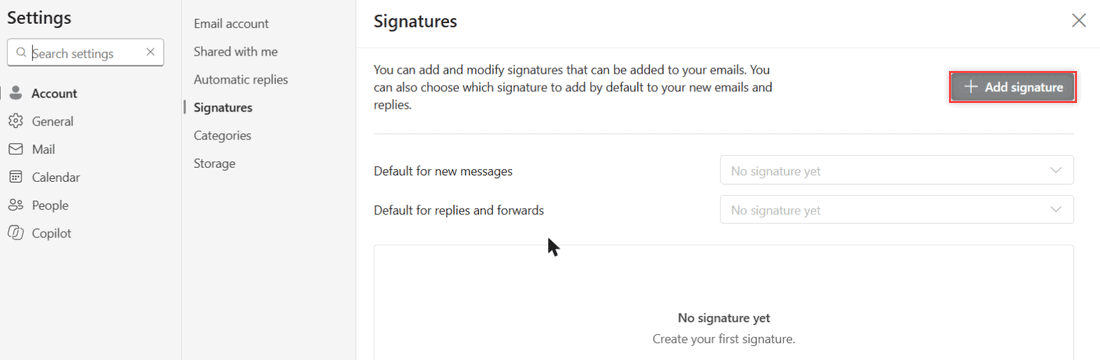
Click the gear icon in the top-right corner of Outlook, then go to Account > Signatures. My test mailbox had no signature yet, so the page said “You can add and modify signatures…” and both default boxes showed “No signature yet.” Click + Add signature.
Name the signature and type the text
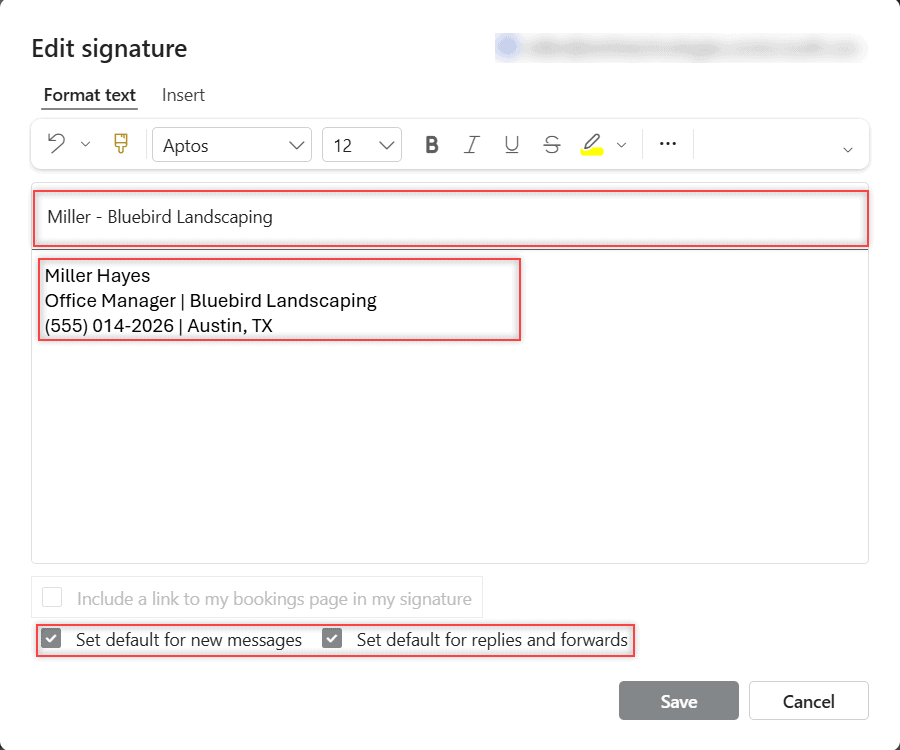
The Edit signature dialog opens with a Format text tab, an Insert tab, and a formatting toolbar (mine started at Aptos 12). In Add a signature name, I typed “Miller – Bluebird Landscaping.” The name is only for you, so pick something you’ll recognize in a list.
In the big box underneath, I typed three lines: Miller Hayes, then Office Manager | Bluebird Landscaping, then (555) 014-2026 | Austin, TX. Microsoft notes that a signature can also include links and pictures.
If you add a logo, keep it small; my notes on shrinking images in Outlook online apply here too. For a fancy layout with columns, a reusable HTML email template is the better tool.
Pick when the signature is added
At the bottom are two checkboxes: Set default for new messages and Set default for replies and forwards. I ticked both. If you leave them blank, the signature is saved but you add it yourself from the Message tab > Signature while writing.
You’ll also see a grayed-out “Include a link to my bookings page in my signature” box. It was disabled for my test account, so I skipped it. Then click Save.
Confirm the defaults on the Signatures page
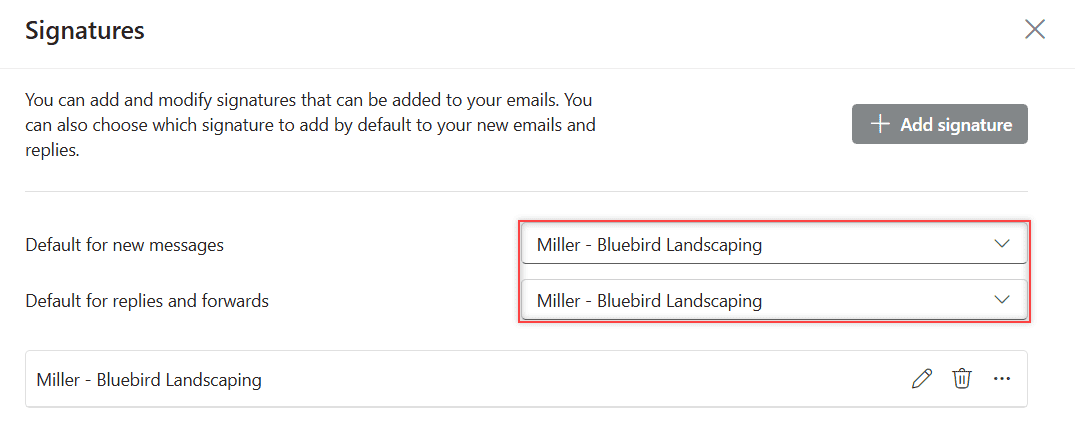
After saving, the Signatures page showed “Miller – Bluebird Landscaping” in both Default for new messages and Default for replies and forwards. The signature also appeared as a row with a pencil, a trash can, and a … icon.
You can change either default here later from its dropdown, which is handy if you want a shorter sign-off on replies. While you’re in Settings, the automatic replies setting for time off sits close by.
Check it worked in a new email
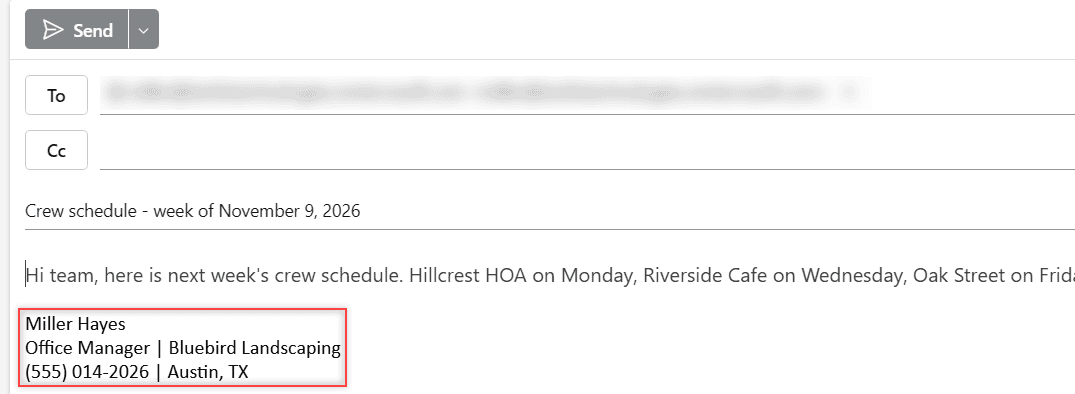
Click New mail. I gave my test message the subject “Crew schedule – week of November 9, 2026” and the signature was already sitting under the body, ready to send. A reply showed it too, because I ticked the second checkbox.
If it’s missing, go back to the Signatures page and check the two default dropdowns. You can always insert it by hand from the Message tab > Signature. For more fixes like this, my Outlook online tutorials cover the rest of Settings.
Change or delete a signature you already have
This is the part most people are searching for. Go to Settings > Account > Signatures and click the pencil icon on the signature’s row. The same Edit signature dialog opens with your text filled in.
Change the title, phone number, or anything else, then click Save. New emails pick up the change right away. To remove a signature, click the trash icon on its row instead.
You can keep more than one signature, say a full one and a short one. Click + Add signature again, then pick the one you want from the Signature button while you write. Images in a signature work best when they’re small; Outlook online stock images won’t replace a real logo.
Signatures in classic Outlook and Outlook for Mac
In classic Outlook for Windows, go to File > Options > Mail > Signatures, or open a new message and choose Message > Signature > Signatures. Select the signature, edit it, then click Save and OK.
Under Choose default signature, set the New messages and Replies/forwards dropdowns for each email account. Classic Outlook stores these signatures on that computer, so Microsoft says you may need to create the signature again in Outlook on the web.
In Outlook for Mac, open the Outlook menu > Settings, then Signatures under Mail. To change one, select it under Signature name and choose Edit. Defaults are set per account with the For new messages and For replies or forwards options.
Signing out of a mailbox doesn’t change any of this, but if you’re cleaning up, here’s how to remove an account from Outlook safely.
When your company adds a footer on top
Some workplaces add a legal disclaimer or company signature to every outgoing email. Microsoft explains that an admin sets this up with a mail flow rule in Exchange Online. It’s separate from your own signature, which you still manage in Outlook as shown above.
So if you see an extra block of text under your signature that you can’t find in Settings, that’s probably it. Ask your IT admin to change it; you can’t edit it from your mailbox.
Questions about this setup
How do I change my email signature in Outlook on the web?
Go to Settings > Account > Signatures, click the pencil icon next to the signature, make your changes, and click Save.
Why is my Outlook signature not showing up in new emails?
Check that it’s chosen under Default for new messages on the Signatures page. If it shows “No signature yet,” pick it from the dropdown or insert it from Message > Signature.
Can I have a different signature for replies?
Yes. Create a second, shorter signature and choose it under Default for replies and forwards, while the full one stays the default for new messages.
Where are signatures in classic Outlook for Windows?
File > Options > Mail > Signatures, or Message > Signature > Signatures in a new email. Microsoft walks through every version in Create and add an email signature in Outlook.

I am Carissa Gudinoa, a technology buff, and Office online and Apple expert with over 9 years of experience. I am passionate about helping others get the most out of their Apple devices. I have written extensively about Apple products and technologies. I am committed to providing my clients with the best possible service and am always up-to-date on the latest Apple products and features. I also write extensively on other software available for use at minimal cost or free. This includes Word Online, Outlook Online, Excel Online, and other Office online programs… Check out more.