
Last week a client asked me to send over my availability for a project kickoff, and I almost replied with a list of open time slots. Then I remembered that Outlook can do this for me. One quick share, and she could see when I’m busy without me typing a single date.
In this tutorial, I’ll walk you through how to share Outlook calendar access the way I do it in Outlook on the web: where the Share button lives, what each permission level really shows, what changes for people outside your organization, when a delegate makes sense, and when publishing a link is the better choice.
Start from the Share button on the Calendar ribbon
You don’t need to dig through settings to share your calendar in Outlook. Open Calendar, stay on the Home tab of the ribbon, and select Share. If you have more than one calendar, Outlook asks which one you want to share. I picked my main one, simply called Calendar.
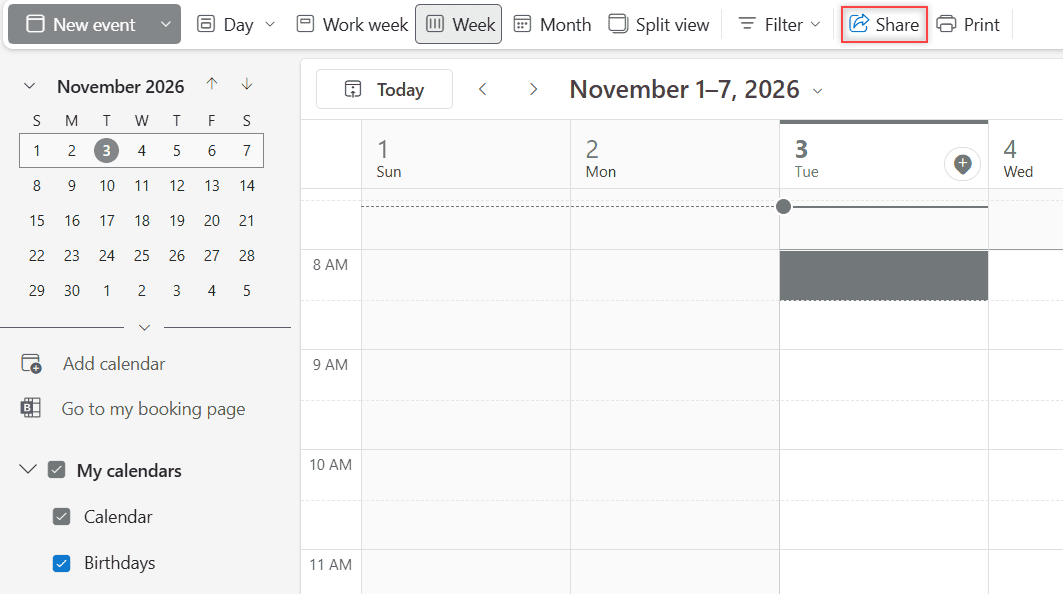
Why start here? The Share button opens the dialog that sends a proper sharing invitation and keeps every permission in one place. Forwarding a meeting or pasting your schedule into an email only gives people a snapshot that goes stale the moment you add a new event or reminder.
One thing to know up front: you can only share calendars you own. If a coworker shared their calendar with you, you can’t pass it along to someone else from your account.
Pick the lowest permission level that does the job
When I clicked Share, Outlook opened a Sharing and permissions dialog for my calendar. At the top it says: “Send a sharing invitation in email. You can choose how much access to allow and change access settings any time.” Below that is a box to enter an email address or contact name, with its own Share button.
Under Inside your organization, there’s a row for People in my organization. Mine was set to Can view when I’m busy. Opening that dropdown shows every level Outlook offers for people in your company.
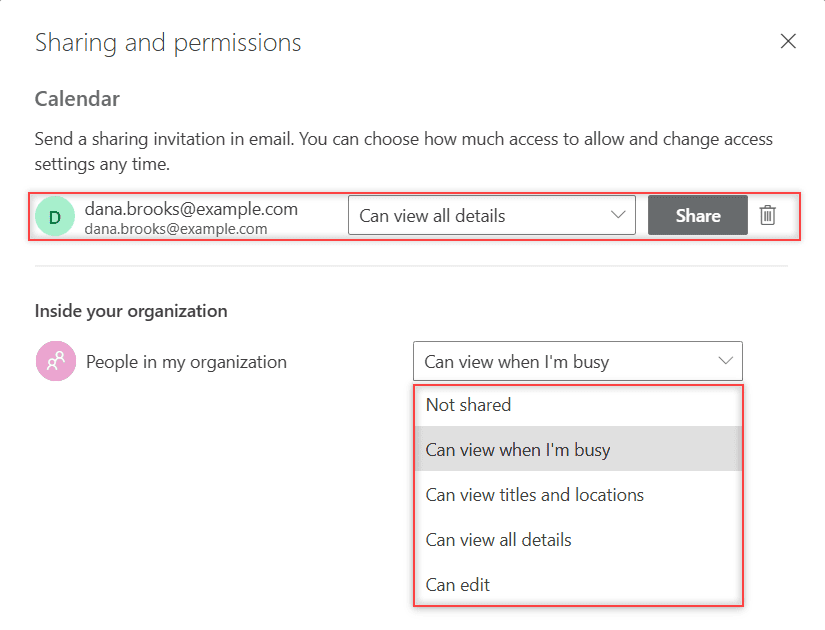
Here’s what each level actually lets the other person see, based on Microsoft’s own description:
| Permission level | What the other person sees or can do |
|---|---|
| Not shared | Nothing from your calendar through this setting |
| Can view when I’m busy | Only the times you are busy, with no titles or locations |
| Can view titles and locations | Busy times plus the title and location of each event |
| Can view all details | Everything in each event, including the details |
| Can edit | Can create and change events on your calendar |
| Delegate | Can edit your calendar and share it with others |
My rule is simple: give the least access that still answers the other person’s question. A client who only needs to find a meeting slot gets busy times. A teammate who covers for me gets titles and locations. Full details are for the few people who actually need my notes and attendee lists.
Even at Can view all details, events you mark as private in Outlook stay protected. Most people you share with see only the time of a private item, not its title, location, or other details.
Treat people outside your organization differently
Sharing with someone at another company works from the same dialog. I typed an outside address, dana.brooks@example.com, into the box. Outlook showed “Validating sharing permissions…” for a moment and then added Dana to the list with a default of Can view all details, plus a Share button and a trash icon.
That default surprised me. For an outside contact, all details is usually more than I want to give, so I always open the dropdown next to the name before sending anything.
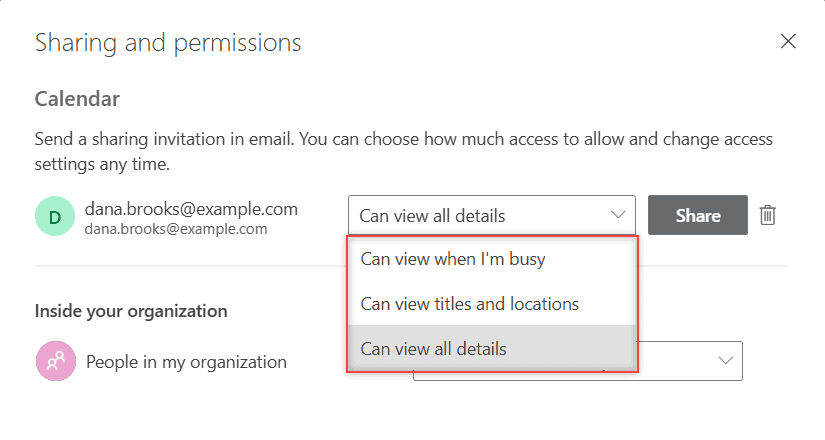
Notice what’s missing. For the outside address, the dropdown only offered Can view when I’m busy, Can view titles and locations, and Can view all details. There was no Can edit and no Delegate. Editing and delegate access are for people inside your organization.
The person also needs the right kind of account. Someone who doesn’t use Outlook, like a Gmail user, can only accept your invitation with a Microsoft 365 or Outlook.com account. If they don’t have one, publishing a link (covered below) is often the easier path.
It’s a bit like choosing between tools in Google Drive vs OneDrive: pick whatever the other person can actually open.
Heads up: Your organization’s settings decide how far sharing can go. Sharing may be unavailable for your account, or limited to people in your organization. If the share option is grayed out, an admin has likely turned it off, and only they can change that.
Save Can edit and Delegate for people you trust
Can edit lets someone add, move, and change events on your calendar. That’s handy for an assistant who books meetings for you, but it also means a mistake on their side shows up on your schedule.
Delegate goes one step further. A delegate can edit your calendar and share it with others. Microsoft notes that delegate access is only for people in your organization and only for your primary calendar, not extra calendars you created.
I give these two levels to one or two people at most. Before a long trip, I hand edit access to the teammate who handles my meetings, and I also set up automatic replies in Outlook so people know who to contact. When I’m back, I drop them to a view level again.
Make sure the invitation actually gets accepted
Clicking Share doesn’t put your calendar in someone’s Outlook right away. It sends them an email invitation, and they have to accept it. Until they do, they see nothing new.
When a coworker tells me they can’t find my calendar, I ask two things. First, did you accept the invitation? Second, if they use the new Outlook for Windows, shared calendars aren’t visible by default. They can select Show all in the calendar list and look under People’s calendars.
Accepted calendars sit next to your own, the same way a birthday calendar in Outlook does. The other person can turn it on or off without affecting your copy.
Publish a link only when a whole group needs to see it
Sharing is person by person. Publishing is different: Outlook creates a link anyone with the link can use. I use it for things like a public office-hours calendar, never for my personal schedule.
You’ll find it in Settings > Calendar > Shared calendars. That page has three parts: Share a calendar (pick a calendar and click Share), Calendar updates (email notifications about shared calendars), and Publish a calendar.
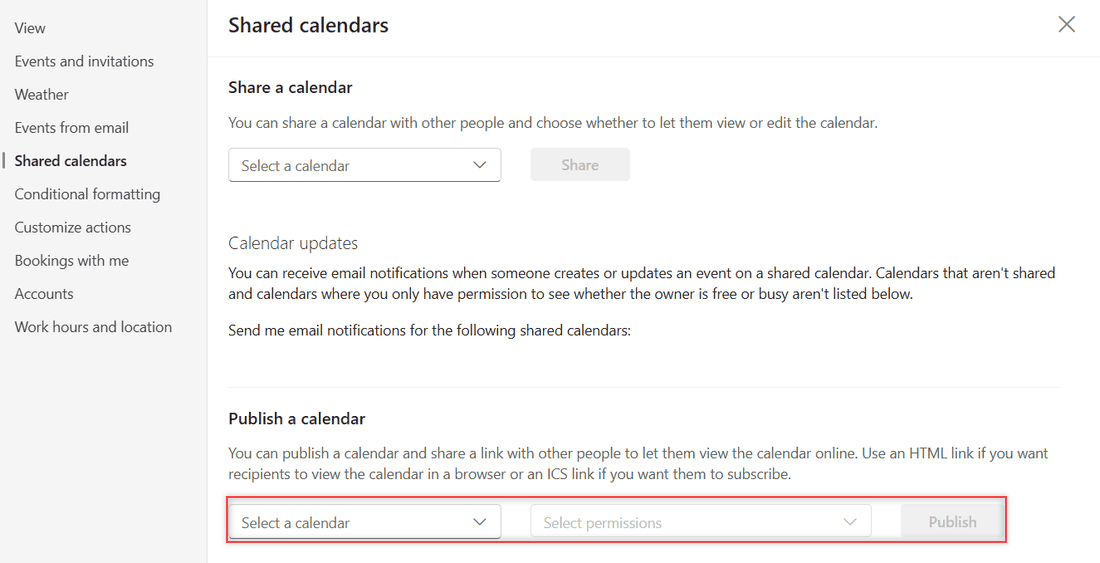
The Publish section explains the two link types itself: use an HTML link if you want people to view the calendar in a browser, or an ICS link if you want them to subscribe. You choose the calendar, choose the permission level, and select Publish. I didn’t publish my test calendar, since I only wanted to see the options.
A few details matter here. The HTML link is read-only. With the ICS link, someone can import the file, which copies the events once with no later updates, or subscribe, which keeps pulling changes. How often a subscribed calendar refreshes depends on the other person’s email provider, so updates aren’t instant.
To stop a published link from working, go back to the same Shared calendars page and select Unpublish. You’ll find more settings walkthroughs like this one in my Outlook Online tutorials.
Check and remove access every few months
Calendar access tends to pile up. Old clients, a contractor from last spring, a coworker who changed teams. I review mine every quarter, the same way I clean up other old settings.
To change or remove someone in Outlook on the web, go to the Calendars list, right-click the calendar, and select Sharing and permissions. Pick a new level from the dropdown next to a name, or select the trash icon to remove that person.
Removing someone inside your organization takes your calendar off their list. For someone outside, Microsoft says removing them stops the syncing, but it doesn’t delete the copy they already have. That’s one more reason to start outside people at a low level.
While I’m tidying up, I often set up inbox rules in Outlook to file the sharing invitations I receive.
Sharing from classic Outlook and the new Outlook for Windows
If you work in the desktop app instead of the browser, the idea is the same, but the buttons have different names.
- Classic Outlook: open Calendar, select Home > Share Calendar, pick the calendar, and select Add in the Calendar Properties dialog. Add the person, choose their level, and select OK.
- New Outlook for Windows: select Calendar, then Home > Share calendar. Enter a name or email, press Enter, choose a level from the dropdown, and select Share.
- Removing access in classic Outlook: Folder > Calendar Properties > Permissions tab, select the person, then Remove and OK. It can take a while to sync.
If classic Outlook shows “This calendar can’t be shared,” check the address. Microsoft lists an invalid email, a Microsoft 365 group address, or an outside person your organization doesn’t allow as common causes. If you’re new to the web version, it helps to show full email addresses in Outlook so you pick the right contact.
My calendar sharing checklist
Before I click Share or Publish, I run through this list:
- Open Calendar, select Home > Share, and pick the right calendar.
- Start with Can view when I’m busy and only go higher if the person needs it.
- For outside addresses, change the default Can view all details to something smaller.
- Give Can edit or Delegate only to trusted people inside my organization.
- Mark sensitive events as private before sharing.
- Tell the person to accept the email invitation.
- Use a published HTML or ICS link only for calendars a whole group should see.
- Review Sharing and permissions every quarter and remove people who no longer need access.
Following these steps keeps sharing useful without exposing more of my schedule than I meant to.
A few more Outlook guides I wrote that pair well with this one:
- Make an email confidential in Outlook
- Check storage space in Outlook Online
- Save Outlook emails to OneDrive
- Forward multiple emails at once in Outlook
Questions I get about this

I am Carissa Gudinoa, a technology buff, and Office online and Apple expert with over 9 years of experience. I am passionate about helping others get the most out of their Apple devices. I have written extensively about Apple products and technologies. I am committed to providing my clients with the best possible service and am always up-to-date on the latest Apple products and features. I also write extensively on other software available for use at minimal cost or free. This includes Word Online, Outlook Online, Excel Online, and other Office online programs… Check out more.