
By the end, one name in the To line – Bluebird Crew 2026 – reaches Dana, Marcus and Priya. Every Monday I email our crew schedule to the same three people, and typing three addresses each week got old fast.
In this tutorial, I’ll show you how to create an email group in Outlook with a contact list, send to it, add or remove people later, and delete it when you’re done. I’ll also cover classic Outlook for Windows and when a Microsoft 365 group fits better.
What you need before you start
I built this list in Outlook on the web with a Microsoft 365 work mailbox on November 3, 2026. New Outlook for Windows and Outlook.com use the same People page, so the steps match there too.
Make sure you’re signed in to the mailbox that sends the emails. If a second account keeps getting in the way, here’s how to remove an account from Outlook online. Have the email addresses ready. Your members don’t need to be saved as contacts first.
Build the Bluebird Crew 2026 contact list
Microsoft calls an email group a contact list in new Outlook and on the web. Classic Outlook used the name contact group, so you’ll see both terms around.
Open People and choose New contact list
Select the People icon in the left bar. On the Home tab, select the small arrow next to New contact, then pick New contact list.
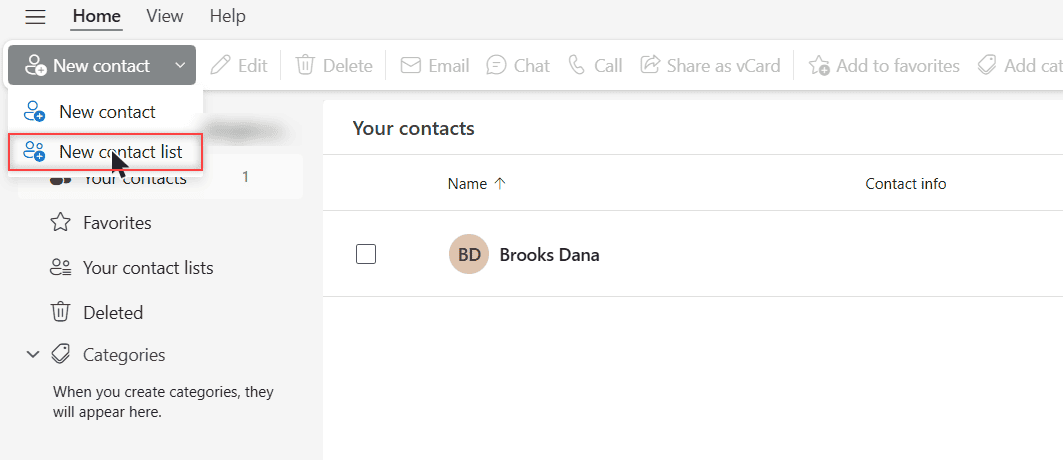
The left pane is a handy map: Your contacts, Favorites, Your contact lists, Deleted and Categories. Your new list will show up under Your contact lists.
Name the list and add a description
In the New contact list dialog, type a name in Contact list name. I used Bluebird Crew 2026, because that’s exactly what I’ll type in the To line later.
The Description box is optional. I wrote “Office and crew leads for weekly schedule emails” so future me remembers why the list exists. The dialog also says your contact lists are private and visible only to you.
Add each member by name or email address
Click in Add recipients, type a name or an email address, and select + Add. Repeat for each person. Every address you add appears as a row with an X next to it, so you can fix a typo before saving.
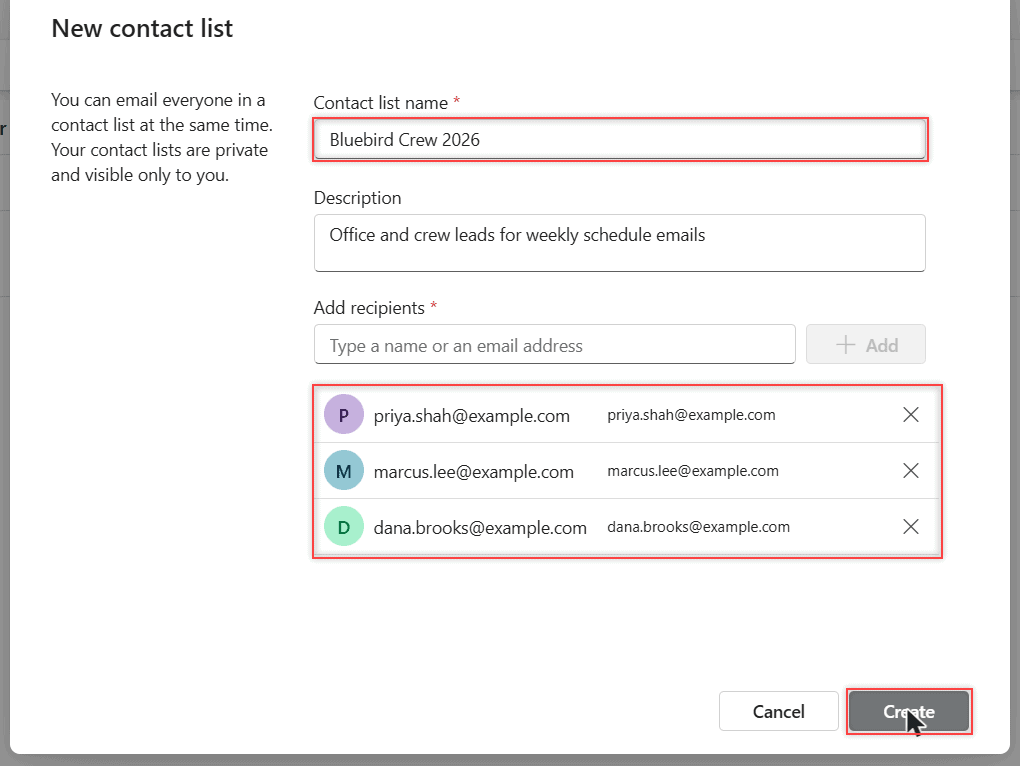
Dana, Marcus and Priya use outside addresses, so Outlook said “We couldn’t find any matches” as I typed. That’s fine. + Add still added each address to the list.
Save the list with Create
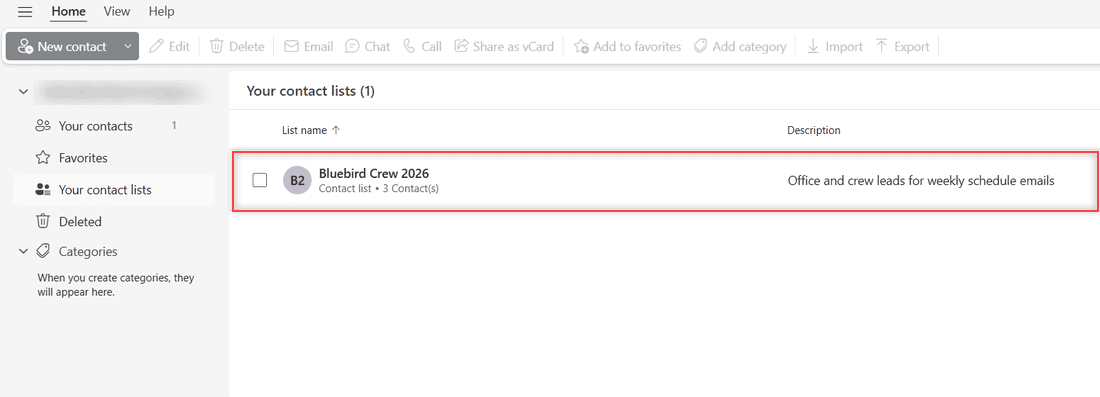
Select Create. A small “Contact list saved.” message popped up, and the list appeared under Your contact lists as “Contact list – 3 Contact(s)” with my description beside it.
Check it worked by addressing a test email
Select New mail and start typing the list name in To. After “Bluebird Crew”, Outlook suggested Bluebird Crew 2026, and I picked it.
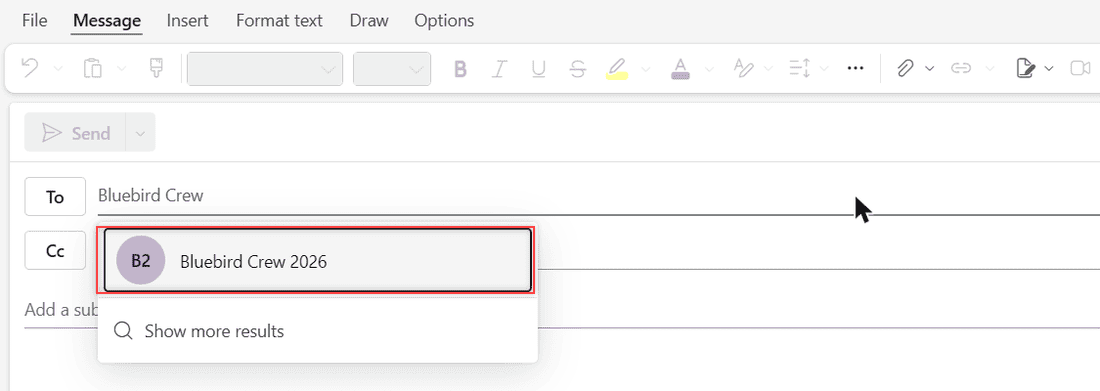
The To line now shows a single chip, Bluebird Crew 2026, with a plus icon and an X. I added the subject “Crew schedule – week of Nov 9, 2026” to see how a real email would look.
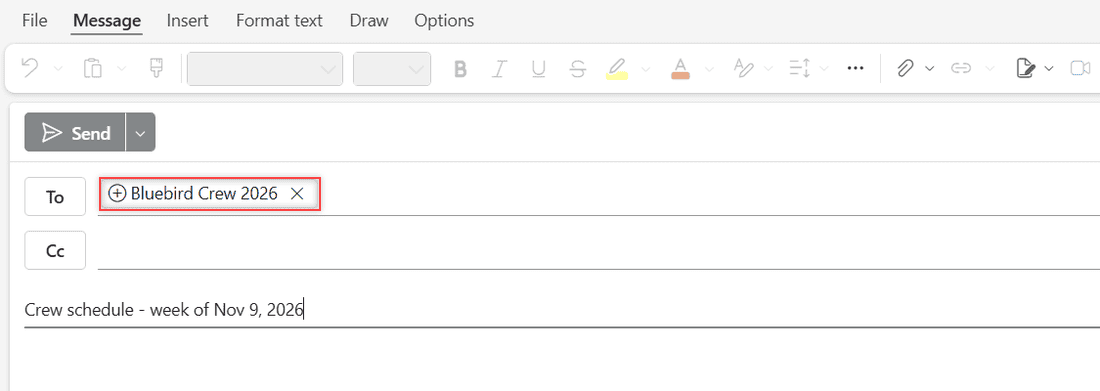
To check who’s inside, select the plus icon. The chip turned into three addresses: Dana, Marcus and Priya. Outlook highlights addresses outside your organization in yellow, which is a nice reminder before you send.
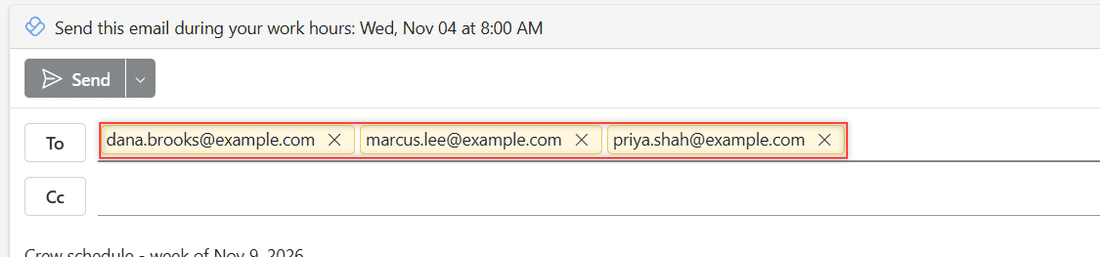
This was only a test, so I discarded the draft and nothing went out. For your real email, write it and select Send. If you need to pass older messages along to the whole crew, you can forward several emails at once in Outlook.
Add or remove people later
Crews change. Go to People > Your contact lists and hover over the list. Three icons appear: email, edit (the pencil) and delete.
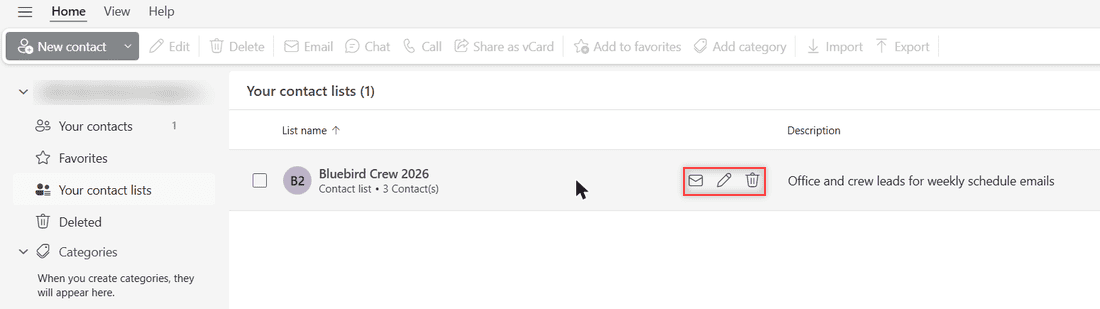
Select the pencil. Use Add recipients to add someone new, or the X next to a member to remove them, then select Save. The email icon is a shortcut too. It starts a new message already addressed to the list.
If Outlook keeps suggesting an old address in the To line, you can clear your recent searches in Outlook along with tidying the list.
Delete a contact list you no longer need
Hover over the list and select the delete icon. Outlook asks, “Do you want to delete the contact list Bluebird Crew 2026?” Select Delete.
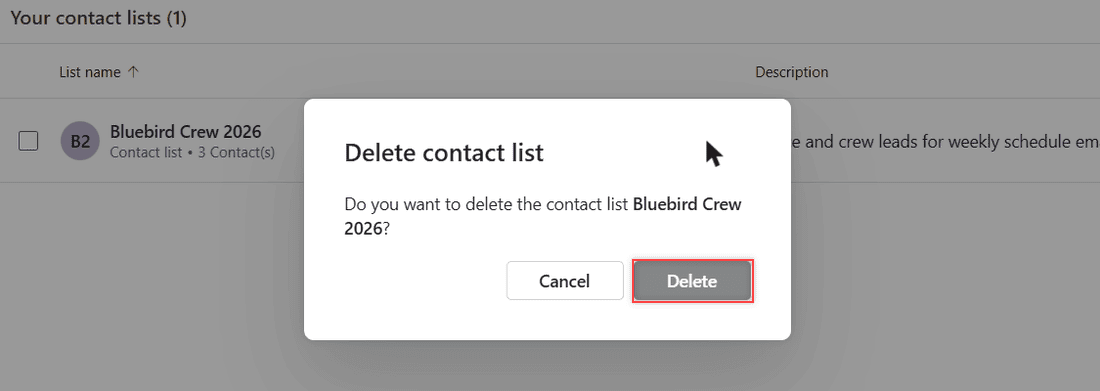
I got a “Contact list(s) deleted.” message, and the page said I hadn’t created any contact lists yet. To remove several at once, check them and select Delete on the ribbon. Deleting a list doesn’t delete the contacts in it.
Before cleaning up, I sometimes keep a copy of important crew threads by learning to save Outlook emails to OneDrive.
Create a contact group in classic Outlook for Windows
My screenshots come from the web, but classic Outlook works almost the same way. These steps are from Microsoft Support:
- Select People in the navigation bar.
- Select New Contact Group on the ribbon.
- Type a name in the Name box.
- Select Add Members and pick people from your address book or contacts.
- Select Save & Close.
To change members, double-click the group, use Add or Remove Members, then Save & Close. To delete it, right-click the group and select Delete. I haven’t checked Outlook for Mac, so it isn’t covered here.
Contact list or Microsoft 365 group?
A contact list is a private shortcut that lives in your own mailbox. Only you see it, and only you can send with it, which is perfect for my Monday schedule email.
Microsoft suggests a Microsoft 365 group when you need more, like a shared inbox, a shared calendar or shared files for a team. Those are set up differently. For more everyday tips, browse my Outlook on the web tutorials.
If you send group emails a lot, these help too:
Questions about this setup
Can other people see my Outlook contact list?
No. Outlook says contact lists are private and visible only to you. If a whole team needs the same group, ask about a Microsoft 365 group instead.
Can I add people outside my organization to a contact list?
Yes. I added three outside addresses with + Add even though Outlook said it couldn’t find matches. Outlook highlights them in yellow when you expand the list in a message.
Does deleting a contact list delete the contacts in it?
No. Microsoft says the contacts stay put; only the list goes away. The full steps are in Microsoft Support: Create a contact group or distribution list.
Is a contact list the same as a contact group?
Yes. Classic Outlook calls it a contact group, while new Outlook, Outlook on the web and Outlook.com call it a contact list.

I am Carissa Gudinoa, a technology buff, and Office online and Apple expert with over 9 years of experience. I am passionate about helping others get the most out of their Apple devices. I have written extensively about Apple products and technologies. I am committed to providing my clients with the best possible service and am always up-to-date on the latest Apple products and features. I also write extensively on other software available for use at minimal cost or free. This includes Word Online, Outlook Online, Excel Online, and other Office online programs… Check out more.