
I went to duplicate a folder called Crew Shared 2026 in my Google Drive, opened its three-dot menu, and looked for Make a copy. It wasn’t there. Download, Rename, Share, Organize and Move to trash were all listed, but nothing that copies the folder.
In this tutorial, I’ll show you how to copy a folder in google drive the way that actually works: copy the files inside, then move them into a new folder. You’ll also learn the ZIP route for bigger folders, what a copy does and doesn’t bring along, and where I stopped testing.
Accept that Drive copies files, not folders
Google’s own help page says it plainly: you can’t copy folders, only files. So there’s no hidden setting to find. If you’ve seen an error while creating a copy, that’s a separate problem with a file, not this missing menu item.
Here’s the menu I got on my folder. Compare it to yours before you spend time hunting.
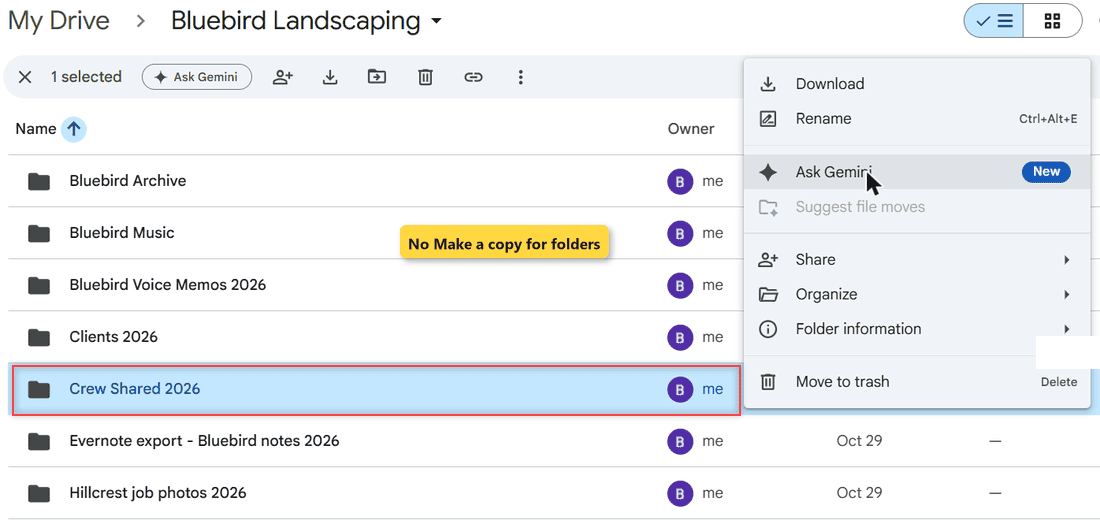
Once you stop looking for the button, the job is simple. You’re building a second folder and filling it with copies of the files.
Decide whether you really need a duplicate
Before you copy a whole folder, ask what you want from it. If you only need the folder to show up in a second place, a shortcut is the lighter choice. Google describes a shortcut as a link that points to another file or folder, and deleting one doesn’t delete the original.
A real copy makes sense when you want a separate set of files to change, like next year’s version of a template folder or a snapshot you’re about to edit heavily. If that’s you, keep going. This table shows how the routes compare.
| Route | Best for | What I know from testing |
|---|---|---|
| Make a copy, then Move | Folders with a handful of files or subfolders | Tested on two files; the copies appeared in the same folder |
| Download ZIP, then Folder upload | Deep folders with many levels | ZIP download tested; the full round trip was not |
| Shortcut | Showing one folder in a second place | Documented by Google; no second set of files is created |
| Drive for desktop, scripts, add-ons | Not covered here | Not tested |
Create the destination folder first
Make the new folder before you copy anything. Click New, choose New folder, and give it a name you can’t confuse with the original, like Crew Shared 2027. If your original has folders inside it, create the matching subfolders now as well.
Why first? Your copies land right next to the originals, and it’s easy to lose track of which is which. Having the destination ready means you can move them the moment they appear.
Copy everything inside with one selection
Open the original folder and click any file once. Press Ctrl+A to select everything, or pick several files with Ctrl-click if you only want some of them. On a Mac, use Command in place of Ctrl.
Right-click any selected file and choose Make a copy. My test folder had two files, and the option was right there in the menu.
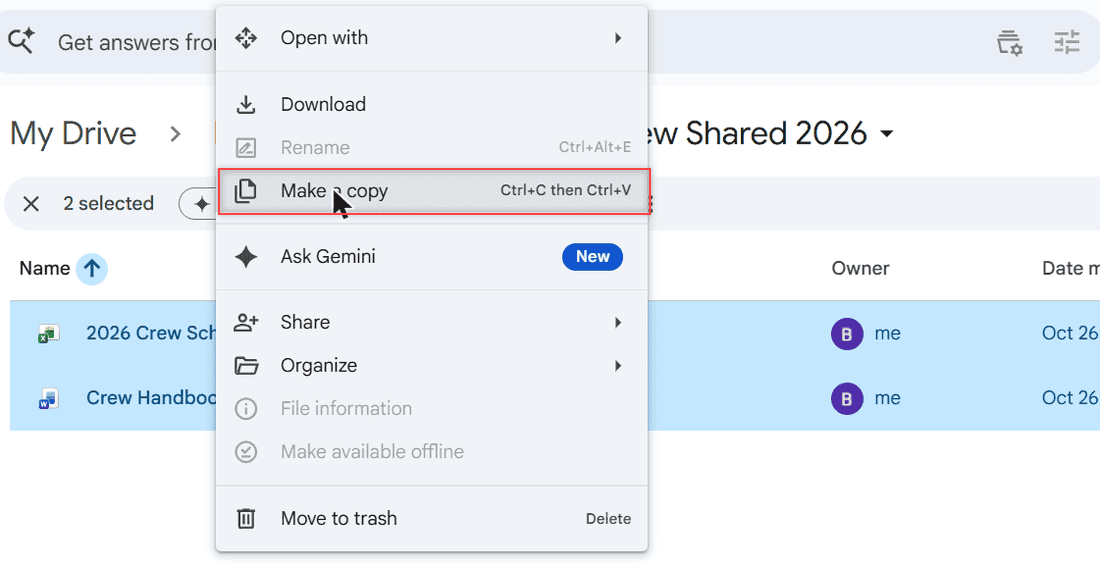
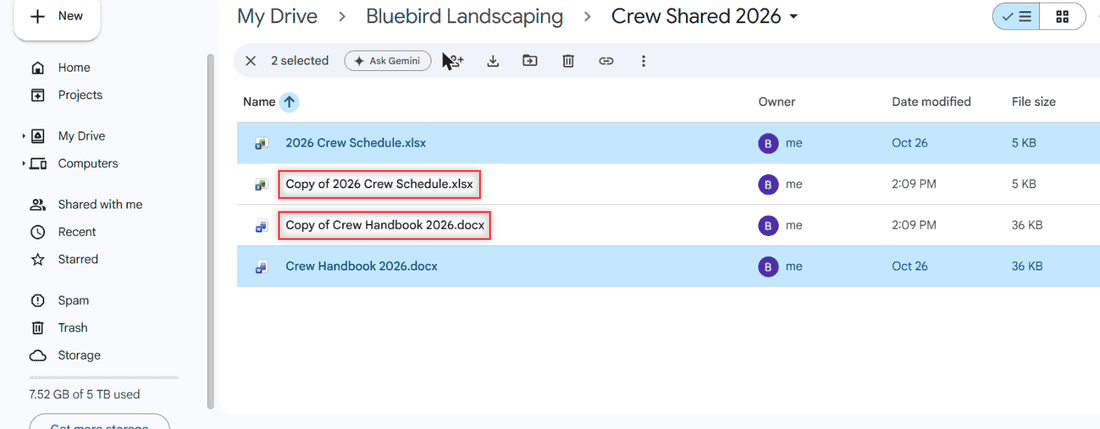
Drive showed a small “Copied 2 files.” message with an Undo link. The new files appeared in the same folder, each one starting with “Copy of”.
Heads up: Google’s help says the Ctrl+C and Ctrl+V copy shortcut only works in Chrome. I used the right-click menu for this test, and I didn’t try pasting into a different folder.
Move the copies right after you make them
Select only the files that start with “Copy of”. Sorting the list by name puts them together, which makes this much easier. Then right-click, choose Organize, and choose Move.
The dialog shows how many items you’re moving and where they are now. Use the All locations tab to get to your new folder, select it, and click Move.
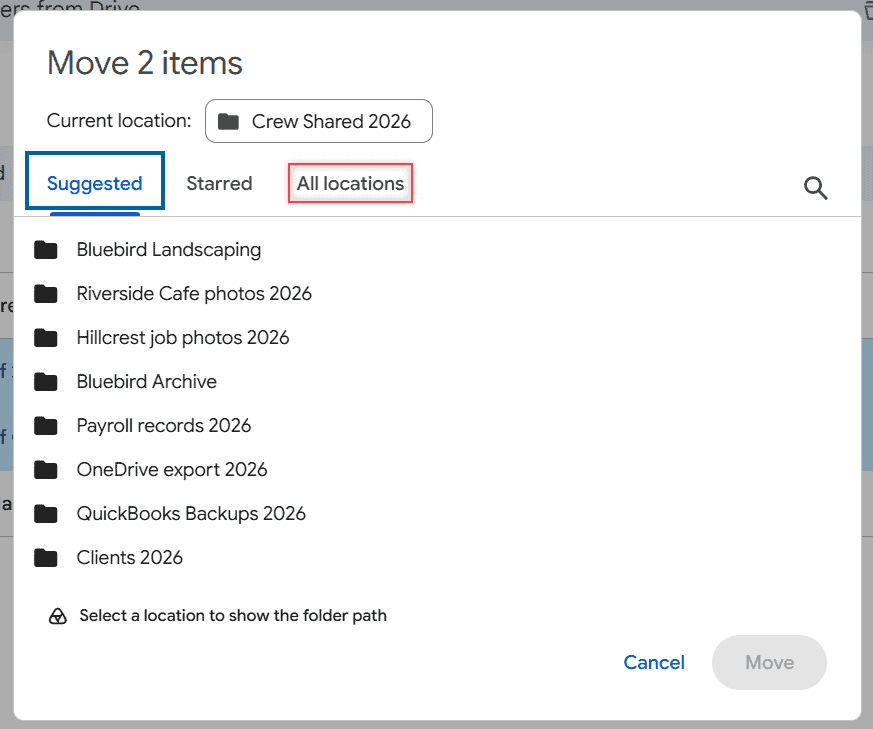
To be upfront: I opened this dialog and canceled it, then moved my test copies to Trash. So there’s no after picture of the moved files. Google’s help documents this same Organize and Move path, and you can also drag items onto a folder.
If you want the original names back, rename the copies now. Drive keeps “Copy of” on every file until you change it.
Repeat the steps for each subfolder
The folder menu has no copy option at any level, so a subfolder needs the same treatment as its parent. Open it, copy its files, and move them to the matching subfolder in the new structure. It helps to list what is in each subfolder first so you can tick them off.
My test folder held only files, so I can’t tell you what the menu does when a selection mixes files and folders. Work with files only and you won’t need to find out.
Reach for a ZIP when the folder is deep
If you’ve got many levels of subfolders, doing them one at a time gets old fast. Another route is to download the folder and upload it again. Open the folder’s three-dot menu and choose Download. In my earlier testing, Drive showed a Zipping panel and then saved a ZIP, which is how folder downloads normally behave.
- Download the folder from its three-dot menu and wait for the ZIP.
- Unzip it on your computer and rename the unzipped folder.
- In Drive, click New and choose Folder upload.
- Select the renamed folder and let the upload finish.
There’s a catch with Google’s own file types. Google’s help lists Word, PowerPoint, PDF and JPEG as formats you can download Docs editor files in, so open a few from your ZIP to see what you got. Big uploads can take a while too, and I haven’t run this whole round trip myself.
Two small details from Google’s help can save you a retry. You can’t drag a folder straight out of Drive onto your desktop, so use the Download command. Going the other way, you can drag a folder into an open Drive folder in place of clicking Folder upload.
Give the upload a name that’s clearly different from the original before it starts. If both folders end up with the same name in the same place, you’ll have to open each one to tell them apart.
Check what came across before you share
Start with a simple count. Open the original and the new folder in two browser tabs, then compare them side by side. Every file should have a partner, and every subfolder should exist at the same level. It takes a minute, and it’s how you catch the subfolder you skipped.
If you copied the wrong thing, use the Undo link in the Copied message while it’s still showing. Once it’s gone, select the stray copies and move them to Trash. That’s what I did with my test copies.
A copy isn’t a twin. Mine showed today’s modified time and listed me as the owner, even though nothing in the files had changed. Don’t count on the old dates to tell you when something was last really edited.
Comments need their own decision. Google’s Docs help offers a Copy comments and suggestions option when you use File and then Make a copy inside a document. That’s a per-file step. If comments matter, use it on those files, then open a copy to check.
I couldn’t find Google stating that a right-click copy keeps its sharing, so assume it doesn’t and check. Files in a shared folder take on that folder’s access, so you can share the new folder once with the right people.
Copies also count as new files for storage. Google says a copy of a shared file uses your storage, so check the folder size before you duplicate something large.
Respect the owner’s limits on shared files
Owners can turn off downloading, copying and printing for viewers and commenters. If Make a copy is missing or grayed out on a file someone else owns, that setting may be why. Ask the owner for a copy or for different access. Don’t try to work around it.
You’ll also want permission to move things. Google’s help says that if you don’t have permission to move a file to the destination, Drive creates a shortcut there instead of moving it. A shortcut only points to the original, so it isn’t a backup.
Treat desktop apps and scripts as a separate project
Lots of guides send you to Drive for desktop or a script. Google’s help page says the copy function isn’t available on Drive for desktop, and I don’t have it installed on this machine, so I won’t describe steps I haven’t seen work.
The same goes for Apps Script and add-ons. I didn’t test any, so I’m not recommending one here. If you do try one, it’ll ask for access to your Drive, so read what it’s requesting first.
One more limit: all of this ran on a personal Google account. A Google Workspace account can have admin settings that change what you see, so your work account’s menus may not match mine.
My folder copy checklist
- Create the new folder and any matching subfolders first.
- Select the files inside the original, then choose Make a copy.
- Sort by name and select only the “Copy of” files.
- Use Organize, then Move, to send them to the new folder.
- Repeat for every subfolder, or use the ZIP and Folder upload route.
- Open a few copies to confirm they look right and check comments.
- Share the new folder with the people who need it.
A few more Drive guides that pair well with this one:
- finding a folder you misplaced
- viewing ZIP files in Drive
- how shared folders use space
- fixing a download that will not start
Questions I get about this
Why is there no Make a copy option on my folder?
Drive only offers it for files. Google spells that out in its help page on organizing files and folders, so you have to copy the contents instead.
Where do copied files go in Google Drive?
In my test, they appeared in the same folder as the originals with “Copy of” at the front of each name. You then move them wherever you want.
Can I copy a folder to another Google account?
There is no direct button for that either. One option is to share the folder with the other account and make copies of the files from there, though I did not test it. Those copies use the storage of the account making them.
Does copying a folder take up more storage?
Yes, plan on it. The copies are new files, and Google says a copy of a shared file uses your own storage.

I am Carissa Gudinoa, a technology buff, and Office online and Apple expert with over 9 years of experience. I am passionate about helping others get the most out of their Apple devices. I have written extensively about Apple products and technologies. I am committed to providing my clients with the best possible service and am always up-to-date on the latest Apple products and features. I also write extensively on other software available for use at minimal cost or free. This includes Word Online, Outlook Online, Excel Online, and other Office online programs… Check out more.