
Google Drive has no convert-to-JPG option: it previews a HEIC photo, but it doesn’t change the file. To get a JPG, you need a separate converter, either one connected to Drive or one on your computer.
In this tutorial, I’ll show you how to convert heic to jpg in google drive using the converter Drive suggests, how to do it on a Mac or Windows PC instead, and how to stop your iPhone from creating HEIC files.
I’ll also be clear about which parts I tested and which parts come from the vendor’s own instructions.
What Drive actually does with a HEIC file
I run my examples through a made-up business, Bluebird Landscaping Co. in Austin. For this test I uploaded two sample HEIC photos to its Drive folder: Oak Street patio photo Nov 2026.heic and Oak Street front bed photo Nov 2026.heic.
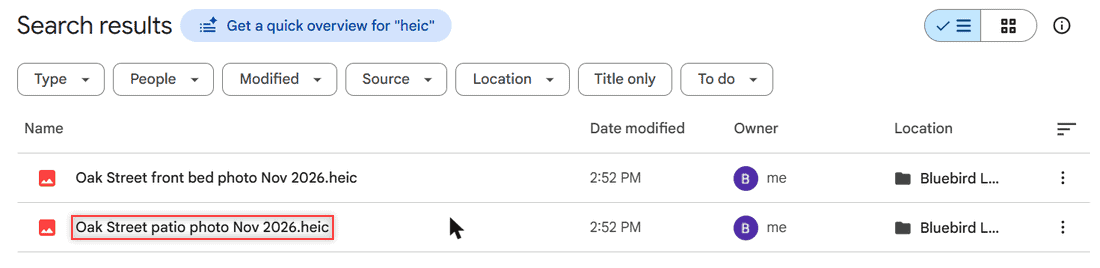
The upload went through without a problem. Searching Drive for “heic” found both files, and they showed thumbnails in Grid view.
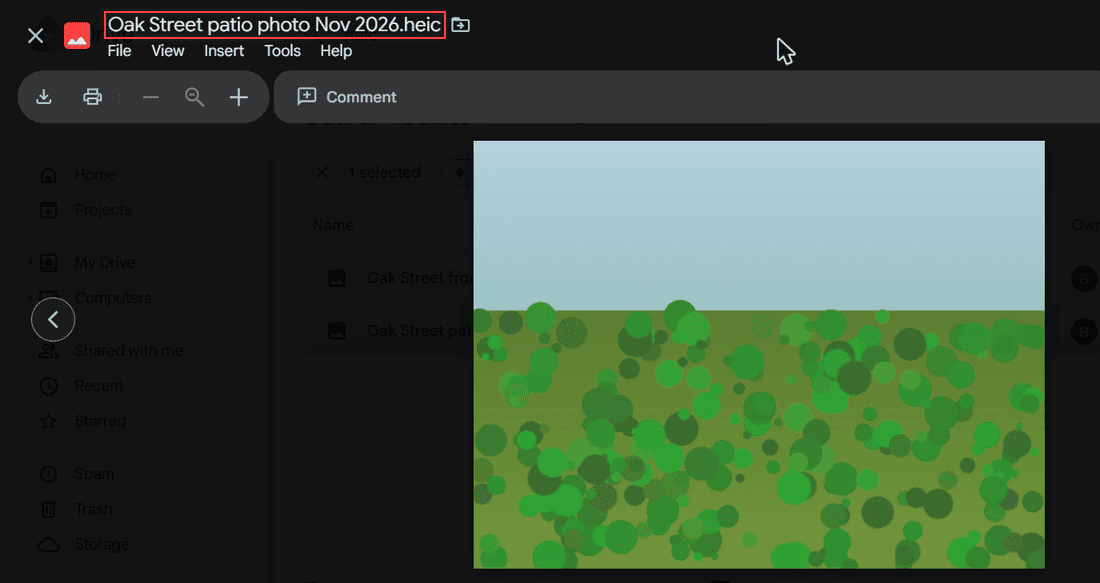
Double-clicking a photo opened it in Drive’s viewer, and the picture displayed normally. The name at the top still ended in .heic, because previewing doesn’t touch the file.
Here’s the odd part. Google’s list of Drive file types names JPEG, PNG, GIF, BMP, TIFF and SVG, but it doesn’t mention HEIC at all, and it says nothing about converting images.
The preview worked anyway in my test. If a different file refuses to open, my notes on how to open unsupported files in Google Drive can help.
You’ll see plenty of articles claiming Drive turns HEIC into JPG when you download it. I couldn’t find Google saying that anywhere, so I wouldn’t count on it.
Method 1: Use the converter Drive suggests
This is the closest you’ll get to converting inside Drive. It uses CloudConvert, a third-party service that Drive listed as a suggested app for my HEIC files. It isn’t a Google tool.
I didn’t connect or authorize CloudConvert for this article, because it means giving an outside app access to a Drive account. The menus below are what I saw. The steps after them come from CloudConvert’s own pages.
- In Drive, find your HEIC file and click the three dots at the end of its row.
- Point to Open with.
- Under Suggested apps, click CloudConvert.
- Read the permission screen carefully. Only continue if you’re comfortable with what it asks for.
- In CloudConvert, choose JPG as the output format and start the conversion.
- Save the JPG, either by downloading it or by sending it to your Drive.
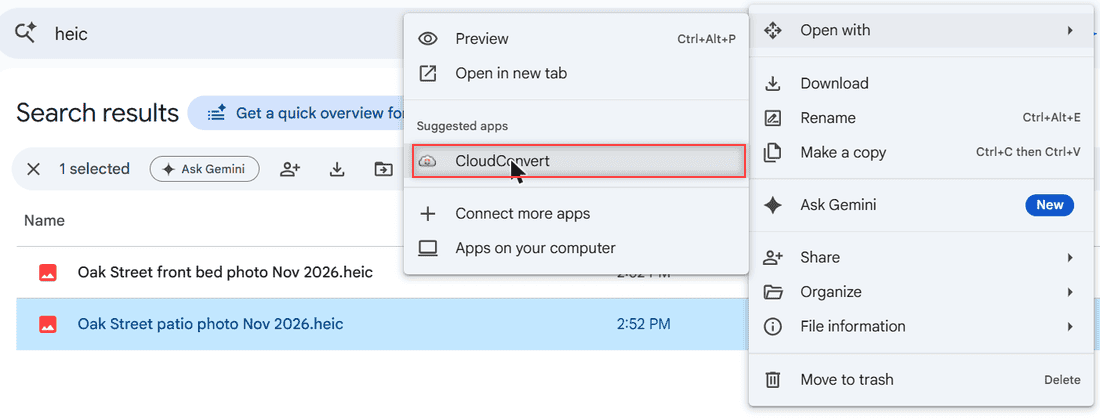
Look at the main menu in that screenshot too. It has Download, Rename, Make a copy, Share, Organize and File information, but no convert item.
You can start from the photo viewer as well. Open the photo, click Open with at the top, and CloudConvert appears under Suggested third-party apps.

How does this work?
Drive hands the file to the outside app, and that app does the conversion. Google says some apps may ask to view some or all of your Drive files when you open something with them.
CloudConvert says it only reaches files you send to it, but that statement is from an older post, so trust the permission screen you actually see.
If you’re unsure about an app, take a minute to read about staying safe with Google Drive links and be just as careful about what you approve.
Pro tip: Try the converter on one unimportant photo before you run a whole job folder through it. Open the JPG and check it looks right. Then remove the app from Drive’s Manage apps settings if you won’t use it again.
Method 2: Download the photo and convert it on your computer
If you’d rather not connect an outside app to your Drive, this is the method I’d pick. You download the photo, convert it locally, and upload the JPG.
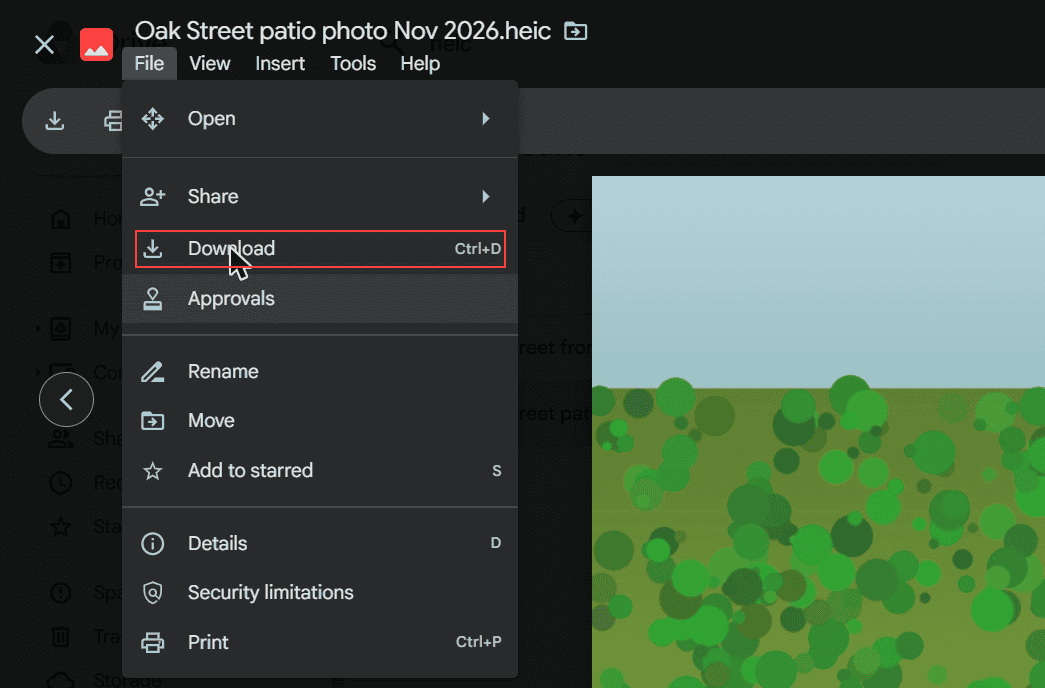
In the viewer, open the File menu and click Download. Notice there’s no format choice in that menu. I didn’t run the download itself, so check the file extension once it lands on your computer.
If the download button won’t cooperate, here’s what to check when you cannot download files from Google Drive.
On a Mac, use Preview
These steps are from Apple’s Preview guide. I didn’t run them on a Mac for this article.
- Open the HEIC file in Preview.
- Choose File, then Export.
- Open the Format pop-up menu and choose JPEG.
- Adjust the quality if you want to, then save.
On a Windows PC, add the HEIF extension first
Windows may not open HEIC files until the right codecs are installed. Microsoft’s Store listing says the HEIF Image Extension lets Windows read these files, and that .heic images also need the HEVC Video Extensions package.
Once the photo opens, people on Microsoft’s community forum report saving it as a JPEG from Paint or Photos. I couldn’t find an official Microsoft page with those steps and didn’t test them, so your menu wording may differ.
How does this work?
Your computer’s app decodes the HEIC and writes a brand-new JPG. The original stays as it was, so you’ll have two versions.
Upload the JPG back to the same folder and give it a clear name. If you want one PDF of the finished photos for a client, here’s how to convert an image to PDF in Google Drive.
Method 3: Stop making new HEIC photos on your iPhone
Converting old photos is a chore, so fix the source if JPG is what you always need. Apple documents this setting, though I didn’t change it on a phone for this article.
- Open Settings on your iPhone.
- Tap Camera, then Formats.
- Choose Most Compatible.
How does this work?
Most Compatible makes the camera save new photos as JPEG instead of HEIF. Apple notes the option only appears on devices that can capture HEIF. Photos you’ve already taken stay as they are, and the tradeoff is larger files, since HEIF is the space-saving format.
Apple also says that importing HEIF photos over USB to a PC might convert them to JPEG, and that Keep Originals under Settings, Apps, Photos prevents it. Moving photos around a lot? This guide on how to save multiple photos from Drive to an iPhone covers the phone side.
Things to keep in mind
- Personal accounts: you decide which apps to connect. You can remove one in Drive under Settings, Manage apps, Options, Disconnect from Drive.
- Google Workspace accounts: your admin can block third-party apps or restrict their access to Drive, so CloudConvert may not be available. Ask your admin instead of looking for a way around it.
- Client photos: Method 2 keeps the conversion on your own computer, which is what I’d use for anything sensitive.
- Original files: plan on keeping the HEIC until you’ve opened the JPG and confirmed it looks right.
Keeping both versions uses up storage, so delete the originals you no longer need. If space is tight, see what to do when Drive storage is full but looks empty.
Here are a few more guides for managing photos and files in Drive:
- Google Drive vs. Google Photos
- renaming multiple files in Google Drive
- sorting files in Google Drive
- all my Google Drive tutorials
Frequently Asked Questions
Can Google Drive open HEIC files?
In my test on the web, yes. Drive displayed the photo and showed its thumbnail, even though HEIC isn’t named on Google’s list of Drive file types.
Does Google Photos convert HEIC to JPG?
Google lists .heic and .heif as file types Google Photos can back up, but that page says nothing about converting them to JPG.
Is it safe to connect a converter app to Google Drive?
That depends on the app and what it asks for, so read the permission screen first. Google Drive Help explains how to disconnect an app and revoke its access later.
Will changing my iPhone to Most Compatible convert my old photos?
No. Apple describes the setting as applying to the photos and videos you capture from then on, so existing HEIC photos need one of the conversion methods.
Why can’t I use a converter on my work Google account?
Google Workspace admins can block third-party apps or limit their access to Drive. If an app is unavailable, ask your admin.

I am Carissa Gudinoa, a technology buff, and Office online and Apple expert with over 9 years of experience. I am passionate about helping others get the most out of their Apple devices. I have written extensively about Apple products and technologies. I am committed to providing my clients with the best possible service and am always up-to-date on the latest Apple products and features. I also write extensively on other software available for use at minimal cost or free. This includes Word Online, Outlook Online, Excel Online, and other Office online programs… Check out more.