
Use OneDrive for files that are yours to work on, and pick SharePoint for files your team should own together. That’s Microsoft’s own split: OneDrive is your private work folder, and SharePoint holds the shared libraries that keep running when one person is out sick, on vacation, or gone for good.
In this tutorial, I’ll compare SharePoint vs OneDrive the practical way: what each one is for, how sharing works, where Teams files really live, the storage limits, syncing, and what happens to files when an employee leaves. Then I’ll tell you which one I’d use for what.
I checked everything in a Microsoft 365 work account on November 6, 2026, using a made-up company, Bluebird Landscaping Co. in Austin, Texas.
SharePoint vs OneDrive at a glance
One thing first: SharePoint only exists in work and school accounts. If you use a personal Microsoft account (the free OneDrive or a Microsoft 365 Family plan), there’s no SharePoint at all, and this comparison doesn’t apply to you.
If you’re really choosing a cloud service for home, my Google Drive vs OneDrive comparison is the better read. Everyone else, here’s the short version.
| Feature | OneDrive (work or school) | SharePoint |
|---|---|---|
| What it is | Your personal work file space | Team sites with shared document libraries |
| Who owns the files | You | The team or site members |
| Default privacy | Private until you share | Everyone with access to the site |
| How access is given | File by file or folder by folder | On the whole site, through its members |
| Teams files | Files you send in a chat | Files posted in a channel |
| Storage | 1 TB per user on Business plans | 1 TB per organization + 10 GB per license |
| Sync to your PC | OneDrive app | Same OneDrive app |
| When you leave the company | Manager gets access, then it is deleted | Files stay with the site |
| Best for | Drafts, your own notes, files only you edit | Shared projects, team records, company files |
The row I care about most is the second to last. It decides more than any feature list.
What OneDrive is really for
OneDrive for work or school is storage for one licensed person. Microsoft’s service description says it’s designed to serve individual users and their personal work files, and it says department or company-level data isn’t a supported use.
Here’s My files in my test account. The list holds an Attachments folder, a Job photos 2026 folder, Crew Handbook 2026.docx, Invoices Q2 2026.csv, and Spring 2026 Price List.pdf.
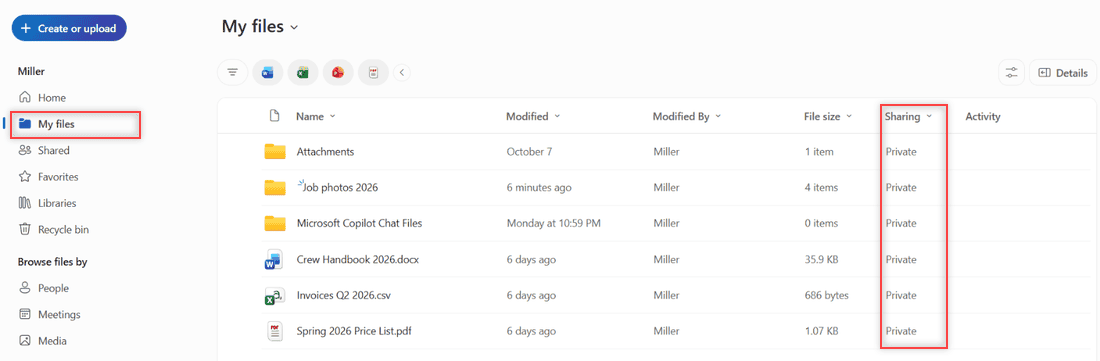
Look at the Sharing column. Every item says Private. That’s the OneDrive default: files you put there are private until you share them.
The left menu also shows Shared, Favorites, Libraries, and Recycle bin. If you delete something by mistake, here’s how to open the OneDrive recycle bin and get it back.
What SharePoint is for
SharePoint is where teams keep shared content. Each team site has document libraries, and the people who belong to the site can open what’s in them. Microsoft describes a team site as a site shared by specific people in your organization.
You don’t even have to leave OneDrive to see them. Select Libraries in the OneDrive menu, and you get a page of SharePoint document libraries you can reach, with tabs for Recent, My Teams, Favorite sites, and My sites.
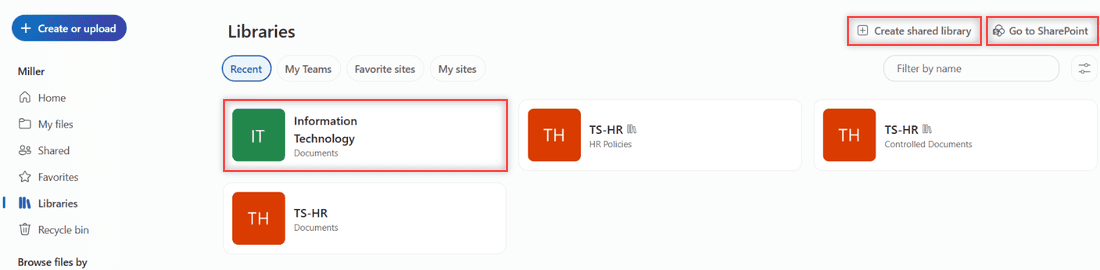
Each card, like Information Technology – Documents, is a SharePoint library. The Go to SharePoint button opens SharePoint itself, and Create shared library starts a new shared space for a group.
So OneDrive and SharePoint aren’t rivals. OneDrive is the front door you use every day, and SharePoint is the shared storage behind it. If OneDrive won’t open on your PC, try my fixes for the “make sure OneDrive is running” error.
Where OneDrive wins
Your drafts stay private
Nobody sees a file in OneDrive unless you share it. That’s perfect for a rough proposal, a budget you’re still checking, or notes you aren’t ready to show.
Sharing one file is quick
You share OneDrive items one file or folder at a time. Here’s the Share dialog for Crew Handbook 2026.docx. The link setting reads Only people added to the file have access, and the dialog says This file isn’t shared.
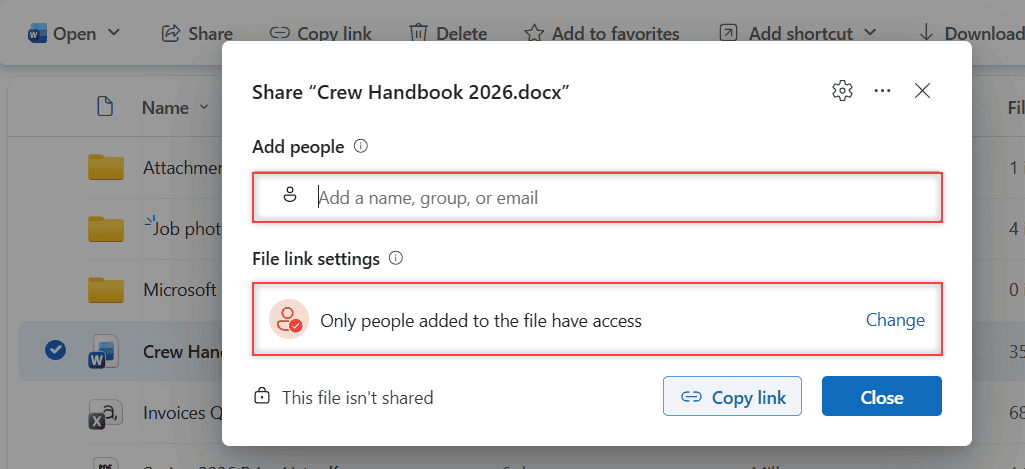
You type names in Add people, or select Change to pick a different link type. I closed it without sending anything, but that’s the whole process.
It works for one person
No site, no members, no setup. Every licensed user simply has one. That’s also why it’s a handy place to save Outlook emails to OneDrive when a message turns into a work document.
Where SharePoint wins
The team owns the files
This is the big one. Files in a SharePoint library belong to the site, not to the person who uploaded them. If Jake from the Bluebird crew leaves, his uploads to the team library stay right where everyone can find them.
Access is set once for the whole site
Microsoft’s guidance is to grant permissions on a site basis instead of on individual documents. Add someone to the site, and they can open its libraries. Remove them, and they lose access to all of it.
Groups can make their own space
The Create shared library button on the Libraries page opens this dialog. It says a shared library lets your group store and access files from anywhere, and the group automatically gets access to the files members put in it.
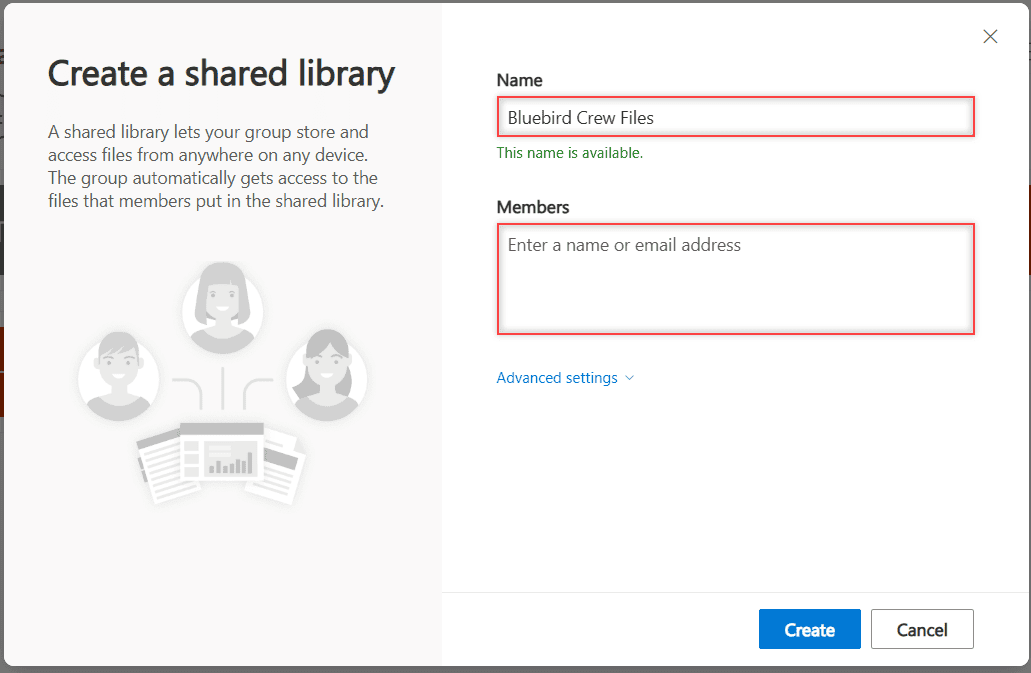
I typed Bluebird Crew Files, and it confirmed This name is available. Then you’d add people under Members and select Create. I selected Cancel, so nothing was made.
Microsoft Teams files live in both places
Teams doesn’t have its own file storage. It uses these two. Files you upload to a channel are stored in your team’s SharePoint folder, so the whole team owns them.
Files you send in a one-on-one or group chat are different. Those land in your own OneDrive and are shared only with the people in that conversation.
That’s a common surprise. A file you drop in a chat lives in your OneDrive, so if the file matters to the team, post it in a channel instead.
Storage limits for each one
OneDrive gives each user 1 TB on Microsoft 365 Business Basic, Business Standard, and Business Premium. On E3 and E5 it starts at 1 TB and can be raised to 5 TB, while F3 frontline accounts get just 2 GB.
SharePoint storage is shared by the whole organization: 1 TB plus 10 GB for each license purchased, and that pool doesn’t include anyone’s OneDrive. One site can hold up to 25 TB.
Some limits are the same for both. A single file can be up to 250 GB, and the full path, folder names plus file name, can’t run past 400 characters.
Want a copy of your OneDrive files outside the cloud too? Here’s how to back up OneDrive to an external hard drive.
Syncing and shortcuts work for both
You don’t need a separate SharePoint app on your computer. The OneDrive sync app handles both: your own files, plus any SharePoint or Teams library you sync with its Sync button.
Microsoft now recommends Add shortcut to My files as the more flexible option. You can add a shortcut to a folder shared through OneDrive, SharePoint, or Teams, or to an entire shared library.
The shortcut then shows up in OneDrive on the web, File Explorer, Mac Finder, Teams, and the mobile apps. Shared folders added this way don’t use any of your OneDrive storage. Shortcuts only work for folders, not single files.
You’ll see the Add shortcut button in the OneDrive toolbar when you select a shared folder. I use it for the one or two team libraries I open every day.
When an employee leaves, their OneDrive goes away
This is where OneDrive is risky for team files. When an admin deletes a user, the person’s manager gets access to their OneDrive by default, and an email saying it’ll be deleted.
The default OneDrive retention is 30 days, though admins can change it. Seven days before it runs out, the manager gets a reminder. After that, the OneDrive moves to a recycle bin for 93 days, and shared content in it stops working for everyone.
A OneDrive with no license is also archived on its 93rd unlicensed day. SharePoint files don’t go through any of this, because they never belonged to one person.
If you’re the one leaving and moving your own files elsewhere, my guide to transfer OneDrive files to Google Drive shows one way to take personal copies (with your employer’s OK).
Who should use OneDrive, and who should pick SharePoint
I don’t treat this as either-or. Most work accounts use both every day. The question is which one a specific file belongs in.
Choose OneDrive for
- Drafts and files only you edit.
- Personal work notes, your own reports, and files you share with one or two people.
- Anything you want private until it’s ready.
Pick SharePoint for
- Files a team edits together or needs long after the project ends.
- Company records: handbooks, price lists, contracts, job files.
- Anything that should survive one person leaving.
At Bluebird, Crew Handbook 2026.docx would start in my OneDrive while I write it. Once it’s final, it moves to the team library, where the whole crew can open it and nobody depends on my account.
If you mix work and home accounts, the same personal vs company logic shows up in Google Drive personal vs business. For more how-tos, browse my OneDrive tutorials.
Still sorting out where your files and mail should live? These help:
- check your storage in Outlook on the web
- share your Outlook calendar
- Google Drive vs Dropbox
- Outlook on the web tutorials
Still deciding?

I am Carissa Gudinoa, a technology buff, and Office online and Apple expert with over 9 years of experience. I am passionate about helping others get the most out of their Apple devices. I have written extensively about Apple products and technologies. I am committed to providing my clients with the best possible service and am always up-to-date on the latest Apple products and features. I also write extensively on other software available for use at minimal cost or free. This includes Word Online, Outlook Online, Excel Online, and other Office online programs… Check out more.