
Google Drive doesn’t have a compress button. You can’t select a file and make it smaller inside Drive, so the real work is finding what eats your space and shrinking or removing it.
In this tutorial, I’ll show you how to reduce file size in Google Drive six ways: find your biggest files, convert Office files to Google format, use the Google One cleanup tools, switch Google Photos to Storage saver, shrink files on your computer before uploading, and clear Trash and old versions.
Why your Drive fills up faster than you expect
Your free 15 GB isn’t just for Drive. Google shares it across Drive, Gmail, and Google Photos, and only files you own count against you. A folder someone else shared with you doesn’t use your space.
My examples come from the demo account for Bluebird Landscaping Co., a made-up lawn care business in Austin, Texas. To be upfront, that account is on a paid 5 TB Google One plan, so it’s nowhere near full. If you want a folder-by-folder view first, here’s how to see folder size in Google Drive.
The lesson from that account surprised me. Drive itself uses almost nothing. Photos is the real space hog, and I’d bet that’s true for a lot of people who think Drive is the problem.
Method 1: Find the biggest files on the Storage page
Before you shrink anything, find out which files are worth the effort. Deleting one big video beats compressing fifty small documents.
- Go to drive.google.com on your computer.
- In the left menu, click Storage (it’s under the storage bar).
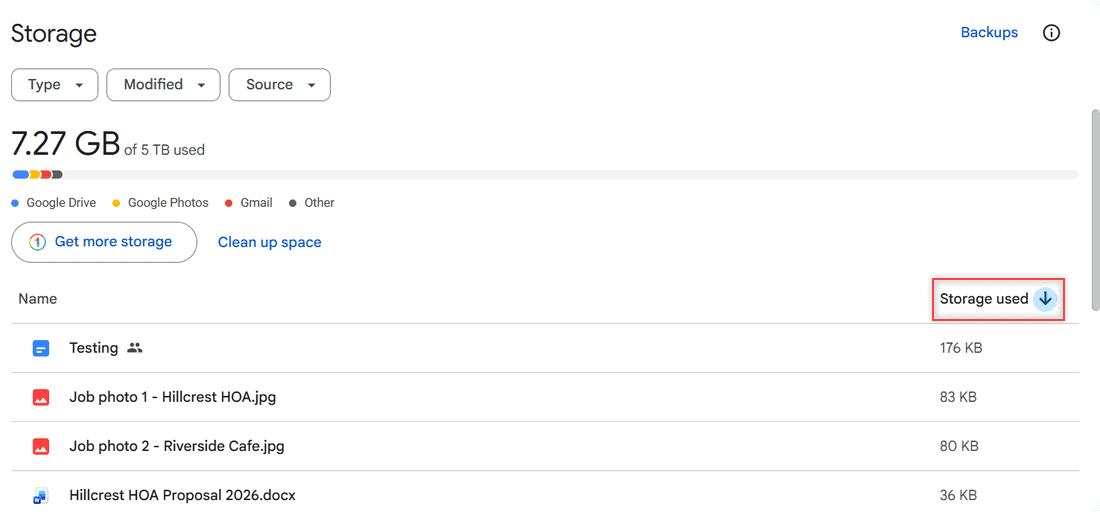
- Check that the list is sorted by Storage used, largest first.
How does this work?
Google lists your files from largest to smallest on this page, and only files you own appear. In my demo the top file is just 176 KB, followed by two job photos and a 36 KB proposal.
In a real account, you’ll often find old videos or zip backups at the top. Start with those.
Pro tip: Drive has no built-in duplicate finder. Scan this list for names ending in “(1)” or starting with “Copy of”. Those are usually leftovers from uploading the same file twice.
Method 2: Convert Office files to Google Docs, Sheets, or Slides
Word, Excel, and PowerPoint files stored in Drive keep their full size. A Google Docs version of the same content is often much smaller.
- Double-click the .docx, .xlsx, or .pptx file in Drive to open it.
- Click File > Save as Google Docs (or Sheets or Slides).
- Check the new copy, then delete the Office original if you don’t need it.
How does this work?
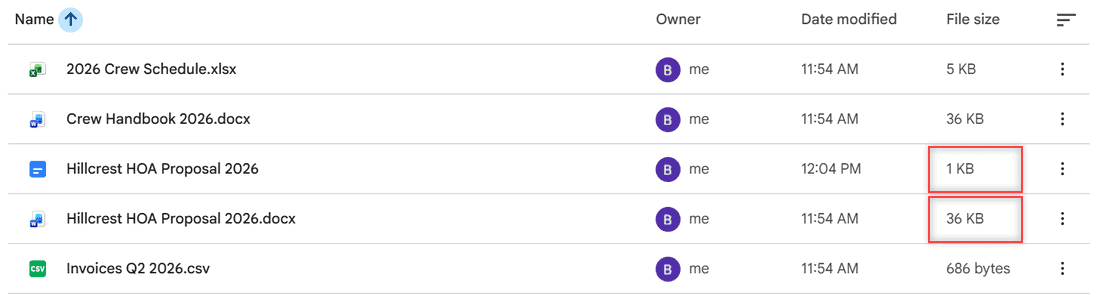
Saving creates a second file. It doesn’t replace the original, which is why both versions sit side by side in my folder. The Google Doc shows 1 KB, while the Word file is 36 KB.
Here’s the honest part: Google Docs files aren’t free anymore. Since June 1, 2021, newly created Docs, Sheets, Slides, Drawings, and Forms count toward storage. Files made before that date only count once you edit them. Converting still trims space, but you only gain if you delete the Office copy.
If you keep version history on, my guide to Google Drive version history explains how the Google copy tracks changes, so you rarely need a stack of .docx drafts.
Method 3: Use Google One Storage manager to clean up
This is where you see the full picture across Drive, Gmail, and Photos. Click Clean up space on the Drive Storage page, or go to one.google.com/storage/management.
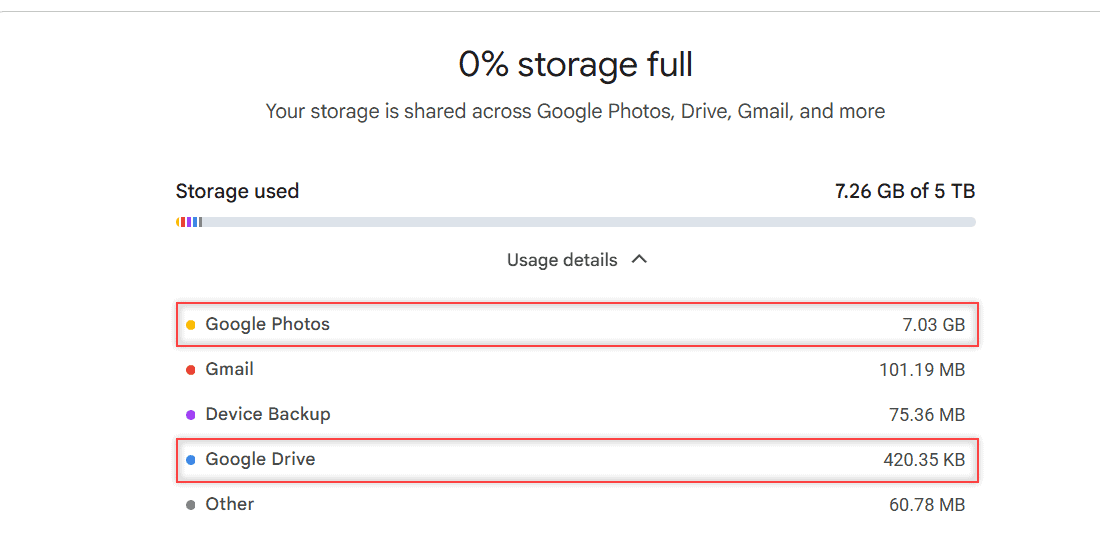
In my account, Google Photos uses 7.03 GB and Google Drive just 420.35 KB. Gmail, device backup, and other items add the rest. That one screen tells me compressing Drive files would barely move the needle.
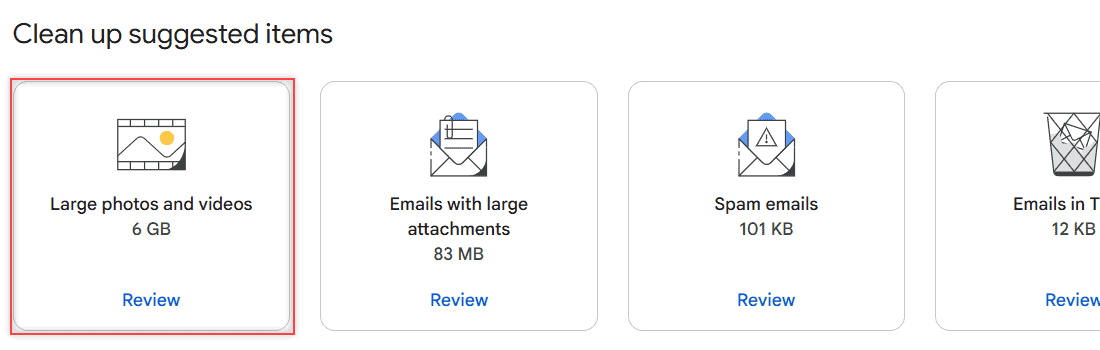
Scroll down to Clean up suggested items. Google groups the easy wins into cards, each with a Review button.
How does this work?
Each card opens a list sorted by size, so you can pick what goes. Large photos and videos is the 6 GB card in my demo, which matches what usage details showed.
Be careful with Drive and Gmail here. Google says items you delete from those two in Storage manager are permanently deleted and can’t be recovered. Photos deletions go to the trash for 30 days first.
For Gmail, you can also search has:attachment larger:10M to find heavy emails yourself.
Method 4: Switch Google Photos to Storage saver
If Photos is your biggest user, its backup quality matters more than anything you do in Drive.
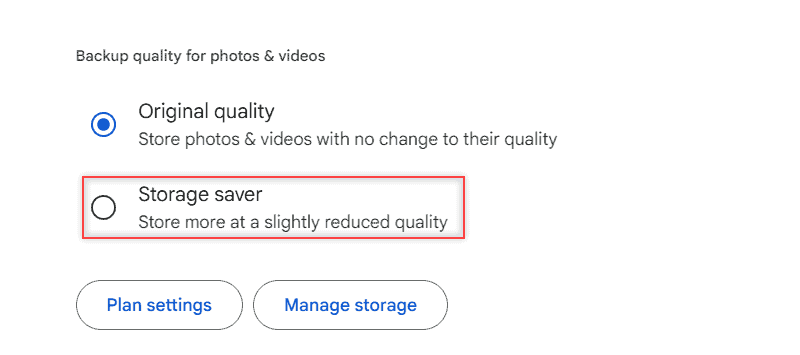
- Go to photos.google.com/settings on your computer.
- Under Backup quality for photos & videos, pick Storage saver.
- To shrink photos you already backed up, click Manage storage and look for the Recover storage option.
How does this work?
Storage saver used to be called High quality. Photos over 16 MP are resized to 16 MP, and videos over 1080p are resized to 1080p. They still count toward your storage, just less of it. The old unlimited free backup is gone.
Recover storage converts existing Original quality items to Storage saver. You can only run it once a day, and I’d skip it for photos you might print large. You can’t undo it.
Method 5: Shrink files on your computer before you upload
Drive won’t compress a file for you, but your computer can, with tools already built in. This also helps when you upload large files to Google Drive over a slow connection.
Zip a folder of documents
On Windows, right-click the folder and choose Send to > Compressed (zipped) folder. On a Mac, right-click and choose Compress. Zipping helps most with documents and spreadsheets.
Photos and videos are already compressed, so zipping them saves very little. Drive can still preview the contents later; here’s how to view zip files in Google Drive.
Resize photos
On Windows, open the image in the Photos app and use Resize image. On a Mac, open it in Preview and choose Tools > Adjust Size. A 4,000-pixel job photo rarely needs to be more than 2,000 pixels wide for a proposal.
Make a smaller PDF
On a Mac, open the PDF in Preview, click File > Export, and set Quartz Filter to Reduce File Size. Check the result, since images can get blurry. On Windows, exporting a PDF from Word with the minimum size option usually helps.
Pro tip: Keep the full-size original on your computer or an external drive and upload only the smaller copy. That way you never lose quality you might need later.
Method 6: Empty Trash and delete old file versions
Deleted files don’t free space right away. Files stay in Trash for 30 days and count against your storage until they’re cleared, so empty the trash in Google Drive once you’re sure.
Uploaded files can also carry old versions. Right-click a file, choose File information > Manage versions, and delete versions you don’t need from each one’s More menu. Google removes old versions after 30 days or 100 newer versions anyway, unless you picked Keep forever.
How does this work?
After a big cleanup, give it time. Google says storage can take 48 to 72 hours to update. If the number still looks wrong after that, see why Google Drive storage is full but there are no files.
Things to keep in mind
- There’s no compress button. Every method above shrinks, converts, or removes files. Drive doesn’t recompress what’s already stored.
- Storage is shared. Drive, Gmail, and Photos draw from the same 15 GB on a free account, so check usage details before you start.
- Google files count. Docs, Sheets, and Slides created or edited since June 1, 2021 use storage, though usually far less than Office files.
- Shared files are someone else’s. Only files you own count, so deleting a shared file doesn’t help you.
- Gmail Trash and Spam count too. Messages there use storage until they’re cleared, so empty them after a big email cleanup.
- Some deletes are final. Drive and Gmail items removed in Storage manager can’t be recovered.
If uploads keep failing because you’re out of room, my fix for Google Drive upload failure 38 covers that too. And the pros and cons of Google Drive can help if you’re weighing a bigger plan.
Still trimming your storage? These guides pick up where this one stops:
- how long Google Drive keeps deleted files
- whether shared folders use your space
- convert an image to PDF in Google Drive
Frequently Asked Questions
Can Google Drive compress files?
No. Drive has no built-in compress option for files you’ve uploaded. Shrink files on your computer before uploading, or convert Office files to Google format.
Do Google Docs count toward Google Drive storage?
Yes, if they were created or edited on or after June 1, 2021. Older Docs, Sheets, and Slides you haven’t touched since then don’t count.
How do I reduce PDF size in Google Drive?
You can’t do it inside Drive. Download the PDF, make a smaller copy with your computer’s PDF export options, then upload that copy and delete the large one.
Does Storage saver reduce photo quality?
Slightly. Photos over 16 MP are resized to 16 MP and videos over 1080p become 1080p. Google Photos Help on backup quality explains each option.
What is the fastest way to free up Google Drive space?
Open Google One Storage manager, check which service uses the most, and review the Clean up suggested items cards. Then empty your Drive Trash.

I am Carissa Gudinoa, a technology buff, and Office online and Apple expert with over 9 years of experience. I am passionate about helping others get the most out of their Apple devices. I have written extensively about Apple products and technologies. I am committed to providing my clients with the best possible service and am always up-to-date on the latest Apple products and features. I also write extensively on other software available for use at minimal cost or free. This includes Word Online, Outlook Online, Excel Online, and other Office online programs… Check out more.