
The fastest way: open drive.google.com in Chrome, click the Install icon in the address bar (or More > Cast, save, and share > Install page as app), then right-click the new Drive icon on your taskbar and select Pin to taskbar.
In this tutorial, I’ll show you how to get a Google Drive icon on taskbar in Windows two ways, how to do the same for Google Docs, how to keep Drive in the Mac Dock, and what to check when the icon goes missing.
Install Drive as a Chrome app, then pin it
This is the method I use on my Windows laptop. It turns the Drive website into a little app with its own window and its own icon, so it doesn’t get lost among my browser tabs.
Google calls these installed sites web apps. You don’t download anything extra, and it works the same whether you use a personal Gmail account or a work or school account.
- Open Chrome and go to drive.google.com. Sign in to the account you want the icon for.
- Look at the right end of the address bar. Click the Install icon, the small monitor with a down arrow.
- If you don’t see that icon, click More (the three dots) at the top right, then Cast, save, and share, then Install page as app.
- Follow the prompt and click Install. Drive opens in its own window.
- Right-click the Google Drive icon on the taskbar and select Pin to taskbar.

In my demo Drive, the Install icon sat right next to the zoom and bookmark star icons. It’s easy to miss because it’s small and gray.
Once it’s pinned, the icon stays put after you close the window. Click it any time and Drive opens straight to My Drive. From there you can upload big files to Google Drive or open anything you need.
Using more than one Google account
Installed apps belong to the Chrome profile you installed them from. If you keep a personal and a work account in separate Chrome profiles, install Drive once in each one, and you’ll get two icons you can pin side by side.
To tell them apart, hover over each icon. Windows shows the window title, and Drive shows the signed-in account’s picture at the top right as soon as it opens.
Tip: Want a Google Drive icon on your desktop too? Type chrome://apps in the address bar, right-click Google Drive, and select Create shortcut. Chrome asks where to put it, and you can tick Desktop.
Microsoft Edge has a similar option. Its Apps menu can install a site as an app, and then you pin it the same way. The menu names in Edge change now and then, so look for the word Apps in its More menu.
Add Google Docs, Sheets, or Slides to the taskbar
Lots of people ask me how to add Google Docs to the taskbar, not just Drive. Good news: the same Chrome trick works, because Install page as app works on any page you have open.
- Go to docs.google.com in Chrome.
- If you see the Install icon in the address bar, click it. If not, click More > Cast, save, and share > Install page as app.
- Click Install, then right-click the Docs icon on the taskbar and select Pin to taskbar.
Repeat it for sheets.google.com and slides.google.com if you want one icon for each. I keep Drive and Docs side by side, since I live in those two all day.
Not sure which one you need? Drive is where your files are stored, and Docs is the editor. My comparison of Google Drive vs Google Docs explains the difference in plain words.
You can also pin one file you open every day, like a weekly schedule spreadsheet. Open that file, then use Install page as app from the More menu. Chrome names the app after the page, so rename it in the prompt if you like.
Pin Drive for desktop to the taskbar
The second way is Google’s own app, Drive for desktop. Instead of a browser window, it adds a Google Drive drive in File Explorer, so your Drive files show up next to your other folders.
Here’s how I got the installer. In Drive on the web, click the Settings gear at the top right and choose Get Drive for desktop.
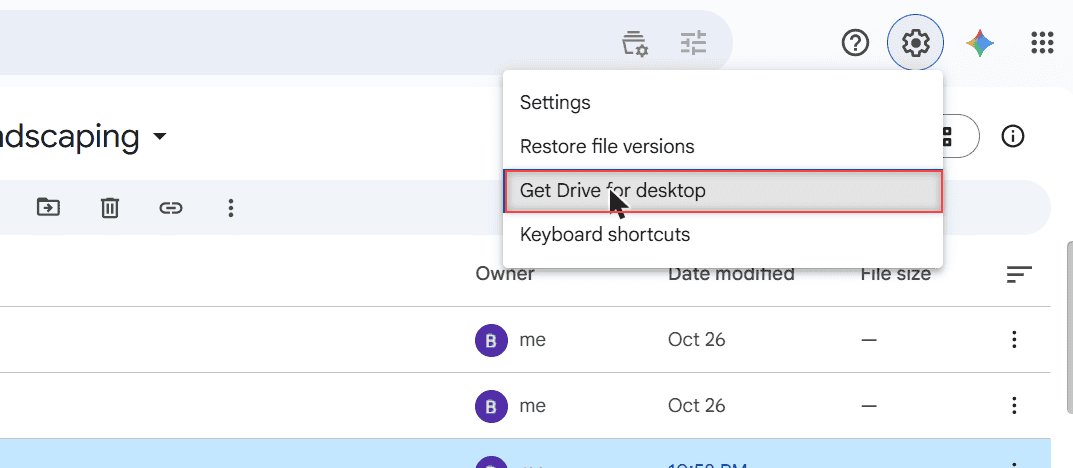
That link opens a Google Workspace Learning Center page with two buttons: DOWNLOAD FOR WINDOWS and DOWNLOAD FOR MAC.
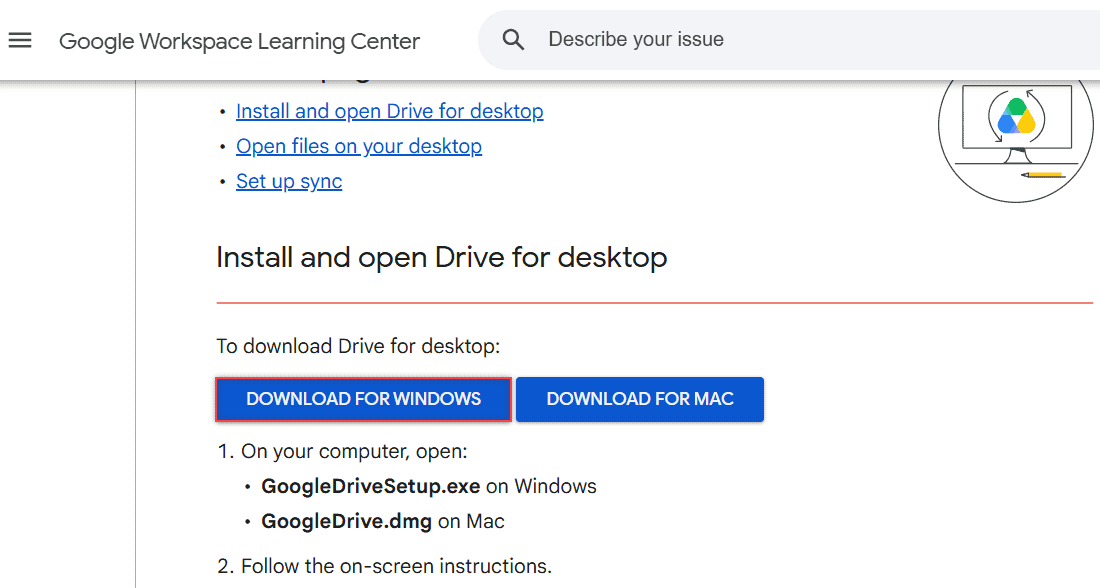
- Click DOWNLOAD FOR WINDOWS.
- Open GoogleDriveSetup.exe from your Downloads folder.
- Follow the on-screen instructions and sign in to your Google account.
- Open the Start menu and type Google Drive.
- Right-click Google Drive in the results and select Pin to taskbar.
For more detail on the setup screens, see my guide to installing Google Drive on your computer.
Clicking the pinned icon opens your Google Drive drive in File Explorer. While the app runs, its own menu icon also lives at the bottom right of the screen, in the system tray.
Prefer File Explorer? Right-click the Google Drive drive in the left pane and select Pin to Quick access. Now it sits at the top of every File Explorer window, one click from the taskbar’s File Explorer icon.
Drive for desktop keeps files in sync between your computer and the cloud. If that’s more than you want, you can turn off Google Drive sync and keep using the Chrome app instead.
On a work or school account, things can differ. Google notes that you might not be able to use Drive for desktop, or your organization might install it for you. If the installer is blocked, ask your IT admin.
Keep Google Drive in the Mac Dock
On a Mac, the taskbar is called the Dock. The Chrome method works here too: install Drive with the Install icon or More > Cast, save, and share > Install page as app.
While the Drive app is open, its icon shows in the Dock. Right-click it (or Control-click), choose Options, then Keep in Dock. It stays there after you quit.
For Drive for desktop on a Mac, click DOWNLOAD FOR MAC and open GoogleDrive.dmg. Its menu sits at the top right of the screen, in the menu bar, and Google Drive shows up as a location in Finder.
Google’s help also mentions pinning Drive for desktop to the Dock. More Mac how-tos are in my Mac tutorials.
Which taskbar icon should you pick?
| Chrome web app | Drive for desktop | |
|---|---|---|
| Opens | Drive in its own window | Your Google Drive drive in File Explorer |
| Install | Nothing to download | GoogleDriveSetup.exe or GoogleDrive.dmg |
| Works for Docs, Sheets, Slides | Yes, one icon each | Opens files from the drive |
| Syncs files to your computer | No | Yes |
| Work or school accounts | Works if Chrome allows installs | Your admin may block or install it |
My take: if you mostly work in the browser, the Chrome app is quicker and cleaner. If you want Drive files inside File Explorer, like a regular folder, go with Drive for desktop. Plenty of people use both.
Move, rename, or remove the taskbar icon
Once Drive is pinned, you can drag its icon left or right along the taskbar to put it where your hand expects it. I keep mine right after File Explorer.
To take it off the taskbar, right-click the icon and select Unpin from taskbar. That only removes the shortcut. The Chrome app, Drive for desktop, and every file in your Drive stay exactly where they were.
To remove the Chrome app completely, open it, click More at the top right, and choose Uninstall Google Drive, then Remove. Your Drive files aren’t touched either way.
Google Drive icon not showing in the taskbar
This usually comes down to one of a few simple things. I’d check them in this order.
The icon is hiding in the system tray
The Drive for desktop menu icon often lands in the hidden icons area. Click the small up arrow (^) next to the clock at the bottom right, and you should find the Google Drive icon there.
To keep it visible on Windows 11, open Settings > Personalization > Taskbar. Expand Other system tray icons and turn on Google Drive. You can also drag the icon from the hidden area down next to the clock.
On Windows 10, the same switch is under Settings > Personalization > Taskbar > Select which icons appear on the taskbar. Turn on Google Drive in that list.
Drive for desktop isn’t running
If the icon isn’t in the hidden area either, the app may not be running. Search Start for Google Drive and open it. If it won’t start, follow my fixes for when you cannot launch Drive for desktop.
When it runs but keeps dropping its connection, my notes on why Google Drive keeps going offline can help.
There’s no Pin to taskbar option
A plain website shortcut on your desktop often doesn’t show Pin to taskbar when you right-click it. Install the page as an app in Chrome instead, then pin the app’s icon while it’s open.
The Install option is missing in Chrome
Make sure you’re on drive.google.com itself, not a single file preview. On a managed work computer, your admin may have turned off app installs, so check with them before trying anything else.
Want to get more out of Drive on your computer? Start here
- Save Word documents to Google Drive
- Best Chrome extensions for Google Drive
- Edit a document in Google Drive
- All Google Drive tutorials
Quick answers
How do I get a Google Drive icon on my desktop?
Install Drive as a Chrome app, then type chrome://apps, right-click Google Drive, and select Create shortcut with Desktop ticked. With Drive for desktop, right-click Google Drive in the Start menu and choose Open file location if you want to copy its shortcut.
Can I pin Google Docs to the taskbar without Drive?
Yes. Open docs.google.com in Chrome, install it with Install page as app, then right-click its taskbar icon and select Pin to taskbar. Docs gets its own icon, separate from Drive.
Does a pinned Google Drive icon work offline?
Not by itself. The icon only opens Drive faster. Offline access is a separate setting in Drive, and Drive for desktop can keep chosen files available on your computer.
Where do I download Drive for desktop?
In Drive on the web, click Settings > Get Drive for desktop, or go to Google Workspace Learning Center: Install and open Drive for desktop and click DOWNLOAD FOR WINDOWS or DOWNLOAD FOR MAC.

I am Carissa Gudinoa, a technology buff, and Office online and Apple expert with over 9 years of experience. I am passionate about helping others get the most out of their Apple devices. I have written extensively about Apple products and technologies. I am committed to providing my clients with the best possible service and am always up-to-date on the latest Apple products and features. I also write extensively on other software available for use at minimal cost or free. This includes Word Online, Outlook Online, Excel Online, and other Office online programs… Check out more.